How to Sing Karaoke on an LG Smart TV, Step by Step
A step-by-step guide to karaoke on an LG Smart TV running webOS: the Web Browser, typing with the Magic Remote, QR pairing, sound, screen savers and troubleshooting.
LG TVs have a small advantage for karaoke that people rarely notice: the Magic Remote. You point it at the screen like a mouse, which makes typing a web address far less painful than arrowing through one letter at a time. Add everyone's phones for picking songs, and your LG becomes a karaoke setup with nothing to install.
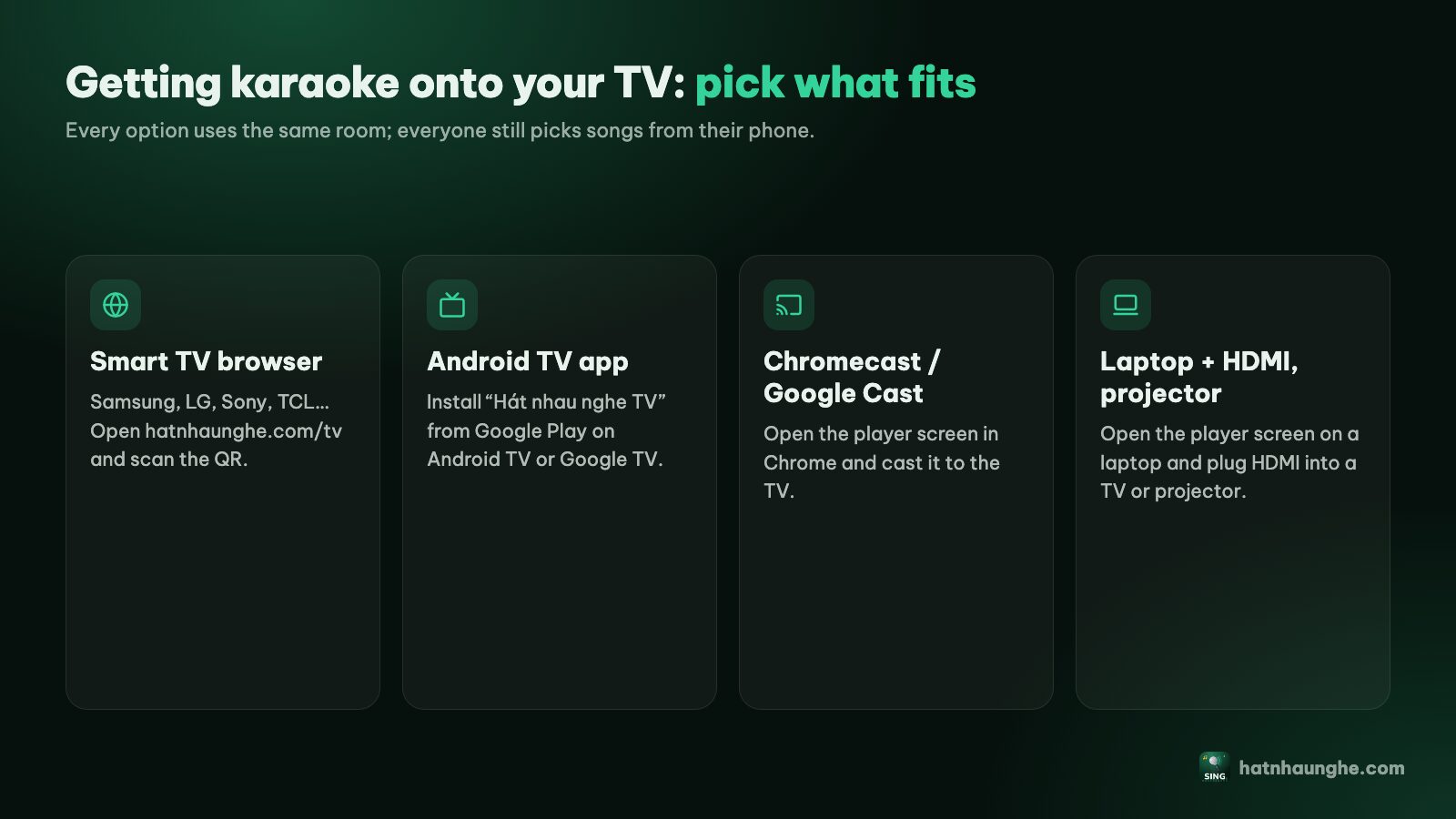
This is a step-by-step guide for LG Smart TVs running webOS (LG's smart TV system): opening the Web Browser, typing the address, pairing with your room by QR code, getting sound, full screen, speakers, the screen saver, fallbacks and troubleshooting. If your household has a mix of TVs, the Samsung, LG, Android TV and Chromecast overview has a quick picker.
What you need
- An LG Smart TV connected to the internet (Wi-Fi or Ethernet).
- The TV remote. The Magic Remote is easiest, but a standard remote with arrows and OK does everything too.
- The host's phone with a camera and a Google account.
- Guests' phones to add songs. Guests just scan and type a name, no sign-in.
- An external speaker if you want it louder (optional).
Step 1: Open the Web Browser
- 1Press Home on the remote.
- 2Find the Web Browser app (a globe icon). On many webOS versions it's right on the app bar of the home screen. Newer webOS versions have a redesigned home screen, so you may need to open Apps or scroll down to the app list.
- 3Can't see it? Use the TV's search and type "Web Browser".
- 4Open it. The first time, it may show an intro page or ask for a default search engine; pick what you like.
Step 2: Type hatnhaunghe.com/tv with the Magic Remote
The Magic Remote has two modes: pointer (give it a gentle shake and a cursor appears; move the remote to aim) and arrow keys (press an arrow and the cursor hides). The Magic Remote's OK button is the scroll wheel: press the wheel down to select.
- 1Point at the address bar at the top of the browser and press the wheel.
- 2An on-screen keyboard appears. Point and click each character: hatnhaunghe.com/tv. The slash is usually on the symbols row or next to ".com".
- 3Press Enter (or Go) on the keyboard.
With a standard remote, do the same with the arrows and OK; it's just slower.
Faster options, depending on what your TV supports:
- Voice: many Magic Remotes have a mic button, and some TVs let you speak a search or site name. Recognition of web addresses isn't always right, so check before you hit Go.
- A USB or Bluetooth keyboard: many LG TVs accept one.
- A bookmark: once the page is open, bookmark it in the Web Browser. Some webOS versions also let you pin a page to the home screen.
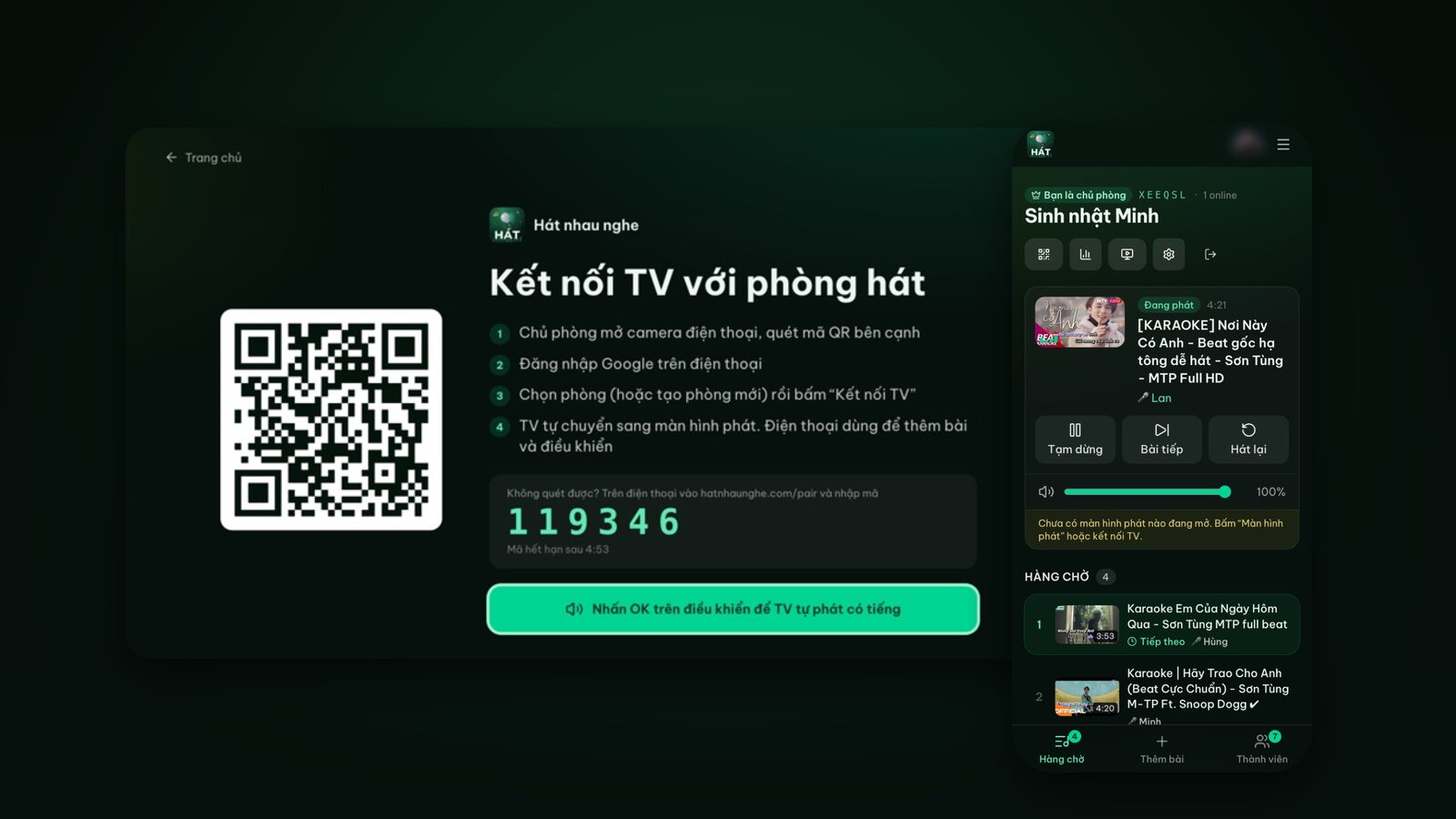
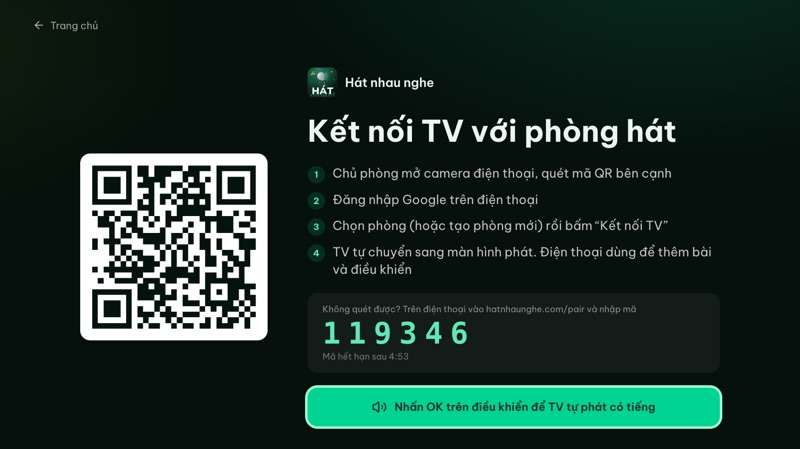
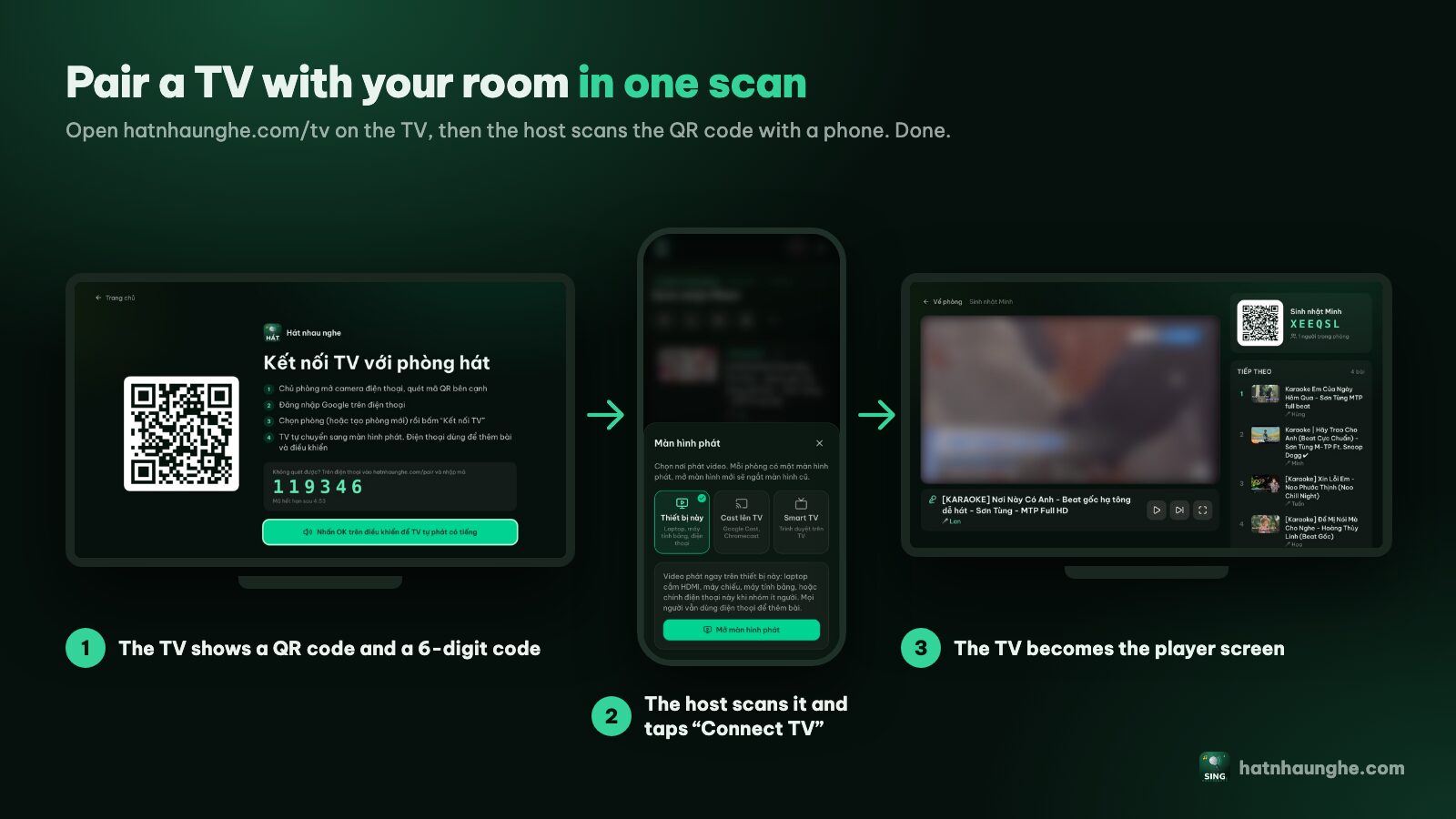
The page that opens is titled "Connect this TV to a karaoke room", with a large QR code, four short steps and a 6-digit code.
Step 3: Press OK once to allow sound
Below the 6-digit code there's a big button: "Press OK on your remote so the TV can play with sound". It's already selected when the page loads.
- With arrows or a standard remote: press OK once.
- With the Magic Remote pointer: point at the button and press the wheel.
When the text changes to "TV is ready. Videos will play automatically once connected", you're set.
Why? TV browsers usually won't let a video play with sound until someone has pressed something on the page. One press on the QR screen is enough for the first song to start with sound later.
Skipped it? If the first song gets blocked, the player shows "Press OK once so the TV can play with sound" and a "Press OK to play" button, plus a reminder to press OK on the QR screen next time.
Step 4: The host scans the QR code
- 1The host opens the phone camera and scans the QR code on the TV.
- 2Sign in with Google if needed.
- 3Pick the room to play on this TV, or choose "Create a new room" and name it to create and connect at once.
- 4Tap "Connect TV". The phone says "TV connected" and the LG switches to the player screen.
Can't scan because the TV is far away or reflecting a lamp? On your phone, go to hatnhaunghe.com/pair and enter the 6-digit code. The code changes every 5 minutes (there's a countdown under it), and a fresh one appears on its own.
The TV also remembers the room: next time you open hatnhaunghe.com/tv on that LG, if the room is still open, it goes straight to the player.
Try it in your browser
Open a free karaoke room, let friends scan the QR code and start singing in seconds. Nothing to install.
Step 5: Invite everyone
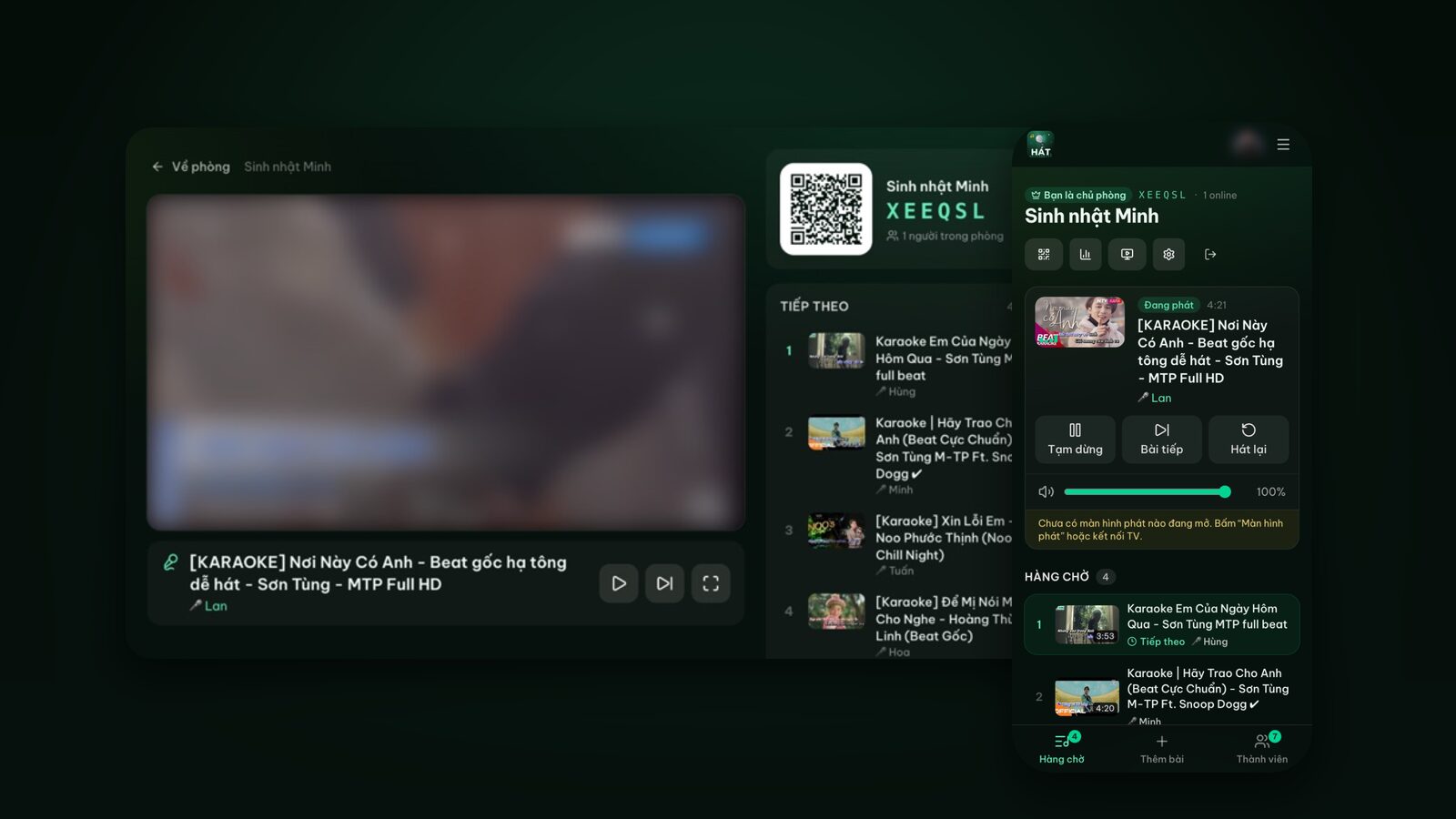
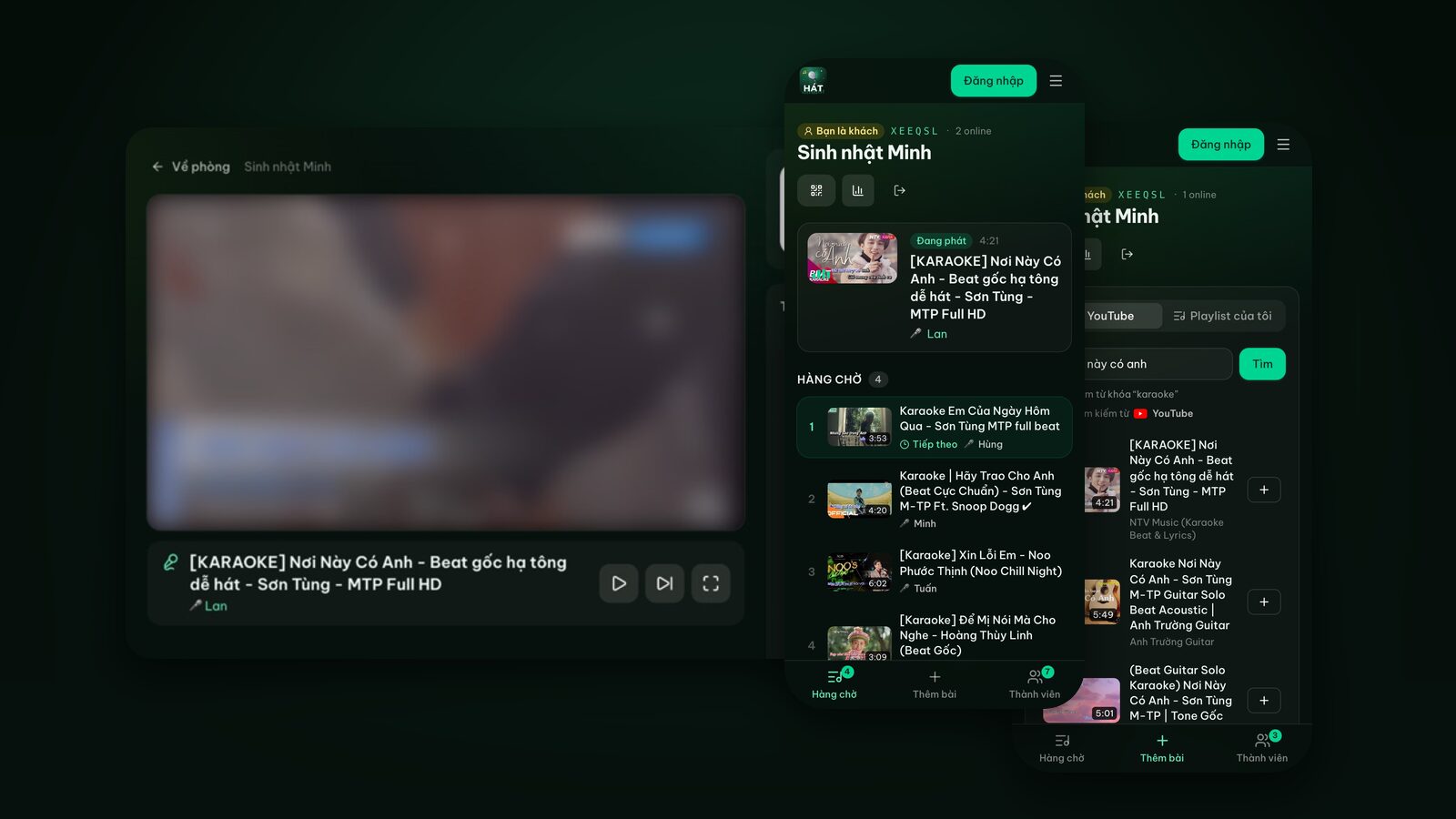
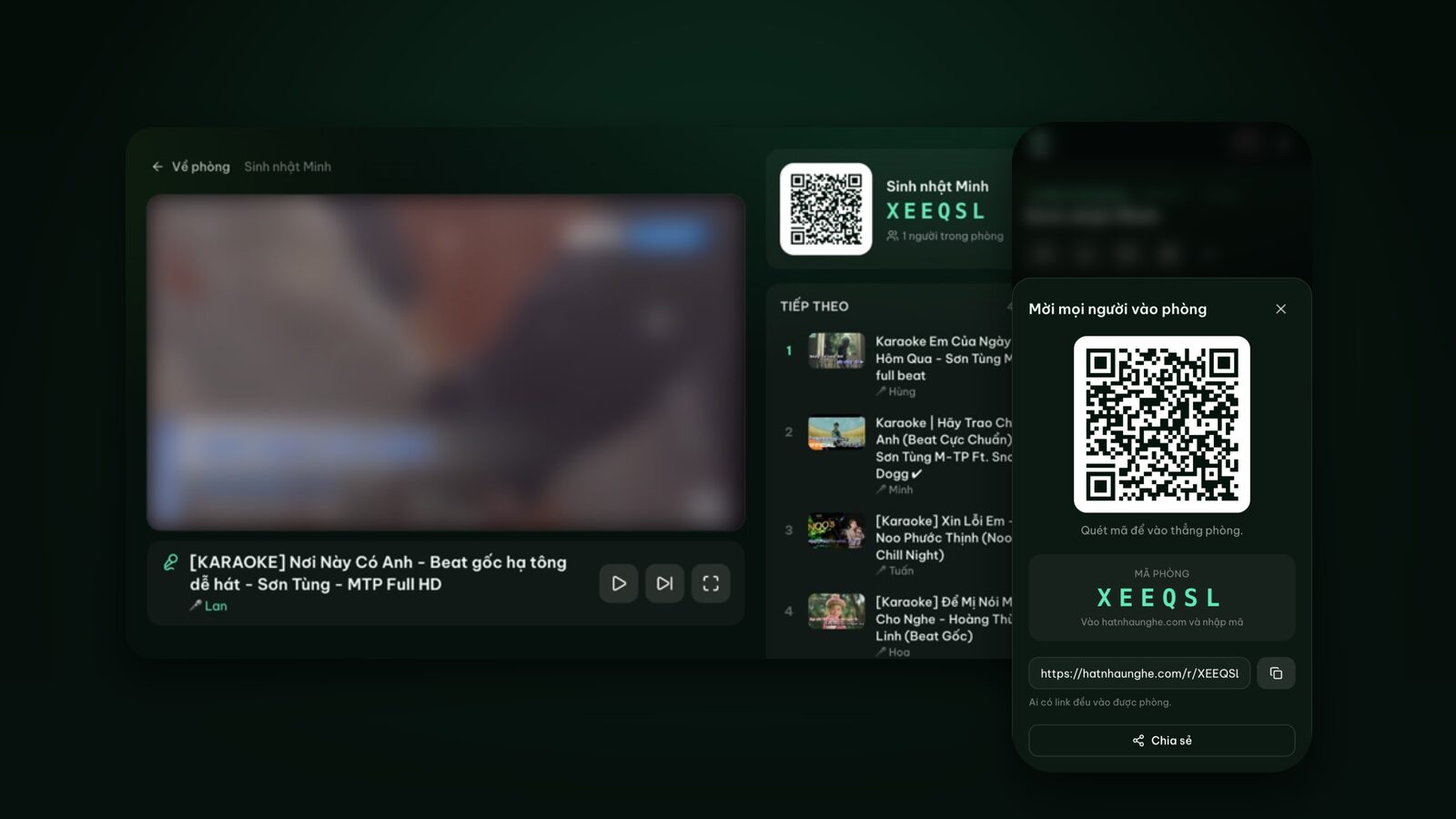
From here, it's all phones. Guests scan the QR code in the TV's top-right corner (or the big one in the middle while the queue is empty), type a name, search YouTube and add songs. The host can tap "Invite" to show the QR code, the room code and a share link for anyone not near the TV.
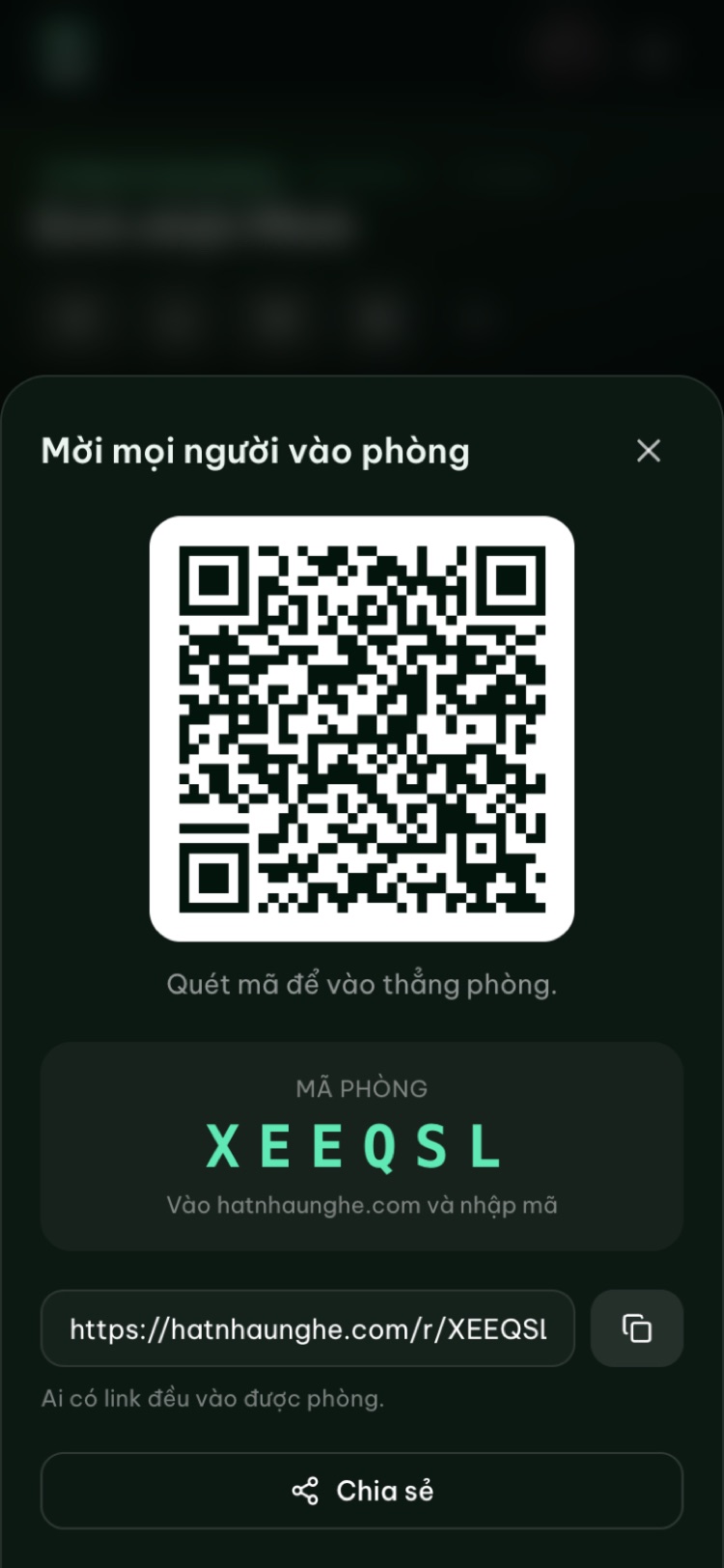
The first song in the queue starts on the TV automatically. To take turns fairly, lock the room or approve songs, see running a fair karaoke room.
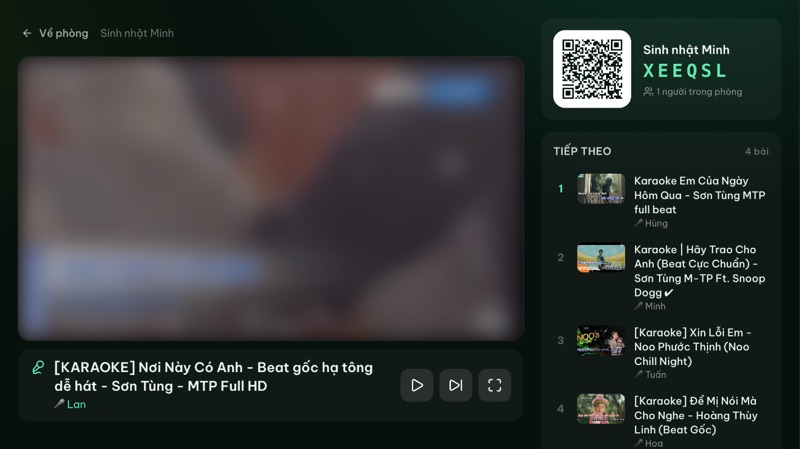
Using the LG remote
Phones do most of the work, but the remote helps:
- Left and right arrows move between Pause or Play, Next song, Switch room, Home and Disconnect.
- OK, or pressing the wheel, presses the selected button.
- Play/pause keys (if your remote has them) pause and resume.
With the Magic Remote, if the pointer is showing, press any arrow to switch to key mode; it's tidier than pointing on the player.
Step 6: Full screen
The player fills the browser window, but the Web Browser's address bar may still sit at the top. Many webOS versions have a full screen button or option in the browser toolbar or menu; the icon and position vary by model. If yours doesn't, the video and lyrics still show in full.
In full screen, bringing the toolbar back usually means shaking the Magic Remote and moving the pointer to the top edge, or pressing Back. It differs a little by year.
Step 7: Sound, TV speakers or external
In the TV's Settings, go to Sound and then Sound Out to choose:
- Internal TV speakers: fine for a small group.
- A soundbar or amp over HDMI ARC/eARC or optical: louder and clearer, the best choice if you have one.
- Bluetooth: convenient, but it can lag, nudging the music out of step with the lyrics. If it feels off, go back to a cable.
The host sets the volume from the phone with the "Player volume" slider. It controls the video's volume on the TV; the TV's or speaker's master volume stays on the remote.
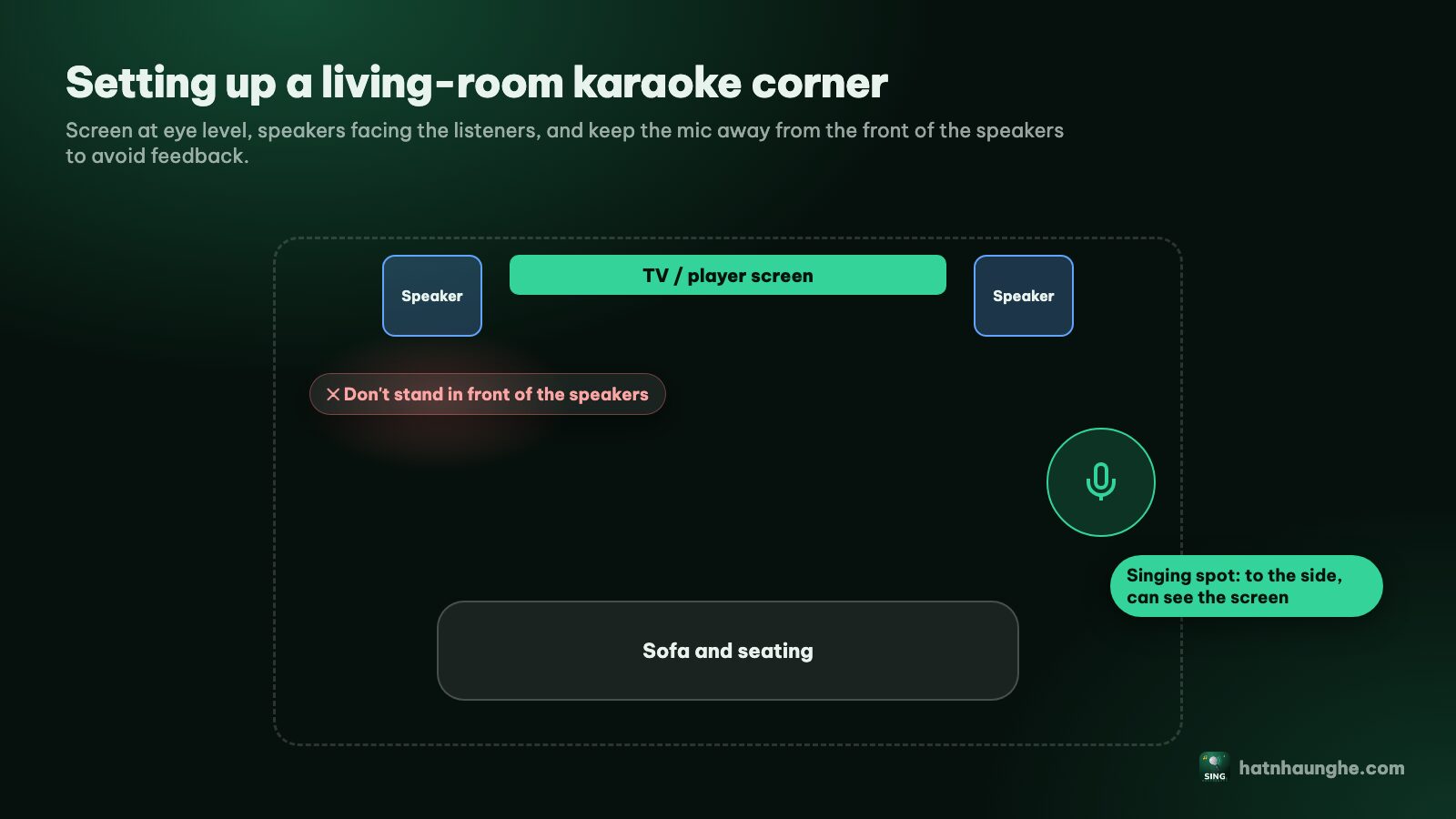
Hát nhau nghe doesn't process microphone audio, so a mic needs its own karaoke speaker or mixer. See speakers and mics for home karaoke.
Step 8: Keep the LG from going to sleep
The player asks the browser to keep the screen on when the browser supports it. LG TVs also have power-saving features of their own that a web page can't control:
- Screen saver: webOS may show a saver after a while without remote presses, especially on a still picture (an empty queue with just the QR code, for example).
- Automatic power off after a few hours without input, usually under energy saving or power settings.
These usually live under Settings > General, but names and locations shift between webOS versions. For a long night, check them beforehand and switch them off; turn them back on afterwards.
Other options if the Web Browser struggles
A Chromecast plugged into the LG
With a Chromecast in an HDMI port, the host opens the room in Chrome on Android or Chrome on a computer, taps "Player screen" and picks "Cast to TV". Same Wi-Fi required. iPhone and Safari can't cast from the web yet. See karaoke with Chromecast.
A laptop over HDMI
Works with any LG that has an HDMI port, smart or not: open the room on the laptop, "Player screen", "This device", "Open player screen". Details in karaoke on a computer or laptop.
Screen Share from Android, or AirPlay (last resort)
- Android phones: many LG TVs accept screen mirroring (Screen Share, based on Miracast) from Android phones that offer it. The feature's name on the phone depends on the brand.
- iPhone and iPad: some newer LG models support AirPlay. If yours does, you can mirror from an iPhone. Not every model has it, so check your TV's specs.
Either way: open the room on the phone, choose "This device", "Open player screen", then start mirroring. It's last because the phone has to stay on that screen all night, notifications appear on the TV and quality depends on Wi-Fi. QR pairing is much nicer. The comparison is in connecting your phone to a TV for karaoke.
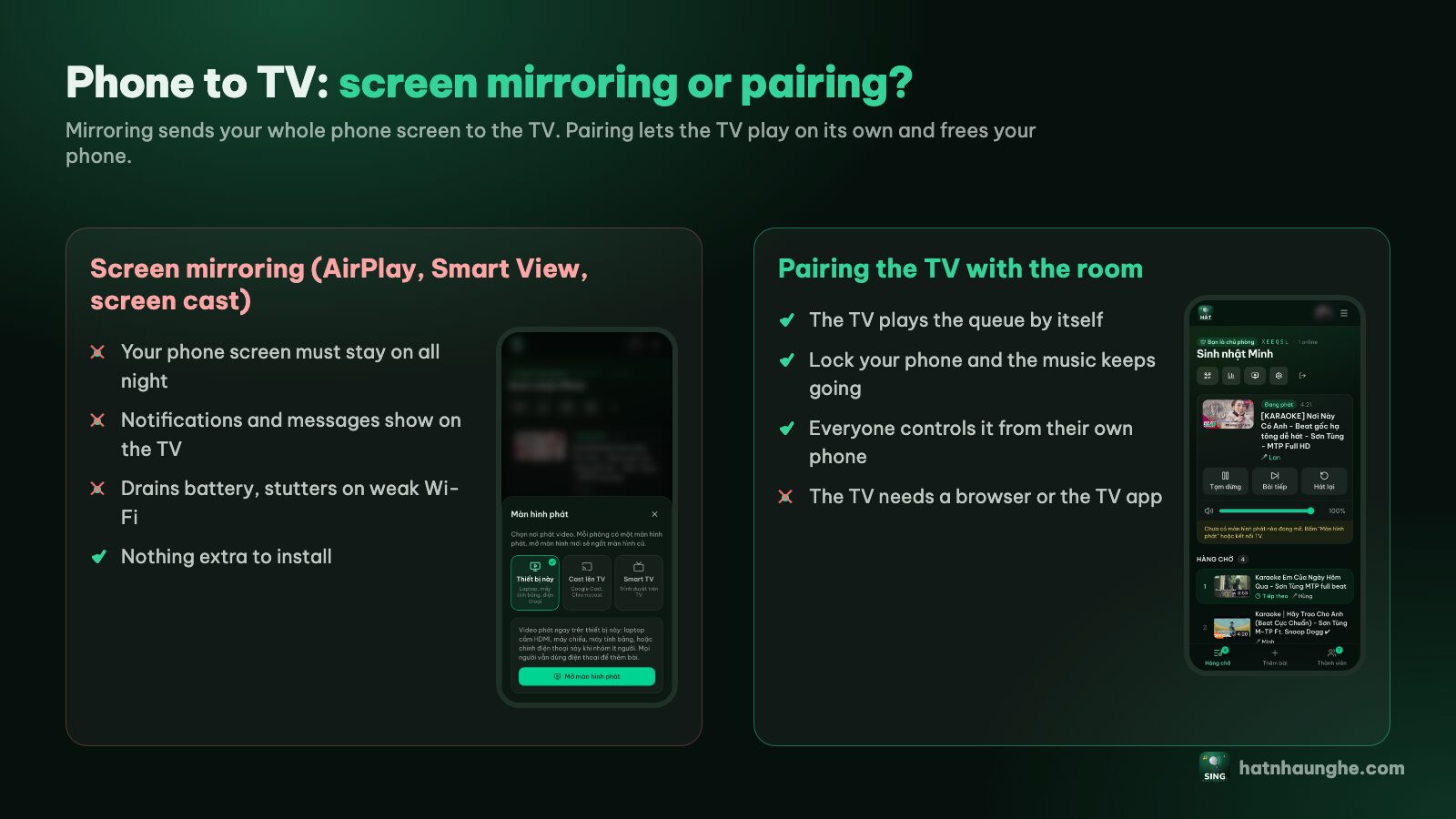
A Hát nhau nghe app for LG TVs
The LG Smart TV app is "Coming soon" and isn't in LG's app store yet. Meanwhile the Web Browser does everything. The apps that are out (Android, iPhone, Android TV) are on the apps page.
Troubleshooting on an LG TV
The browser is too old and the page won't run
Older LG TVs can have a Web Browser that's too dated for modern sites. Try:
- 1In Settings, look for Support or TV information and install any software update.
- 2Reopen the browser and go to hatnhaunghe.com/tv.
Still stuck? Switch to an Android TV box, a Chromecast or a laptop over HDMI. See karaoke on an Android TV box.
No sound
- Press OK (or point and press the wheel) on the sound button on the TV page.
- Check the "Player volume" slider on the host's phone.
- Check the TV isn't muted and Sound Out points to the right speaker.
Videos won't play or keep buffering
- An empty queue only shows the big QR code. Add a song.
- If you see "Press OK to play", press OK.
- Constant buffering: move the TV closer to the router or use Ethernet.
- Some videos are blocked by their owners from playing on other sites; choose another karaoke version.
The QR code expired
Codes change every 5 minutes and the TV shows a new one by itself. If your phone says "This TV code has expired", scan the code currently on the TV.
The Magic Remote pointer is in the way
Leave the remote still for a few seconds and the pointer hides, or press an arrow key.
Try it in your browser
Open a free karaoke room, let friends scan the QR code and start singing in seconds. Nothing to install.
FAQ
Which LG TVs work?
Any LG with the Web Browser and an internet connection is worth a try. Open hatnhaunghe.com/tv; if the QR code shows up, you're good.
Do I need to install an app on the LG?
No. The LG app isn't out yet, and the built-in browser already has every feature.
Do the TV and phones need the same Wi-Fi?
Not for QR pairing; both just need internet. Casting and screen mirroring need the same network.
Is the free plan enough?
For a family night, yes: up to 10 people per room. Premium adds a score after each song and removes the people limit, and is bought in the phone apps.
What about a Samsung TV?
See how to sing karaoke on a Samsung Smart TV. The illustrated guide is on the guide page; for help, email support@hatnhaunghe.com or ask in the "Nghiện Hát" Facebook group.