Karaoke on Samsung, LG, Android TV and Chromecast
Samsung, LG, Android TV, a Chromecast or just an HDMI port? Here's the best way to get karaoke onto each kind of TV with phones as remotes, plus fixes for the usual problems.
The question we hear most isn't "how does it work" but "will it work on my TV". The answer is almost always yes. What changes is how you get the player screen onto it.
This post goes through the common setups one by one: smart TVs from Samsung, LG, Sony and TCL; Android TV and Google TV; Chromecast; a laptop over HDMI; projectors; and screen mirroring (AirPlay and similar) as a fallback. At the end there's a troubleshooting section, because most problems come down to a handful of familiar causes.
Everything here uses the web version of Hát nhau nghe. No app required. If you haven't opened a room or invited anyone yet, read how to sing karaoke on your TV using your phone first.
The basic idea: one player screen, everyone else on phones
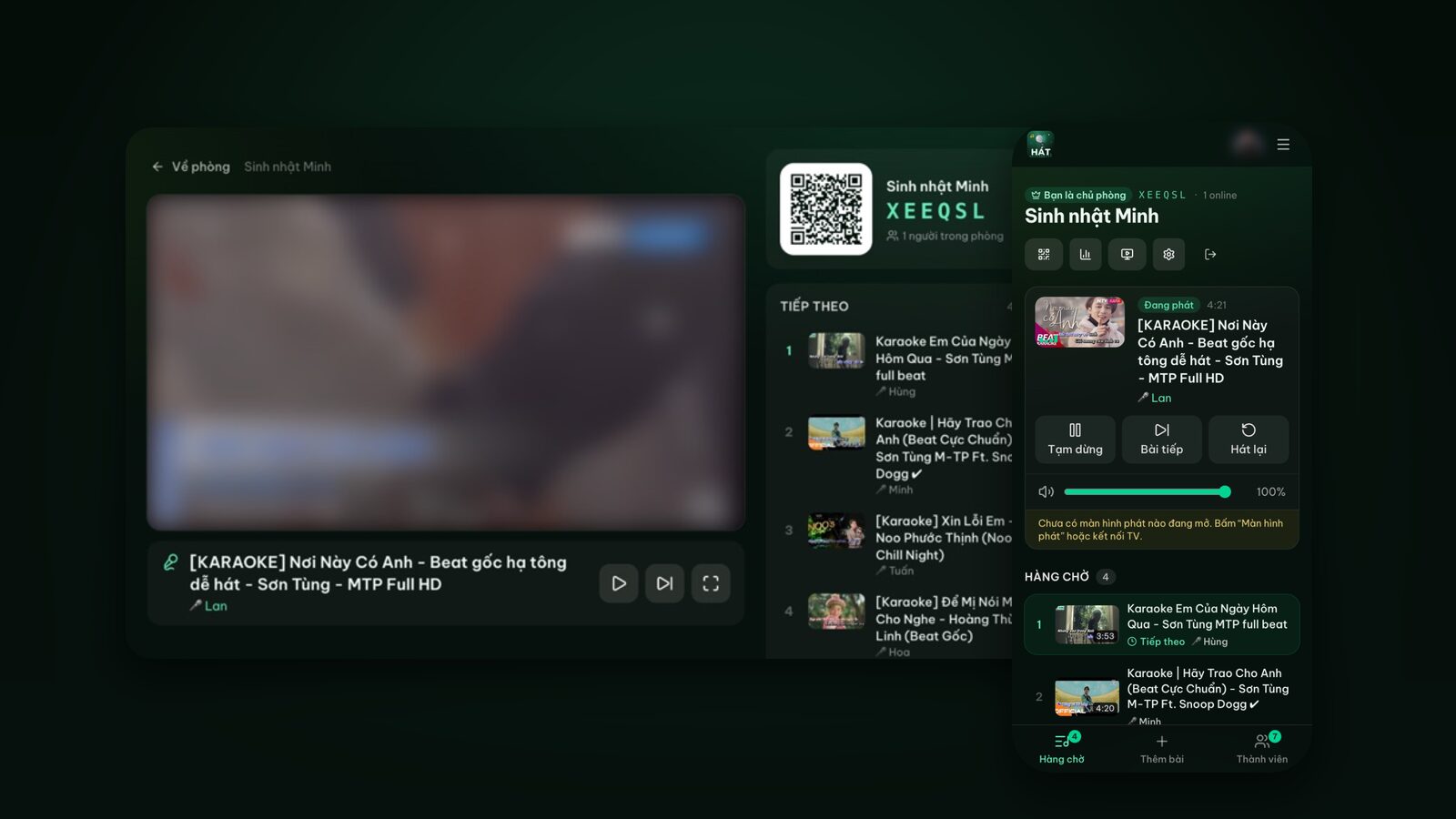
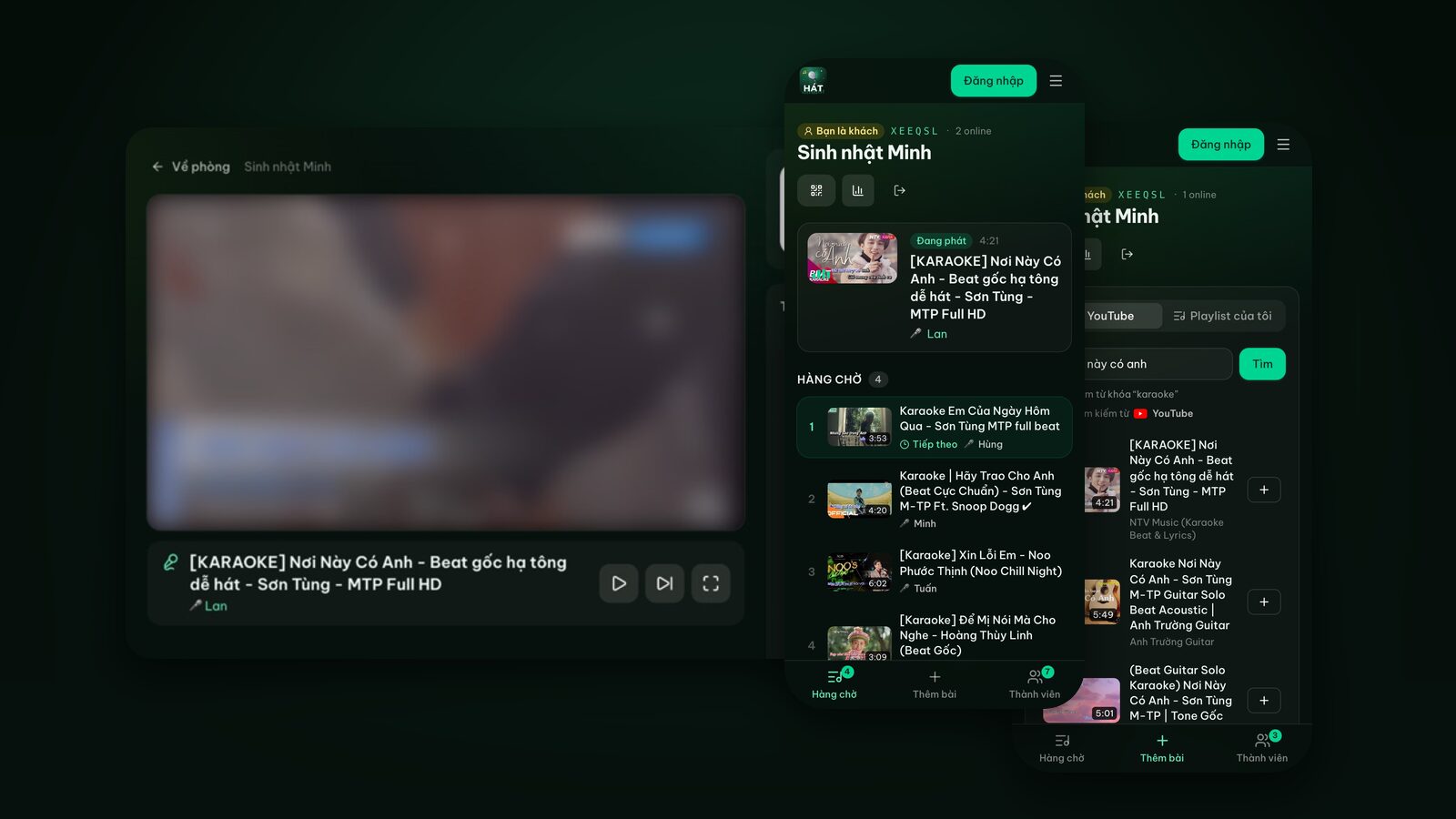
Each room has one player screen. It shows the karaoke video, the name of whoever is singing and a QR code so people can join. Everyone else, the host included, uses a phone to search, queue and control.
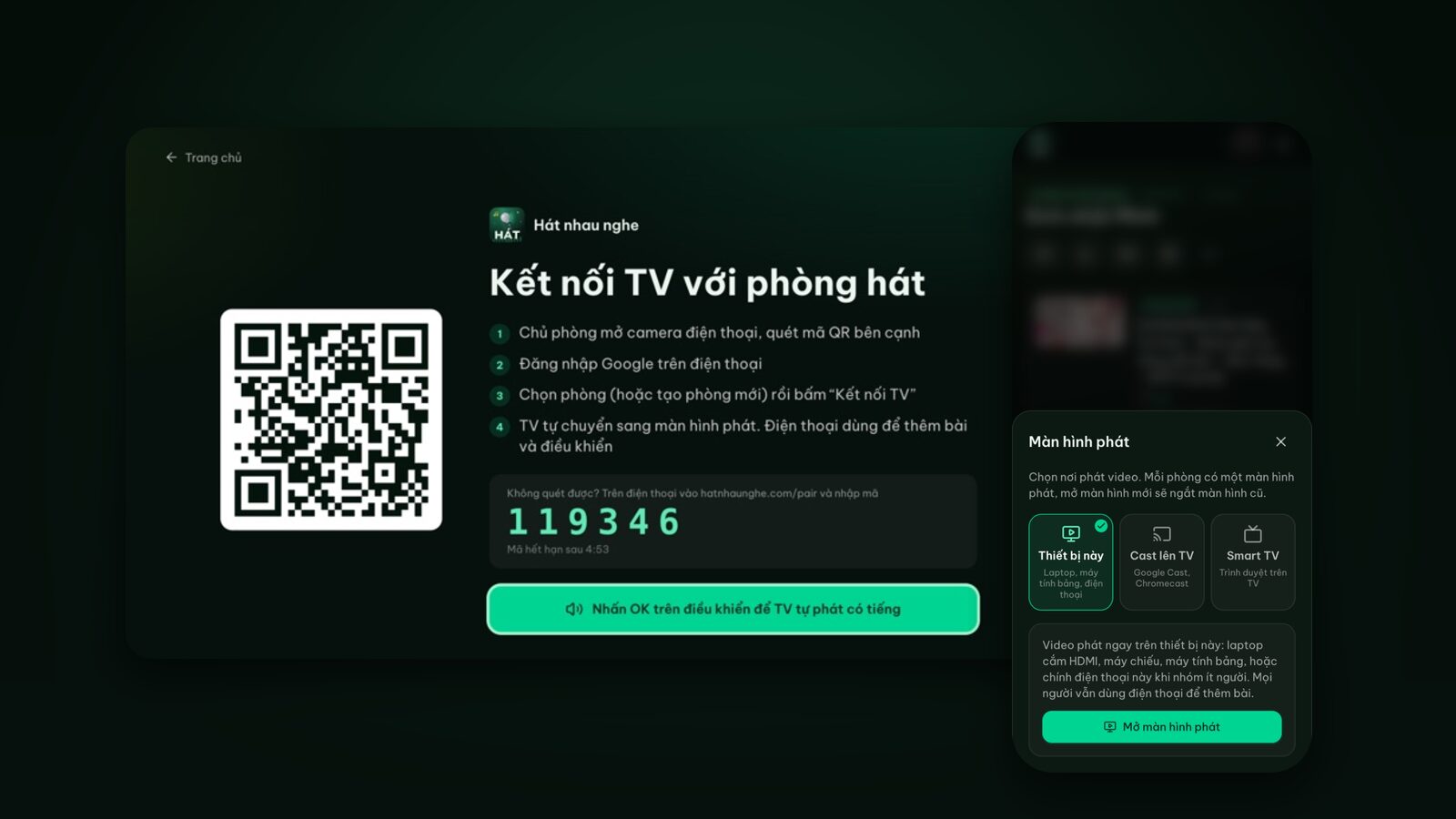
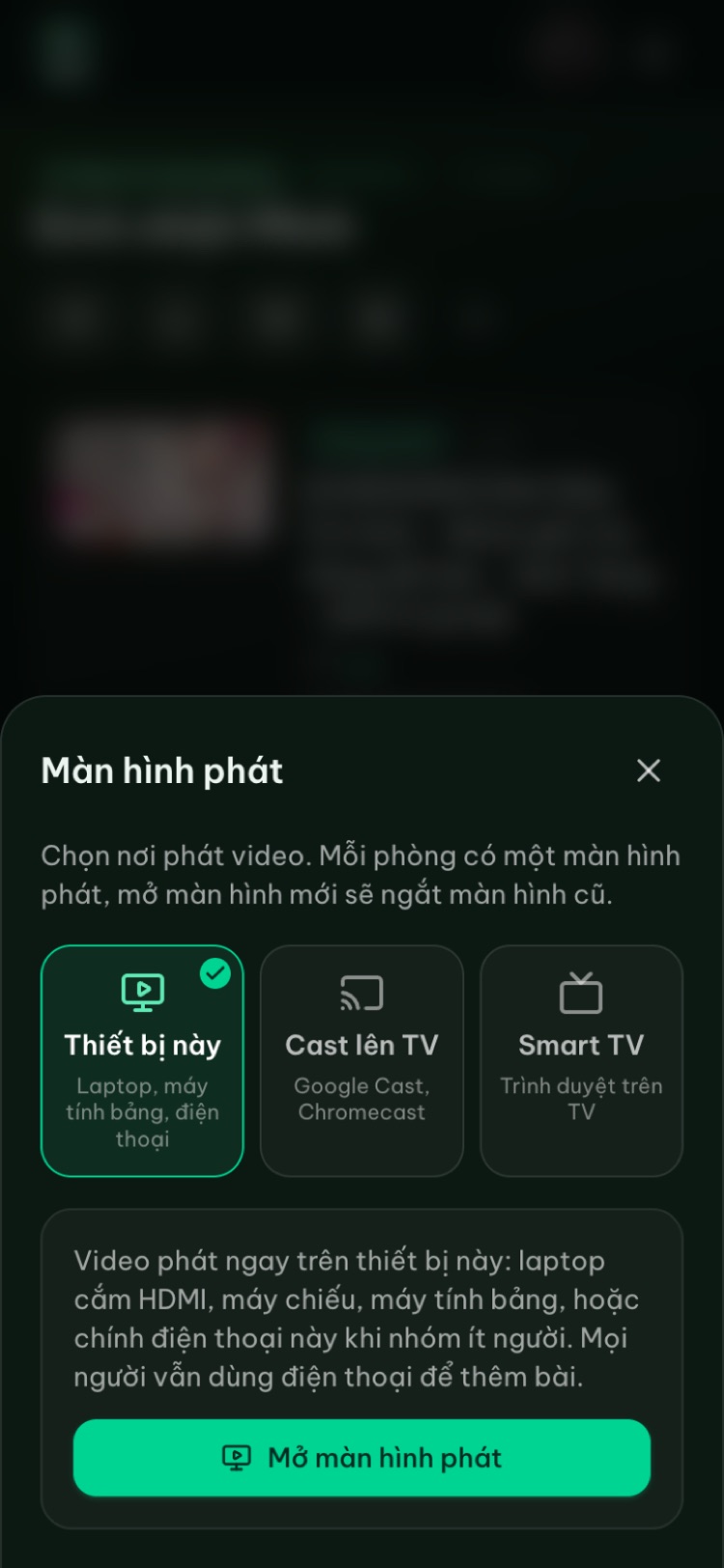
Tap "Player screen" (the screen icon) in your room and you'll see three options:
- This device: play on the device in your hand (laptop, tablet).
- Cast to TV: for TVs with Google Cast, from Chrome on Android.
- Smart TV: open the TV's browser and go to hatnhaunghe.com/tv.
Quick picker
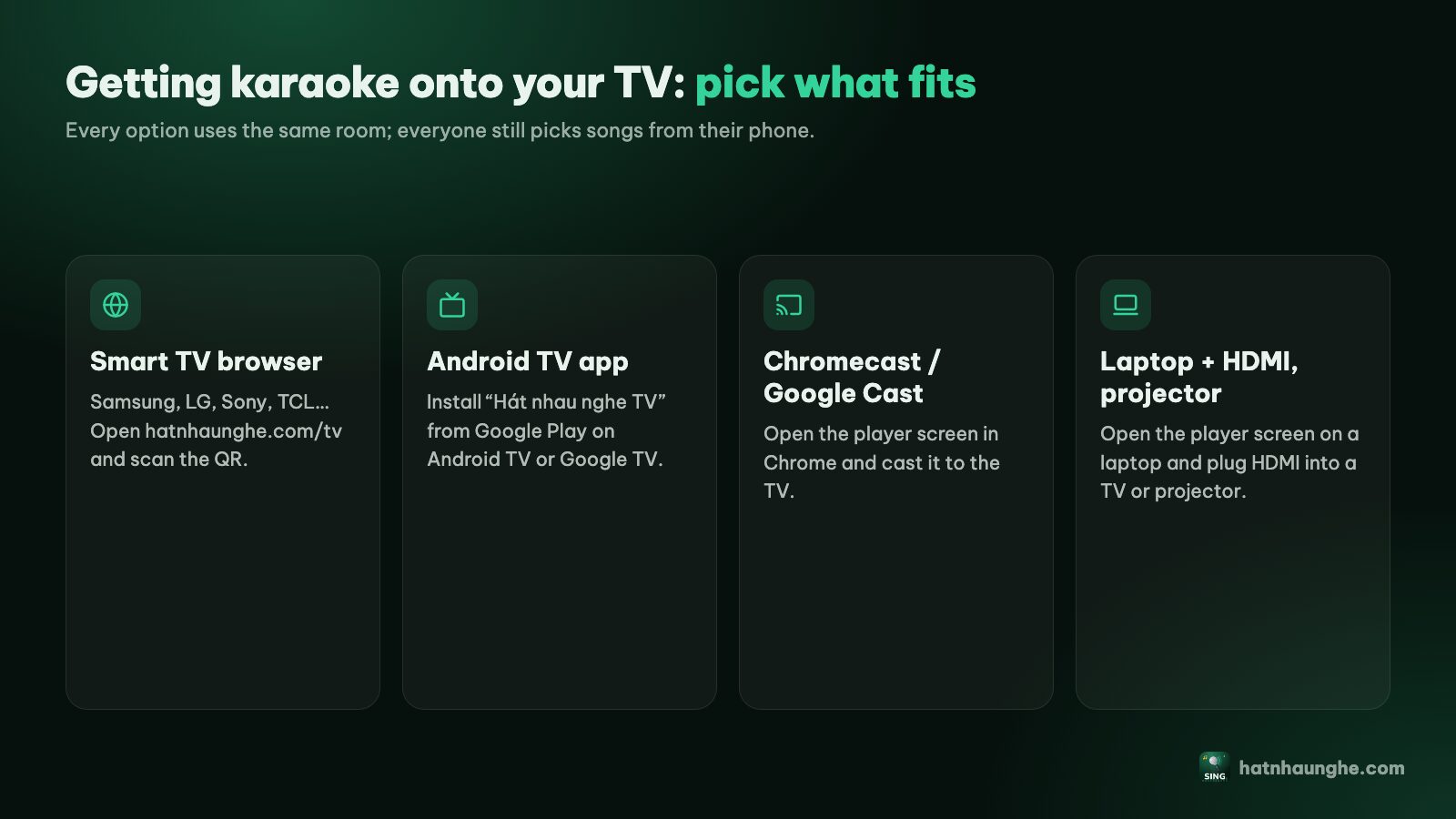
- Samsung, LG, Sony, TCL and most recent TVs with a browser: open the browser, go to hatnhaunghe.com/tv.
- Android TV, Google TV, TV boxes (Xiaomi, Fire TV and others): install a browser if needed and go to hatnhaunghe.com/tv, or use Cast.
- A TV with Chromecast or Google Cast, and an Android phone: tap Cast in Chrome.
- An older TV with an HDMI port: plug in a laptop. Also the most reliable option overall.
- A projector: laptop over HDMI, or its browser if it has one.
- Only an iPhone or iPad and an AirPlay TV: screen mirroring as a fallback.
Samsung and LG: use the built-in browser
This is the route we use most. Recent Samsung and LG TVs ship with a browser, so there's nothing to install.
- 1Turn on the TV and press Home on the remote.
- 2Open the browser: "Internet" on Samsung, "Web Browser" on LG. Sony and TCL have one too.
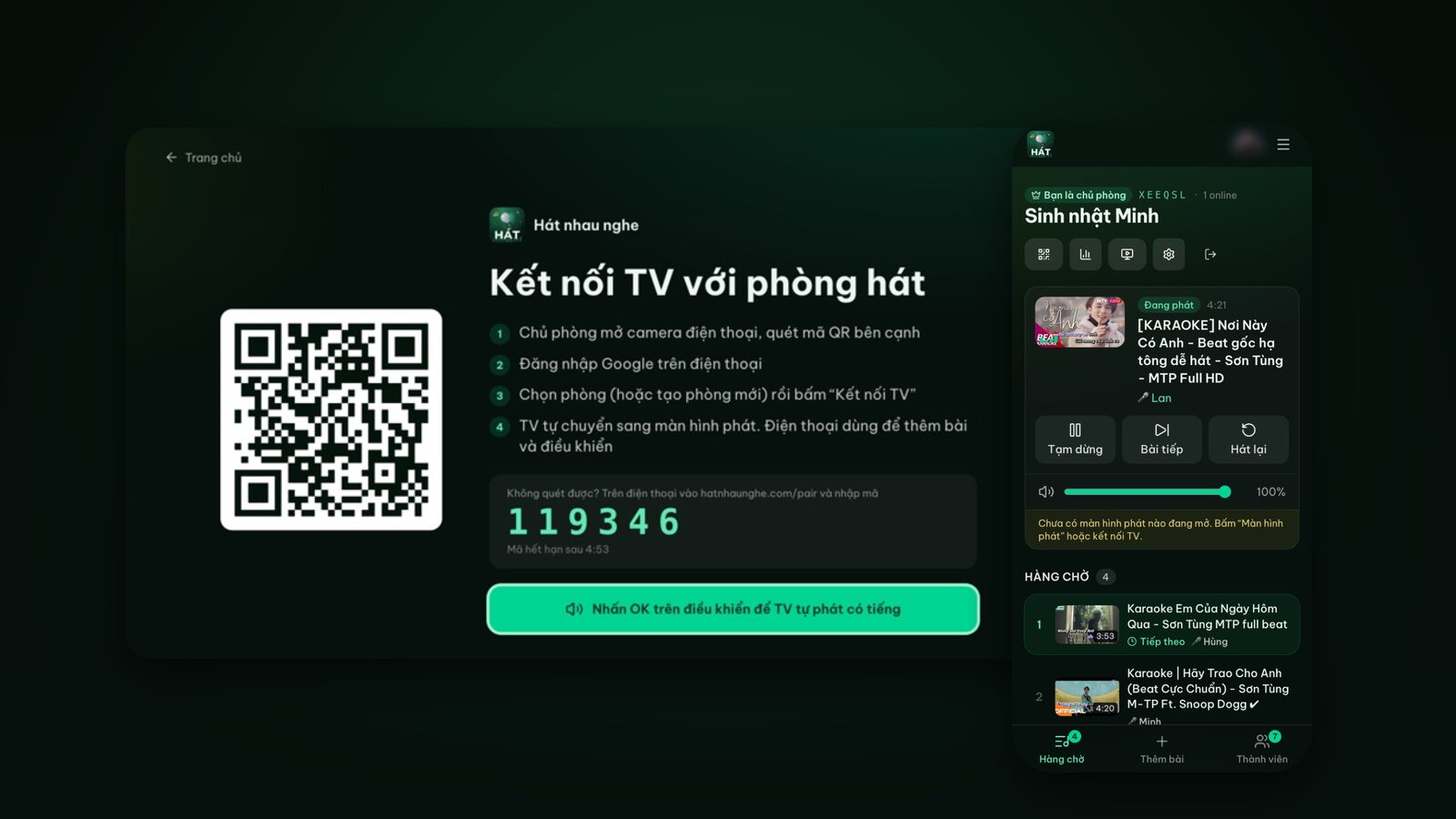
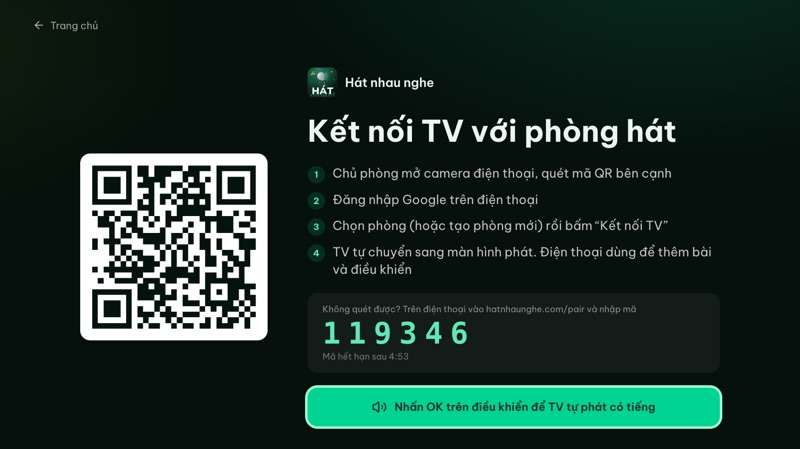
- 3Select the address bar, type hatnhaunghe.com/tv and press OK.
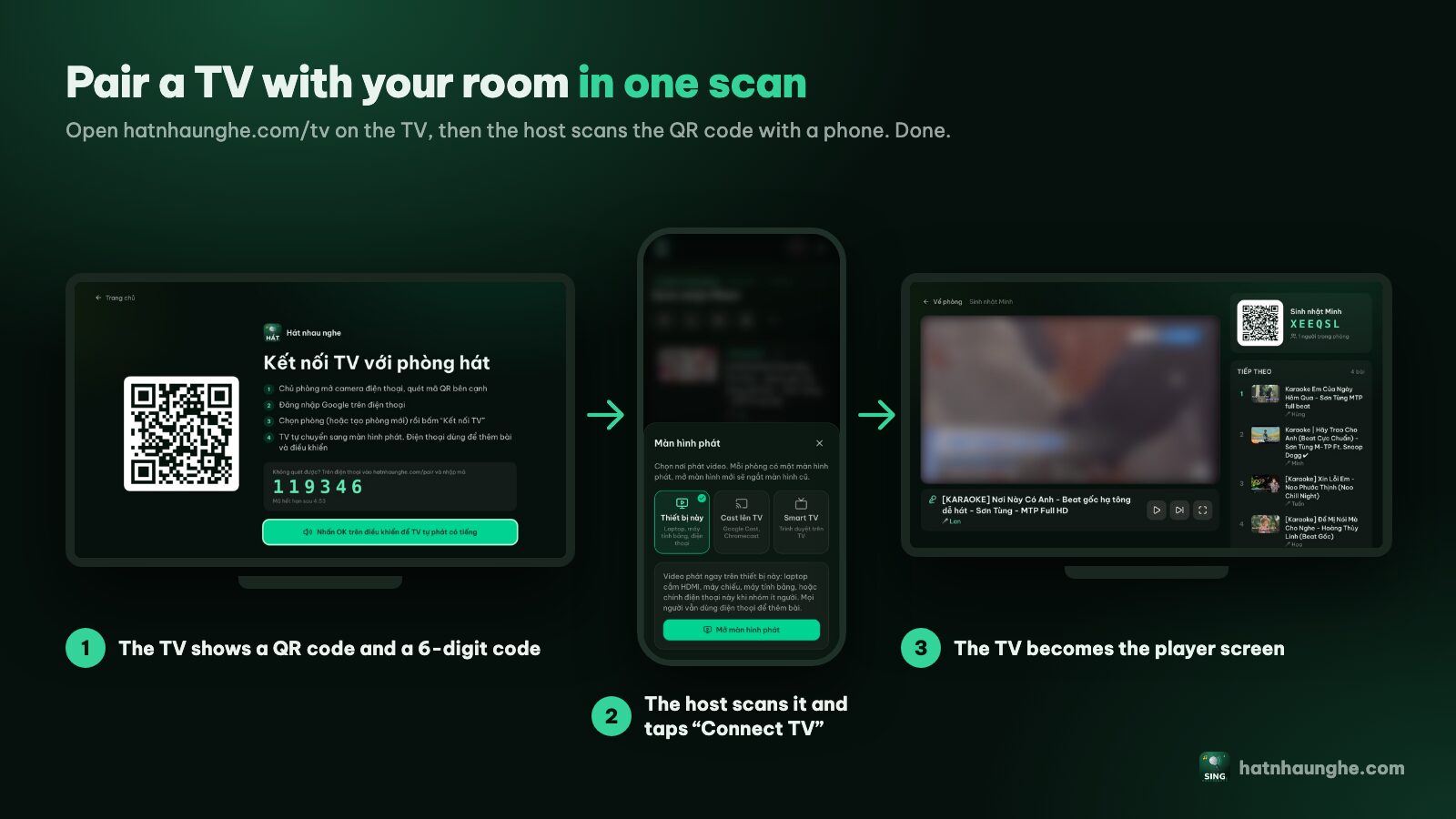
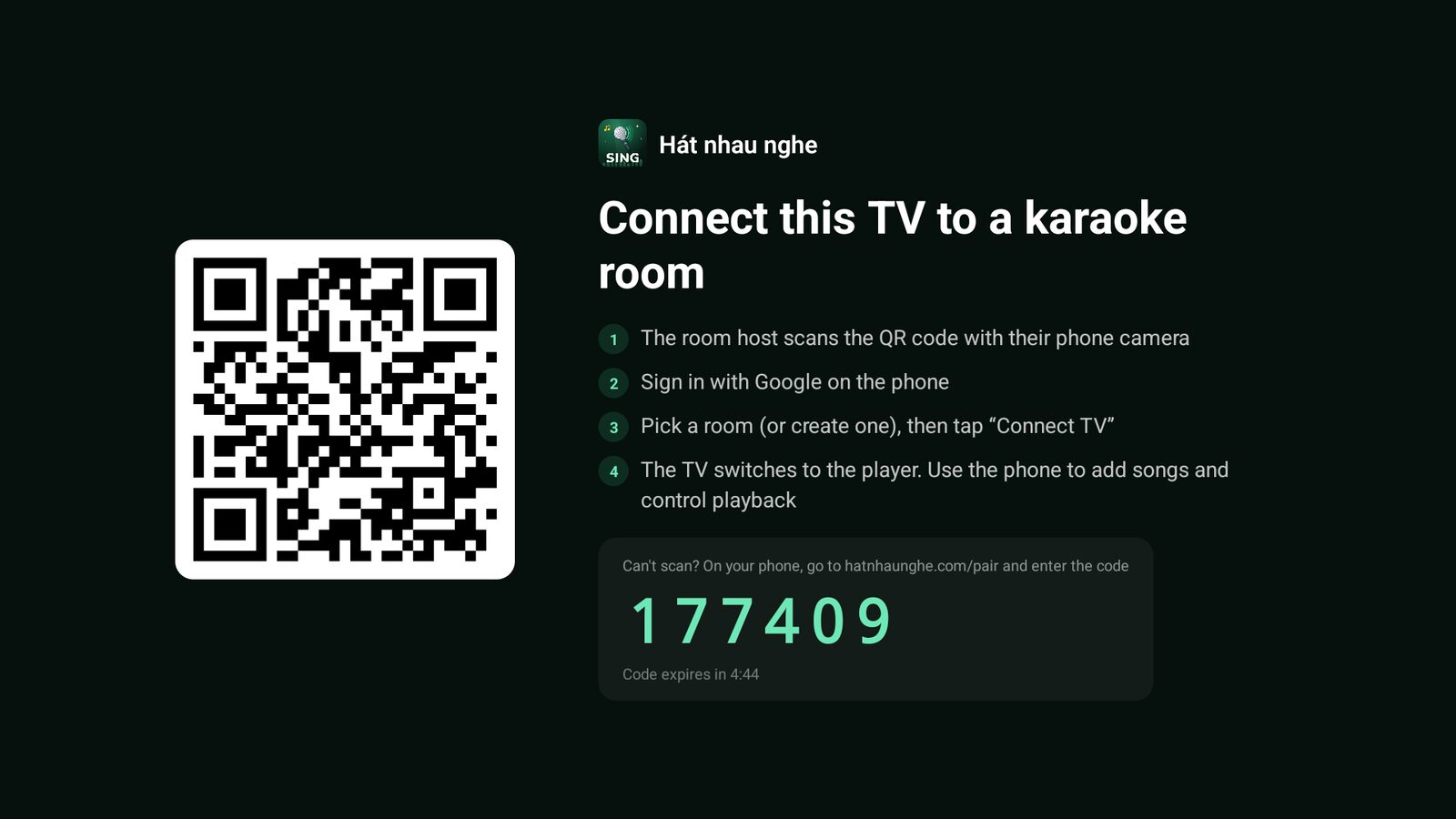
- 4The TV shows a QR code and a 6-digit code.
- 5The host scans the QR code, picks the room and taps "Connect TV".
- 6Press OK on the TV remote once so the TV is allowed to play sound. It then switches to the player screen on its own.
If the TV is far away or the screen glares, go to hatnhaunghe.com/pair on your phone and type the 6-digit code instead. Codes only last a few minutes; when one expires, the TV shows a new one automatically.
If you host more than one room, the player screen on the TV has a "Switch room" button, so you don't need to pair again.
About native apps: the Samsung and LG apps are not out yet (they're listed as "Coming soon"). On those TVs, the browser gives you every feature.
Android TV and Google TV
You'll find Android TV or Google TV on many Sony, TCL and Xiaomi TVs and on TV boxes.
Option 1, the browser. If the TV has no browser, install one from its app store (Fire TV comes with Silk). Open it, go to hatnhaunghe.com/tv, and the host scans the QR code and taps "Connect TV". The rest works exactly like Samsung and LG.
Option 2, Cast. Most Android TV and Google TV devices have Google Cast built in. If you'd rather not install a browser, use the Cast method below.
There is also an Android TV app called "Hát nhau nghe TV"; see the apps page for the link. It's purely optional. The web version is all you need, and pairing with the QR code works the same way.
Chromecast karaoke: cast from a phone or a laptop
A Chromecast with Google TV has its own interface, so treat it like Android TV above. A plain Chromecast dongle has no interface and only receives what you cast to it, so use one of these:
Cast from Chrome on Android
This feature is in beta, but it's neat when it works:
- 1Put the Android phone and the TV or Chromecast on the same Wi-Fi network.
- 2Open your room in Chrome on Android.
- 3Tap the Cast icon at the top of the room and pick the TV.
- 4The video plays on the TV and your phone stays the remote.
Note that iPhone and Safari don't support casting from the web yet. If the host has an iPhone, use the TV's browser or a laptop instead.
Cast a Chrome tab from a laptop
- 1Open the room in Chrome on the laptop, tap the screen icon, choose "This device", then "Open player screen".
- 2From Chrome's menu, choose Cast and pick your Chromecast.
- 3The player screen appears on the TV, and everyone keeps queueing from their phones.
Tab casting leans heavily on Wi-Fi. If it stutters, an HDMI cable is steadier.
Laptop over HDMI: the most reliable option
No smart TV, or a smart TV with a sluggish browser? An HDMI cable works with any TV that has the port.
- 1Connect the laptop with an HDMI cable and switch the TV to that input.
- 2Open your room on the laptop and tap the screen icon at the top.
- 3Choose "This device", tap "Open player screen", then go full screen.
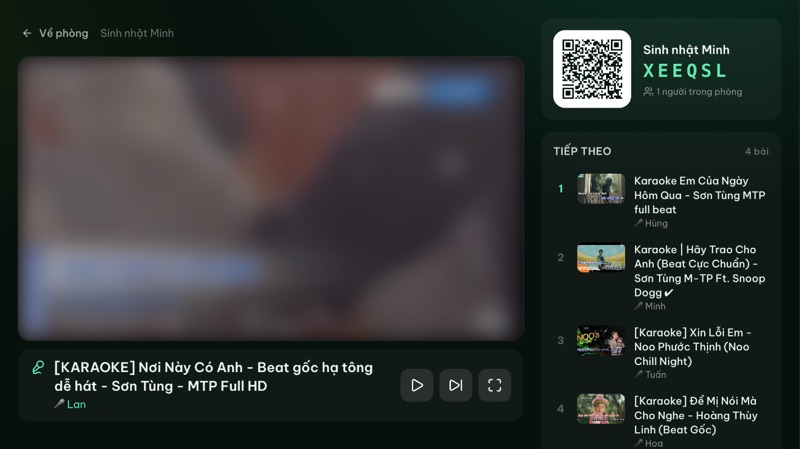
Sound usually travels over HDMI to the TV speakers. If it still comes from the laptop, pick the TV as the output in the laptop's sound settings. Keep the laptop plugged in, since the player screen stays awake all night.
Projectors
A projector with only HDMI works just like the laptop setup. A projector running its own operating system (often Android) can open hatnhaunghe.com/tv in its browser, or receive a Cast from Chrome on Android. Built-in projector speakers tend to be weak, so add an external speaker.
Screen mirroring (AirPlay and similar): the fallback
If nothing above works, you can mirror a whole device to the TV, for example AirPlay from an iPad or iPhone to an Apple TV or an AirPlay-capable TV, or screen mirroring from an Android phone. Open the room on that device, choose "This device" to open the player screen, then start mirroring.
It's last on the list for a reason: the mirroring device has to stay on the player screen all night, notifications show up on the TV, a portrait phone leaves black bars, and quality depends on Wi-Fi. If you go this way, use a spare tablet or phone as the player, let guests keep queueing from their own phones, and remember you can let a friend help manage the queue.
Try it in your browser
Open a free karaoke room, let friends scan the QR code and start singing in seconds. Nothing to install.
Troubleshooting
No sound on the TV
Almost always the browser blocking autoplay with sound.
- On hatnhaunghe.com/tv, press OK on the TV remote once. That's the interaction the browser needs before it allows sound.
- If the player screen shows a "Start" button, tap it once.
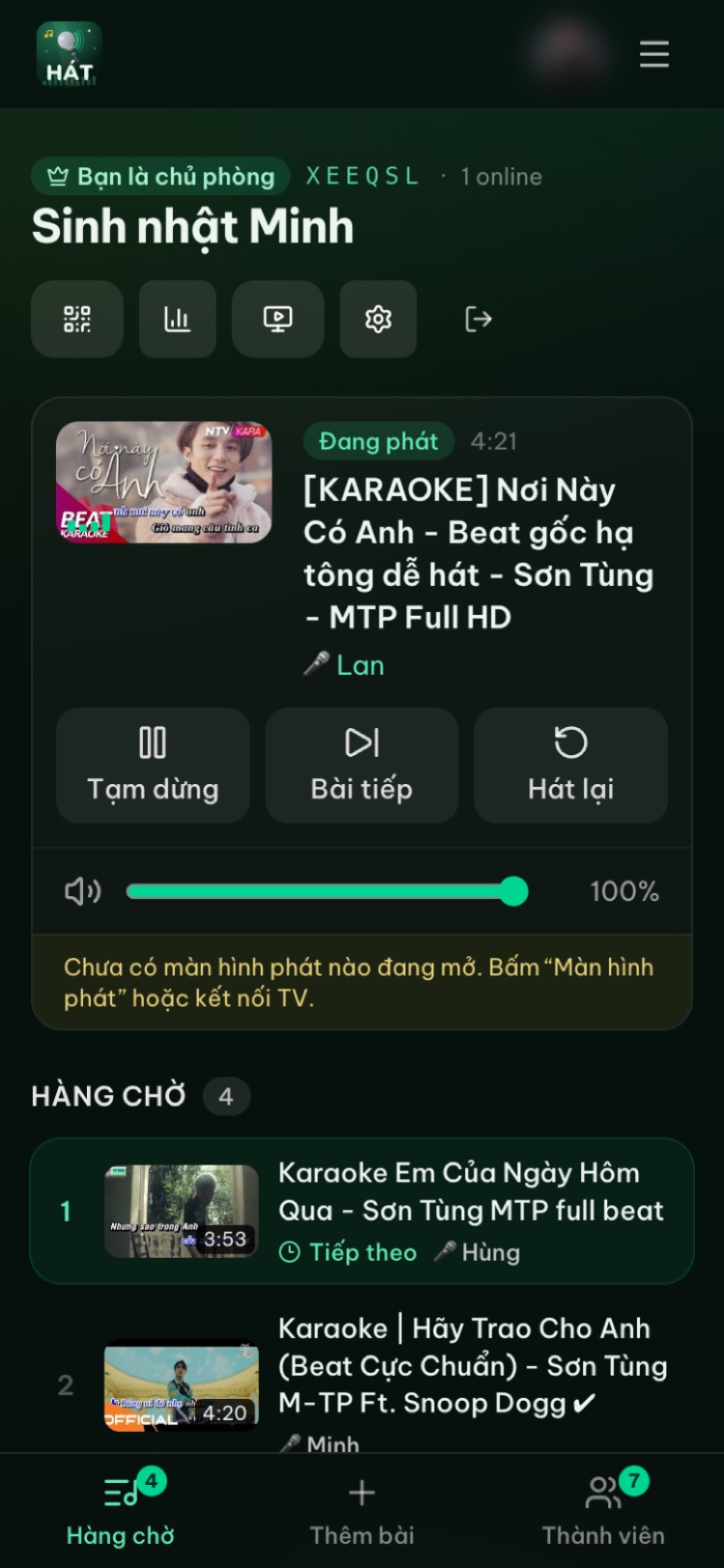
- Check the volume slider on the host's room page. It controls the player screen's volume and someone may have turned it down.
- Check the TV's own volume and mute.
Videos don't start
Same autoplay issue: tap "Start" once and songs will advance by themselves after that. Also check the queue isn't empty; with nothing queued the player just shows a big QR code.
The pairing code expired
The 6-digit code only lasts a few minutes. A new one appears on its own, no reload needed. Scan the new QR code or enter the current code at hatnhaunghe.com/pair.
The QR code won't scan
Move closer, cut the glare, or enter the 6-digit code at hatnhaunghe.com/pair.
No Cast icon
You need Chrome on an Android phone (not iPhone, not Safari), the phone and TV on the same Wi-Fi, and a TV with Google Cast or Chromecast built-in. Missing any of these, switch to the TV browser or HDMI.
Buffering or stuttering video
Videos stream from YouTube, so they need a steady connection. Move the TV closer to the router, pause heavy downloads, or use a laptop over HDMI. Weak Wi-Fi hurts casting and mirroring the most.
FAQ
Is there a Hát nhau nghe app for Samsung or LG TVs?
Not yet. The Samsung, LG and Apple TV apps are "Coming soon". On those TVs, open the browser and go to hatnhaunghe.com/tv; everything works there.
Do the TV and phones need to be on the same Wi-Fi?
For casting from Chrome on Android, yes. With the TV browser method, the TV is linked to the room by the QR code or 6-digit code, so both just need a stable internet connection.
Does the player screen go to sleep?
No, it stays awake all night. Some TVs have their own power-saving timers you may want to switch off in the TV settings.
No TV at all, just a laptop?
Choose "This device" and play on the laptop. Guests can scan the QR code on the laptop screen and queue as usual.
Where can I get help?
Email support@hatnhaunghe.com or ask in the "Nghiện Hát" Facebook group. The illustrated guide is on the guide page, and if you're weighing up options, read online karaoke vs a karaoke machine.
Try it in your browser
Open a free karaoke room, let friends scan the QR code and start singing in seconds. Nothing to install.