DIY home karaoke setup: a complete guide in 5 steps
Set up karaoke at home in 5 steps with just a TV, a speaker and phones: no karaoke machine, no software to install. Includes a first-night checklist, the room settings worth turning on, and troubleshooting.
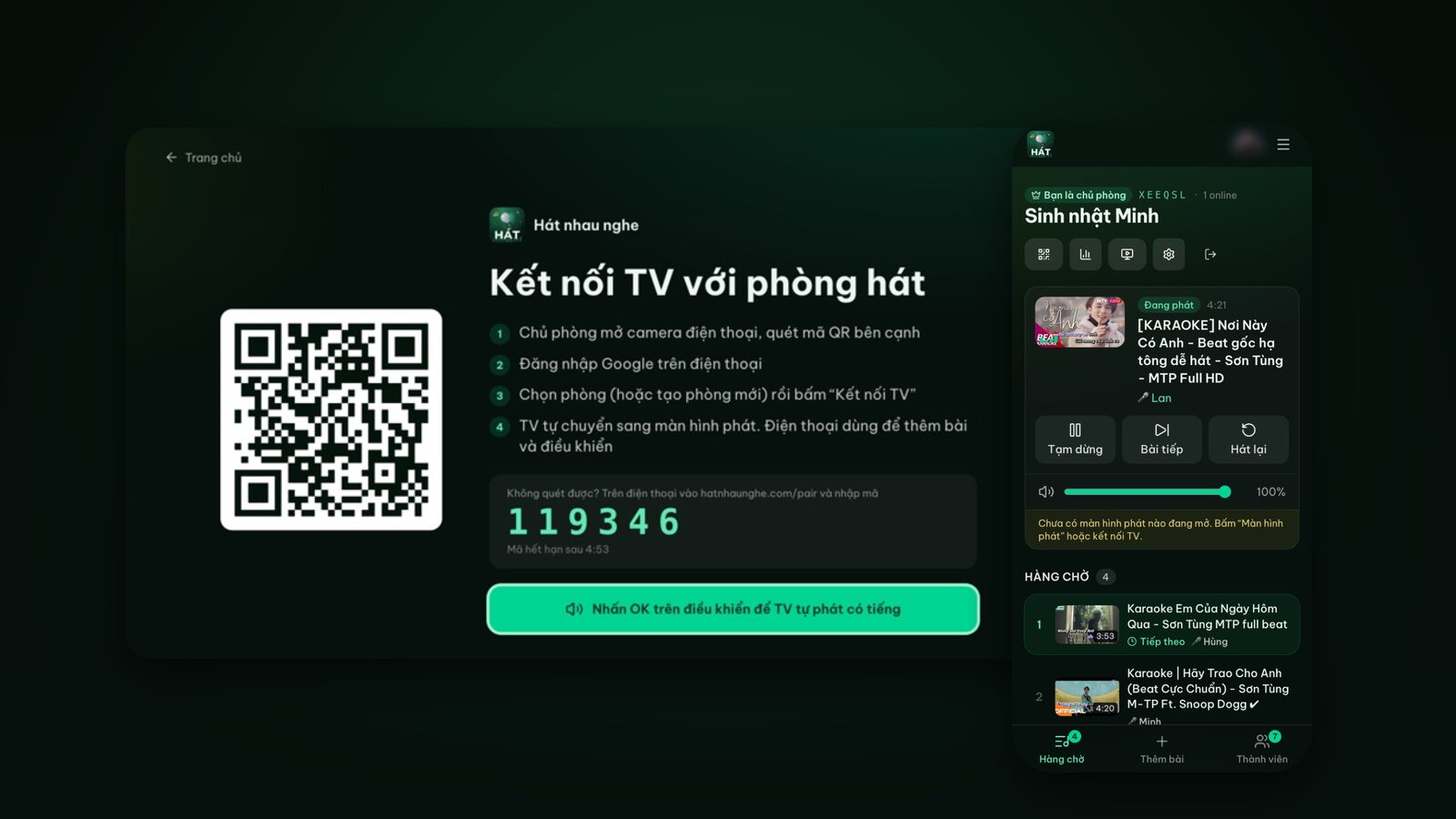
People often ask me which karaoke machine to buy or which karaoke software to install on their computer. The honest answer: most homes don't need to buy or install anything. A TV (or laptop), the speaker you already own and everyone's phones are enough for a karaoke corner that works well.
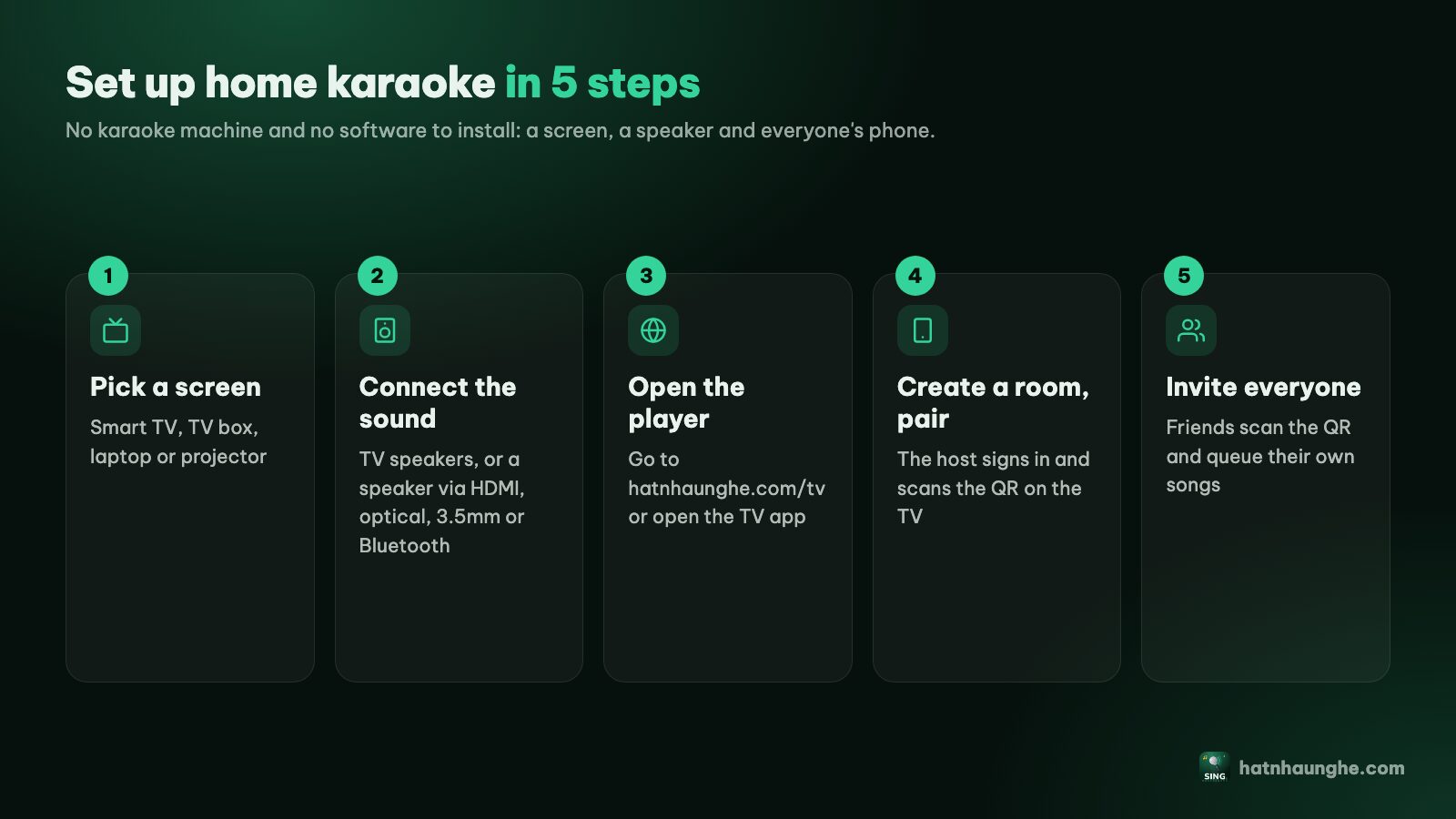
This is a complete DIY setup guide, in the order I actually do it: pick a screen, connect the sound, open the player, create a room and pair the TV, then invite everyone. At the end there's a checklist to test before your first night, the room settings worth turning on, and fixes for the usual problems.
The "software" here is Hát nhau nghe, a free karaoke site that runs in the browser. Songs come from YouTube, and everyone finds and queues songs from their own phone. There are apps for phones and Android TV, but they're entirely optional.
What you need
- A big screen: a smart TV, a regular TV with a TV box, a laptop or a projector.
- Sound: TV speakers are enough to start. A separate speaker, soundbar or karaoke speaker is better.
- Stable Wi-Fi for the player and your guests' phones.
- A Google account for the host. Guests don't need one.
- A phone with a camera for each person, to scan the QR code.
- Mics (optional): they plug into a karaoke speaker and have nothing to do with the website.
Step 1: Pick a screen
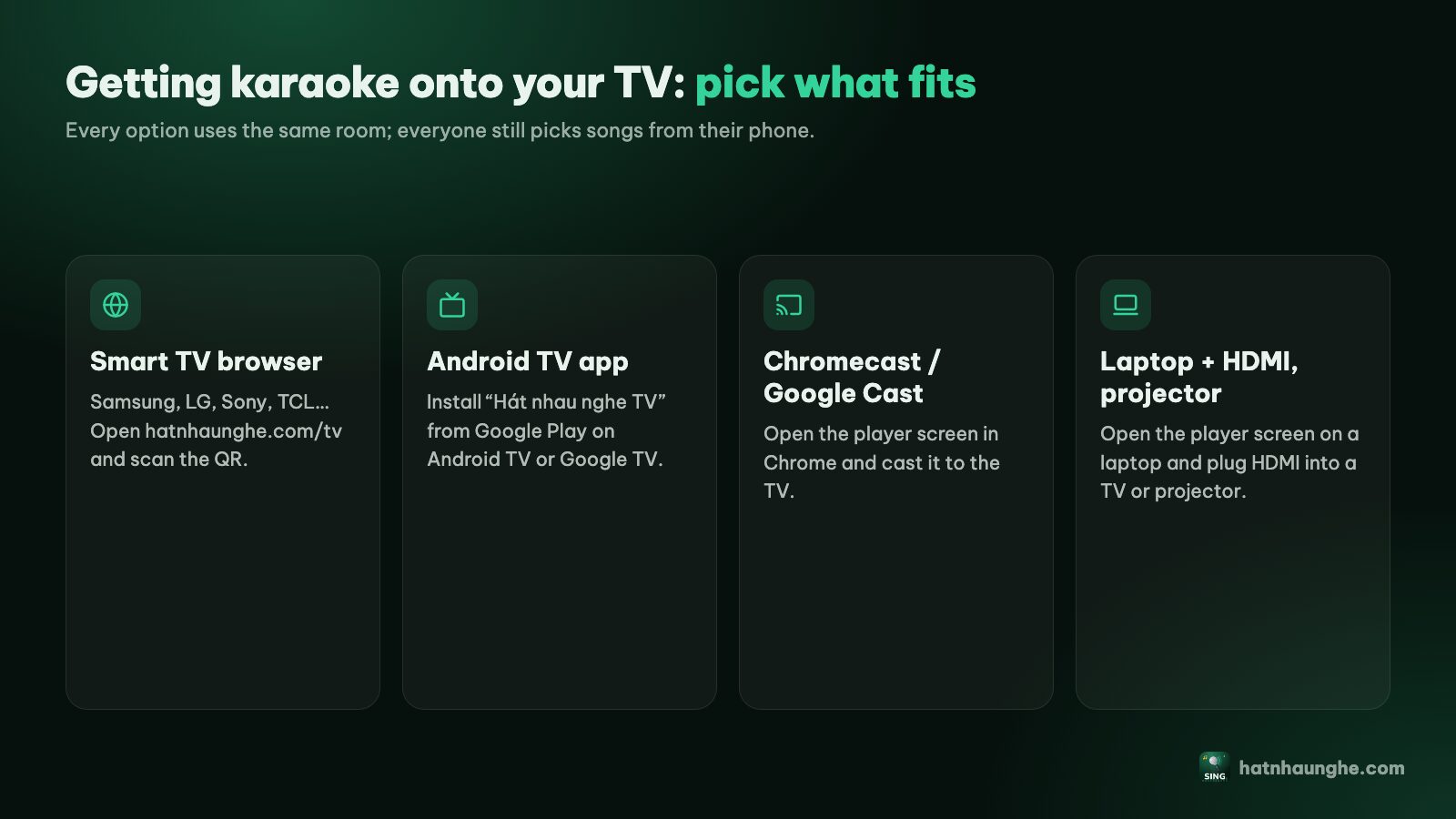
The screen is what the whole room reads lyrics from, so use the biggest one you have. There are four ways to get karaoke onto it:
- 1A smart TV with a browser (Samsung, LG, Sony, TCL...): open the TV's browser and go to hatnhaunghe.com/tv. Cleanest option, no cables.
- 2Android TV, Google TV or a TV box: install the "Hát nhau nghe TV" app from Google Play, or install a browser and do the same as above. See karaoke on an Android TV box.
- 3Chromecast / Google Cast: open the room in Chrome on Android and cast to the TV. This one is still in beta.
- 4A laptop on HDMI to a TV or projector: the most reliable, works with any TV that has an HDMI port. Details in karaoke with a projector, laptop and HDMI.
For two or three people, a laptop or tablet on the table works fine too.
Step 2: Connect the sound
This is where people hesitate most. The rule is simple: sound comes out of whatever is playing the video (TV or laptop) and goes to the speaker. Port names and audio menus vary by brand and model year, so look for something like Sound, Audio output or Speakers in your TV's settings.
- TV speakers: nothing to connect. Fine for a family night without mics.
- HDMI ARC / eARC: plug a soundbar or receiver into the HDMI port labeled ARC on the TV, then set the output to the external speaker. Fewer cables, and the TV remote usually controls the volume.
- Optical: if the speaker has an optical input and the TV has no ARC. Stable, with no noticeable delay.
- 3.5mm jack: common on laptops and some TVs; plug straight into the speaker's AUX input. Simple and cheap.
- Bluetooth: wireless and convenient, but some speakers add a small delay that can put sound slightly out of step with the picture. If you notice it, switch to a cable.
For mics, you need a karaoke speaker with mic inputs or bundled wireless mics: music from the TV goes into the speaker, the mic plugs into the speaker, and the speaker mixes them. Hát nhau nghe doesn't capture or process mic audio, so whatever mics you own will work. More in choosing karaoke speakers and mics.
Step 3: Open the player
This is the "karaoke software" part, and there's nothing to install:
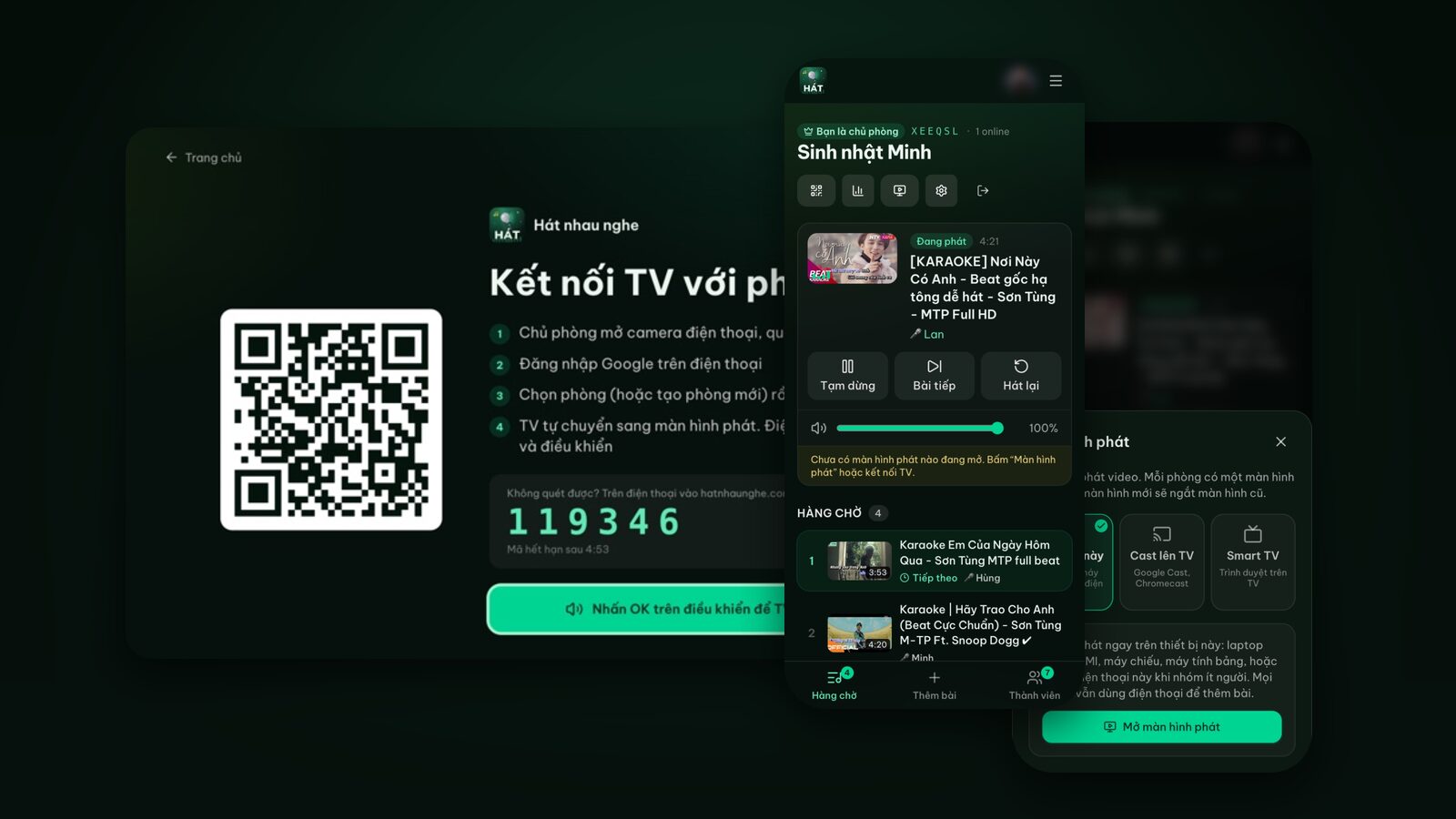
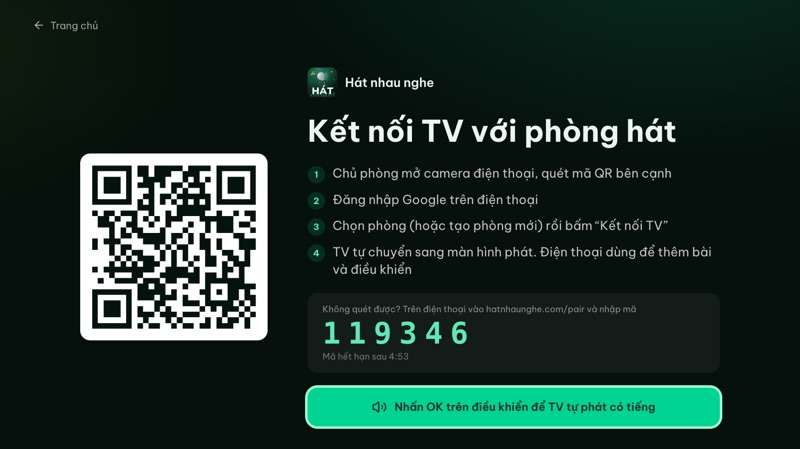
- 1On a smart TV or TV box: open the browser and type hatnhaunghe.com/tv. The TV shows a QR code and a 6-digit code. Press OK on the remote once so the TV is allowed to play sound.
- 2On Android TV with the app: open "Hát nhau nghe TV"; its pairing screen also shows a QR code.
- 3On a laptop: you'll open the player in step 4, after creating the room.
Step 4: Create a room and pair the TV
The host does this on their phone:
- 1Open hatnhaunghe.com, choose I'm hosting, tap Sign in with Google.
- 2Enter a Room name, like "Karaoke at Sam's", and tap Create room.
- 3Scan the QR code on the TV with your phone camera, pick the room and tap Connect TV. The TV switches to the player screen.
- 4Can't scan? Go to hatnhaunghe.com/pair and enter the 6-digit code. The code changes every 5 minutes.
On a laptop it's slightly different: open the room on the laptop, tap Player screen, choose This device, tap Open player screen and go Full screen. For a TV with Google Cast, choose Cast to TV from Chrome on Android.
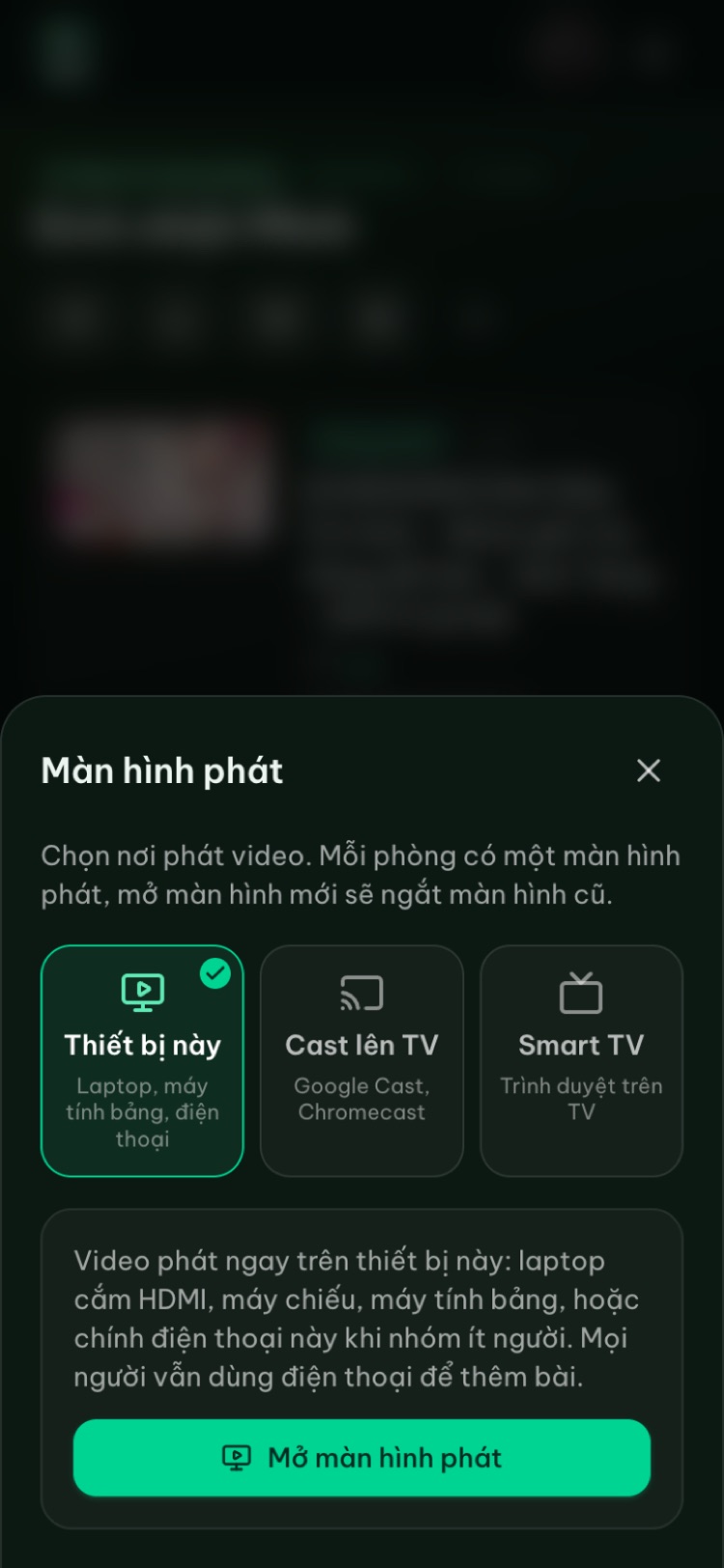
Each room has exactly one player screen. Opening a new one disconnects the old one, so two screens never play at once.
Step 5: Invite everyone
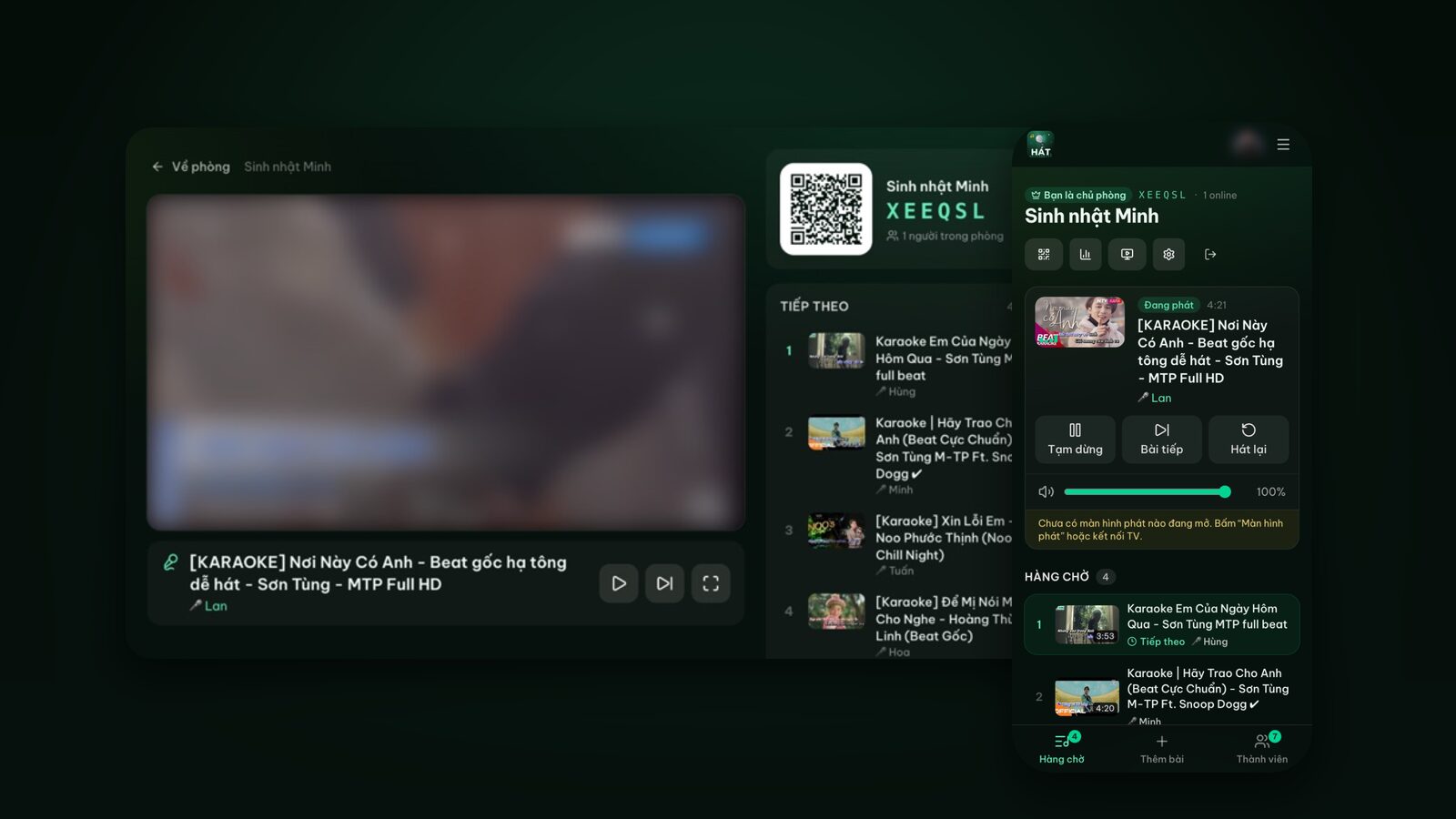
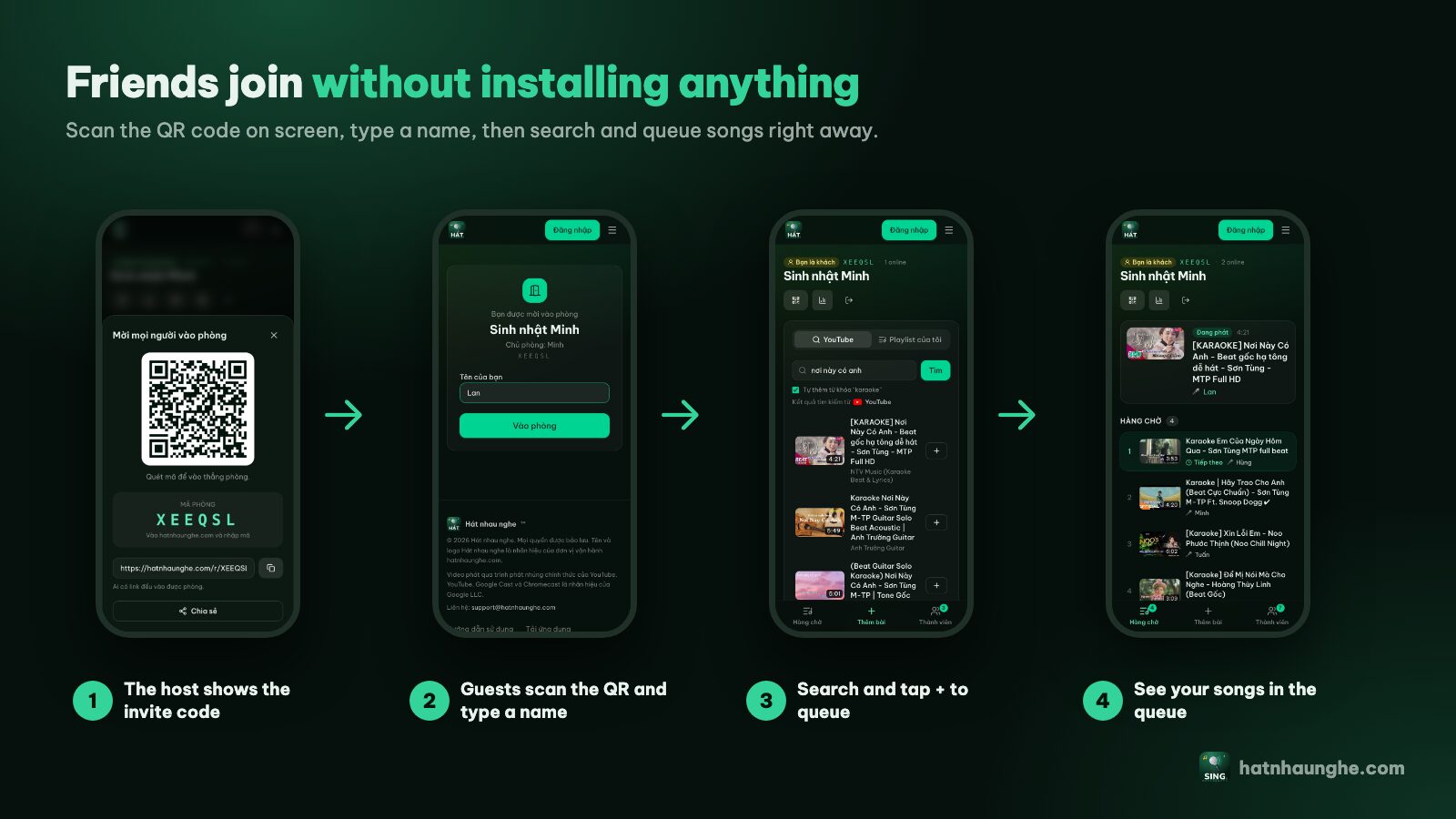
The player screen always shows the room's QR code on the right. Everyone:
- 1Opens their phone camera and scans the QR code on the TV.
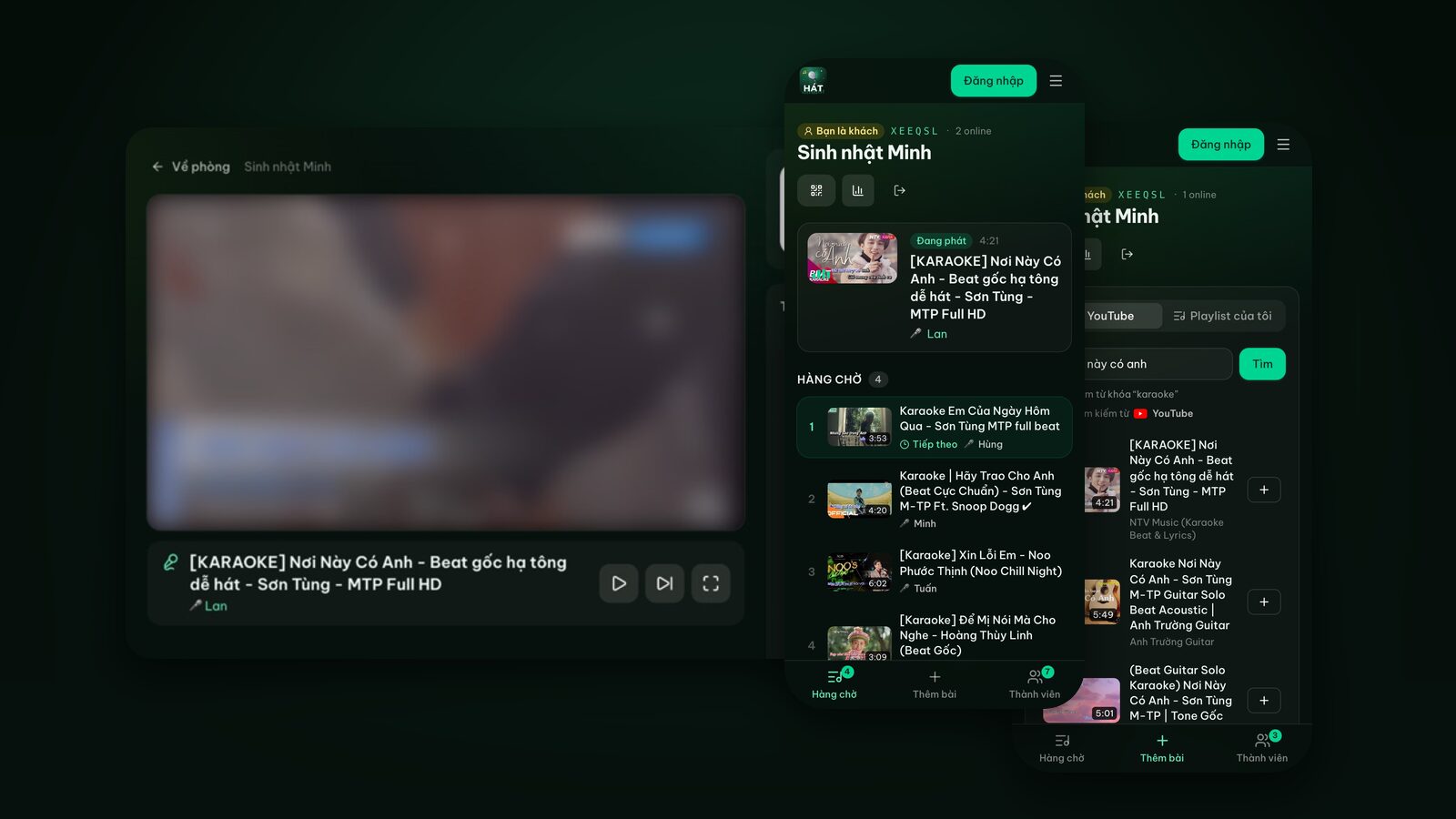
- 2Types a name and taps Join room. No account, no app.
- 3Opens the Add songs tab, types a song, taps Search, then taps + to queue it.
Anyone who can't scan goes to hatnhaunghe.com and enters the 6-character room code. When a song comes up, the TV shows Up now with the singer's name. The free plan allows up to 10 people per room.
Try it in your browser
Open a free karaoke room, let friends scan the QR code and start singing in seconds. Nothing to install.
First-night test checklist
I always do a 10-minute dry run before guests arrive. It has saved me plenty of awkward fumbling:
- 1Open the player on the TV and pair it with the room. Check that the TV shows the room name and QR code.
- 2Add a test song from your phone and listen. No sound? Press OK on the remote.
- 3Check the speaker: TV volume, audio output set to the right speaker, no Bluetooth lag.
- 4Test the mics if you have them: set mic volume lower than you think and walk around the room to find feedback spots.
- 5Ask someone else to scan the QR on their own phone, join and add a song. Now you know guests can get in.
- 6Try the controls: pause, Next song, and drag the Player volume on the host's phone.
- 7Post the Wi-Fi name and password next to the TV.
- 8Sort out charging: a power strip with several ports near the sofa.
To have songs ready to kick things off, sign in and build a playlist beforehand. The free plan gives you 5 playlists of 20 songs each. For ideas, see easy karaoke songs and duets.
Room settings worth turning on
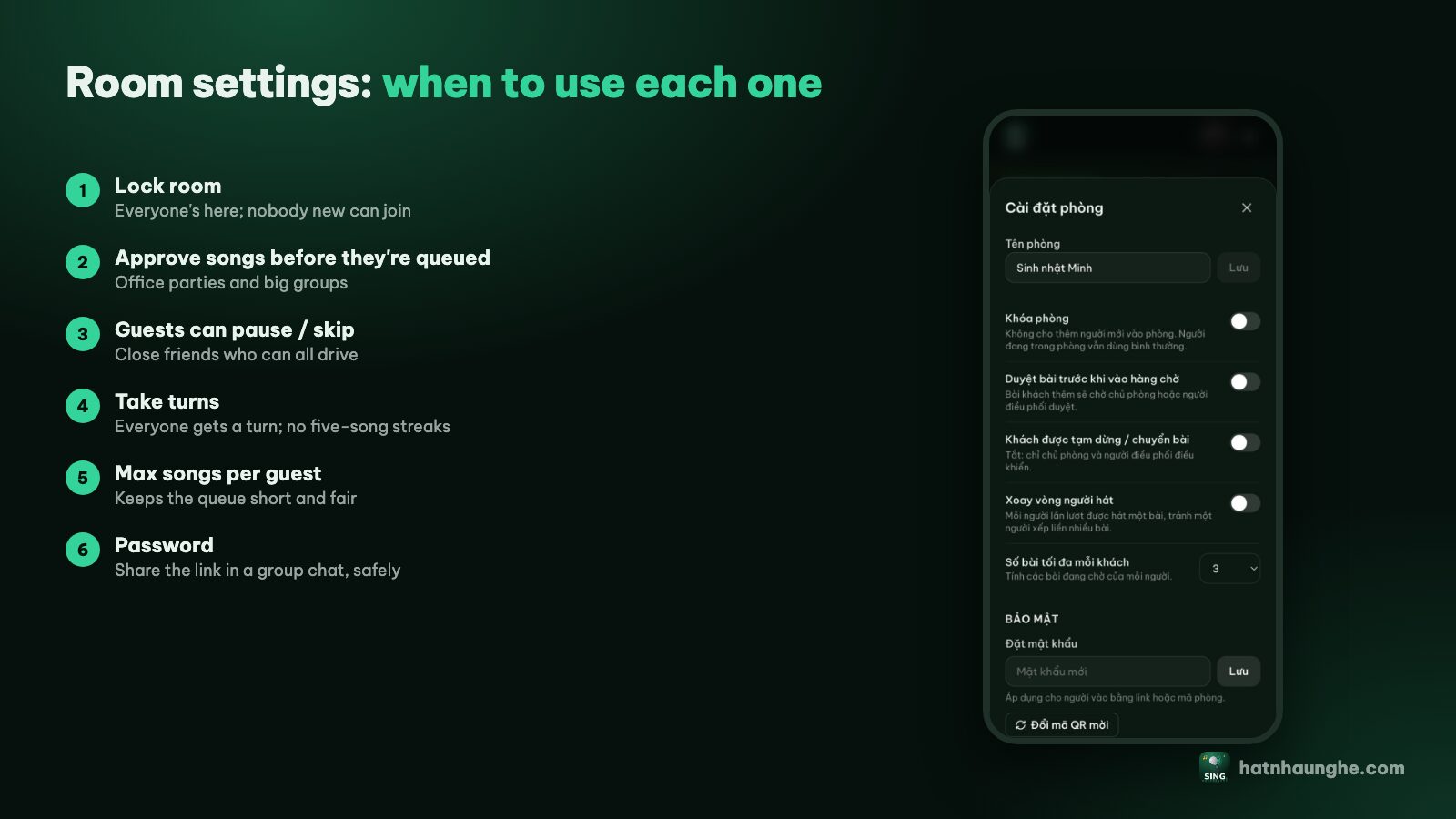
Open Room settings from the host's room page. The defaults are fairly open; adjust them to the kind of night:
- Take turns: on once you have four or five people. Everyone gets one song in turn, nobody stacks several in a row.
- Max songs per guest: 3 by default. Drop it to 2 for a big crowd.
- Approve songs before they're queued: on with kids around or at a work party, so the host sees each song first.
- Guests can pause and skip: off by default. Turn it on for close friends.
- Lock room: on once everyone's in.
- Set a password: when you share the room link in a big group chat. People scanning the QR in the room still get straight in.
For more on fair turns, read running a karaoke room so everyone gets to sing.
Troubleshooting your setup
The player is on the TV but there's no sound. TV browsers often block autoplay with sound. Press OK on the remote when prompted. Still silent? Check that the TV's audio output is set to the right speaker.
Sound is out of sync with the picture. Common with Bluetooth. Switch to HDMI ARC, optical or a 3.5mm cable. Some TVs also have an AV sync setting in the sound menu.
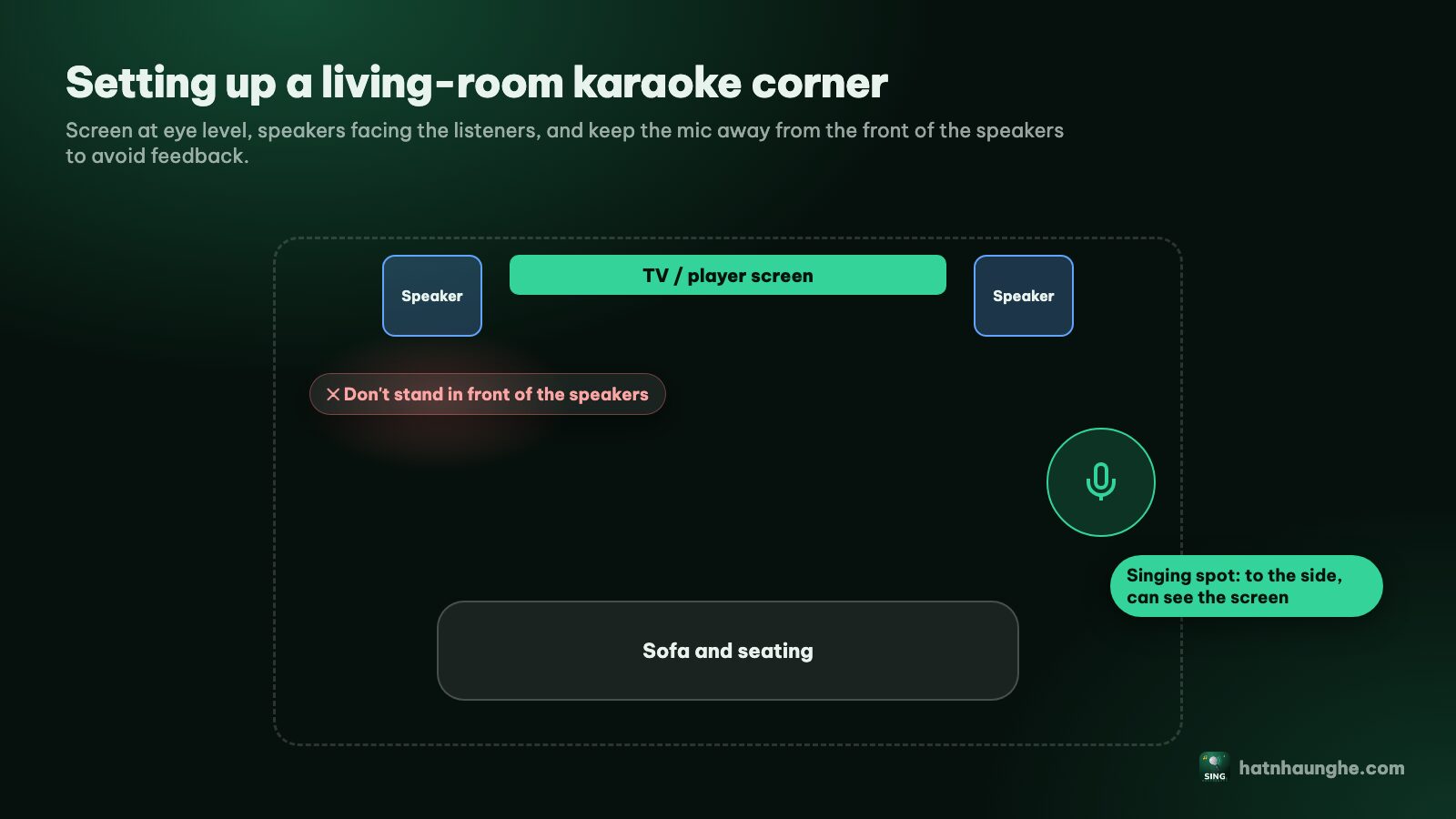
The mic squeals. Lower the mic volume, stand to the side of the speakers, and don't point the mic at them.
You can't scan the QR on the TV. Go to hatnhaunghe.com/pair on your phone and enter the 6-digit code. If it says expired, scan the new one; it changes every 5 minutes.
The TV has no browser. On Android TV, install a browser or "Hát nhau nghe TV" from the app store. On an older TV, use a laptop over HDMI.
Videos stutter or buffer. Move the router closer, plug the TV into the router with a cable if it has a LAN port, and pause big downloads.
A song gets skipped. The video was removed or its channel disabled embedding, so the player moves to the next song. Search again and pick a karaoke version from another channel.
Guests can't get in. Check whether the room is locked, has a password, or has hit 10 people (the free plan limit).
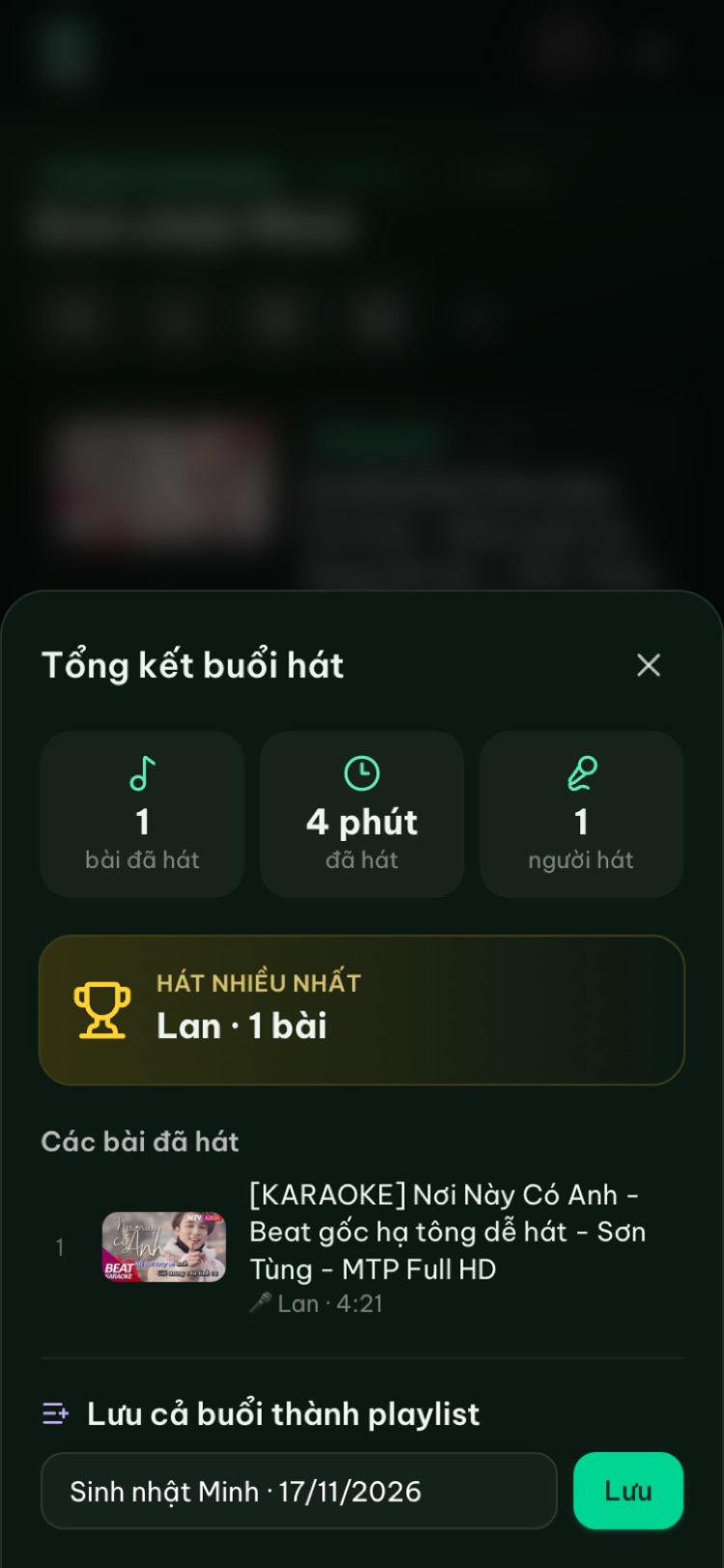
At the end of the night, open the Night recap to see how many songs were sung and who sang the most, then Save the whole night as a playlist for next time.
Do I need an app?
No. Every step here works in the browser. If you like apps, there are Hát nhau nghe apps for Android and iPhone/iPad, plus "Hát nhau nghe TV" for Android TV, on the apps page. Samsung, LG and Apple TV apps are coming soon; for now, use the TV's browser and go to hatnhaunghe.com/tv.
FAQ
Is this free karaoke software?
Yes. Hát nhau nghe is free and runs in the browser; the host just needs a Google account. Premium (bought in the mobile apps, yearly or lifetime) is optional and adds scoring, Play next, more playlists and no limit on people.
Do I need a karaoke machine?
No. The song library is YouTube, played through its official embedded player. If your internet is unreliable or you want voice-based scoring, a machine still has its place; I compare them in online karaoke vs a karaoke machine.
Does it work offline?
No. Songs stream from YouTube, so you need internet.
Are there ads?
Videos play through YouTube's player, so any ads are YouTube's, under YouTube's terms.
How long does a room last?
A room is deleted after 24 hours of inactivity. Personal playlists are kept. Next time, create a new room and pair the TV again.
Can I just use YouTube on the TV instead?
Sure, the YouTube app works fine for a few people. I compare both approaches in how to sing karaoke with YouTube on your TV.
Every step with screenshots is in the full guide. Enjoy your new karaoke corner.
Try it in your browser
Open a free karaoke room, let friends scan the QR code and start singing in seconds. Nothing to install.