Karaoke on an Android TV box or Google TV, step by step
An Android TV box, Google TV or Chromecast with Google TV is all you need for karaoke: install the Hát nhau nghe TV app or open a browser, then scan a QR code with your phone. Plus fixes for a missing app or no sound.
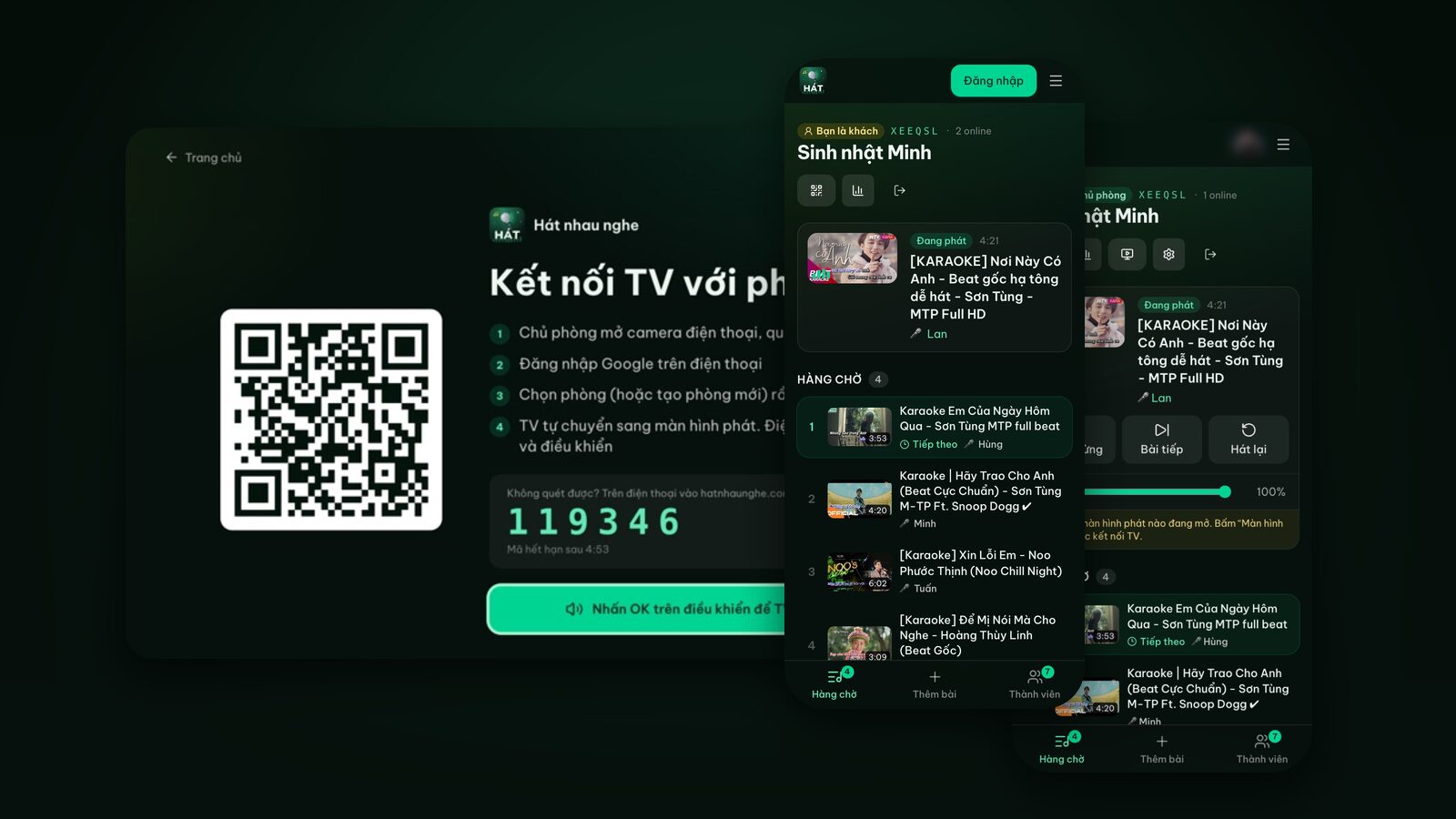
Got an Android TV box behind your TV (a Xiaomi Mi Box, an operator box, a Chromecast with Google TV) or a TV that runs Google TV, like many TCL and Sony models? Then you already have everything you need for karaoke on the big screen, no karaoke machine required. This guide walks through it with Hát nhau nghe: the TV box plays karaoke videos from YouTube while everyone picks songs on their own phone.
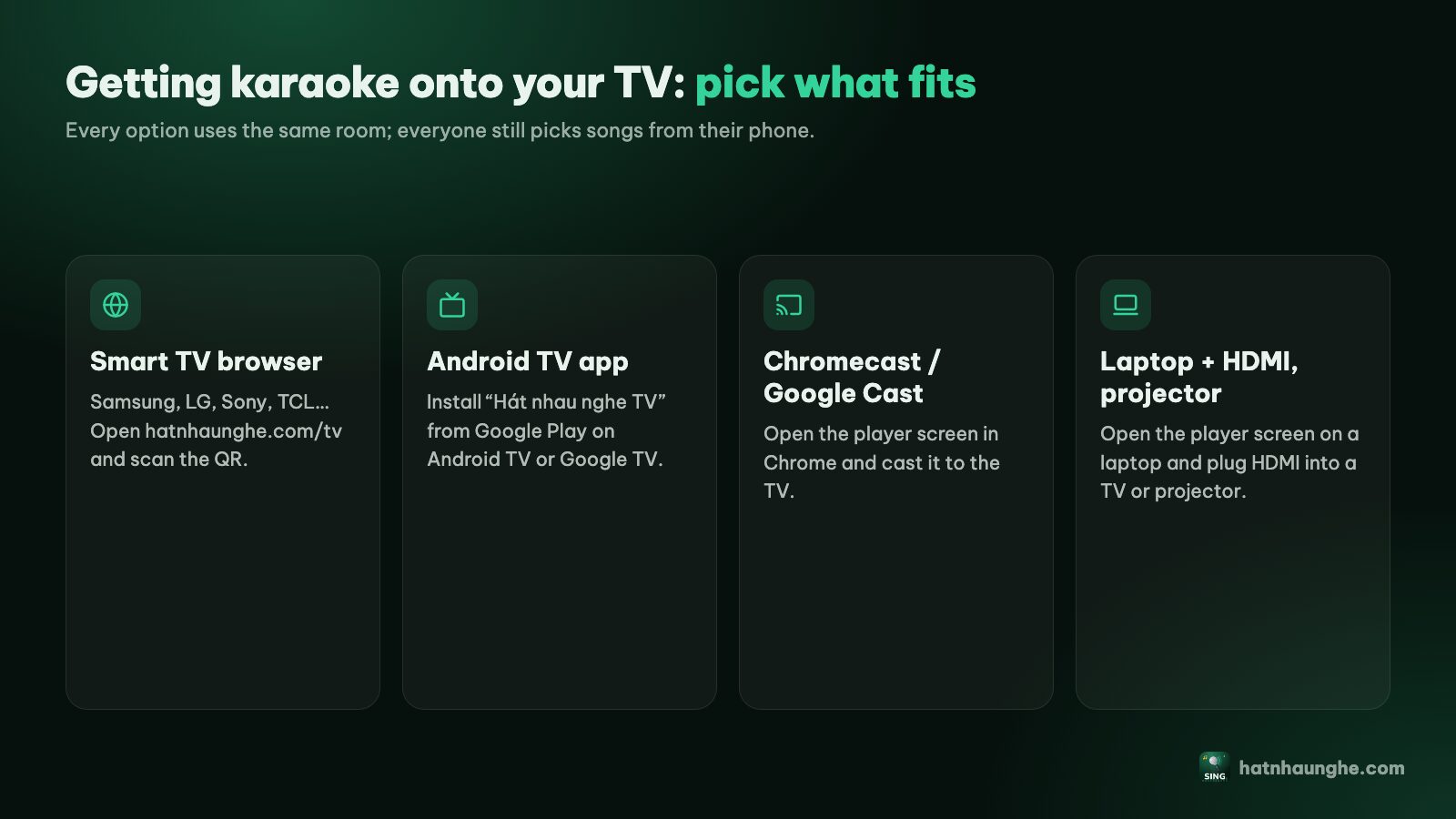
There are two ways to get it onto a TV box. Pick one:
- Option 1: Install the "Hát nhau nghe TV" app from Google Play on the box. The tidiest option, built for the remote.
- Option 2: Open a browser on the box and go to hatnhaunghe.com/tv. For boxes without Google Play, or when the app doesn't show up.
After that, pairing with your phone is identical.
What you need
- An Android TV or Google TV box connected to the TV over HDMI and online. A TV with Google TV or Android TV built in counts too.
- A phone with a camera for the host, who signs in with Google.
- The box's remote.
- A stable internet connection for the box, since videos stream from YouTube.
- Optional: external speakers, a soundbar or a karaoke speaker with mics.
Nothing else to buy. Hát nhau nghe is free and guests don't need an account.
Option 1: Install the Hát nhau nghe TV app from Google Play
The "Hát nhau nghe TV" app does one job: it turns the TV into the room's player screen. All the song picking stays on phones.
Install it
- 1On the box's home screen, open Google Play (on Google TV it's usually under the Apps tab). Menu names and locations vary by brand and model.
- 2Select search and type or say "Hát nhau nghe TV".
- 3Pick Hát nhau nghe TV and select Install.
- 4Open it from the home screen or your app list.
What the app does
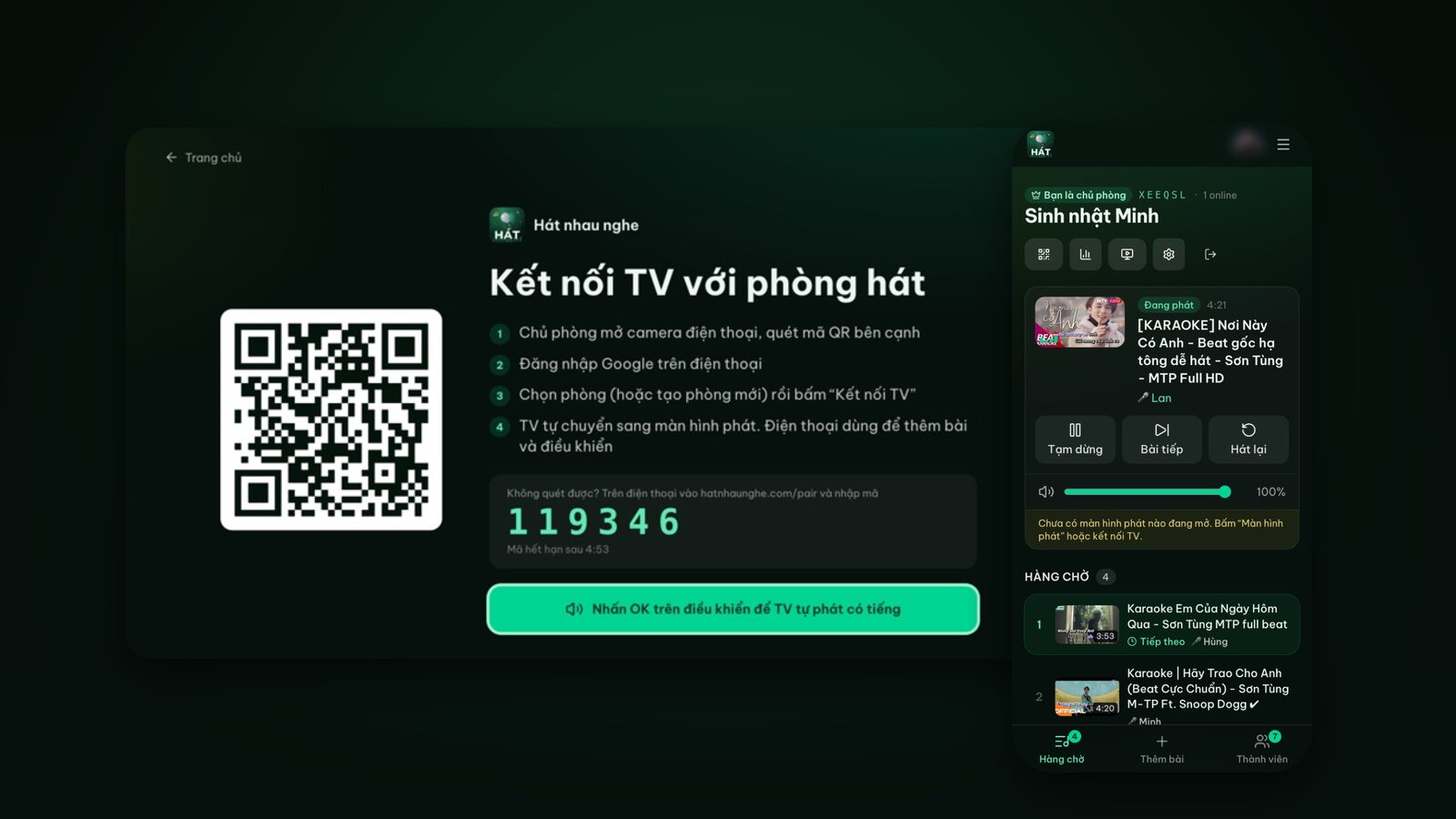
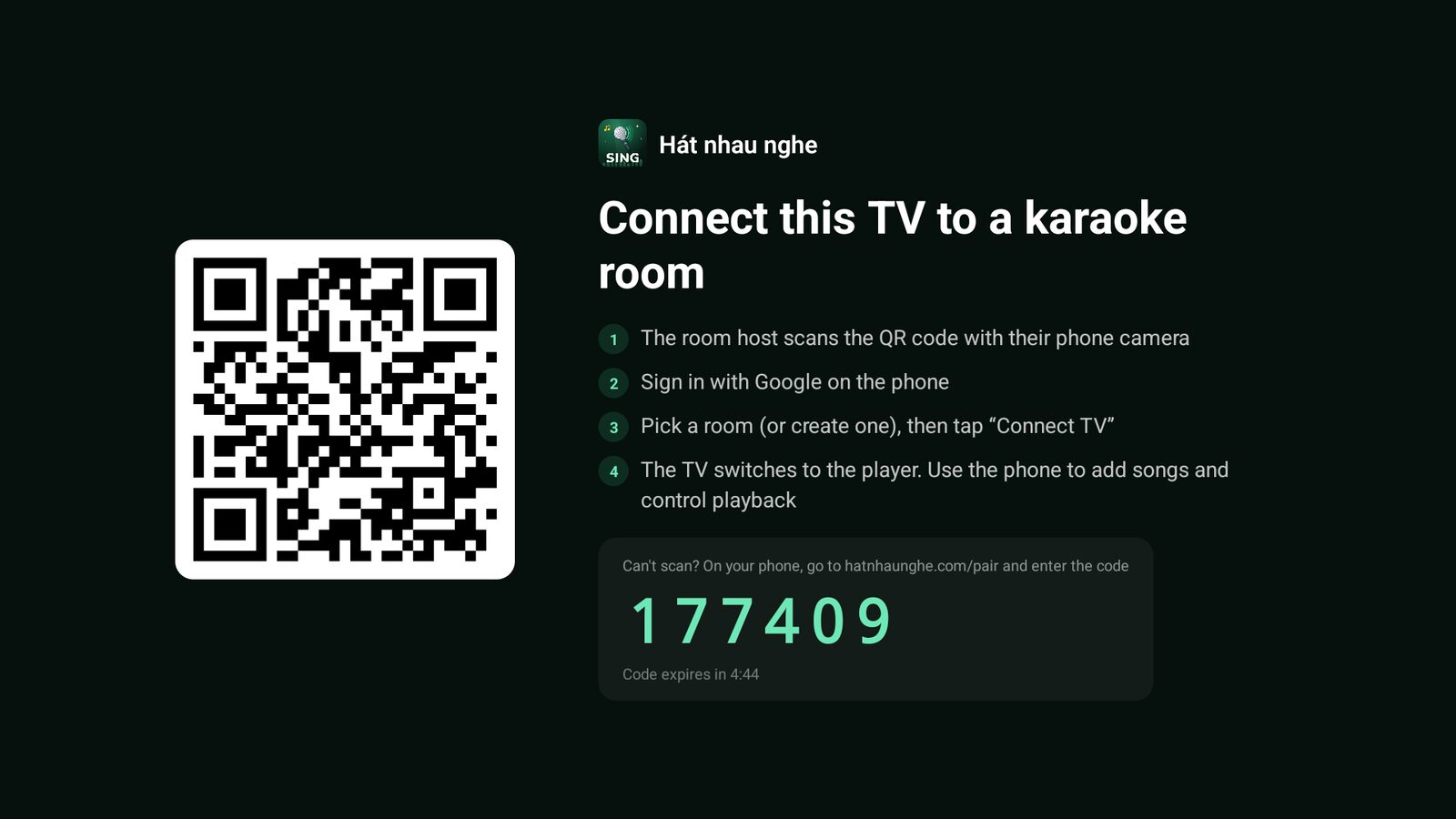
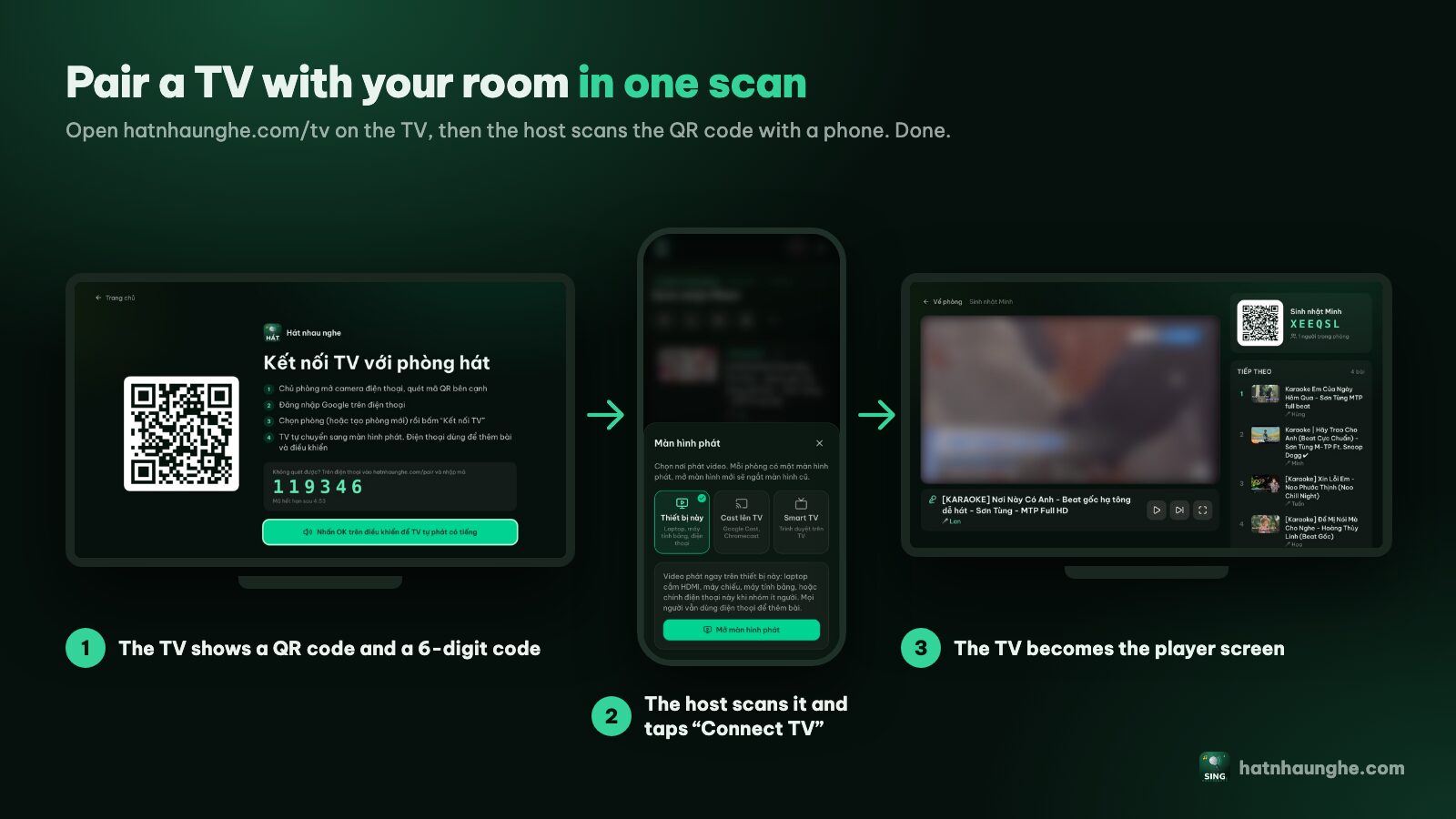
When it opens you'll see Connect this TV to a karaoke room: a big QR code on the left, four short steps on the right, and a 6-digit code with a countdown. The code refreshes after a few minutes, and the app shows a new one by itself when it expires.
A few things that are nicer than the browser:
- No OK press needed for sound. In a TV browser you press OK once so the TV is allowed to play sound. The app plays with sound as soon as a song is up.
- Simple controls: just three buttons, Pause/Play, Next song and Disconnect.
- Media keys on the remote (play/pause, next) work if your remote has them.
- The screen stays on while it plays, so no screensaver kicks in mid-song.
- It follows the device language: Vietnamese if the box is set to Vietnamese, English otherwise.
Option 2: Use a browser on the TV box
No Google Play, or can't find the app? A browser does the same job.
- 1Open a web browser on the box. Many Android TV and Google TV devices don't come with one, so install a browser from the box's app store first.
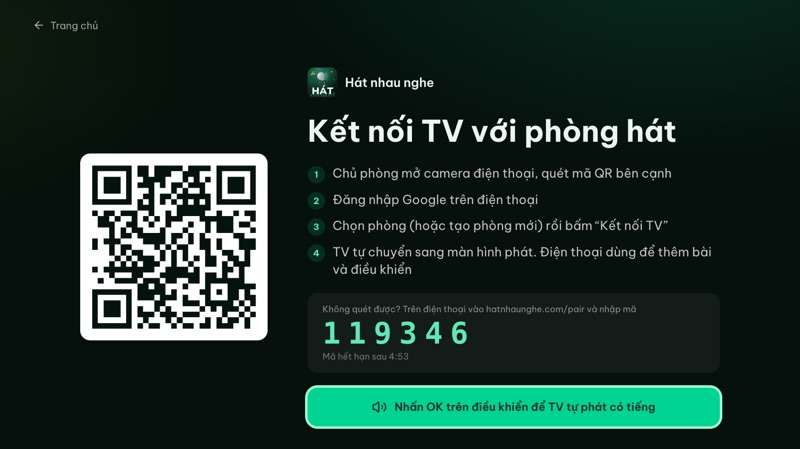
- 2Type hatnhaunghe.com/tv in the address bar and press OK.
- 3A QR code and a 6-digit code appear.
- 4Press OK on the remote once (the button reads "Press OK on your remote so the TV can play with sound"). This lets the browser play sound; skip it and you may need an extra press when the first song starts.
- 5Bookmark the page so it's quicker next time.
Amazon Fire TV has no Google Play, so you can't install the Hát nhau nghe TV app there. Use this option with Amazon's Silk browser instead: open Silk, go to hatnhaunghe.com/tv and carry on as above.
Next: pair the box with a room from your phone
App or browser, this part is the same.
- 1On your phone, open the camera and scan the QR code on the TV.
- 2Sign in with Google if asked (only the host needs to).
- 3Pick an existing room or Create a new room (give it a name, like "Friday karaoke").
- 4Tap Connect TV.
- 5The TV switches to the player screen. In a browser, if the TV says it needs one press to play with sound, press OK on the remote.
Can't scan? On your phone go to hatnhaunghe.com/pair, enter the 6-digit code shown on the TV, tap Continue and finish the same way.
Your phone doesn't have to be on the same Wi-Fi as the box. Pairing goes through the server, so a phone on mobile data can scan and add songs just fine. (Casting is different: it needs the same network.)
Try it in your browser
Open a free karaoke room, let friends scan the QR code and start singing in seconds. Nothing to install.
Get everyone in and picking songs
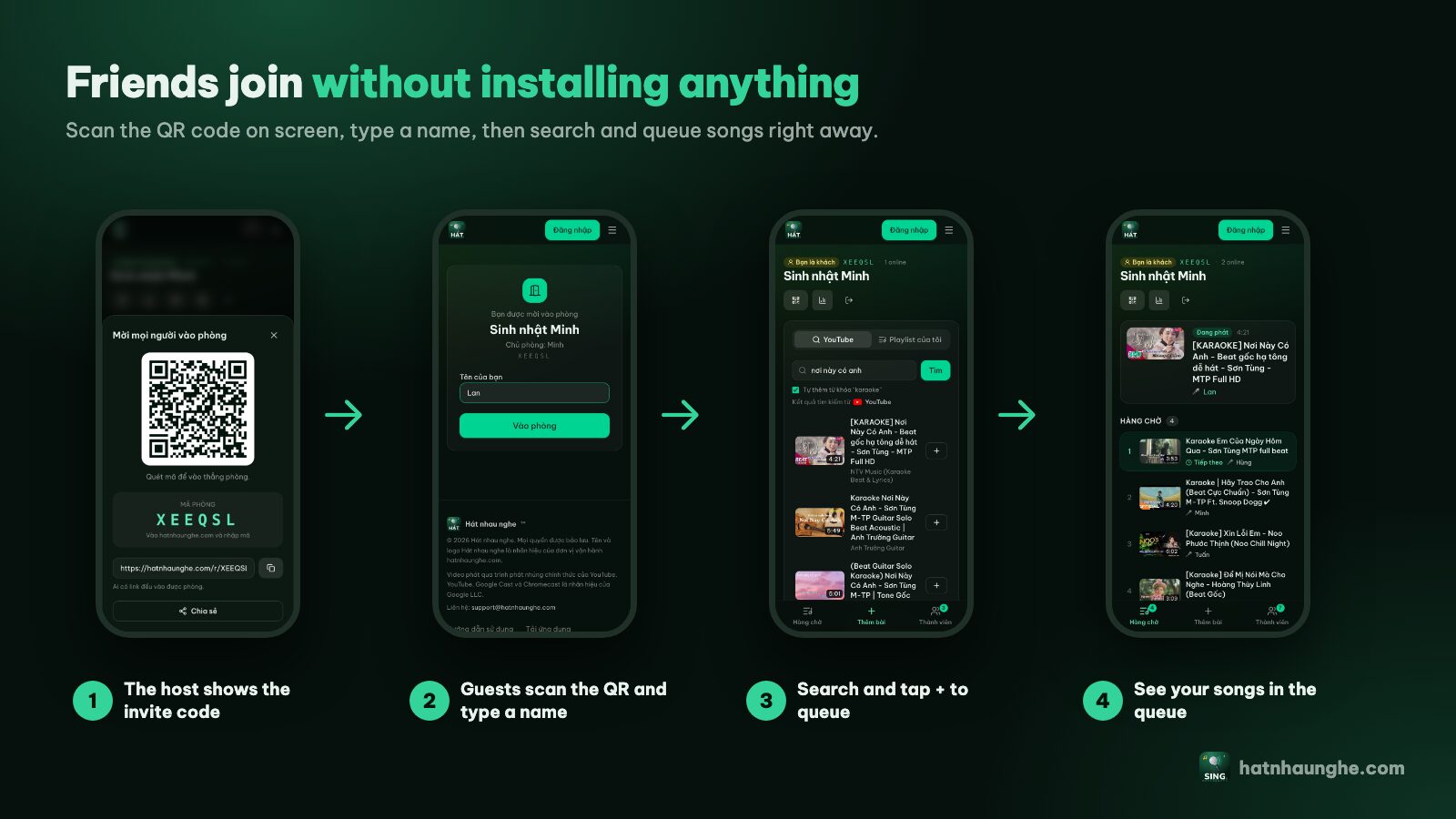
The player screen always shows the room's QR code in the top right, along with the room name and its 6-character code. Everyone:
- 1Opens their phone camera and scans the QR code on the TV.
- 2Types a name and taps Join room. No account, no app.
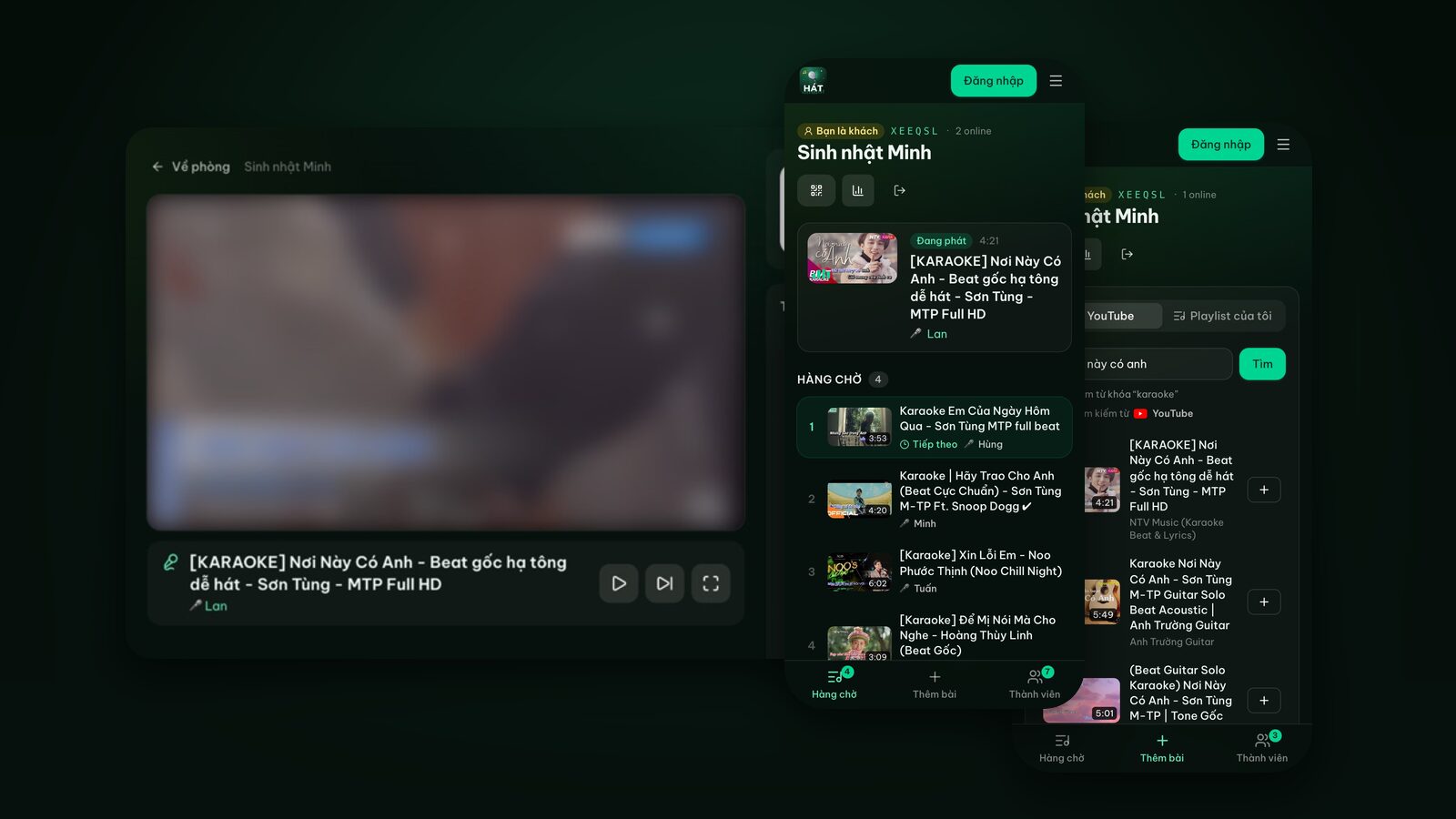
- 3Opens Add songs, types a song or artist, taps Search, then taps + to queue it.
Anyone who can't scan can go to hatnhaunghe.com and enter the room code. When a song comes up, the TV shows who's singing, so nobody has to ask whose turn it is.
The player screen and the remote
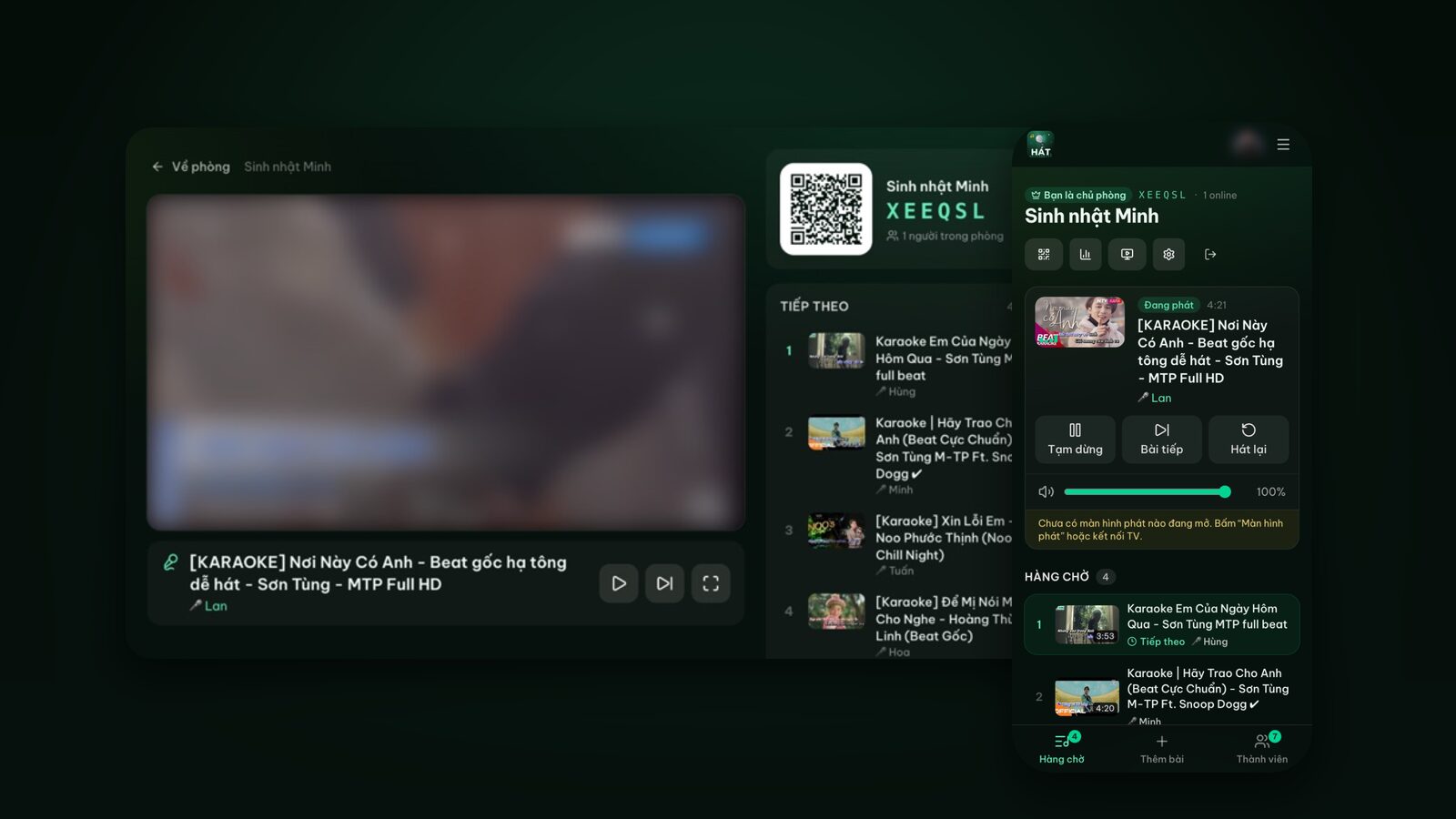
Once paired, the TV shows the karaoke video on the left and a column on the right with the QR code, room name, number of people and the Up next list. Under the video are the song title, the singer and the buttons.
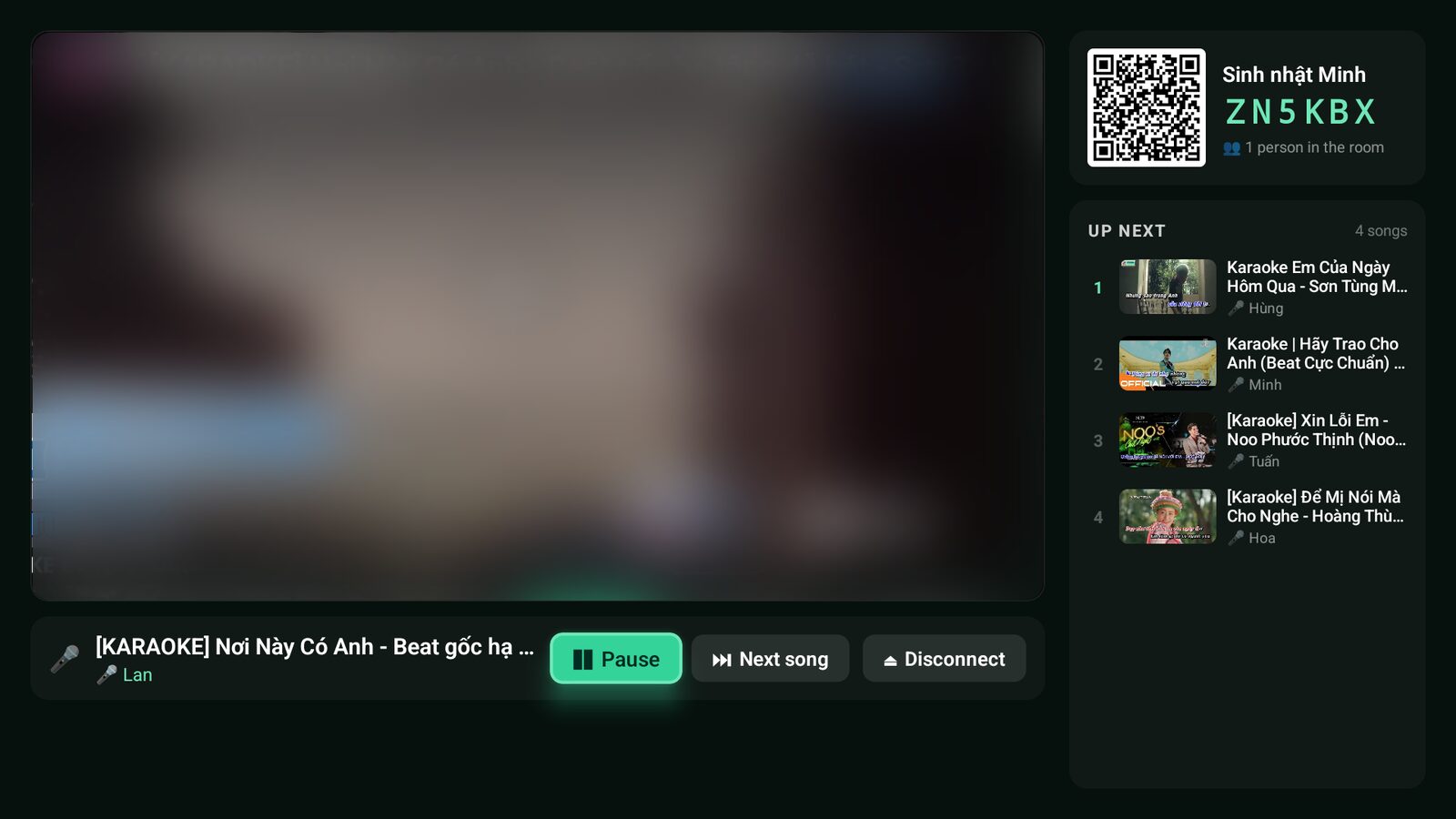
In the Hát nhau nghe TV app, the remote works like this:
- Left / Right: move between Pause (or Play), Next song and Disconnect. The selected button lights up green.
- OK: press the selected button.
- Play/pause and next keys (if your remote has them): work directly, no need to move focus.
- Disconnect: the app asks you to confirm first, so you won't do it by accident. Afterwards the TV goes back to the QR screen.
- Back: leaves the app, like any Android app.
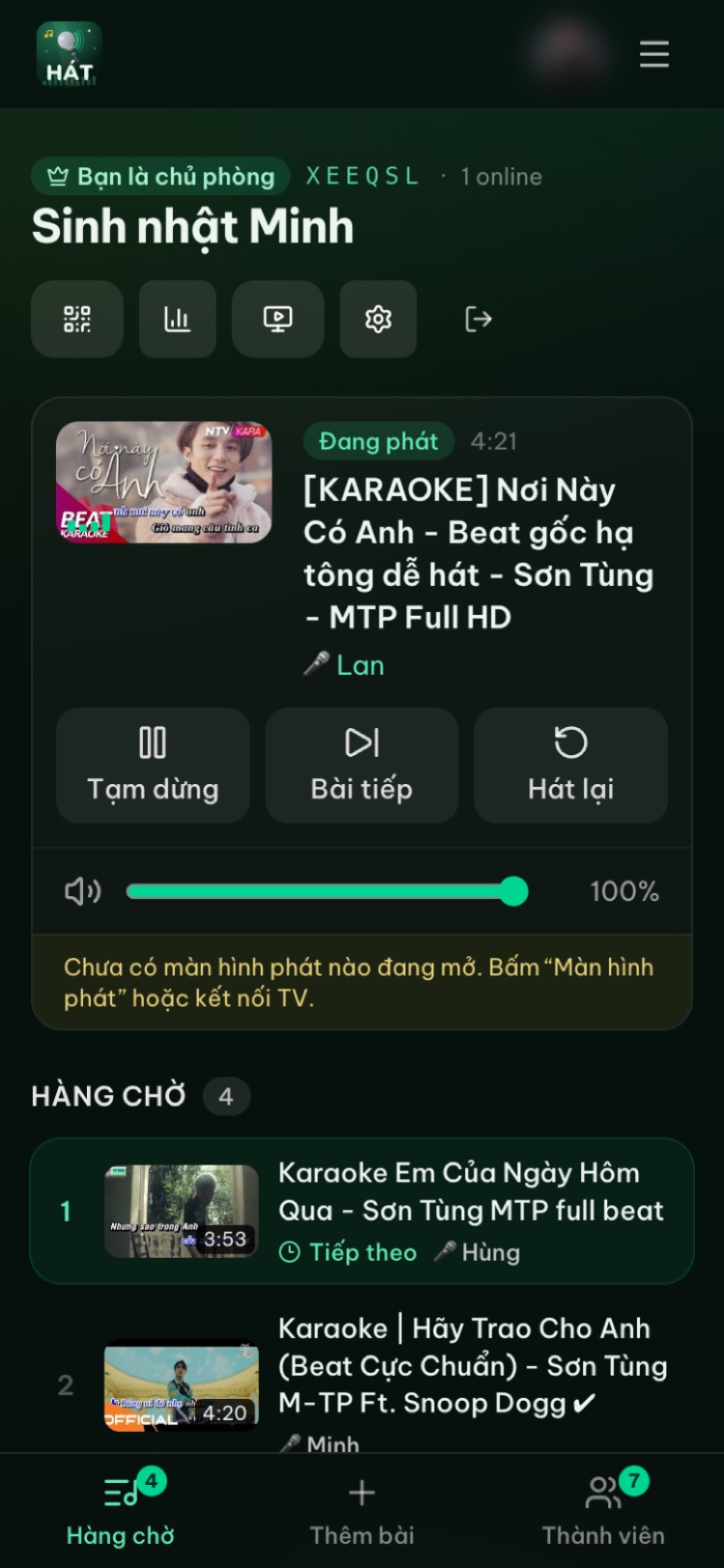
In practice you'll barely touch the remote. The host runs things from their phone: pause, skip, restart, drag the Player volume slider, approve songs and reorder the queue.
If the host has Premium and turns on song scoring, the TV shows a score card for the singer after each song while everyone rates with stars on their phones. It's a fun score, not based on your voice. More in karaoke scoring and star ratings.
Sound: it goes over HDMI
The box sends both picture and sound to the TV over HDMI, so by default the karaoke plays through the TV's speakers. For more volume:
- A soundbar or audio system connected to the TV (via HDMI ARC or optical): sound from the box passes through the TV to the speakers like anything else.
- A Bluetooth speaker: many boxes let you pair one in their device settings; the menu name varies. Expect a little Bluetooth delay.
- A karaoke speaker with mics: connect the speaker to the TV (or to the box if it has its own audio output) and plug the mics into the speaker, which mixes music and voice.
Hát nhau nghe doesn't record or process microphone audio, so whatever mics and speakers you own will work. For buying advice, see speakers and mics for home karaoke.
Troubleshooting
The Hát nhau nghe TV app doesn't show up in Google Play
Some TV boxes aren't Google-certified Android TV devices. They may have their own app store or the phone version of Google Play, and TV apps won't appear in search. The quick fix is Option 2: install a browser and go to hatnhaunghe.com/tv. The karaoke works exactly the same.
Operator boxes are similar: some models have Google Play and some don't. If the app isn't there, use the browser.
Picture but no sound
- 1Check the TV isn't muted, and check the box's volume.
- 2On the host's phone, raise the Player volume slider.
- 3In a browser: if the TV shows "Press OK to play", press OK on the remote.
- 4Using a soundbar or Bluetooth speaker? Check whether other apps play through it. If not, the problem is the TV or box's audio connection.
- 5Some boxes have advanced audio output settings. If they were changed, try setting them back to default.
The video stutters or buffers
- A wired Ethernet connection (if the box has a port) is usually steadier than Wi-Fi.
- On Wi-Fi, use the 5 GHz band if the box supports it and keep it close to the router.
- Pause heavy downloads on other devices.
If the connection drops mid-song, the player shows a connection notice, keeps playing the songs already queued and syncs up again when the connection returns.
The code says it expired
The code on the TV refreshes after a few minutes. Scan the new QR code on screen, or enter the new 6-digit code at hatnhaunghe.com/pair.
A song shows an error and skips
Some YouTube videos don't allow playback on other sites. Pick a different karaoke version of the same song. How to find good karaoke videos on YouTube has tips.
The TV goes back to the QR screen
The room moved to another player screen (each room has only one), was closed, or was deleted after 24 hours of inactivity. Pair again with the new QR code.
Try it in your browser
Open a free karaoke room, let friends scan the QR code and start singing in seconds. Nothing to install.
FAQ
Is this Android TV karaoke app free?
Yes. The Hát nhau nghe TV app and the website are free. Premium (bought in the phone app) only adds scoring and Play next; you don't need it to sing.
What about Chromecast with Google TV?
It's a Google TV device, so you can install the Hát nhau nghe TV app from Google Play just like on a TV box. You can also cast from Chrome on an Android phone; see karaoke with Chromecast and Google Cast.
Do I need a box if my TCL or Sony TV already runs Google TV?
No. Install the app right on the TV, or use the TV's browser. Karaoke on Samsung, LG and Android TV covers other TV brands.
Do my phone and the box need to be on the same Wi-Fi?
Not for QR pairing. The box just needs to be online; phones can be on Wi-Fi or mobile data.
Do I need to sign in on the TV box?
Not in the app or on the /tv page. Only the host signs in with Google, on their phone. (Downloading the app from Google Play does need a Google account on the box, like any app.)
Will there be ads?
Videos play through YouTube's official player, so any ads are YouTube's. Hát nhau nghe doesn't download or store videos.
To compare with other options like a laptop on HDMI or just using the YouTube app on the TV, see connecting your phone to the TV for karaoke and the full guide. Enjoy the night.