Karaoke with Chromecast and Google Cast: a full guide
Got a TV with Google Cast or a Chromecast plugged in? You can put the karaoke player on your TV with one tap in Chrome. Here's when casting is the right choice, how to do it, and what to try when the Cast button won't show up.
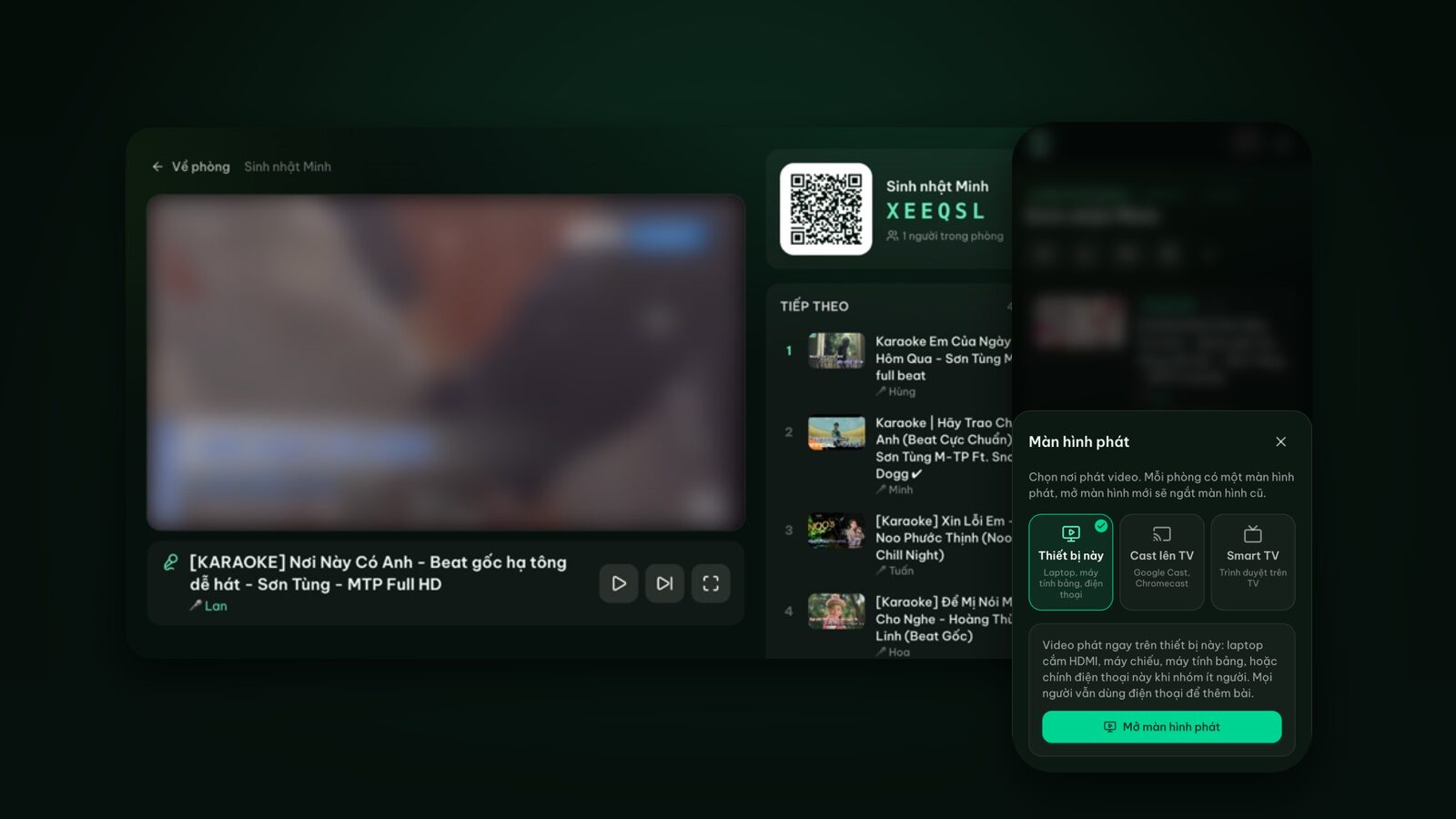
There's been a Chromecast behind our TV for years, mostly for YouTube. So when karaoke night comes around, the first question is always "can we just cast it?" You can, but a few things are worth knowing up front so you don't spend fifteen minutes fiddling while your guests wait.
This post covers Chromecast karaoke with Hát nhau nghe: when to use Google Cast instead of the TV's browser or the Android TV app, how casting works on the site, step-by-step casting from Chrome on an Android phone or a laptop, and how to fix the usual problems.
Google Cast and Chromecast in a nutshell
Google Cast lets a phone or computer send content to a TV over Wi-Fi. The receiving device can be:
- A Chromecast plugged into the TV's HDMI port.
- A Chromecast with Google TV or Google TV Streamer.
- An Android TV or Google TV set, or any TV labelled "Chromecast built-in" (many Sony, TCL and Xiaomi models, some Philips and Hisense models, and others).
If your TV shows up when you tap the Cast button in YouTube, it almost certainly supports Google Cast.
Cast, the TV browser or the Android TV app?
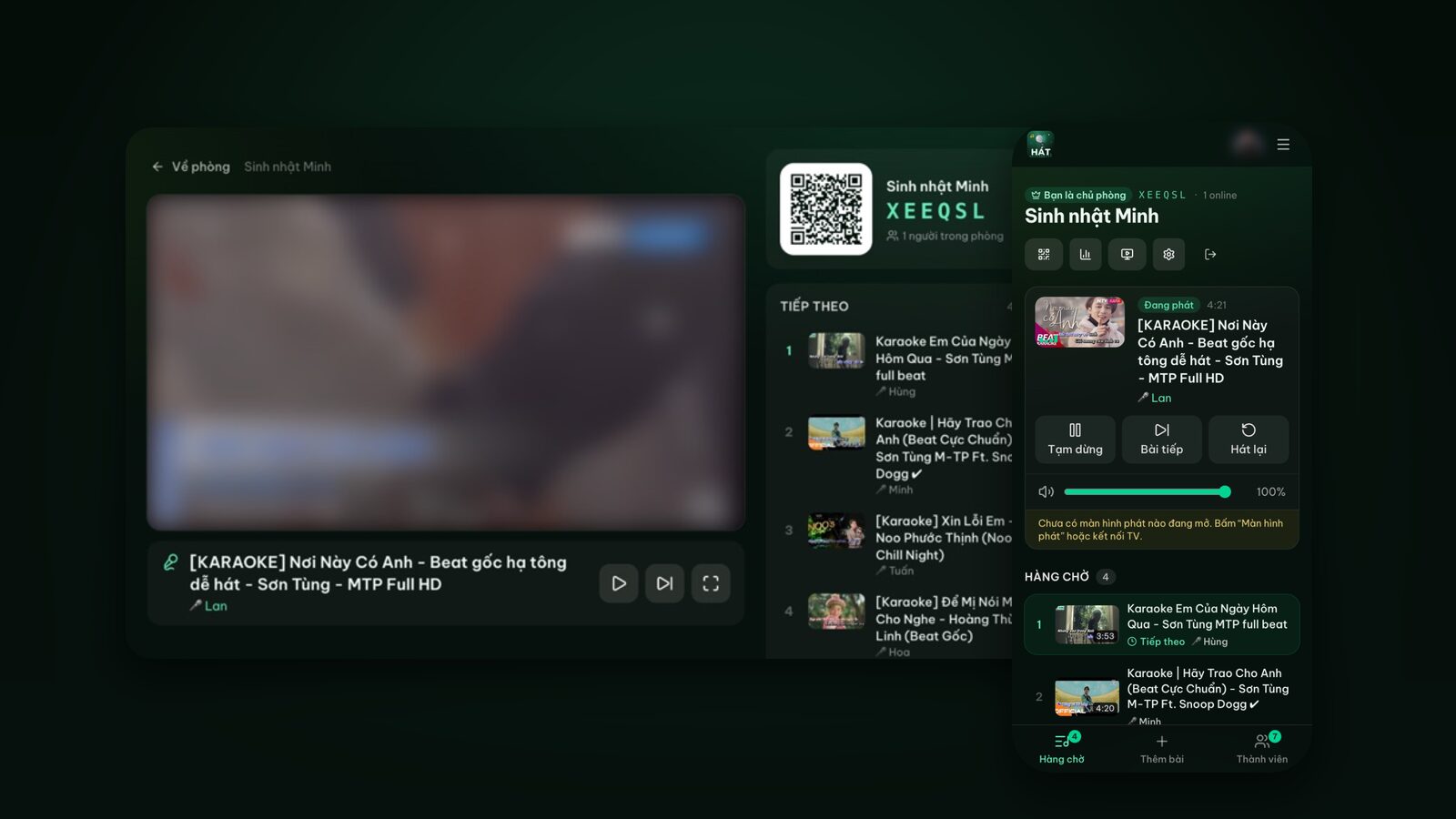
Hát nhau nghe has four ways onto a TV. All of them use the same room, and everyone still picks songs on their own phone.
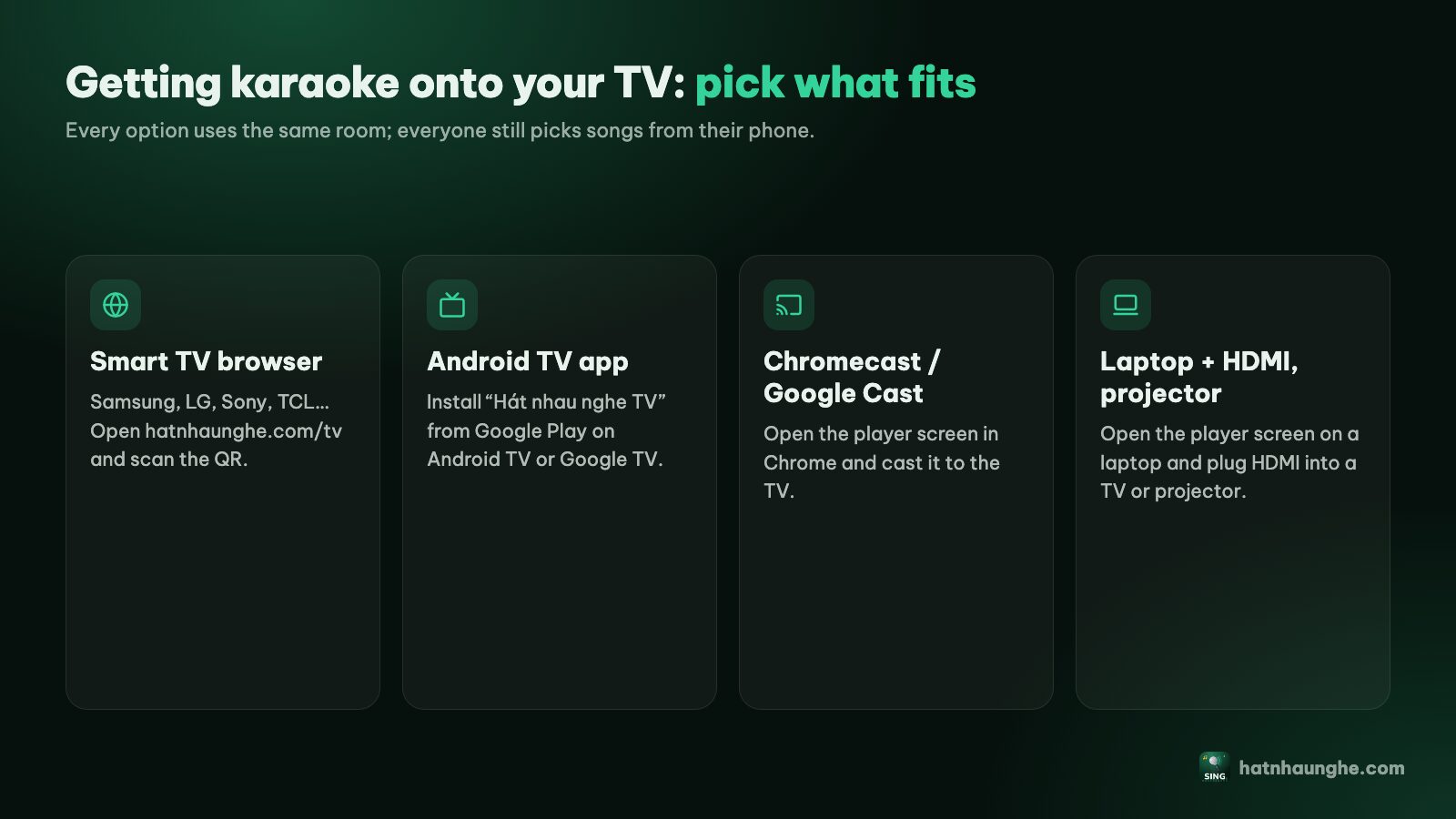
Here's how I'd choose:
- Cast when your TV has Google Cast (or a Chromecast plugged in), the host uses Chrome on Android or a laptop, and you don't want to type a web address with the TV remote. When everything's in place, it's the quickest option.
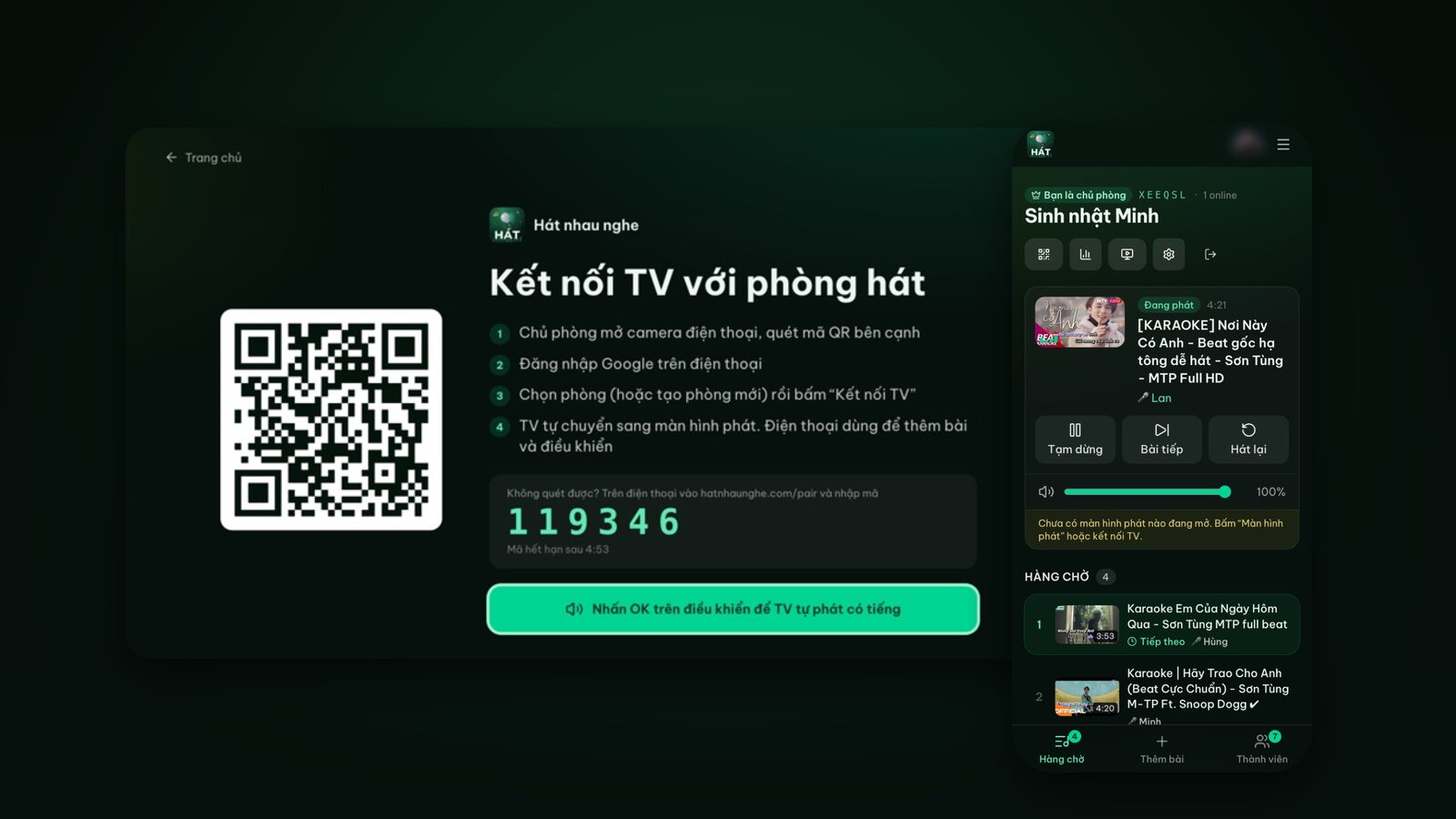
- Use the TV's browser when you have a Samsung, LG or another smart TV with a browser but no Cast, or the host has an iPhone. Open hatnhaunghe.com/tv on the TV, scan the QR code, done.
- Use the "Hát nhau nghe TV" app when you have Android TV, Google TV or a Chromecast with Google TV and sing often. Install it once and it opens straight to the pairing screen.
- Use a laptop over HDMI when you want the most reliable setup, or you're using a projector.
One important point: casting from the web currently works only in Chrome on Android or on a computer. iPhone and Safari don't support web casting yet. If the host has an iPhone, use the TV's browser or the Android TV app. Casting is also still marked as beta in the guide, so if it misbehaves, just switch to another method; nothing in your room is lost.
How casting works on Hát nhau nghe
People often misunderstand this part, so here's what actually happens.
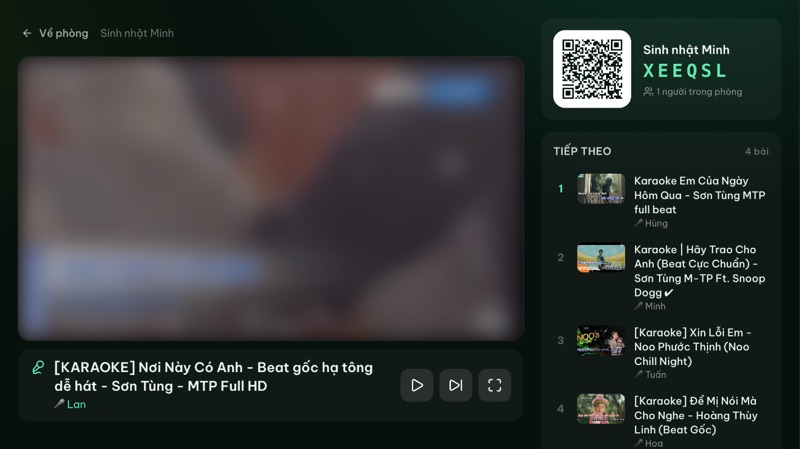
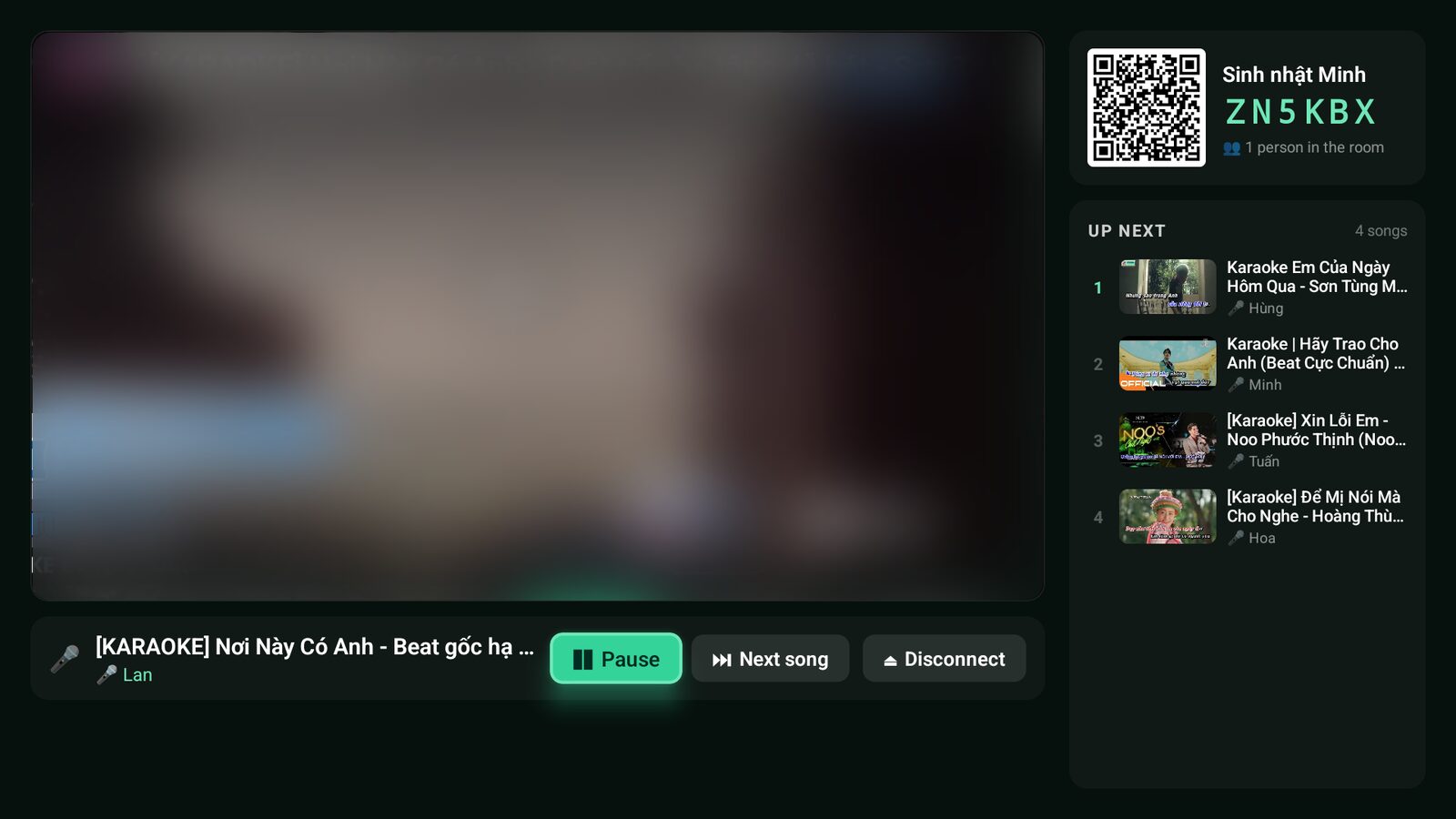
When you tap Cast to TV, your phone doesn't mirror its screen to the TV. Instead, the Chromecast opens the Hát nhau nghe player screen by itself and receives your room from the phone. From then on, the TV runs as an independent player screen: it plays the videos, follows the queue, and shows who's singing and the room's QR code.
That gives you three advantages:
- 1Your phone stays the remote. Pause, skip, adjust the volume and approve songs on your phone as usual.
- 2Video plays directly on the TV, not relayed through your phone, so it's smoother than screen mirroring.
- 3Your phone isn't tied up. You can text, search for songs, even lock the screen for a while, and the TV keeps working through the queue.
Each room has one player screen. Casting to the TV disconnects the old player screen (a laptop, say), and opening a player screen somewhere else makes the TV report that the room moved to another player.
Step by step: cast from Chrome on an Android phone
You'll need an Android phone with Chrome and the TV or Chromecast switched on, both on the same Wi-Fi network.
- 1Open your room. Go to hatnhaunghe.com in Chrome, tap I'm hosting, sign in with Google and create a room (or reopen one you have).
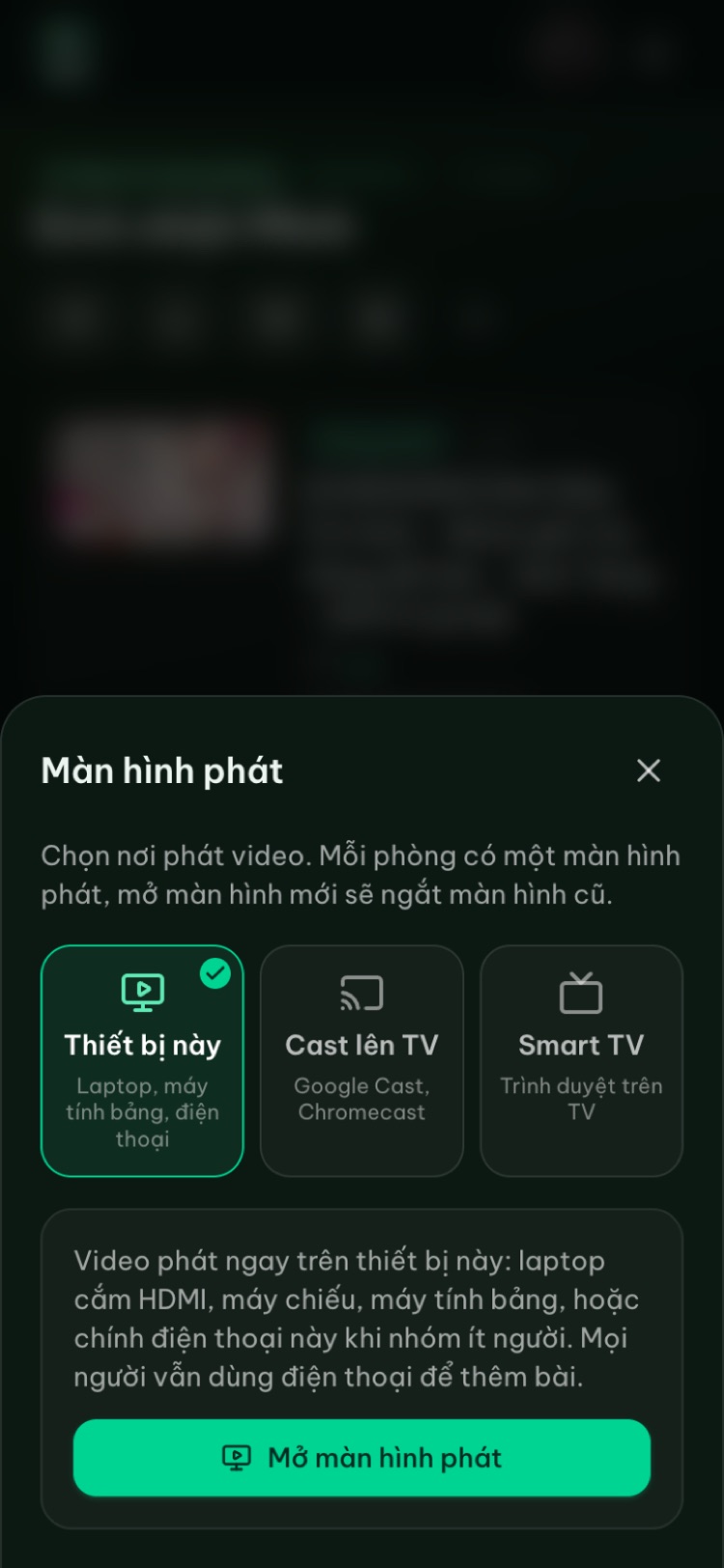
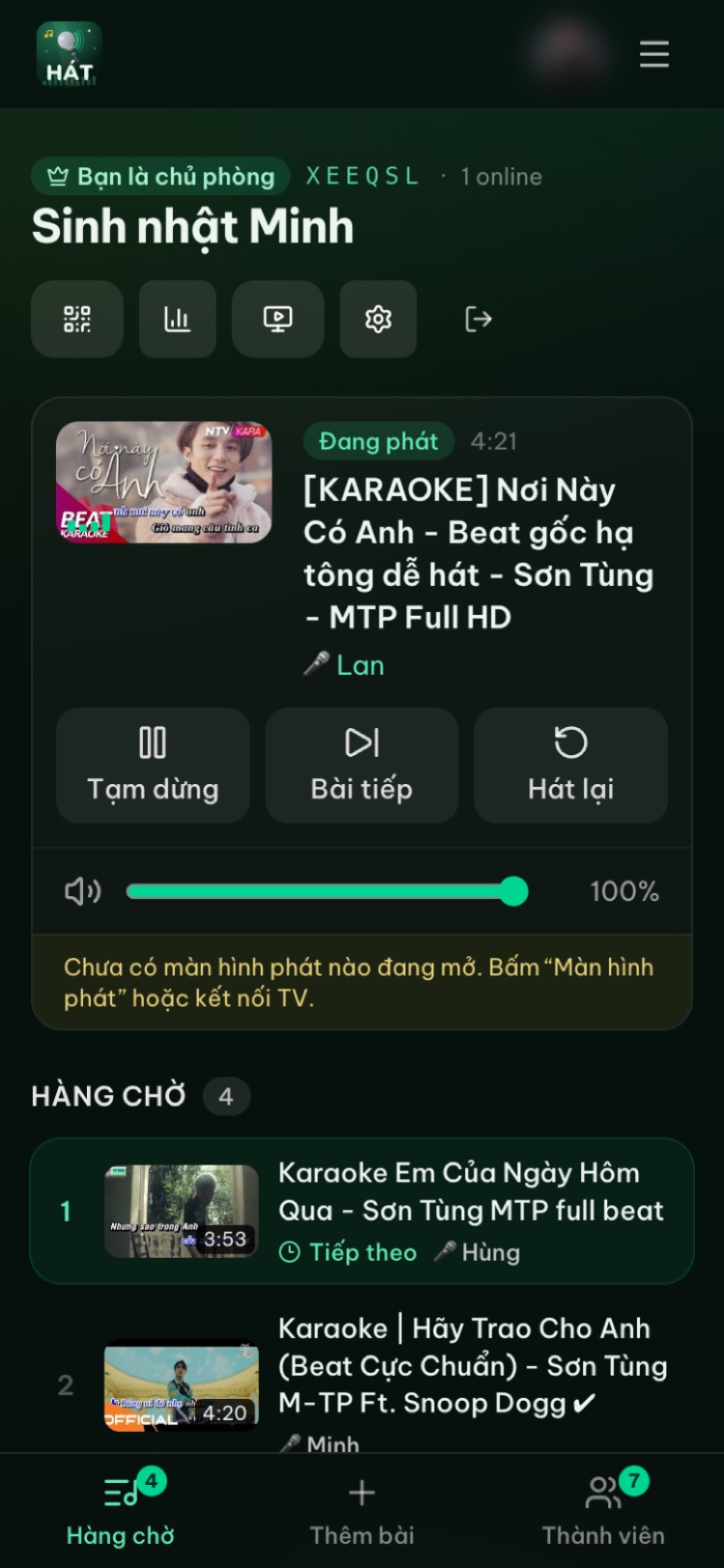
- 2Open the Player screen menu. In the row of buttons at the top of the room, tap the screen icon. The Player screen menu offers three choices: This device, Cast to TV, Smart TV.
- 3Choose Cast to TV, then tap the Cast to TV button below it.
- 4Pick your TV from the list Chrome shows.
- 5Give it a few seconds. The TV shows the Hát nhau nghe logo, then switches to the player screen. Your phone shows "Casting to" with the TV's name.
Once your phone has found a TV on the network, a small Cast button also appears in the row of buttons at the top of the room, so next time you can tap that directly. If you don't see it, don't worry: it only appears when Chrome finds a Cast device. See the troubleshooting section below.
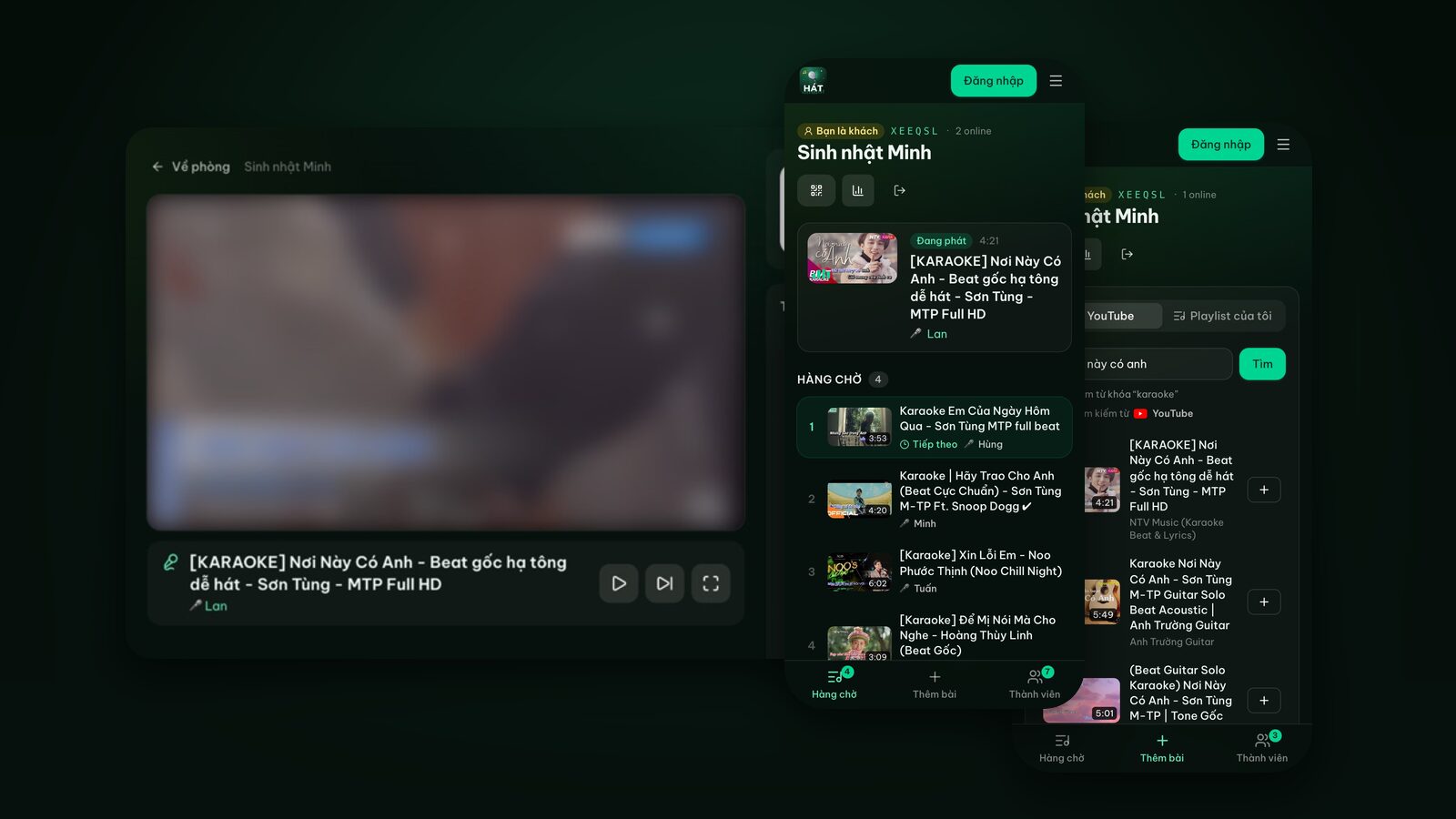
Then invite everyone: they scan the QR code in the corner of the TV, type a name and tap Join room. No account, nothing to install.
Step by step: cast from Chrome on a laptop
It's almost the same as on a phone, just in desktop Chrome:
- 1Put the laptop and the TV on the same Wi-Fi.
- 2Open hatnhaunghe.com in Chrome and open your room.
- 3Click the screen icon at the top of the room, choose Cast to TV and click the Cast to TV button.
- 4Pick your TV in Chrome's dialog.
Because the TV plays the videos itself, the laptop is now just a remote. You can push it aside and run things from your phone instead: sign in with the same Google account on your phone, open the room, and you'll see the host controls.
Try it in your browser
Open a free karaoke room, let friends scan the QR code and start singing in seconds. Nothing to install.
Why the same Wi-Fi network?
Google Cast looks for devices on your local network. If the phone is on one network and the TV on another, Chrome will report that it can't find a Cast-ready TV. Common culprits:
- The router broadcasts separate 2.4GHz and 5GHz networks with different names. They often still see each other, but if not, put both devices on the same network name.
- Guest Wi-Fi networks usually stop devices from seeing each other. Keep the TV and the phone off the guest network.
- Your phone quietly switched to mobile data because the Wi-Fi was weak. Check the Wi-Fi icon.
- A range extender sometimes creates its own network. Try standing closer to the main router.
Only the host who taps Cast needs to share a network with the TV. Guests can use mobile data or any Wi-Fi, because they're just adding songs over the internet.
Troubleshooting
No Cast button, or "this browser can't cast"
- You're using Safari, an iPhone or a browser other than Chrome: the room will tell you the browser can't cast. Reopen the room in Chrome on Android or a computer, or open hatnhaunghe.com/tv on the TV instead.
- You opened the page inside another app's built-in browser (by tapping a link in a messaging app, for example): open it in Chrome.
- The small Cast button at the top only shows once Chrome has found a TV. Open the Player screen menu to see the exact message.
"No Cast-ready TV found on this Wi-Fi"
- 1Check that the phone and TV are on the same Wi-Fi (see above).
- 2Turn the TV on and switch it to the HDMI input your Chromecast is plugged into.
- 3Open the YouTube app on your phone and see whether its Cast button finds the TV. If YouTube can't find it either, the problem is the network or the TV, not the website.
- 4Unplug the Chromecast, or restart the TV and the router, wait a minute and try again.
The TV shows the logo and stays on "Waiting for a phone to send a room"
The TV opened the player screen but didn't receive the room. Tap Stop casting on your phone and cast again. If it keeps happening, reload the room page on your phone before casting.
Low volume, audio lag or choppy video
- Sound comes from the TV (or the speaker connected to it), not your phone. Use the volume slider on the room page, and if it's still quiet, turn up the TV.
- Picture and sound both play on the TV, so they should line up. If the sound drifts from the picture, the usual cause is a Bluetooth speaker paired with the TV. Try a cable instead (HDMI ARC, optical or 3.5mm, depending on your TV and speaker).
- Choppy or slow-loading video usually means weak Wi-Fi where the TV is. Move the router closer, or use the 5GHz band if your Chromecast supports it.
- Karaoke mics plugged into a speaker never go through the website, so mic delay depends on your speaker. Hát nhau nghe doesn't capture or process microphone audio.
The TV turns itself off or goes to sleep
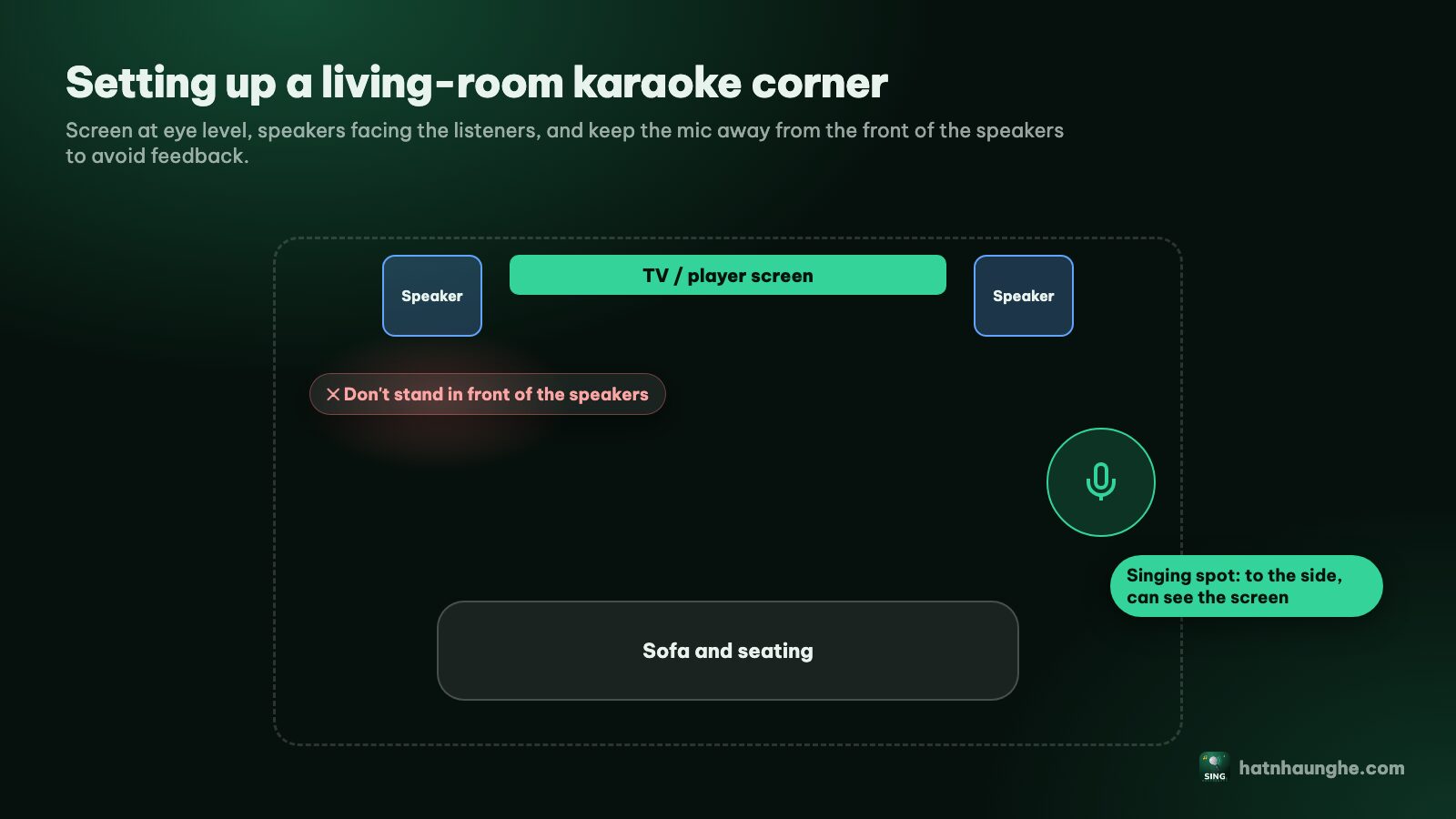
The player screen on the Chromecast is built to keep running all night, but the TV itself may have an energy-saving mode or an auto-off timer that kicks in when nobody touches the remote for a while. If your TV keeps switching off mid-party, turn off auto power-off in the TV's settings or make the timeout longer. If the TV does switch off, just cast again when it's back on.
What if my phone locks?
Since the TV plays from the queue on its own, it keeps going when your phone locks. For quick control through the night, set your phone not to lock too soon, or keep it on a charger nearby. If you close the browser by mistake, just reopen the room page and you're back in control; no need to cast again while the TV is still playing.
Moving the player screen somewhere else
Tap the Cast button or open the Player screen menu and choose Stop casting. Or simply pick another option (This device, Smart TV), and the new player screen replaces the old one.
Chromecast with Google TV: a second option
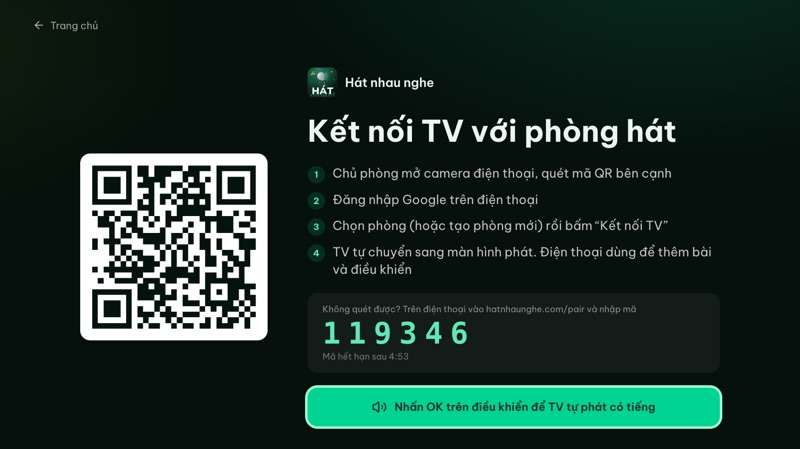
If you have a Chromecast with Google TV (the one with its own remote) or a TV running Google TV or Android TV, you can do more than cast: you can install the Hát nhau nghe TV app from Google Play. It opens straight to a pairing screen with a QR code; the host scans it with their phone and the TV becomes the player. That's handy for iPhone users, since no Chrome is needed.
The download link is on the apps page. You can also install a browser on Google TV and go to hatnhaunghe.com/tv, as described in karaoke on Samsung, LG and Android TV.
Older Chromecasts (the HDMI dongles without a remote) can't install apps, so casting is the only option for those.
Tips for a Chromecast karaoke night
- Test casting five minutes before guests arrive. The first time is always slower while Chrome looks for devices.
- Give your TV a recognizable name in the Google Home app, especially if you have several Cast devices.
- Have a plan B. Remember hatnhaunghe.com/tv or keep an HDMI cable handy. If casting acts up, switching takes a minute and the queue stays exactly as it was.
- Build playlists ahead of time so you can add a whole playlist to the room when the night starts. Ideas in easy karaoke songs and duets.
To compare with the other methods, karaoke on your TV with your phone and karaoke with a projector or a laptop over HDMI go into each one in depth.
FAQ
Does karaoke with Google Cast cost anything?
No. Casting works on the free plan. Premium (bought in the mobile app) adds things like a score after each song and Play next; it has nothing to do with casting.
Can I cast karaoke from an iPhone to a Chromecast?
Not yet, because Safari and iPhone don't support casting from the web. On an iPhone, open hatnhaunghe.com/tv in the TV's browser, or install the Hát nhau nghe TV app if your TV runs Android TV or Google TV.
Do guests need to be on the same Wi-Fi as the TV?
No. Only the device that taps Cast needs to share a network with the TV. Guests just need an internet connection to join and add songs.
Will there be ads when casting?
Videos play through YouTube's official player, so any ads are YouTube's, under YouTube's terms. Hát nhau nghe doesn't download or store videos.
How do I switch from casting to a laptop?
On the laptop, open the room, go to the Player screen menu, choose This device and then Open player screen. Each room has one player screen, so the TV disconnects and the laptop carries on with the queue.
Here's hoping your TV shows up on the first try and the singing goes on late (with the volume kept friendly for the neighbors).
Try it in your browser
Open a free karaoke room, let friends scan the QR code and start singing in seconds. Nothing to install.