How to run karaoke night on your TV, with everyone's phone as the remote
One person opens a room and picks the screen that plays the music. Everyone else just needs their phone.
Screenshots are taken from the app and show the Vietnamese interface; the buttons are in the same places in English.
For hosts
- 1
Sign in and create a room
- On the home page, choose “I'm hosting”
- Sign in with Google and give your room a name
- Add a password if you're sharing the link widely
- 2
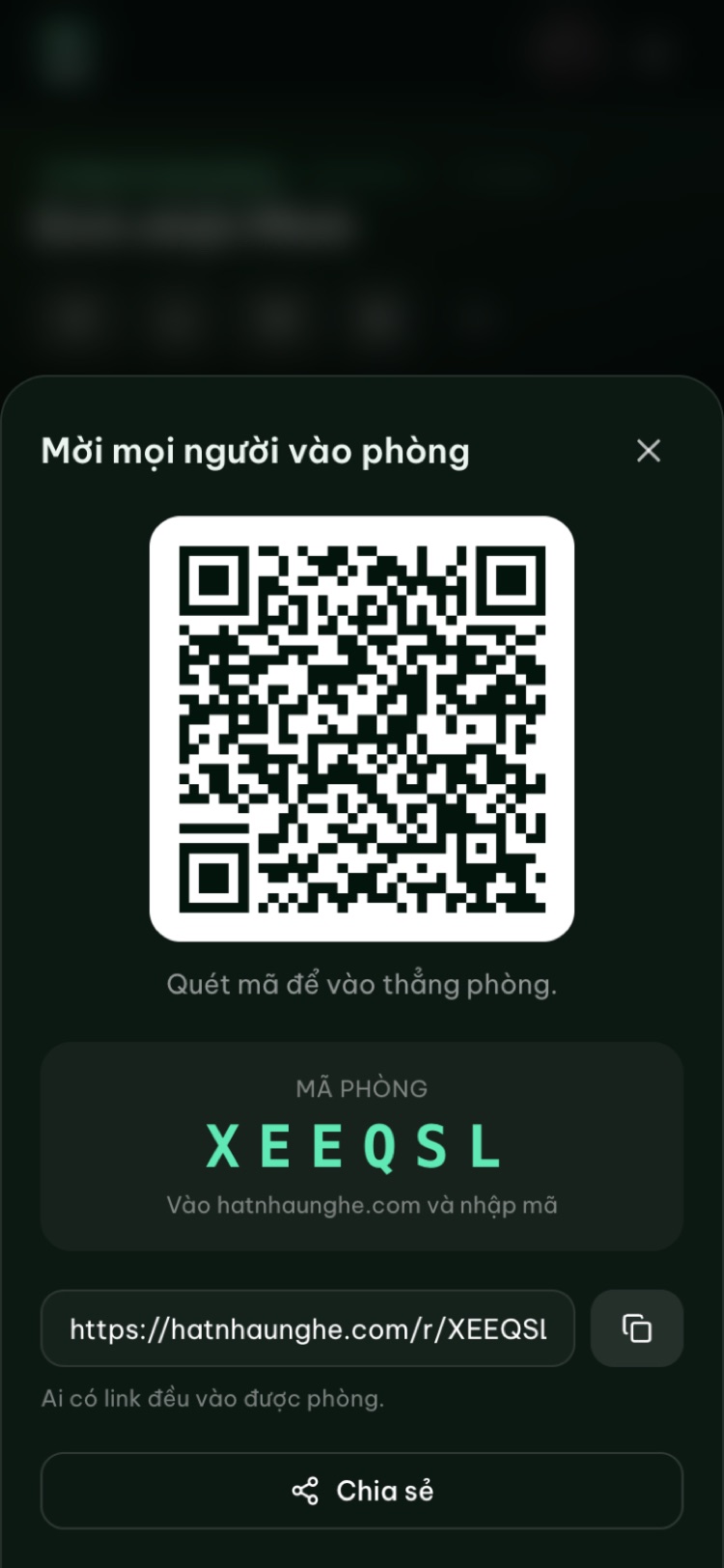
Invite everyone with a QR code
- Tap “Invite” (the QR icon) at the top of the room
- Friends scan the code and they're in, no password needed
- Or share the 6-character room code, or copy the link
- 3
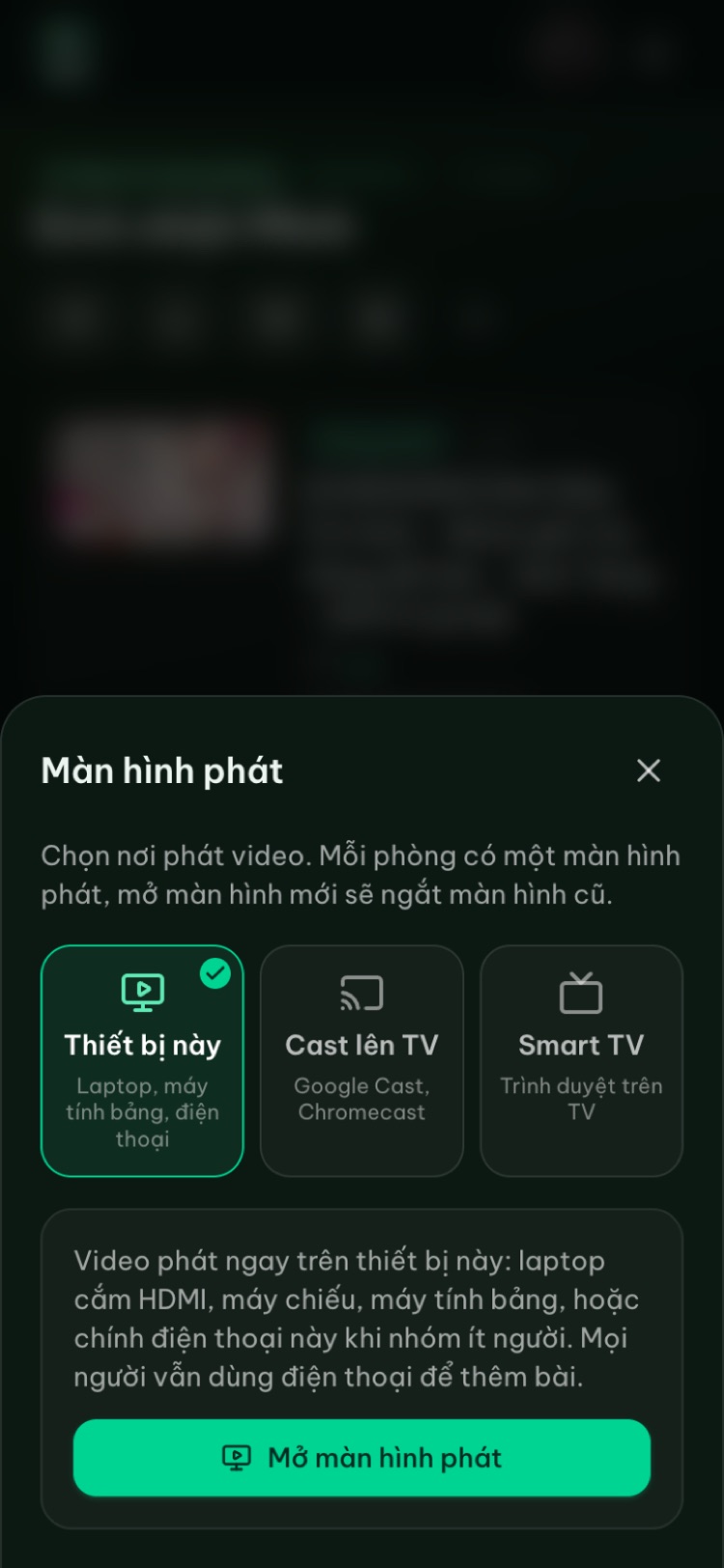
Choose the player screen
- Tap “Player screen” (the screen icon) at the top of the room
- This device: a laptop, a tablet or the phone in your hand
- Cast to TV: for TVs with Google Cast, from Chrome on Android
- Smart TV: open the TV's web browser and go to hatnhaunghe.com/tv
- 4
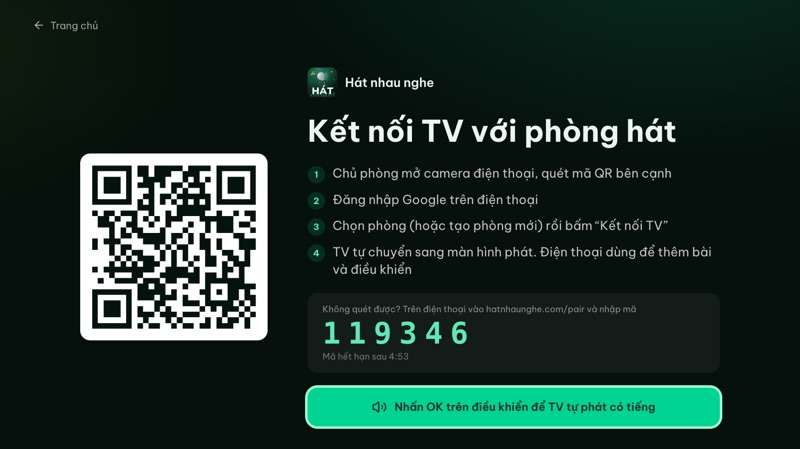
Pair a smart TV with the QR code
- On the TV, open hatnhaunghe.com/tv and a QR code appears
- Press OK on the remote once so the TV can play with sound
- The host scans the code with their phone, picks the room and taps “Connect TV”
- Can't scan it? Go to hatnhaunghe.com/pair and enter the 6-digit code
- 5
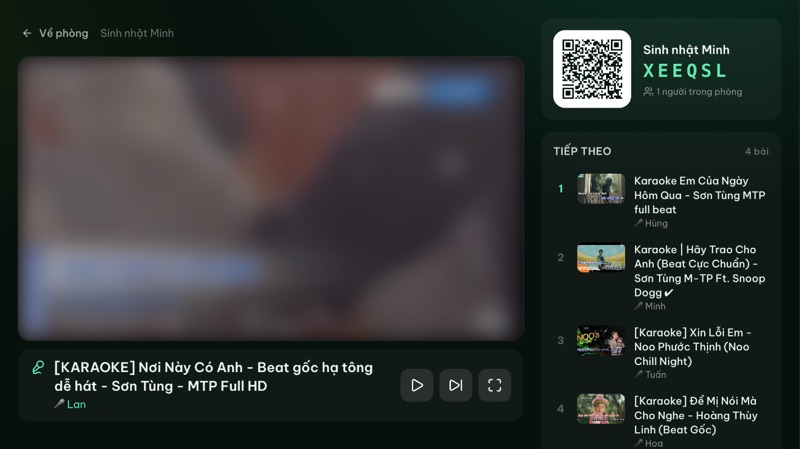
The player screen runs itself
- Tap “Start” once if the browser blocks autoplay with sound
- Songs advance on their own, and each one opens with an “Up next” card showing who's singing
- The QR code and the next songs stay on the right. With an empty queue, the QR code sits in the middle
- The screen stays awake all night and won't go to sleep
- 6
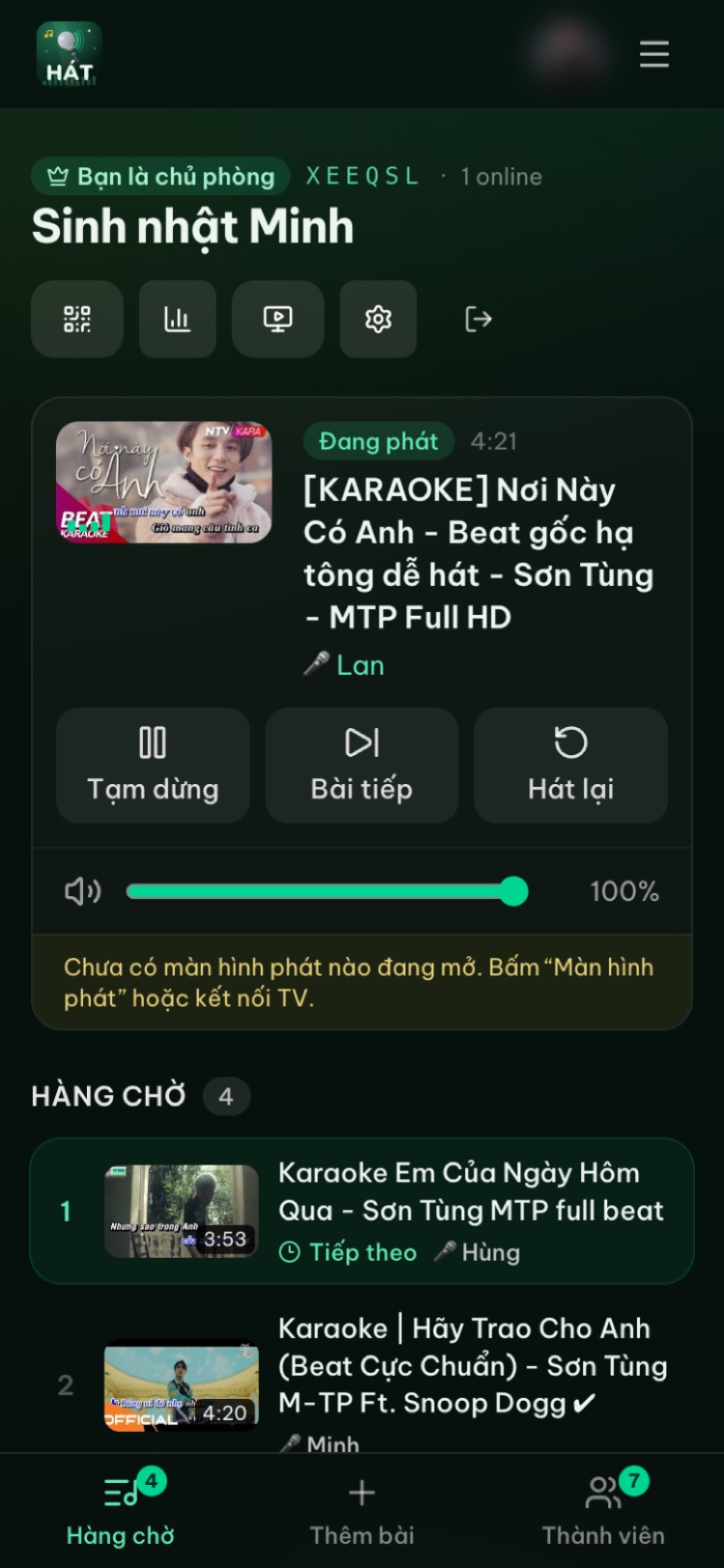
Control everything from your phone
- Pause, skip to the next song or restart the current one
- Drag the volume slider to adjust the sound on the player screen
- Approve or reject songs guests send in (✓ and ✕)
- 7
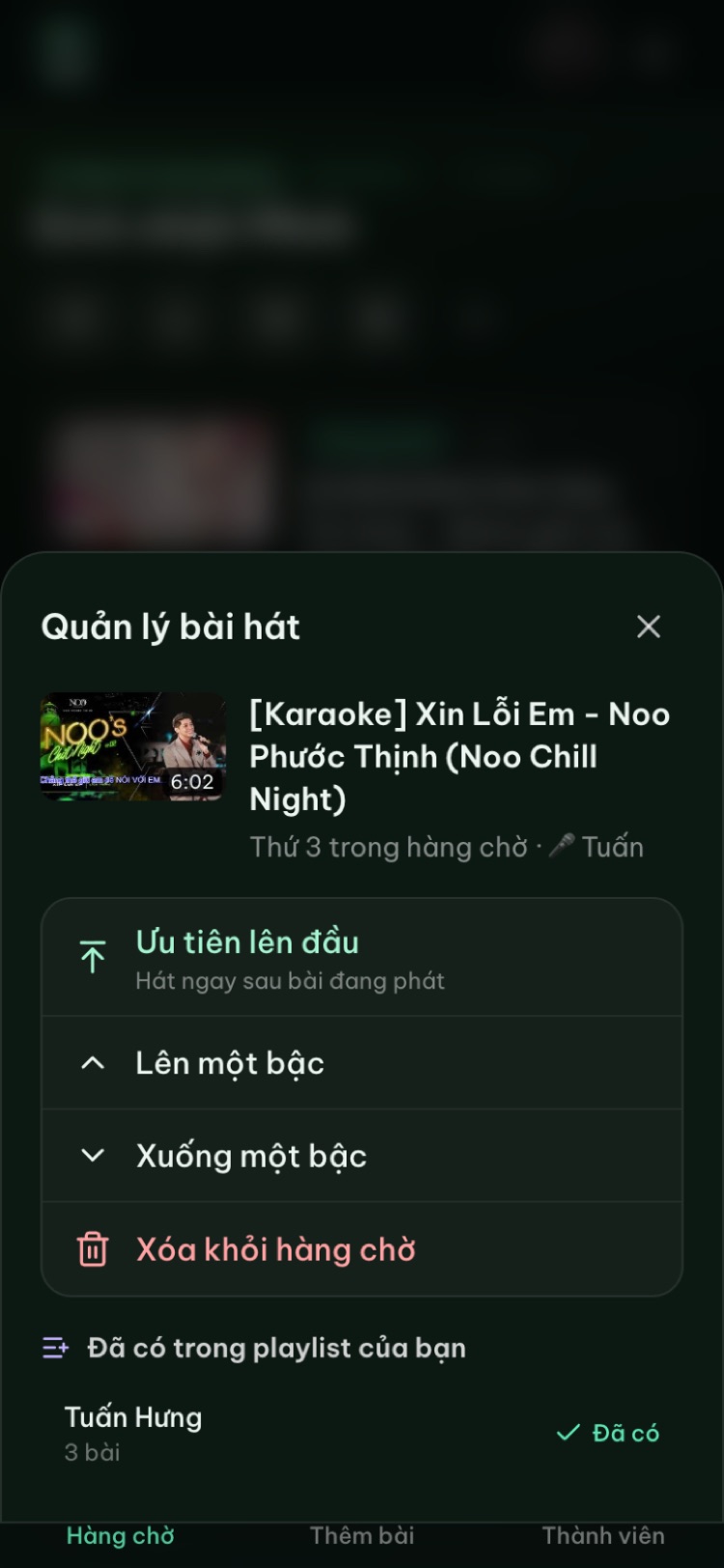
Manage any song in the queue
- Tap a song in the queue (on the room page or the player screen)
- “Play next” moves it right after the current song
- Move it up or down a spot, or remove it from the queue
- Save it to one of your playlists to add it faster next time
- 8
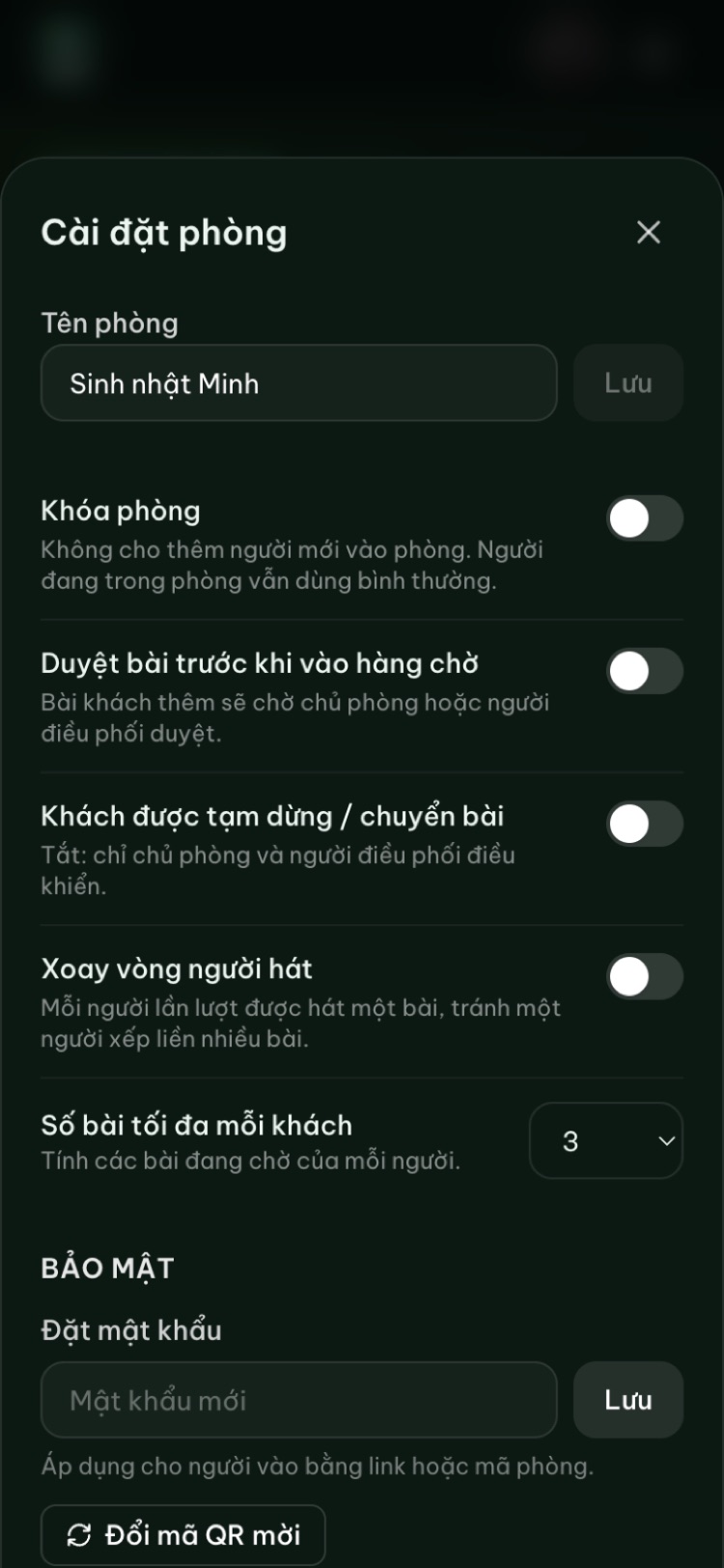
Room settings
- Tap the gear icon at the top of the room
- Approve songs first, let guests skip songs, rotate singers fairly
- Cap how many songs each guest can queue, set a password, lock the room
- Close the room when the night is over
- 9
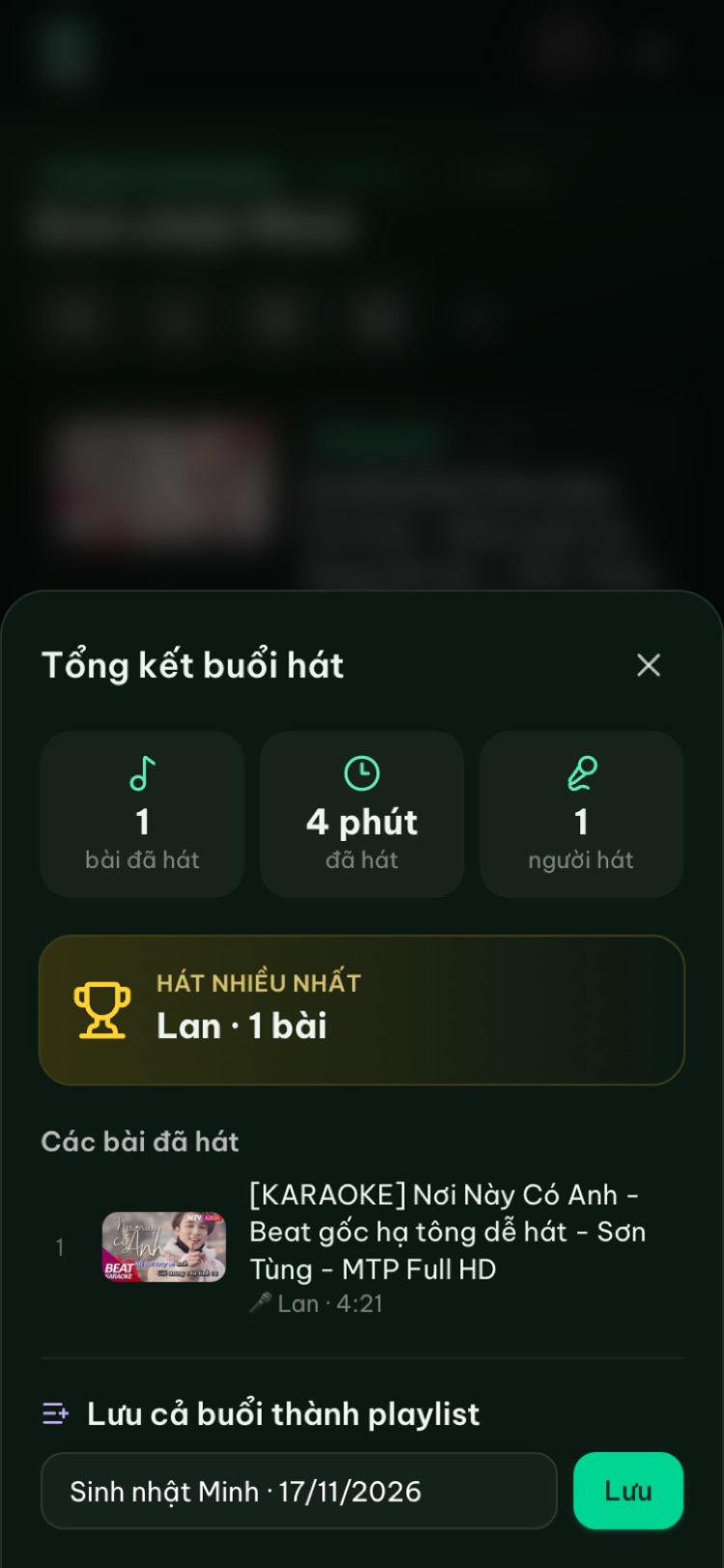
Recap the night
- Tap the chart icon at the top of the room
- See how many songs were sung, the total time and who sang the most
- Save the whole night as a playlist in one tap
Put the player screen on your TV
Pick whatever works for your TV. Only one device needs to be the player screen; everyone else uses their phone.
Smart TV with a web browser
Samsung, LG, Sony, TCL and most recent TVs
- 1With the TV remote, open the browser app (Samsung: “Internet”, LG: “Web Browser”)
- 2Type hatnhaunghe.com/tv in the address bar and press OK
- 3The TV shows a QR code and a 6-digit code
- 4The host scans the QR code with their phone, picks the room and taps “Connect TV”
- 5Press OK on the remote once so the TV plays with sound; the TV then opens the player screen on its own
Hosting more than one room? Use “Switch room” on the TV's player screen. Bookmark hatnhaunghe.com/tv to get there faster next time.
Android TV, Google TV and TV boxes
Sony, TCL, Xiaomi, FPT Play Box, Fire TV…
- 1If the TV has no browser, install one from the TV's app store (Fire TV comes with “Silk”)
- 2Open the browser and go to hatnhaunghe.com/tv
- 3The host scans the QR code on the TV and taps “Connect TV”
Rather not install a browser? Use Google Cast below.
Cast from an Android phoneBeta
TVs with Google Cast or Chromecast built-in, on the same Wi-Fi
- 1Connect the Android phone and the TV to the same Wi-Fi network
- 2Open the room in Chrome on Android
- 3Tap the Cast icon at the top of the room and pick your TV
- 4The video plays on the TV and your phone stays the remote
iPhone and Safari don't support casting from the web yet. Open the TV's browser instead.
Laptop plugged into the TV over HDMI
The most reliable option. Works with any TV that has an HDMI port
- 1Connect the laptop to the TV with an HDMI cable and switch the TV to that HDMI input
- 2On the laptop, open your room and tap the screen icon at the top
- 3Choose “This device”, tap “Open player screen”, then go full screen
There's a Hát nhau nghe TV app for Android TV and Google TV. Install it from Google Play (see the Get the app page) and open it instead of typing an address. Pairing with the QR code works exactly the same. Apps for Samsung, LG and Apple TV are coming soon.
For guests
- 1
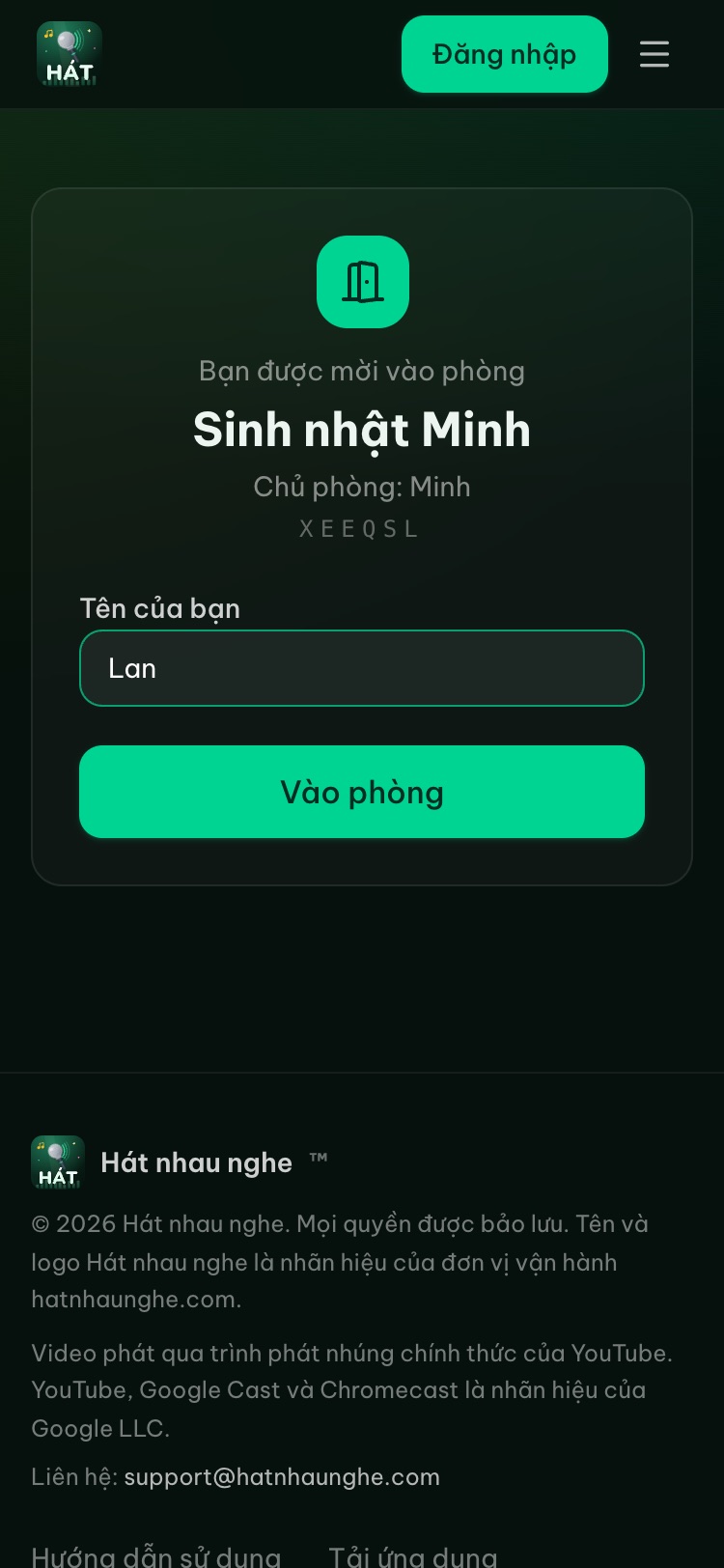
Join the room
- Scan the QR code on the TV with your phone's camera (or the scan button on the home page)
- Enter your name and tap “Join room”
- No account, no app to install
- 2
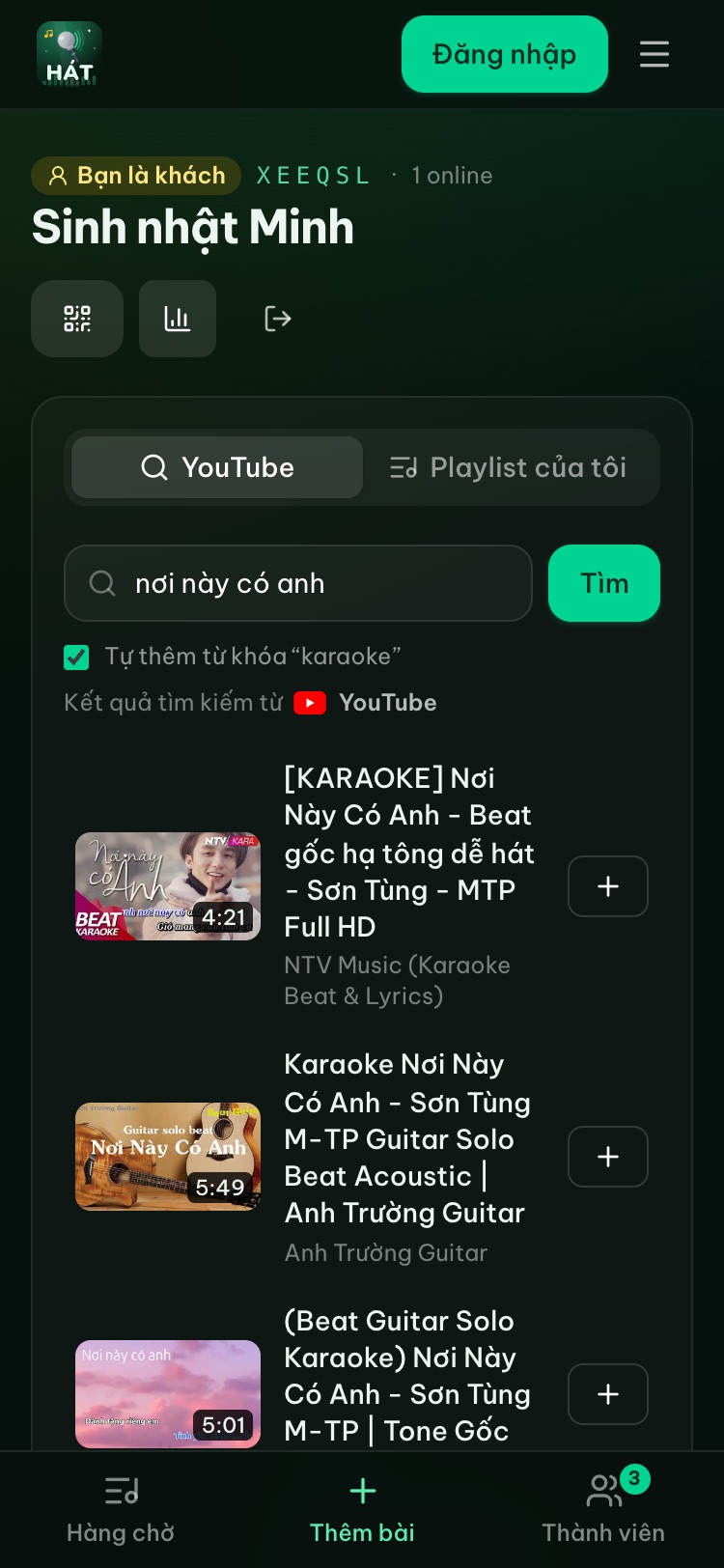
Find and add songs
- Open the “Add songs” tab
- Type a song title or artist and tap Search
- Tap + to add it to the shared queue
- 3
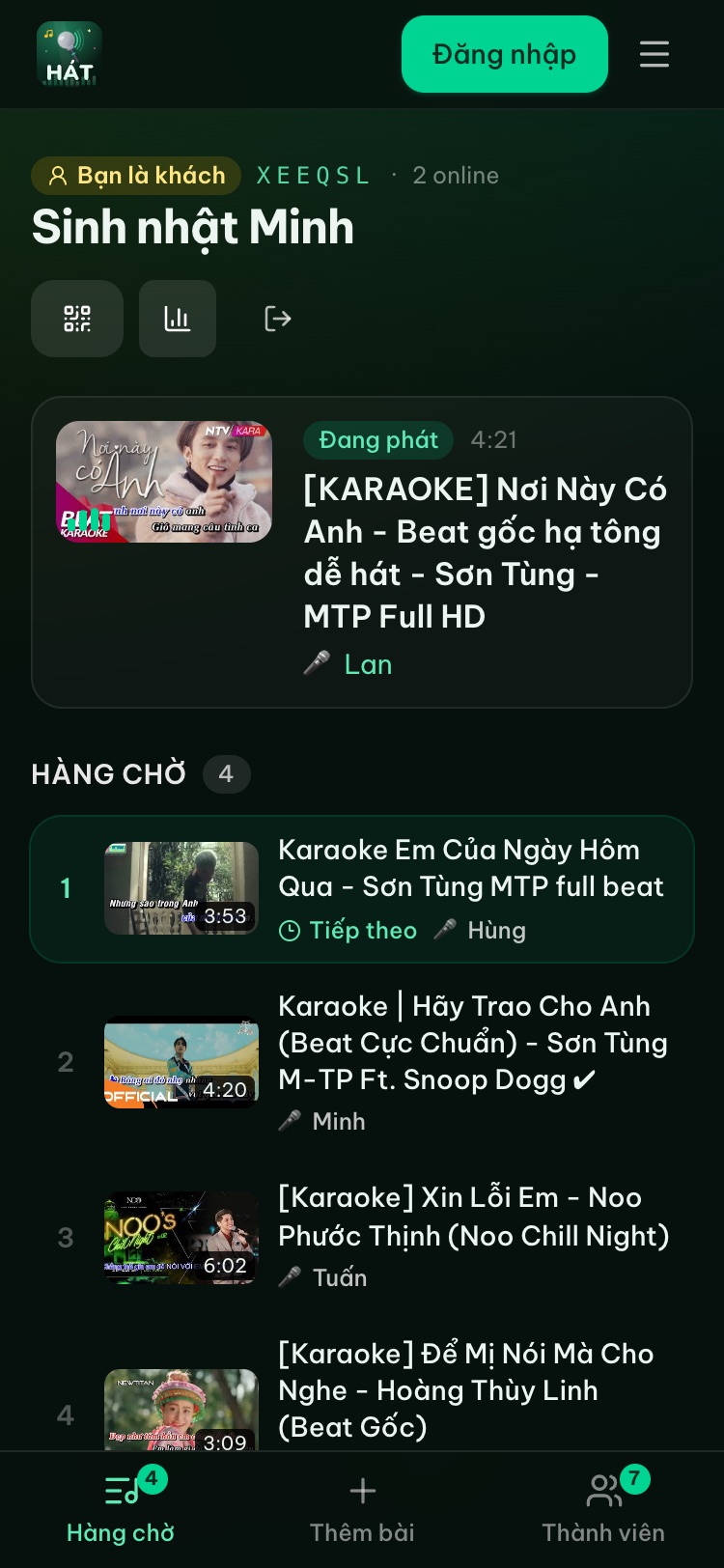
Wait for your turn
- The “Queue” tab shows what's coming up next
- Your songs are marked “Yours”, and you can take them back
- When it's your turn, the player screen shows “Up next” with your name
Tips
- Cast to your TV
Got a TV with Google Cast? Open the room in Chrome on Android and tap the Cast icon at the top. Your phone stays the remote.
- No Cast on your TV?
Open the TV's web browser and go to hatnhaunghe.com/tv, or plug a laptop into the TV with an HDMI cable. See “Open on TV” above.
- Sing an old favorite again
History keeps the last 20 songs. Tap “Sing again” to put one back in the queue.
- Leave or close a room
Guests tap “Leave room”. Hosts close the room in Settings. Rooms are deleted automatically after 24 hours of inactivity.