How to sing karaoke with YouTube on your TV: 2 ways
There are two ways to do YouTube karaoke on a TV: open the YouTube app and search yourself, or let the whole room queue songs from their phones. Step by step for both, plus fixes for common problems.
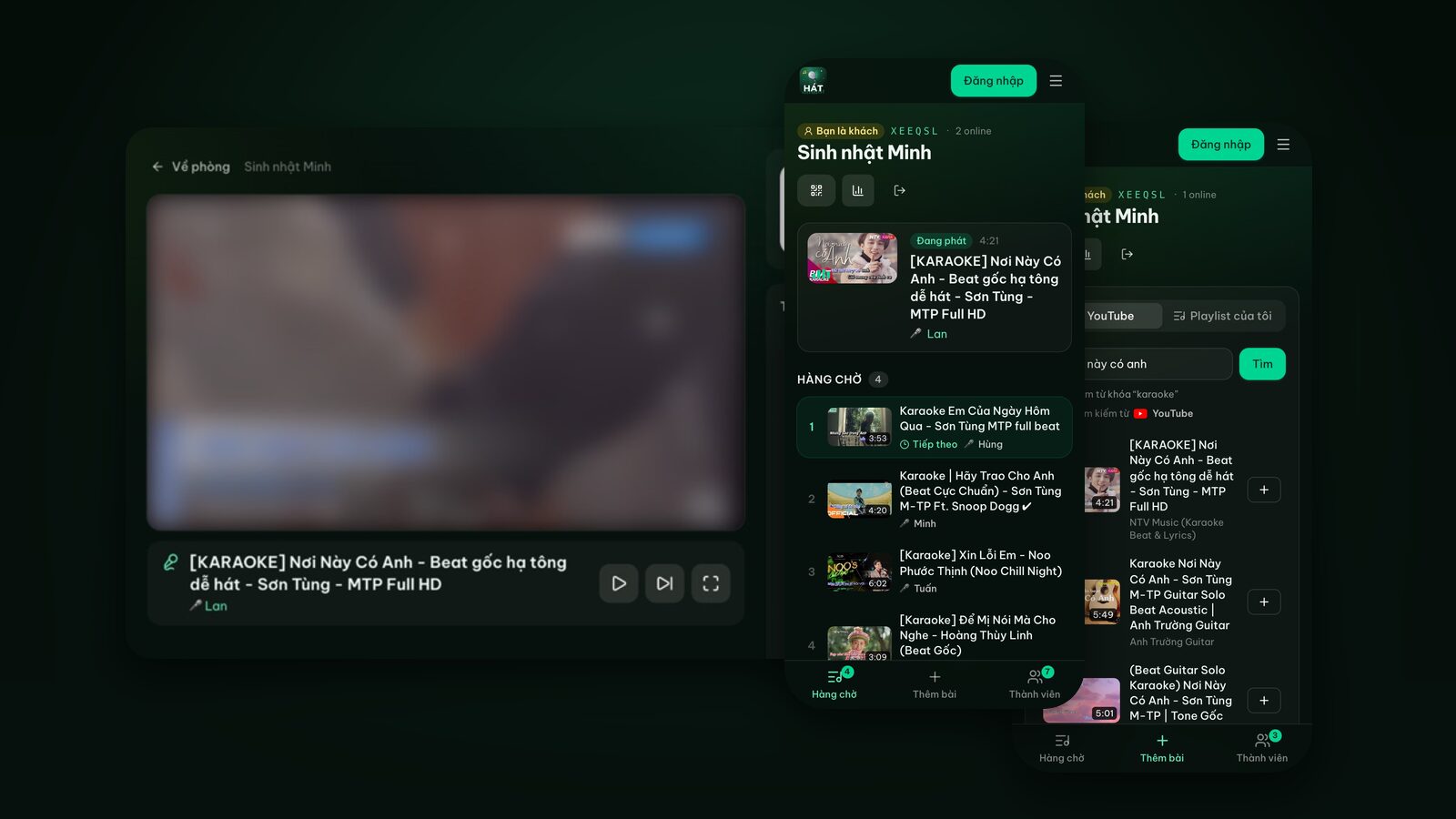
If you have a smart TV, you've probably done karaoke through YouTube already: open the app, search "song name karaoke", hit play, grab a mic. It works and it's free. But once there are six or seven people in the room, it gets messy: who has the remote, whose song is next, who hasn't sung yet.
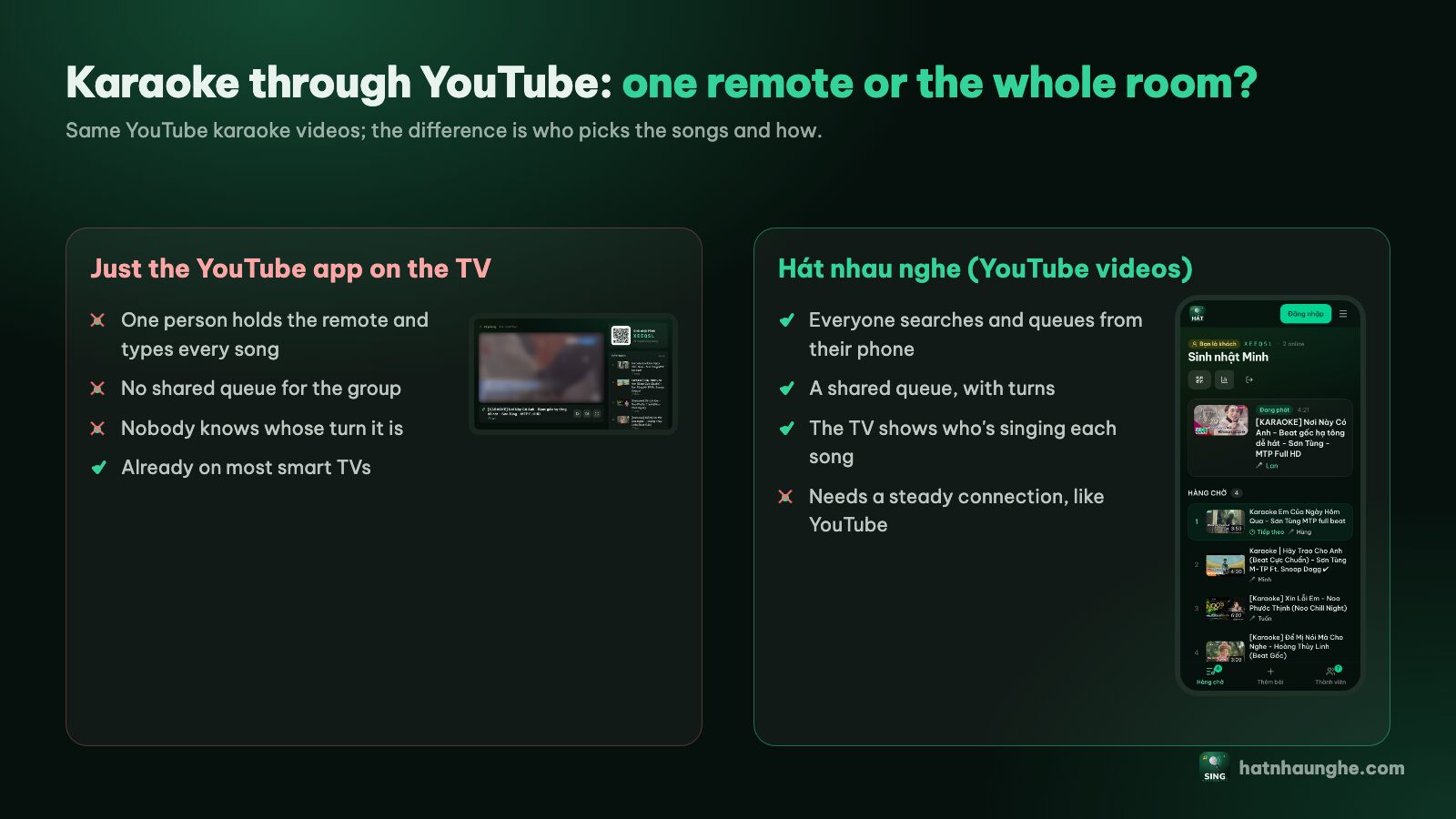
This guide covers two ways to sing karaoke with YouTube on a TV:
- Way 1: the YouTube app on the TV, searching with the remote or your phone. Fine for one to three people.
- Way 2: Hát nhau nghe, which plays the same YouTube karaoke videos but lets everyone add songs to one shared queue from their own phone. Built for groups.
Both use YouTube's karaoke library. The difference is who picks the songs and how.
What you need
- A TV with internet: a smart TV with the YouTube app or a web browser, an Android TV box, or a laptop plugged into the TV over HDMI.
- Phones: the host's, plus everyone else's for way 2.
- Stable Wi-Fi. Karaoke videos are ordinary videos; normal home Wi-Fi is enough.
- A speaker and mics (optional). TV speakers are fine for casual singing. For mics you need a karaoke speaker with mic inputs; see choosing karaoke speakers and mics.
Way 1: Karaoke with the YouTube app on your TV
Anyone can do this. Menu names vary by TV brand, model year and YouTube app version, so if you don't see the exact wording below, look for the closest match.
Search with the remote
- 1Turn on the TV and open the YouTube app from the home screen (it comes preinstalled on most recent smart TVs).
- 2Select the magnifying glass to search.
- 3Type the song title plus karaoke, for example "dancing queen karaoke". Typing on a TV keyboard is slow; many remotes have a mic button for voice search, which is much faster.
- 4Pick a video with on-screen lyrics and press play.
Search from your phone (link the YouTube app to the TV)
Typing with a remote gets old fast, so most people switch to a phone:
- 1Put the phone and the TV on the same Wi-Fi network.
- 2Open the YouTube app on your phone, tap the Cast icon at the top and pick your TV.
- 3If the TV doesn't show up, open the YouTube app's settings on the TV, find the option to link a phone with a code (usually called link with TV code), and enter that code in the YouTube app on your phone.
- 4Now you search on the phone, tap play, and the video runs on the TV.
Depending on the version, the YouTube app may let you add videos to a queue on the TV, and sometimes several phones can connect at once. The details change over time, so I won't go deeper here.
Where it falls short for a group
Way 1 is great solo or with a couple of friends. With a crowd, these problems show up:
- One person becomes the DJ. Everyone asks whoever has the remote or phone to find their song.
- No clear queue. Nobody knows what's next, whose song it is, or how many people are waiting.
- No idea whose turn it is. The screen only shows the video, not the singer's name.
- Videos keep playing. When the list runs out, YouTube may move on to an unrelated suggestion if autoplay is on.
- Turns aren't fair. Whoever holds the device picks more songs.
If that sounds like your living room, try way 2.
Way 2: Everyone queues YouTube karaoke from their phone
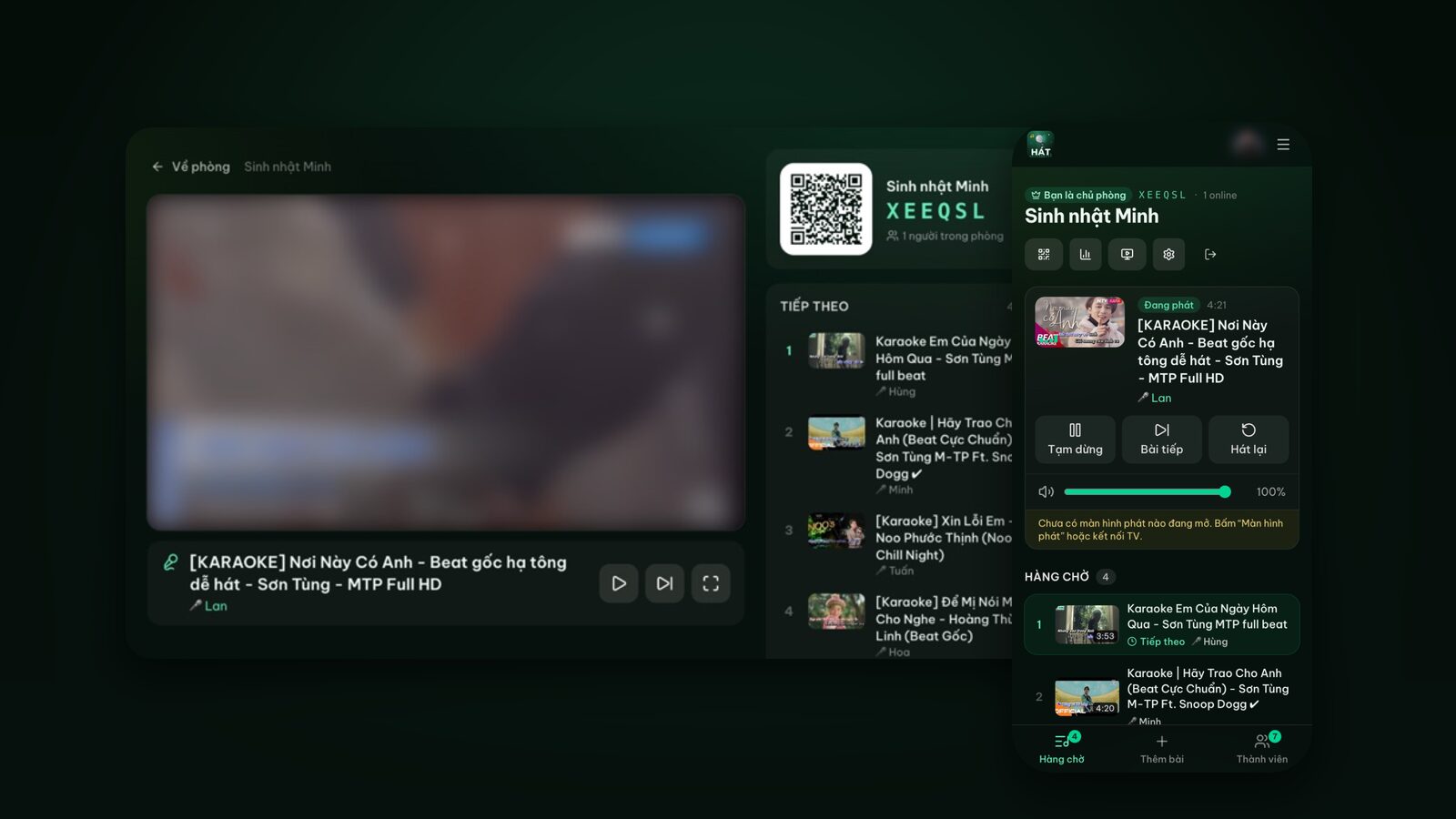
Hát nhau nghe is a karaoke site that runs in the browser. Songs are still YouTube karaoke videos, played through YouTube's official embedded player, but each person searches on their own phone and songs go into one shared queue. The TV shows who's up. No app to install, and guests don't need an account.
Step 1: The host creates a room on their phone
- 1Open hatnhaunghe.com on your phone and choose I'm hosting.
- 2Tap Sign in with Google. Only the host signs in.
- 3Enter a Room name, like "Friday at Sam's", and tap Create room.
Step 2: Put the player screen on the TV
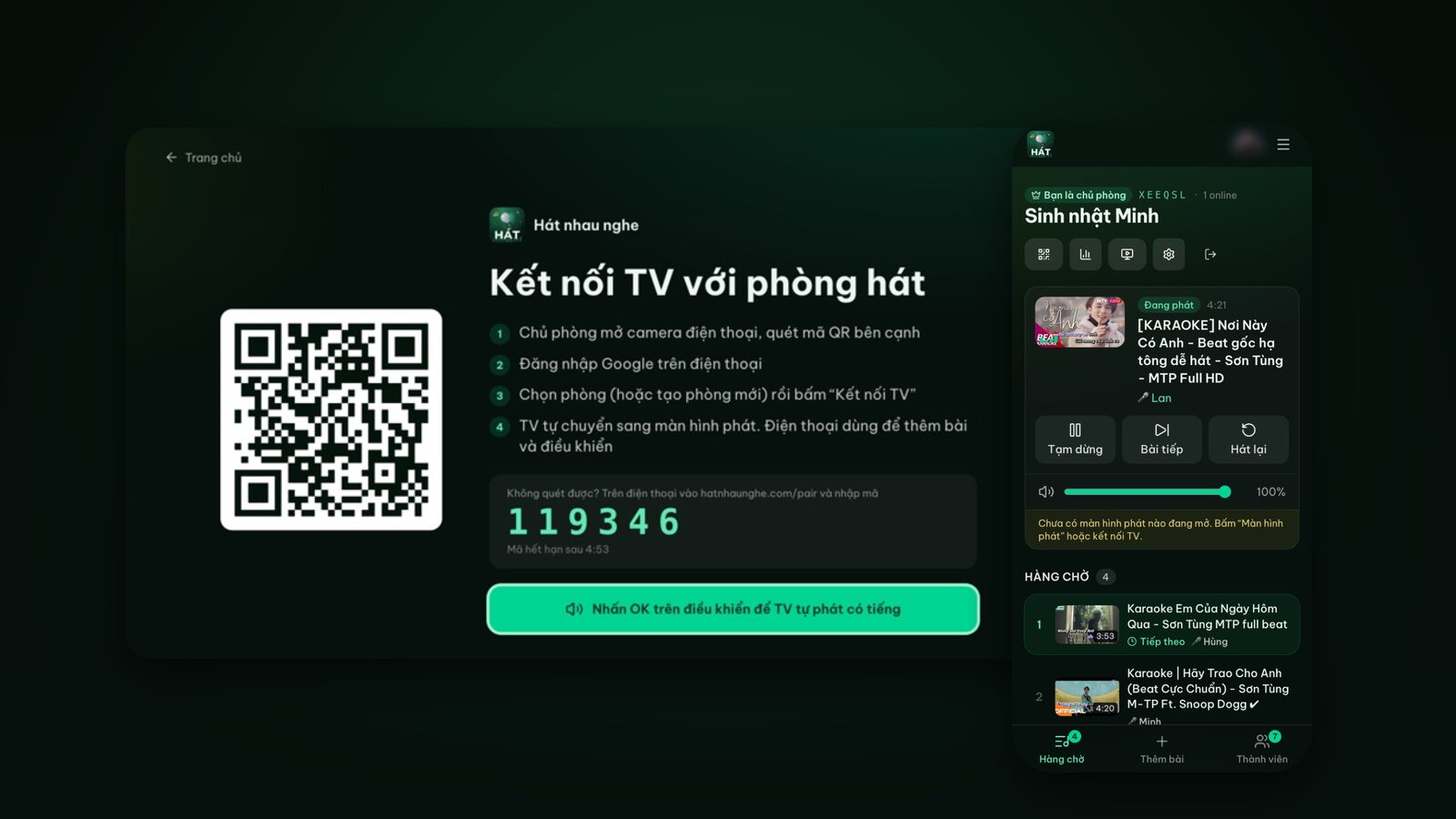
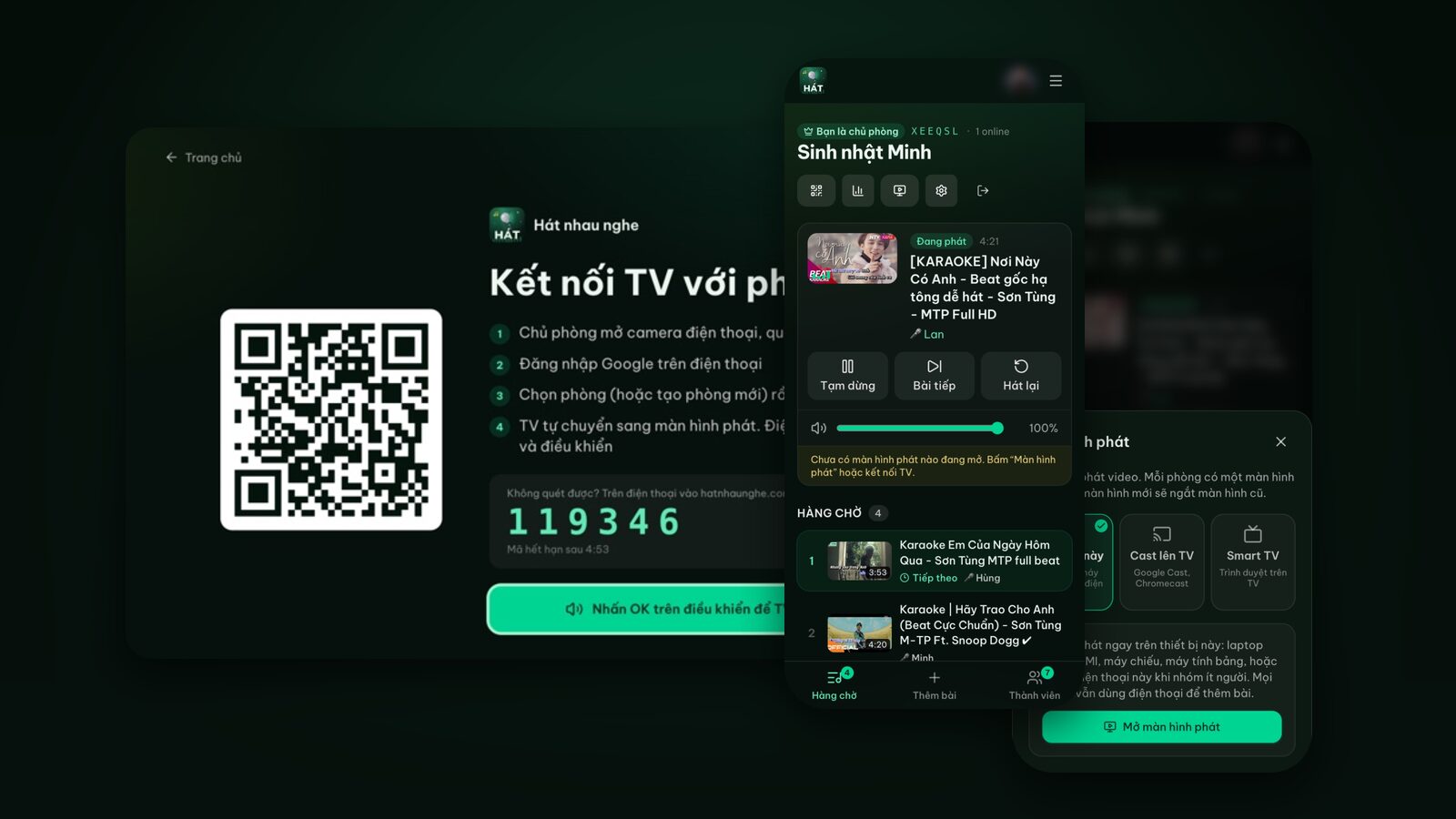
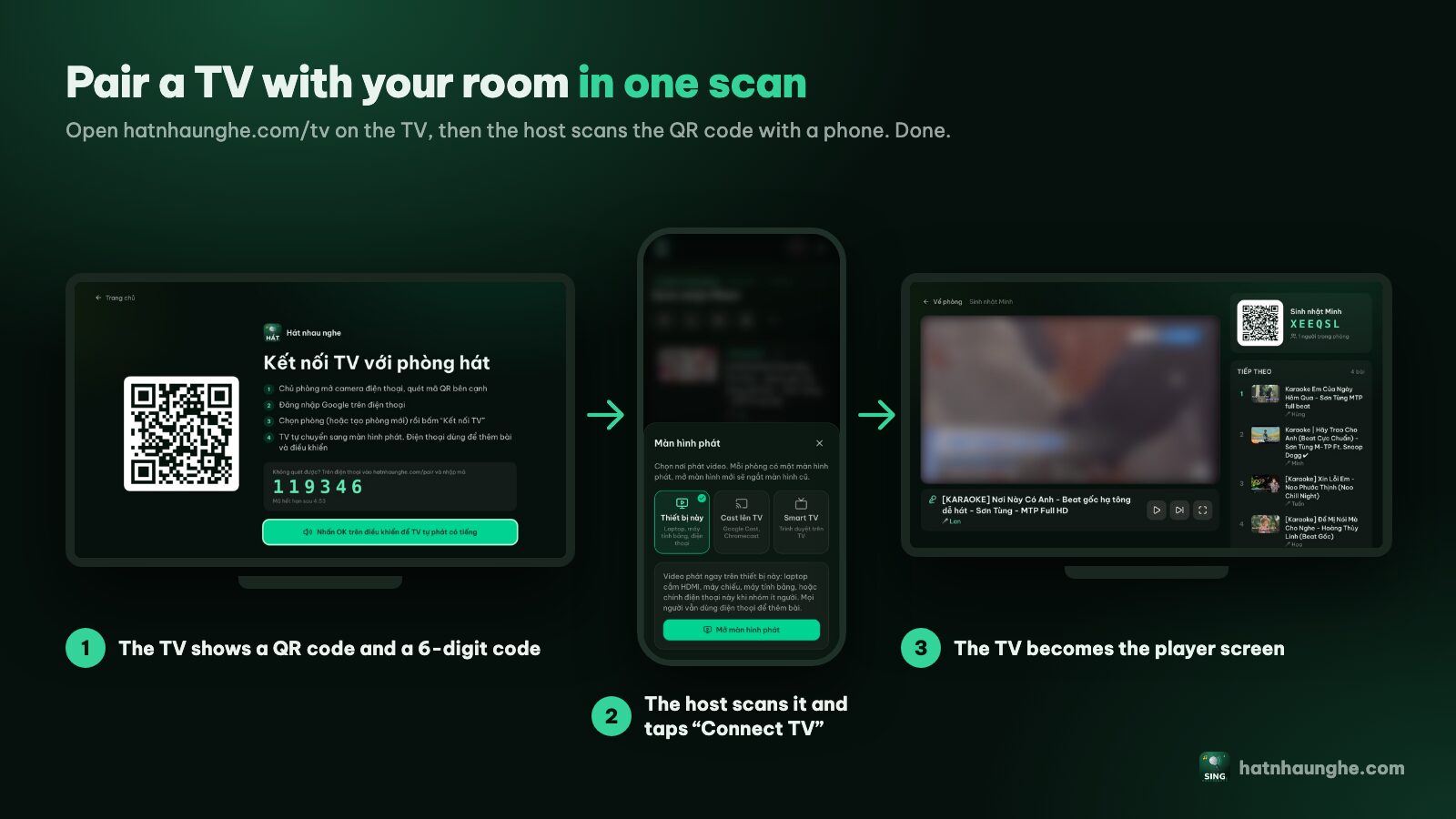
- 1On the TV, open the browser and go to hatnhaunghe.com/tv. A QR code and a 6-digit code appear.
- 2Press OK on the remote once so the TV is allowed to play sound.
- 3The host scans the QR code with their phone camera, picks the room and taps Connect TV.
- 4Can't scan? Go to hatnhaunghe.com/pair on the phone and enter the 6-digit code. The code changes every 5 minutes, so scan the new one if it expires.
The TV switches to the player screen. On Android TV or Google TV you can install the "Hát nhau nghe TV" app from Google Play instead of using a browser. More per TV brand in karaoke on Samsung, LG and Android TV.
Step 3: Get everyone in
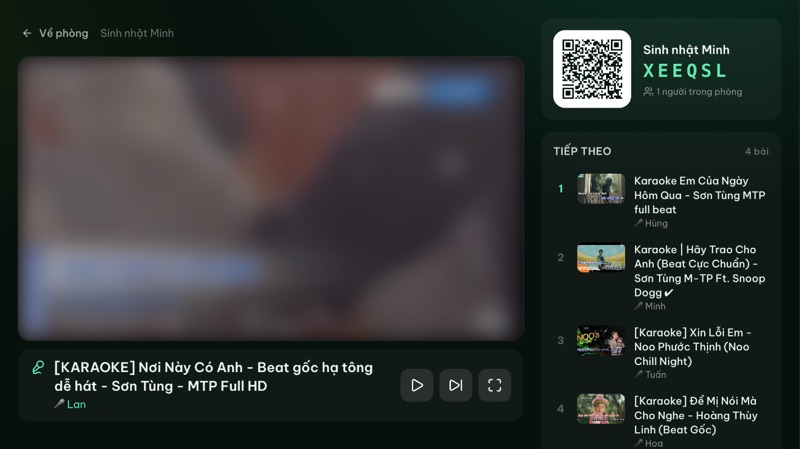
The player screen always shows the room's QR code on the right. Everyone opens their phone camera, scans it, types a name and taps Join room. Anyone who can't scan can go to hatnhaunghe.com and enter the 6-character Room code. The free plan allows up to 10 people per room, which covers most home nights.
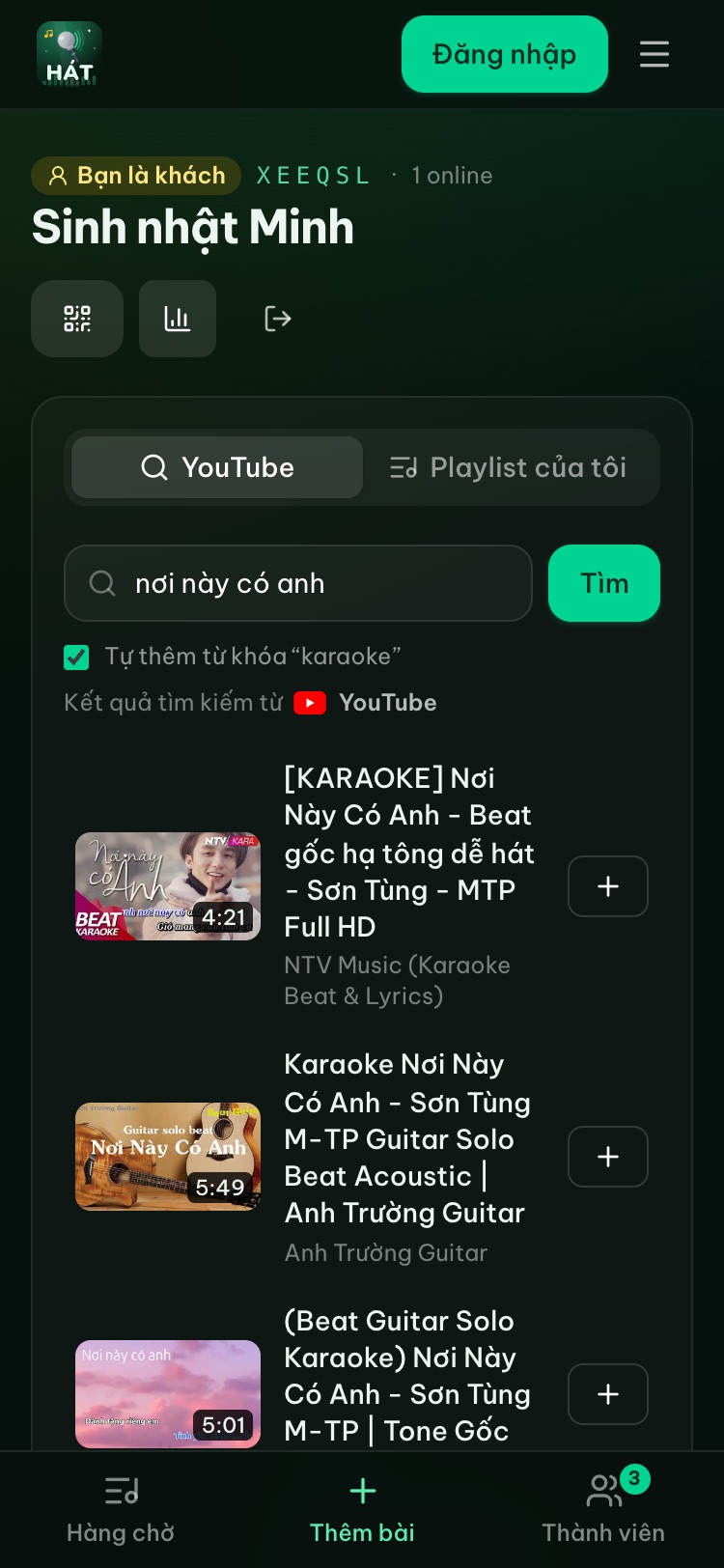
Step 4: Search YouTube karaoke and tap +
- 1In the room, open the Add songs tab.
- 2Type a song or artist and tap Search. Add "karaoke" to my search is on by default, so the song title alone is enough.
- 3Tap Preview if you want to check it, then tap + to add it to the shared queue.
- 4No idea what to sing? Browse Quick picks or Trending karaoke.
Step 5: Watch the queue and wait for your turn
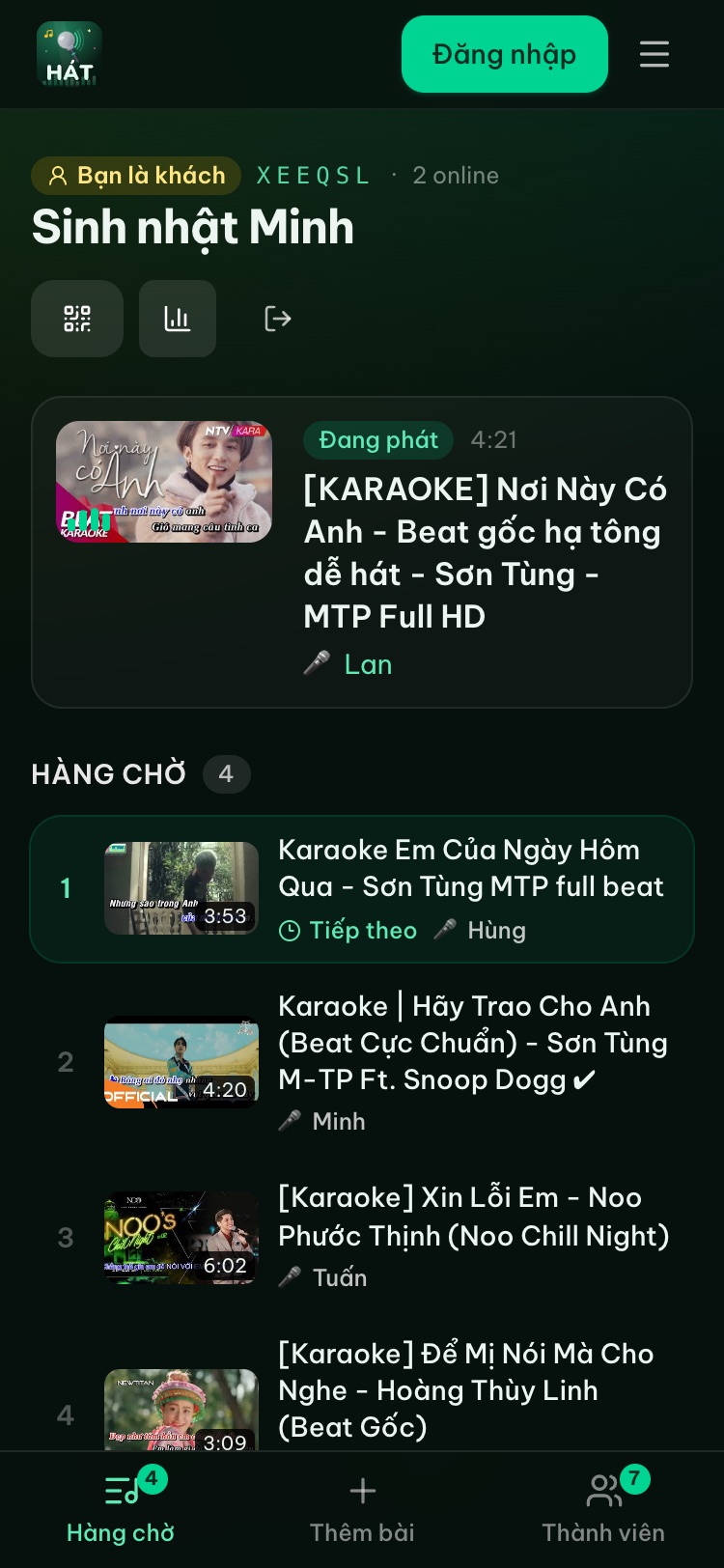
The Queue tab shows what's playing, what's next and who picked each song. When it's your turn, the TV shows Up now with your name. Songs you've sung stay in History if you want to sing them again.
Step 6: The host runs things from their phone
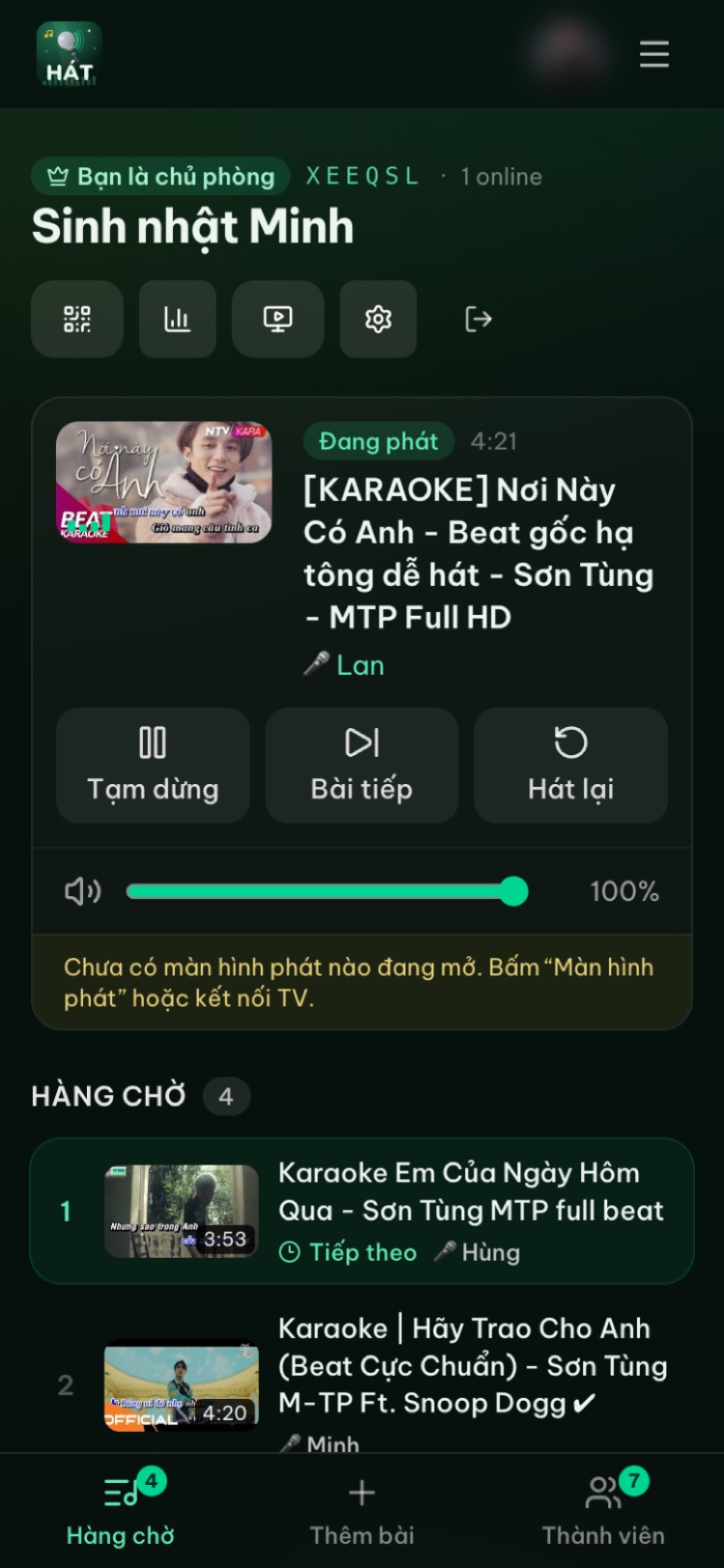
The host can pause, skip to the next song, Restart, drag the Player volume slider, and tap any song in the queue to Move up, Move down or remove it. No more hunting for the TV remote.
Try it in your browser
Open a free karaoke room, let friends scan the QR code and start singing in seconds. Nothing to install.
Finding a good karaoke version on YouTube
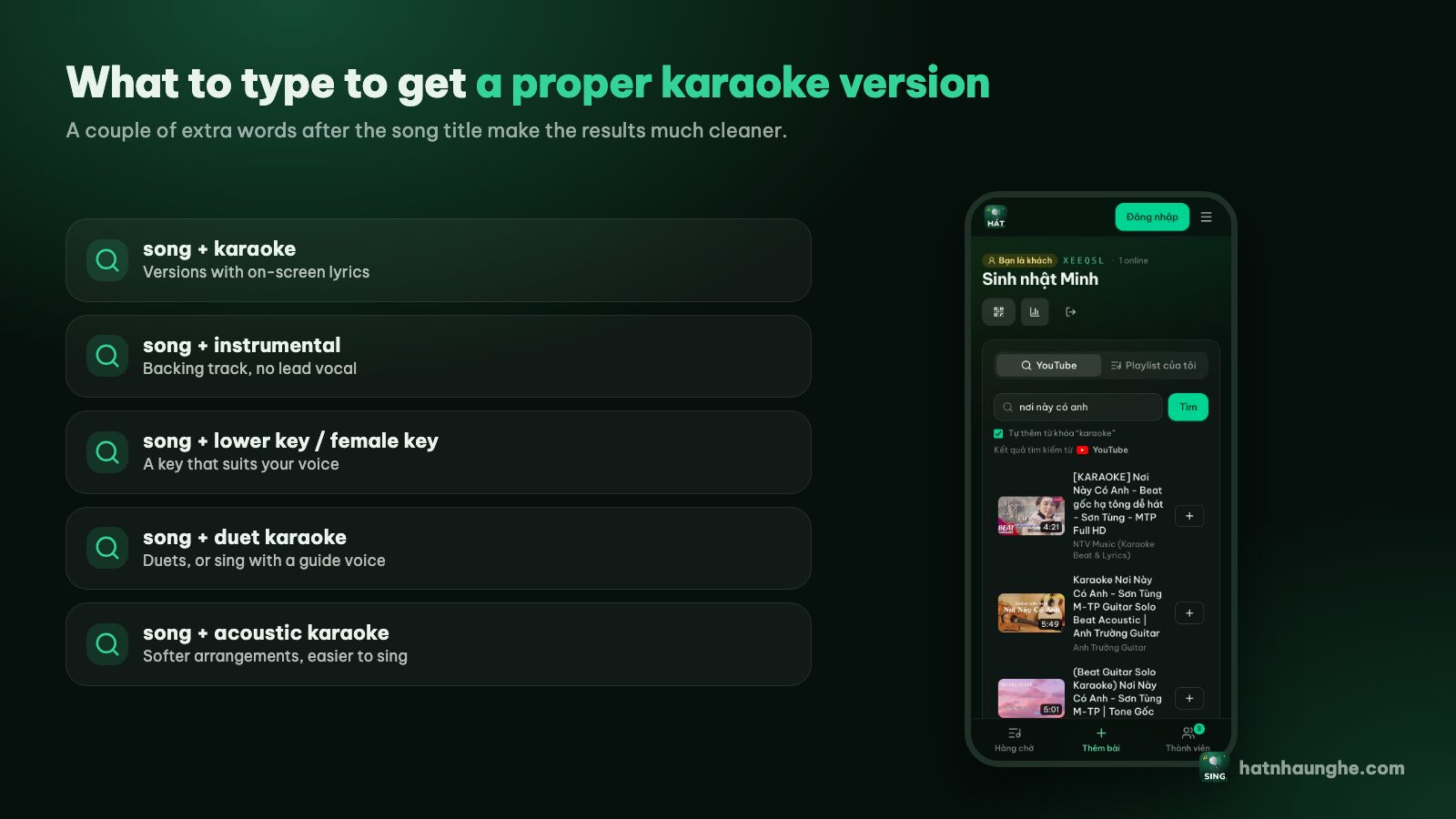
The same song can have dozens of karaoke uploads of very different quality. A few extra words make results much cleaner:
- instrumental or backing track: music only, no lead vocal.
- lower key or female key / male key: match your range.
- duet or male part only / female part only: for singing in pairs.
- acoustic: a softer arrangement that's easier to sing.
There's more in how to find karaoke songs on YouTube, including how to judge a version from its title and length.
Ads and videos that won't play
The two questions I get most:
Are there ads? Hát nhau nghe plays videos through YouTube's official player, so any ads are YouTube's, under YouTube's terms, just like in the app. The site doesn't download or store videos.
Why won't some songs play? Some channels turn off embedding on other sites, and some videos get removed or are blocked in certain regions. Hát nhau nghe handles this in two places:
- When you search: results only include videos that allow embedding, so most unplayable videos are filtered out up front. Songs in an old playlist that have since been removed aren't added, and you'll see a count of songs "no longer available".
- During playback: if a video still errors (removed, embedding disabled, a player error), the player skips it and moves to the next song instead of leaving the room waiting.
Troubleshooting
The TV has no YouTube app or browser. On Android TV, Google TV or a TV box, install a browser from the TV's app store, or install "Hát nhau nghe TV" from Google Play. On an older TV, use a laptop over HDMI; see karaoke with a projector, laptop and HDMI.
Your phone can't find the TV when you tap Cast in the YouTube app. Check both are on the same Wi-Fi (many homes have separate 2.4GHz and 5GHz networks), restart the YouTube app on the TV, or link with a TV code instead.
The player is on the TV but there's no sound. TV browsers often block autoplay with sound. Press OK on the remote when the TV prompts you, and songs will play normally.
The 6-digit code says it expired. It changes every 5 minutes. Scan the new QR code on the TV.
Videos stutter or buffer. Move the router closer, or plug the TV into the router with a network cable if it has a LAN port. Pause big downloads in the house.
Friends can't get into the room. Check whether the room is set to Lock room or has hit 10 people (the free plan limit). For fair turns in a big group, read running a karaoke room so everyone gets to sing.
FAQ
Does YouTube karaoke cost anything?
Watching YouTube is free (with YouTube's ads). Hát nhau nghe is free too; the host just needs a Google account. Premium, bought in the mobile apps, is optional and adds extras like scoring and Play next.
Do I need to install anything on the TV?
No. A smart TV with a browser just needs hatnhaunghe.com/tv. Android TV also has the optional "Hát nhau nghe TV" app. Samsung and LG apps are coming; for now use the TV's browser.
Does it work with an iPhone?
Yes. The site runs in the browser on iPhone, Android, tablets and laptops. Guests just scan the QR code.
Does it score my voice?
No. The site doesn't capture or process mic audio. Premium adds a fun automatic score after each song and star votes from everyone's phone, but the score isn't based on your singing.
YouTube app or Hát nhau nghe?
Singing alone or with two or three people: the YouTube app is enough. From four or five people up, a shared queue and names on the TV save a lot of arguing. Setting up a karaoke corner from scratch? Read the DIY home karaoke setup guide next.
Every step with screenshots is in the full guide. Have a great night.
Try it in your browser
Open a free karaoke room, let friends scan the QR code and start singing in seconds. Nothing to install.