How to Run a Fair Karaoke Room Where Everyone Gets to Sing
Every room setting explained, when to use it, and how to handle the friend who queues ten songs, the shy friend and the noisy crowd.
Every karaoke night has the same cast: the person who won't let go of the mic, the person in the corner who hasn't sung all night, and everyone else wondering when their turn is coming. With an old karaoke machine, the host stands by the box and referees out loud. On Hát nhau nghe, most of that job lives in a handful of switches under Room settings.
This guide is for hosts. It walks through every setting, when to turn it on, when to leave it alone, and how to handle a few familiar situations. If you've never opened a room, skim the step-by-step guide first.
What the host can do
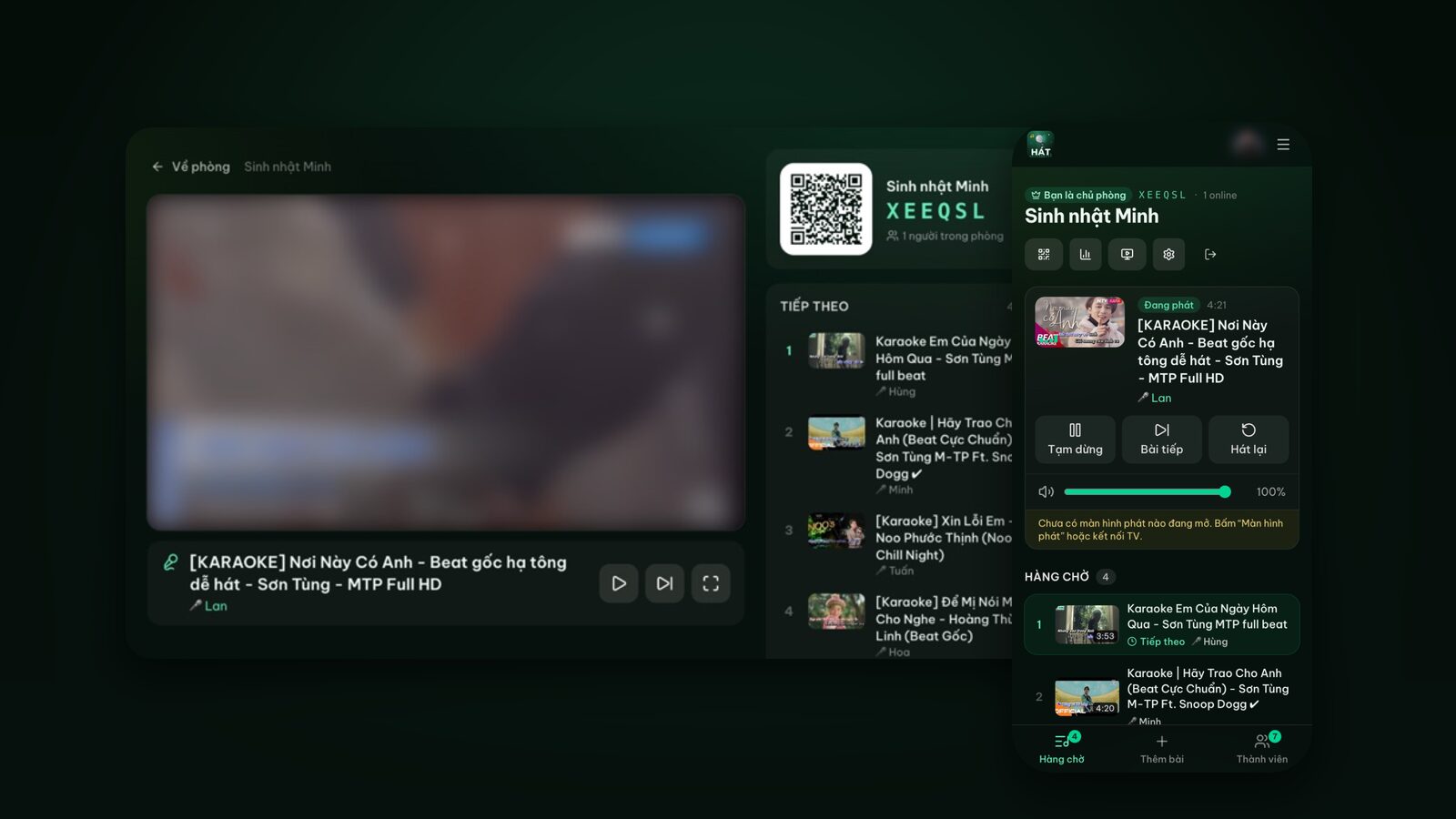
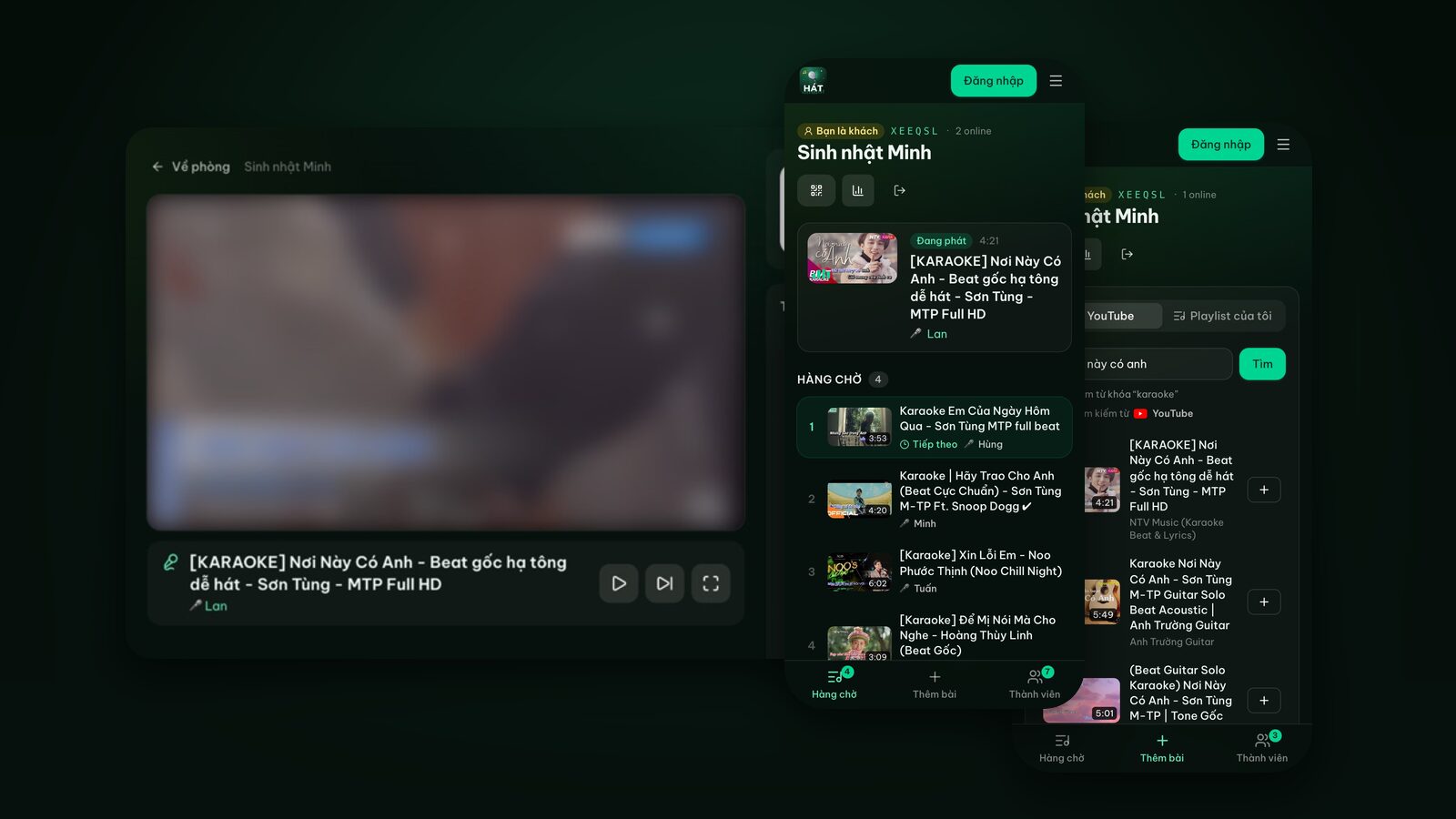
The host is whoever signs in with Google on hatnhaunghe.com and creates the room. Guests don't need an account: they scan the QR code or enter the 6-character room code, type a name and they're in. It all runs in the browser, so nobody installs anything.
On the room page, the host gets a few extra controls:
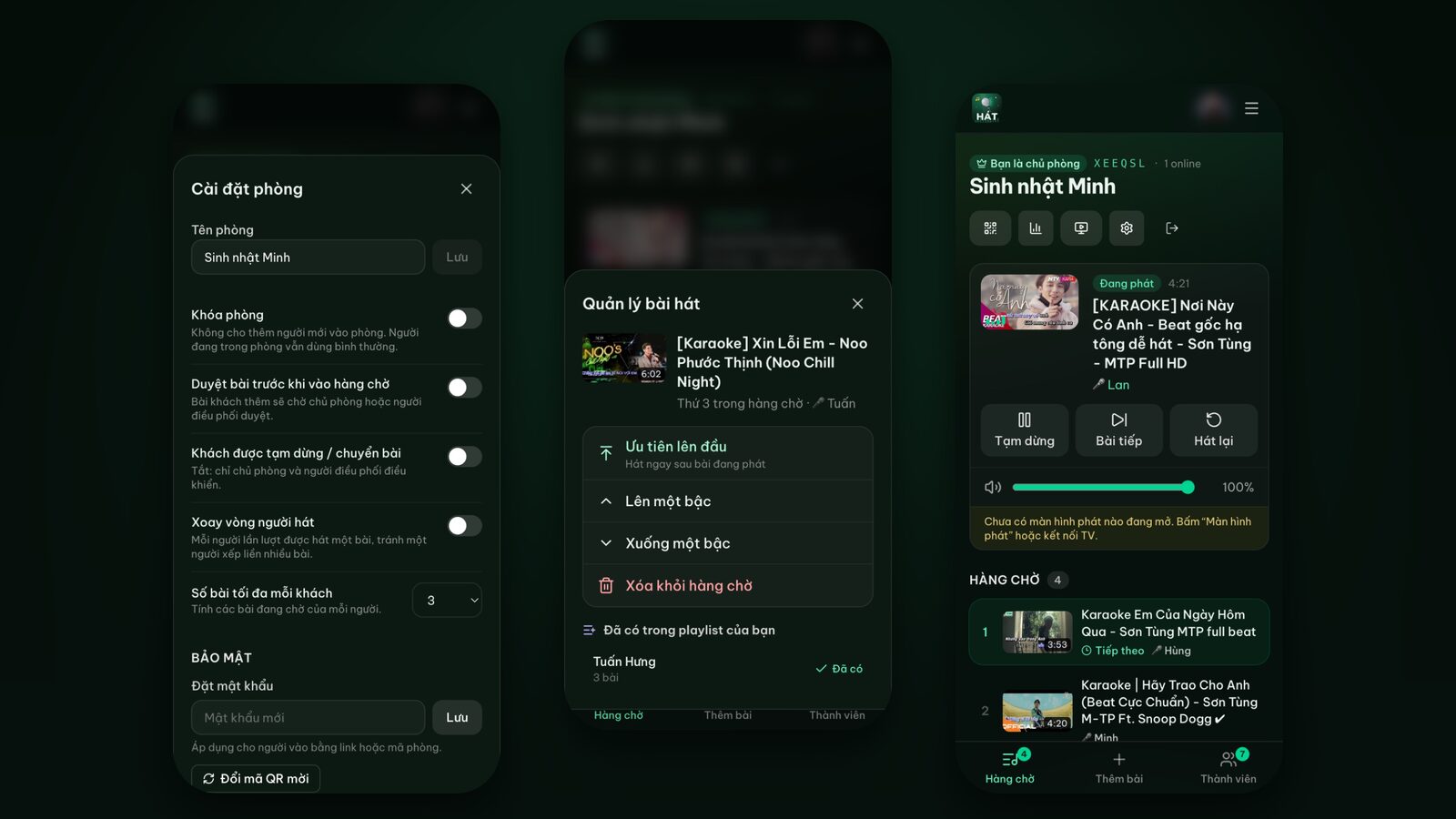
- The gear icon, which opens Room settings.
- The Player screen button, to choose where videos play (this device, Cast to TV, or a smart TV).
- Tapping any song in the queue to rearrange it.
- The Members tab, to make someone a moderator or remove them.
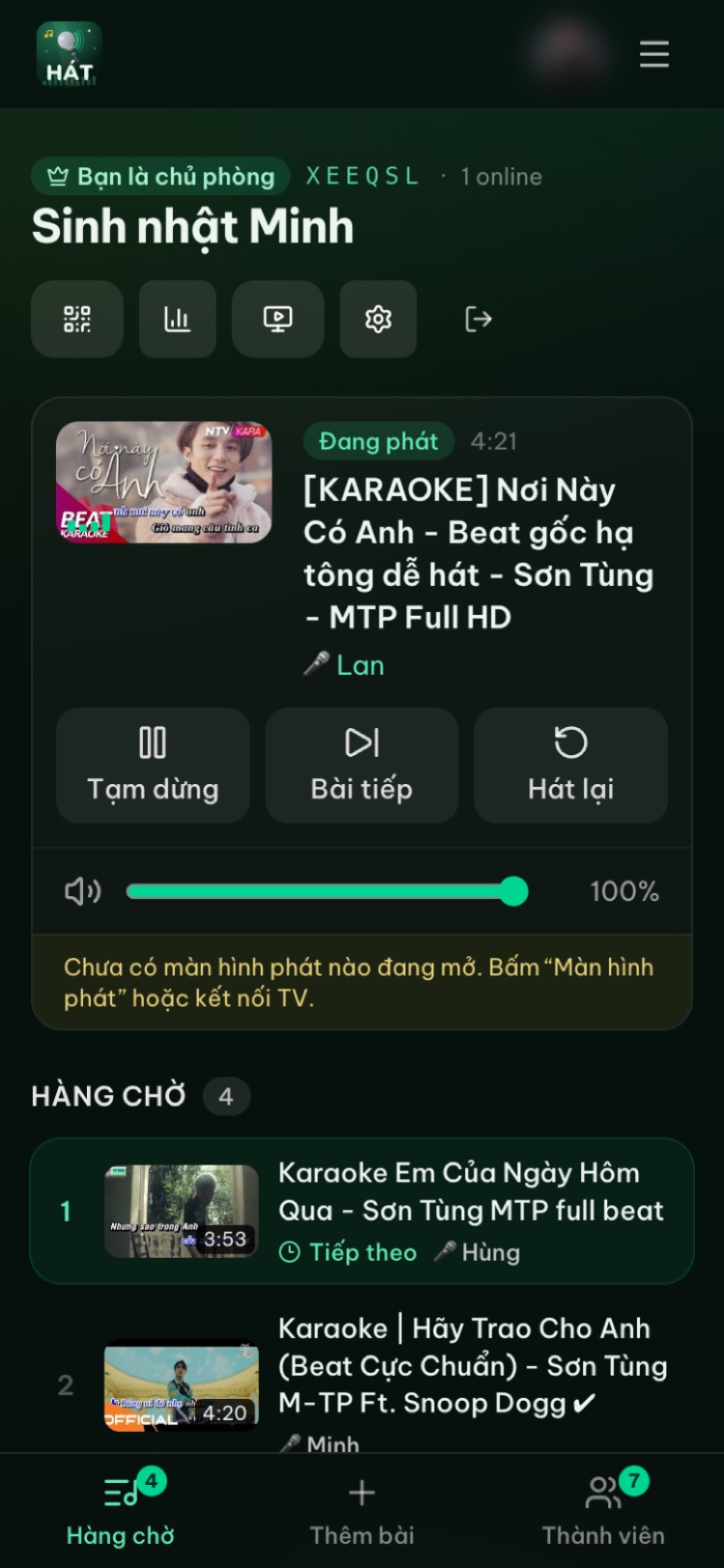
A new room starts fairly relaxed: no approval, no turn-taking, up to 3 waiting songs per guest, and guests can't pause or skip. For four to six close friends that's usually fine. You only need to change things once the group grows or strangers show up.
Every room setting, and when to use it
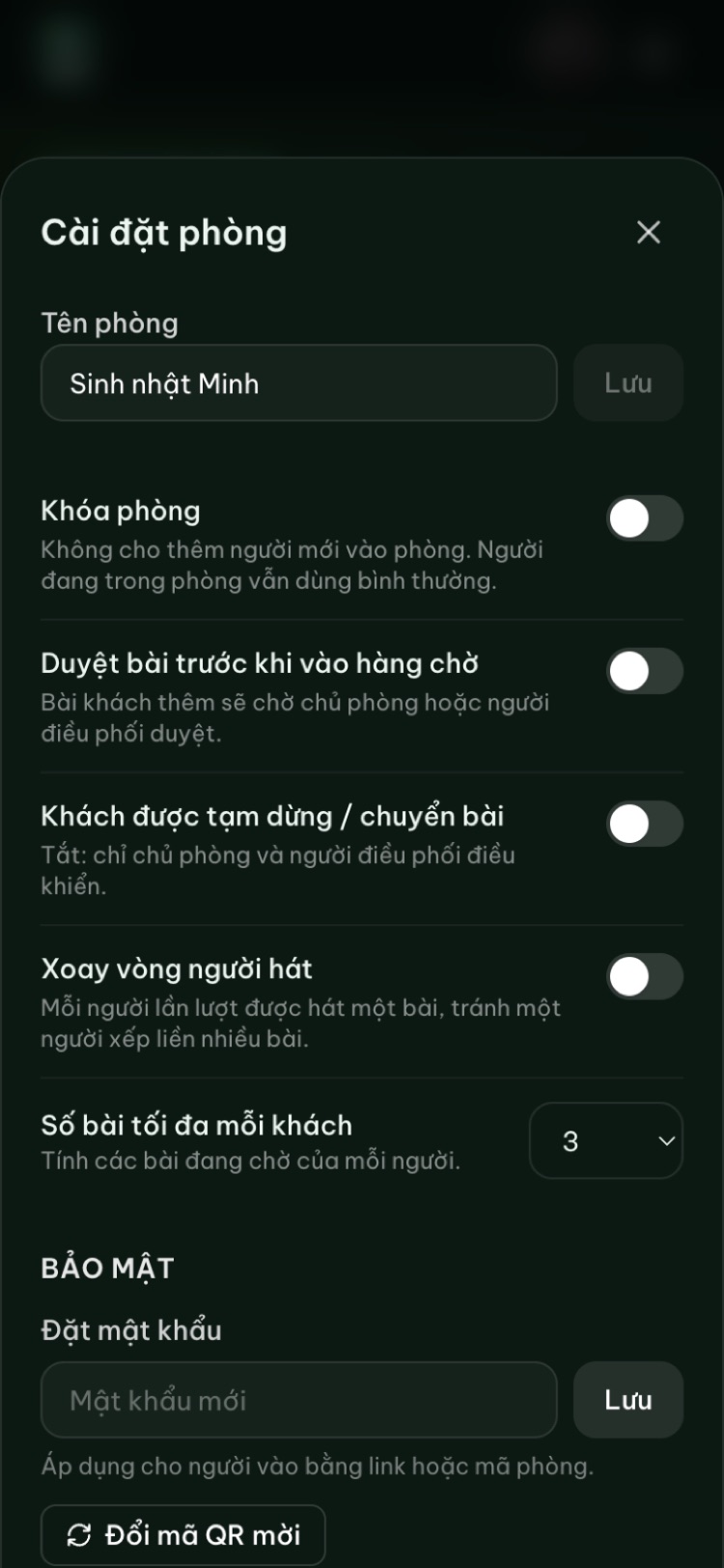
Tap the gear icon at the top of the room page. Changes apply right away.
Lock room
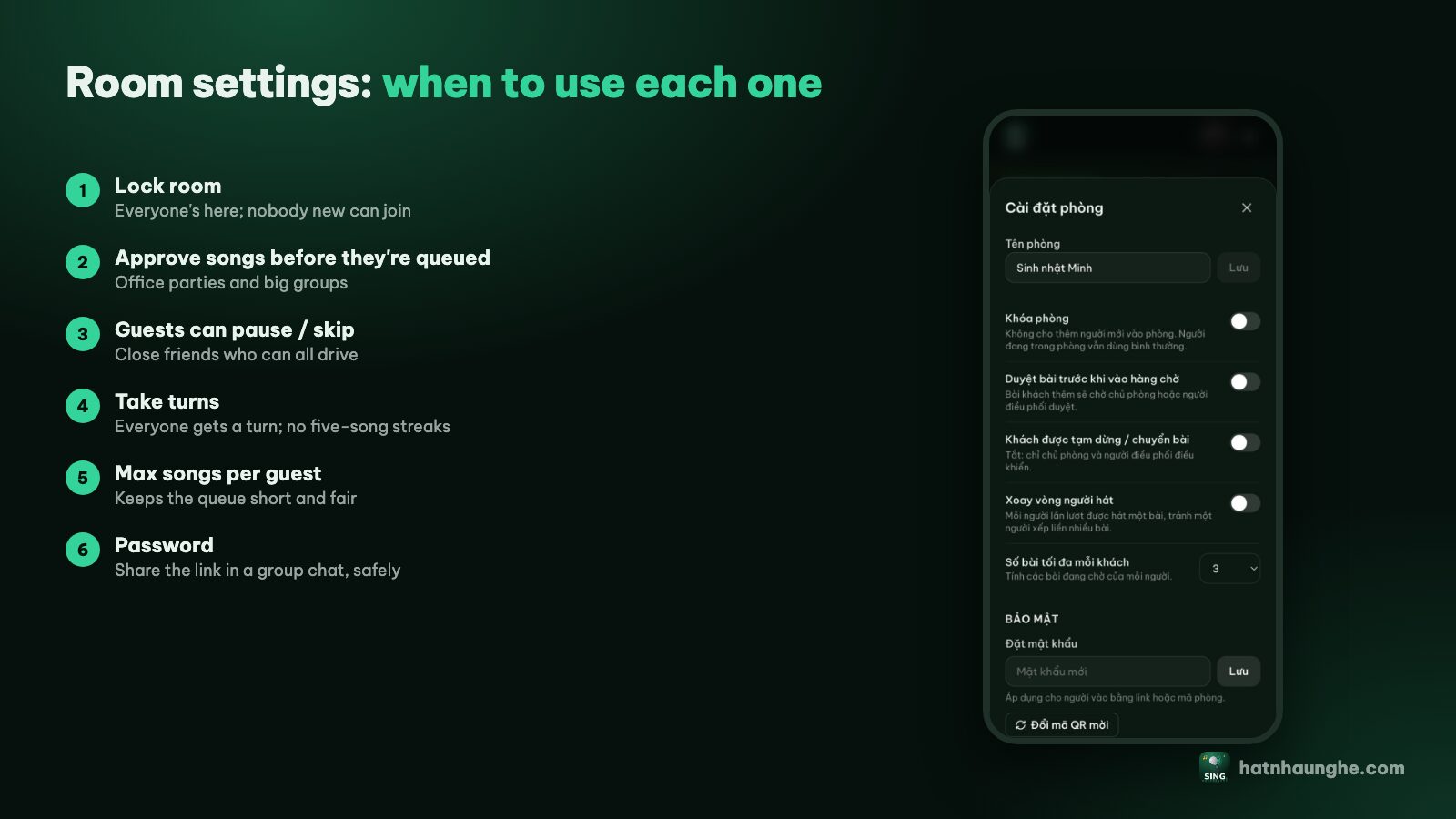
No new people can join; everyone already in keeps going as usual. Turn it on when everyone has arrived and you don't want passers-by scanning the QR code on the TV, when you're in a bar or office with the screen facing a crowd, or the moment a stranger slips in. Remember to unlock it for latecomers: while the room is locked, even someone with the right code is turned away.
Approve songs before they're queued
Songs added by guests go into Waiting for approval, and the host or a moderator taps Approve or Reject. Guests see their own songs under "Your songs waiting for approval" and can Withdraw song if they change their mind.
Use it for parties with kids or grandparents, company events with an MC running the show, or big rooms where people might queue the wrong version of a song. Skip it for a small group of friends, since someone has to babysit the approval list. Songs added by the host and moderators skip approval.
Guests can pause and skip
Off by default, so only the host and moderators control playback. Turn it on for a small, trusting group when you don't want to be the remote-control keeper. Keep it off in a big room, where one stray tap on Next song cuts off someone's big moment.
Take turns
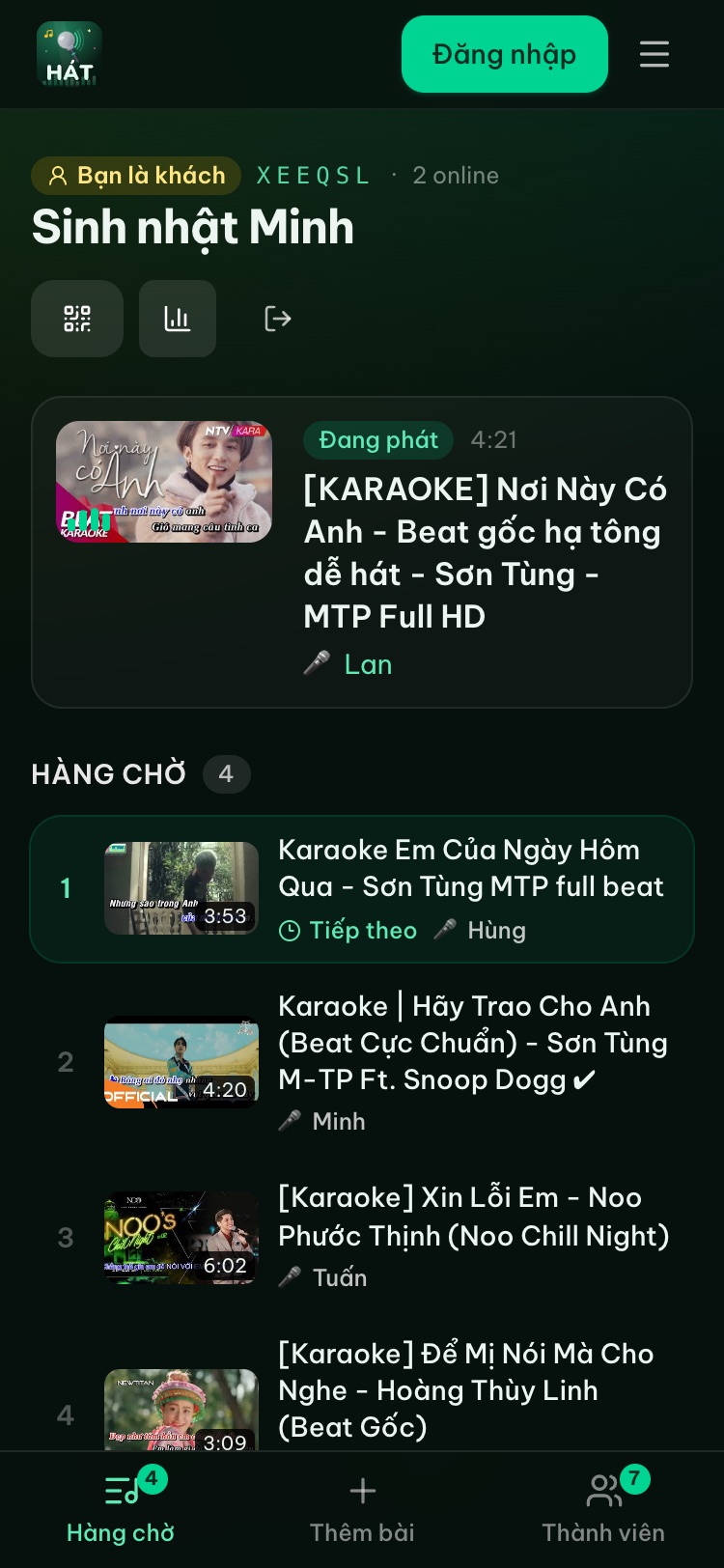
This is the fairness switch. Singers take turns one song at a time: A's first song, B's first, C's first, then back to A's second. The queue shows "Taking turns: each singer gets one song at a time." so people understand where their song sits.
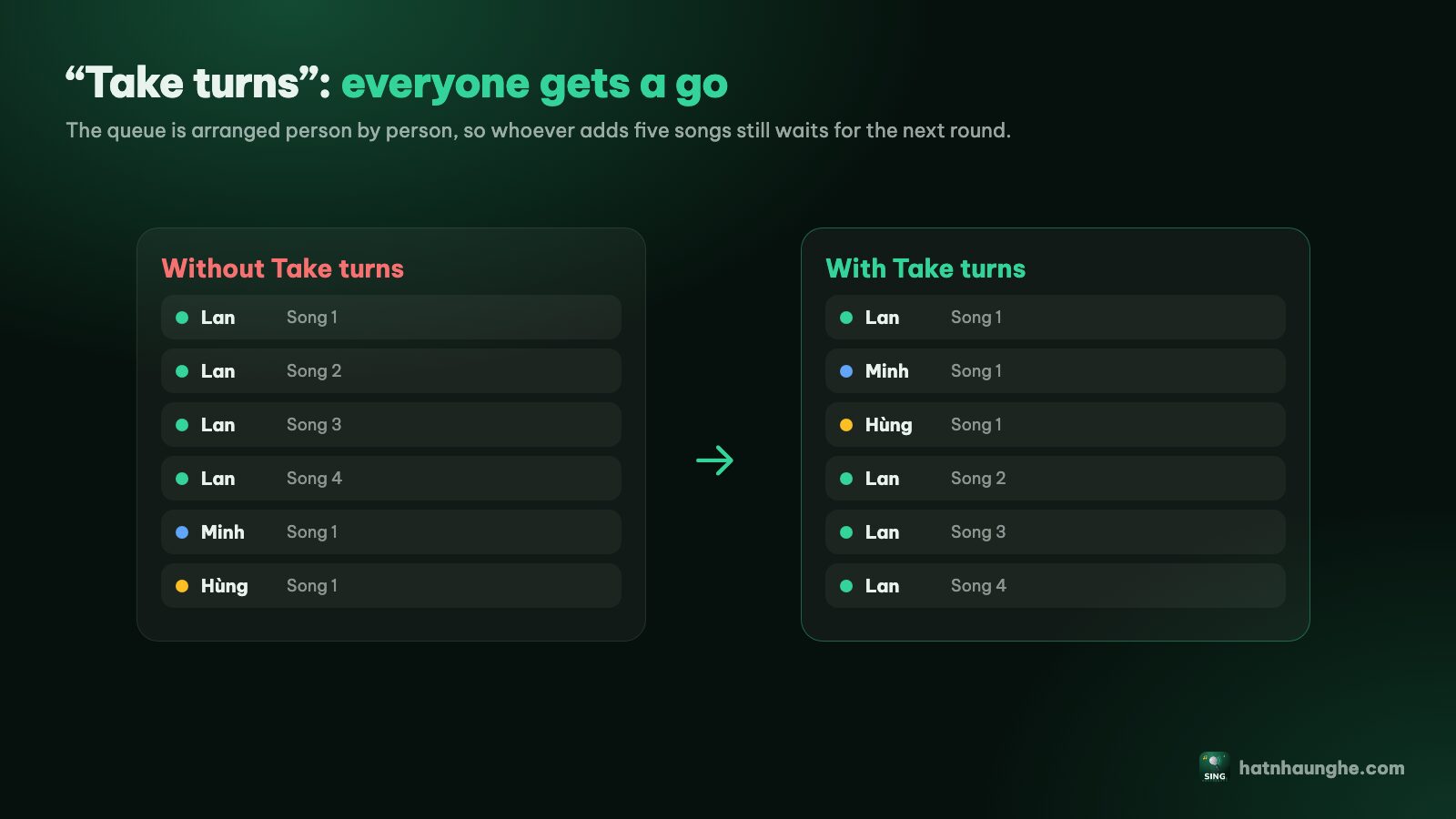
Two things to know. Turns are counted by who added the song, meaning by phone, so two people sharing one phone count as one singer. And while taking turns is on, nobody can reorder by hand: Move up, Move down and Play next are unavailable. To slip in something special, like a birthday song, turn it off, reorder, then turn it back on.
Max songs per guest
Choose from 1 to 20 (default 3). It counts each person's songs waiting in the queue, not songs already sung, so finishing a song frees up a slot. Use 1 or 2 for ten people or more, 3 for most nights with friends, and 5 or more for small groups who like to line things up. The cap applies to guests only; the host and moderators have no limit.
Password and invite QR code
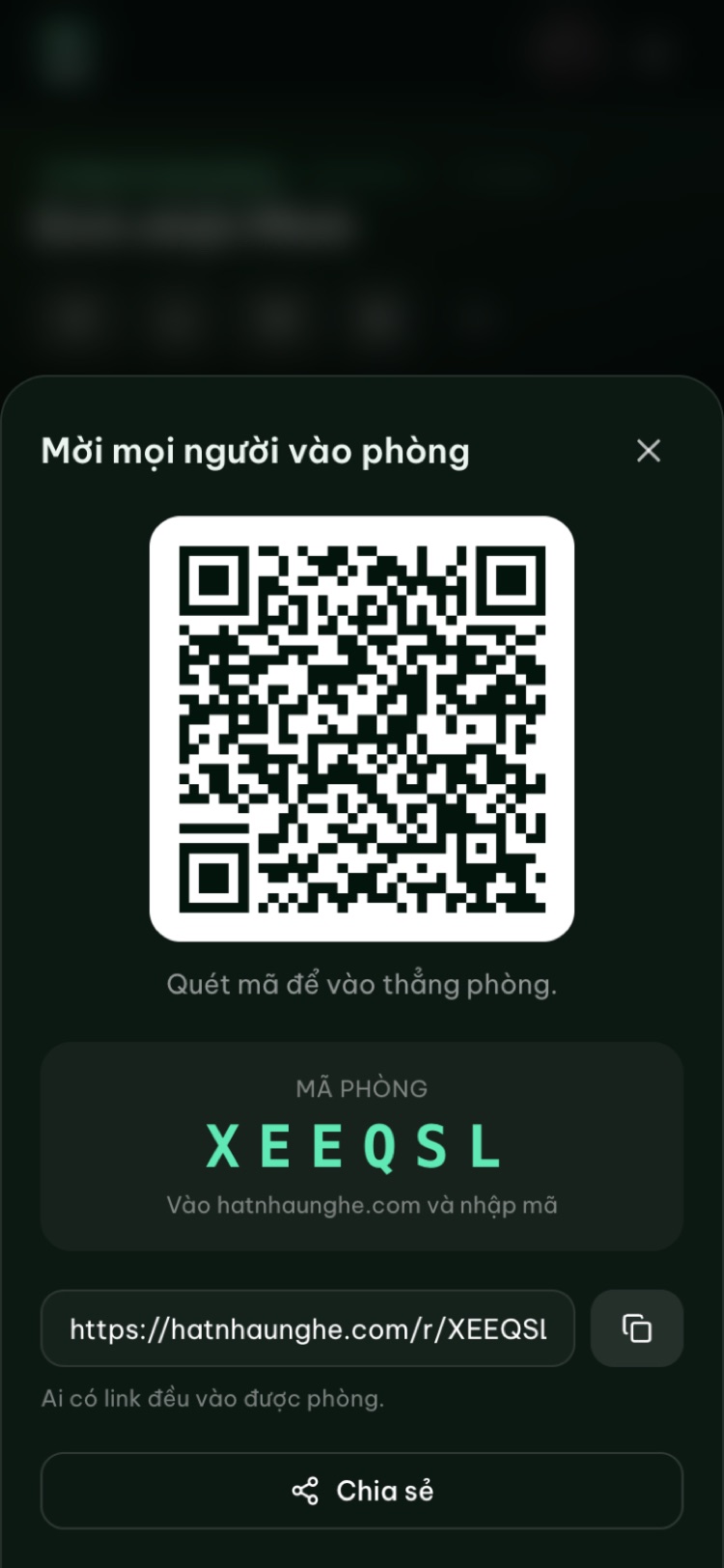
Under Security, you can Set a password (at least 4 characters). It applies to people joining with the link or room code. People who scan the QR code in the Invite window get straight in without it. So friends in the room just scan, while a link that gets forwarded around still needs the password.
New invite QR code makes a fresh code. If you think the old one was photographed and passed on, set a password and then make a new invite QR code. Remove password turns it off again.
The two Premium features: Play next and Song scoring
Room settings also has a section for two Premium features. Play next lets the host and moderators move a song to play right after the current one. Song scoring shows a score after each song and lets everyone rate it with stars; the karaoke scoring guide covers it in detail. Premium is bought in the Hát nhau nghe app (yearly or lifetime); then sign in with the same account on the web. Each feature has its own switch, so you can turn Play next off if you don't want anyone jumping the line.
Rearranging the queue by hand
When taking turns is off, the host and moderators can tap any song to open Manage song:
- 1Play next: plays right after the current song (Premium).
- 2Move up or Move down: swaps with the song before or after.
- 3Remove from queue: guests can also remove their own songs.
- 4Save to my playlist: keep it for next time.
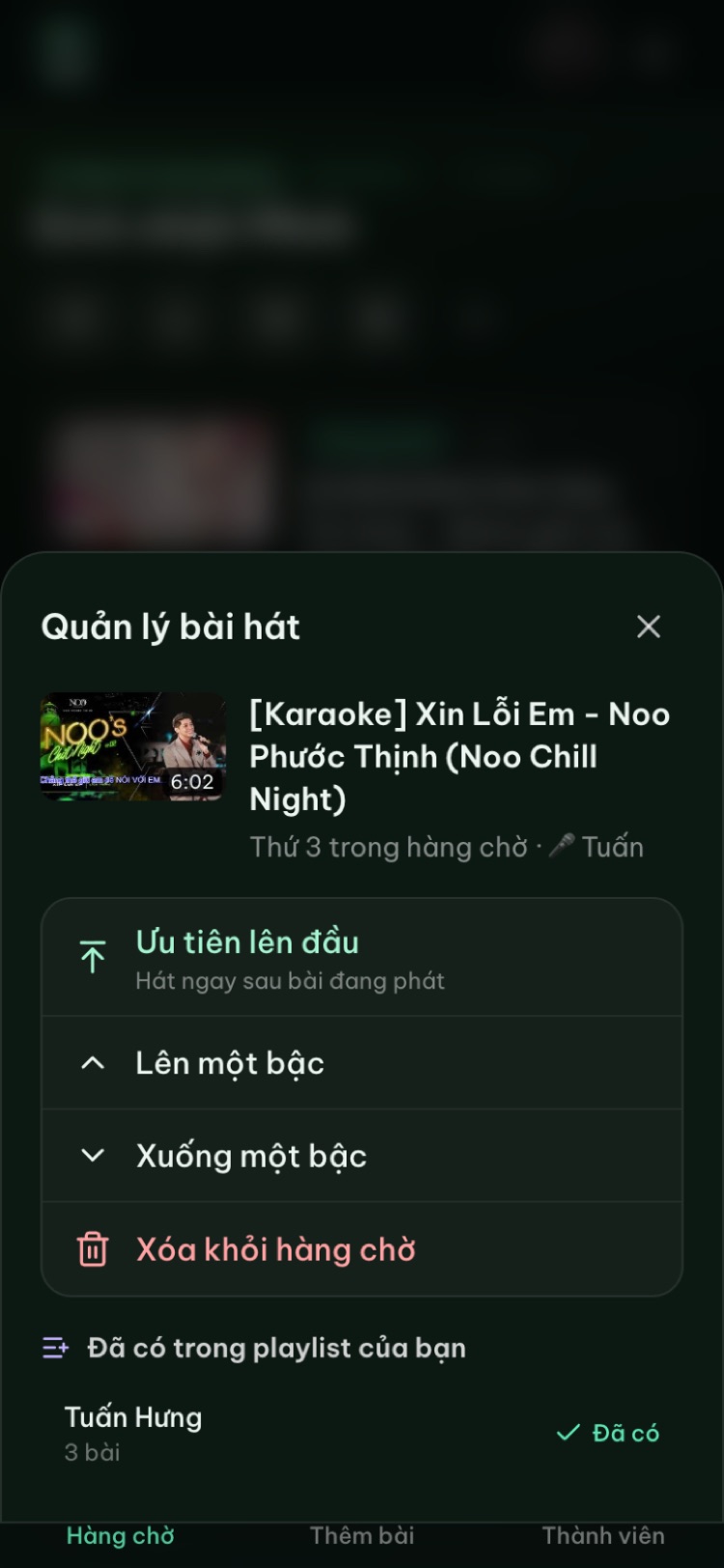
The song that's currently playing can't be removed; use Next song instead.
Moderators: share the load
Open the Members tab and tap Make mod next to someone's name. A moderator can approve and reject songs, control playback (pause, next, restart, volume), reorder the queue and use Play next when it's on, open the player screen or cast to a TV, and add songs without a cap or approval.
Moderators can't change Room settings or remove people; only the host can. Tap Revoke to take the role back. Good picks: whoever sits next to the TV, the most sober person at midnight, or the MC at a work party.
Removing someone
In the Members tab, Remove (name) is for strangers or someone deliberately wrecking the night. You'll get a confirmation, and it's clear about the consequence: they won't be able to rejoin. Their songs waiting for approval are deleted; songs already in the queue stay until you remove them. If you suspect more uninvited guests, lock the room or set a password, then make a new invite QR code.
Don't use it as a joke on friends, since there's no way back in. To rein someone in, lower the song cap or turn on taking turns.
Three familiar situations
The friend who queues ten songs
- 1Keep Max songs per guest at 2 or 3. Extra songs are reported as over the limit.
- 2Turn on Take turns, so no matter how many they add, they get one song per round.
- 3If they're great and everyone wants more, raise the cap. Fair doesn't have to mean rigid.
The shy friend
Taking turns helps here too: once they add one song, it comes up soon instead of sinking under twenty others. Suggest a duet; our list of easy karaoke songs and duets has safe picks. Guests also see the queue on their own phone, so they know exactly how far away their turn is, and the player shows "Up now" with the singer's name before each song, so nobody gets called out of the blue.
The big, noisy group
- 1Turn off Guests can pause and skip.
- 2Turn on Take turns.
- 3Set Max songs per guest to 1 or 2.
- 4Make one or two trusted people moderators.
- 5Lock room once everyone's in.
For a company party, add Approve songs before they're queued so the MC keeps the program on track. See our office party karaoke ideas for more.
Try it in your browser
Open a free karaoke room, let friends scan the QR code and start singing in seconds. Nothing to install.
Wrapping up: check the recap before you close
Tap the chart icon at the top of the room page for the Night recap: songs sung, total time, number of singers, who sang the most and the full song list. Anyone in the room can open it. Signed-in users can tap Save the whole night as a playlist.
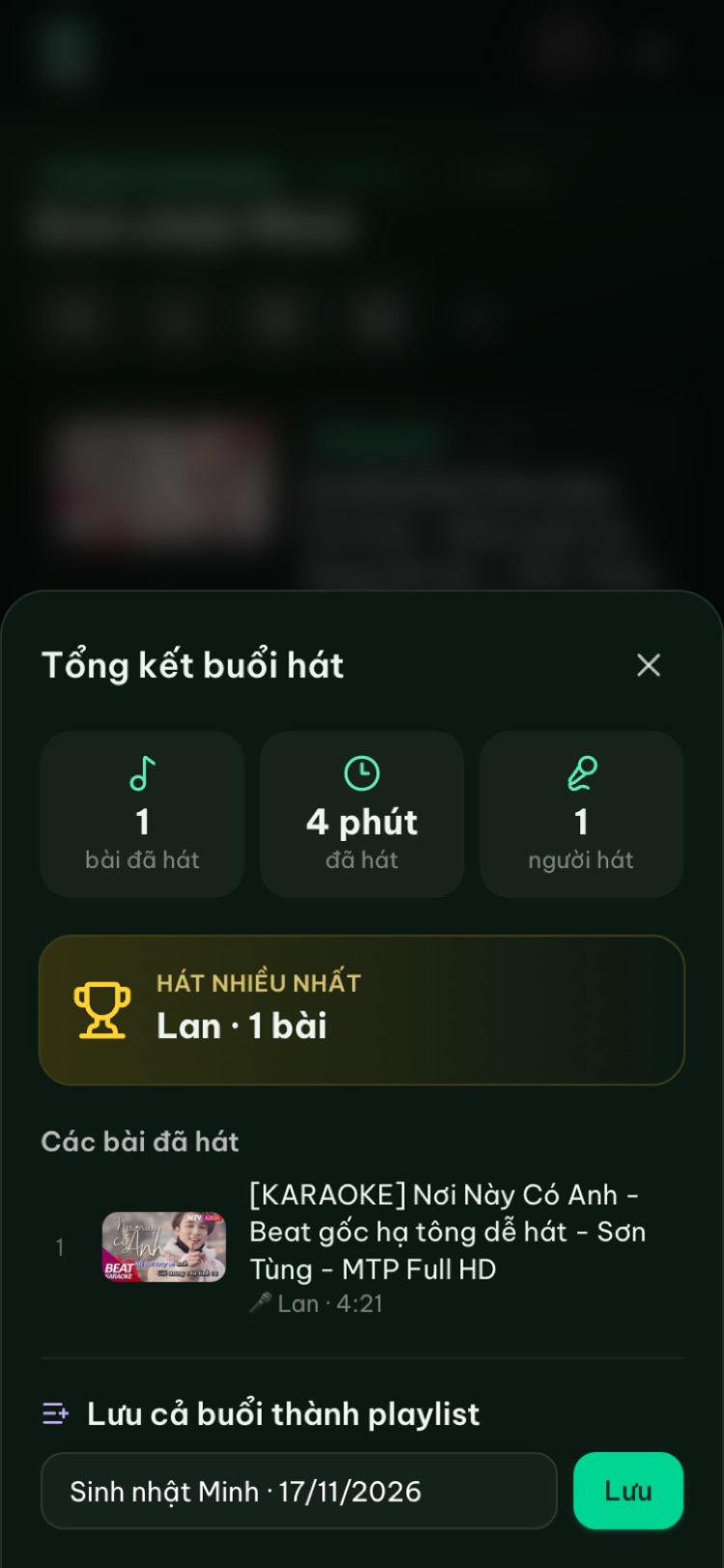
When you're done, go to Room settings and tap Close room. Closing deletes the queue and member list and can't be undone, so look at the recap and save it first. If you just head back to the home page, the room stays open for others; it's deleted automatically after 24 hours without activity.
Quick setups
- Three to six close friends: defaults, maybe let guests pause and skip.
- Birthday at home: take turns, 3 songs per guest, one friend as moderator. More in our home birthday karaoke guide.
- Company event: approve songs, 1 to 2 songs per guest, lock the room when full, set a password if the link goes into a big group chat.
- Singing solo: nothing to change.
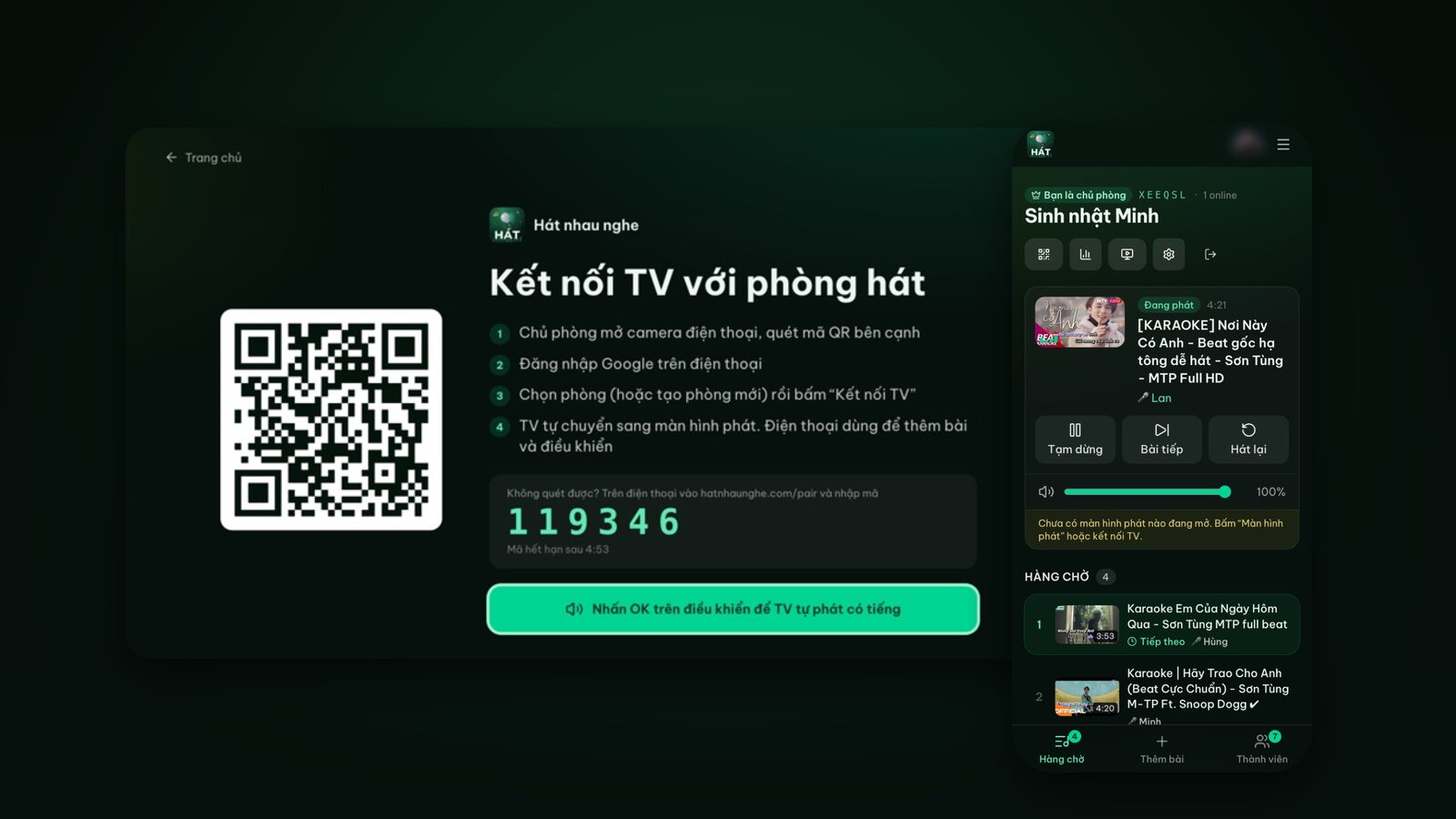
No big screen yet? Our guide to karaoke on your TV with your phone covers the TV pairing page, Google Cast and HDMI.
FAQ
Can guests change the room settings?
No. Only the host can open Room settings. Moderators can't either; they help with approvals, the queue and playback.
Why can't I move songs up or down?
Taking turns is probably on. The order is then set automatically. Turn it off to reorder, then back on.
Can someone I removed come back?
No, not to that room. If it was an accident with a friend, the quickest fix is opening a new room.
If I set a password, do friends in the room need it?
Not if they scan the QR code in the Invite window. Only people using the link or room code are asked for it.
Do I need an app to host?
No. Everything works in the browser at hatnhaunghe.com. If you like apps, there are apps for Android, iPhone/iPad and Android TV on the Get the app page, using the same account.
Try it in your browser
Open a free karaoke room, let friends scan the QR code and start singing in seconds. Nothing to install.