Office karaoke party: year-end and team building made easy
Karaoke for the year-end party, team building, welcomes and farewells: put it on the projector, let everyone add songs from their phone, and approve songs to keep it work-friendly.
Year-end parties, team building days, welcome lunches, farewell drinks: in many offices, karaoke shows up at most of them. Taking the whole team to a karaoke bar is expensive and hard to book, while singing in the meeting room off one laptop, with one person searching songs for everybody, is exhausting.
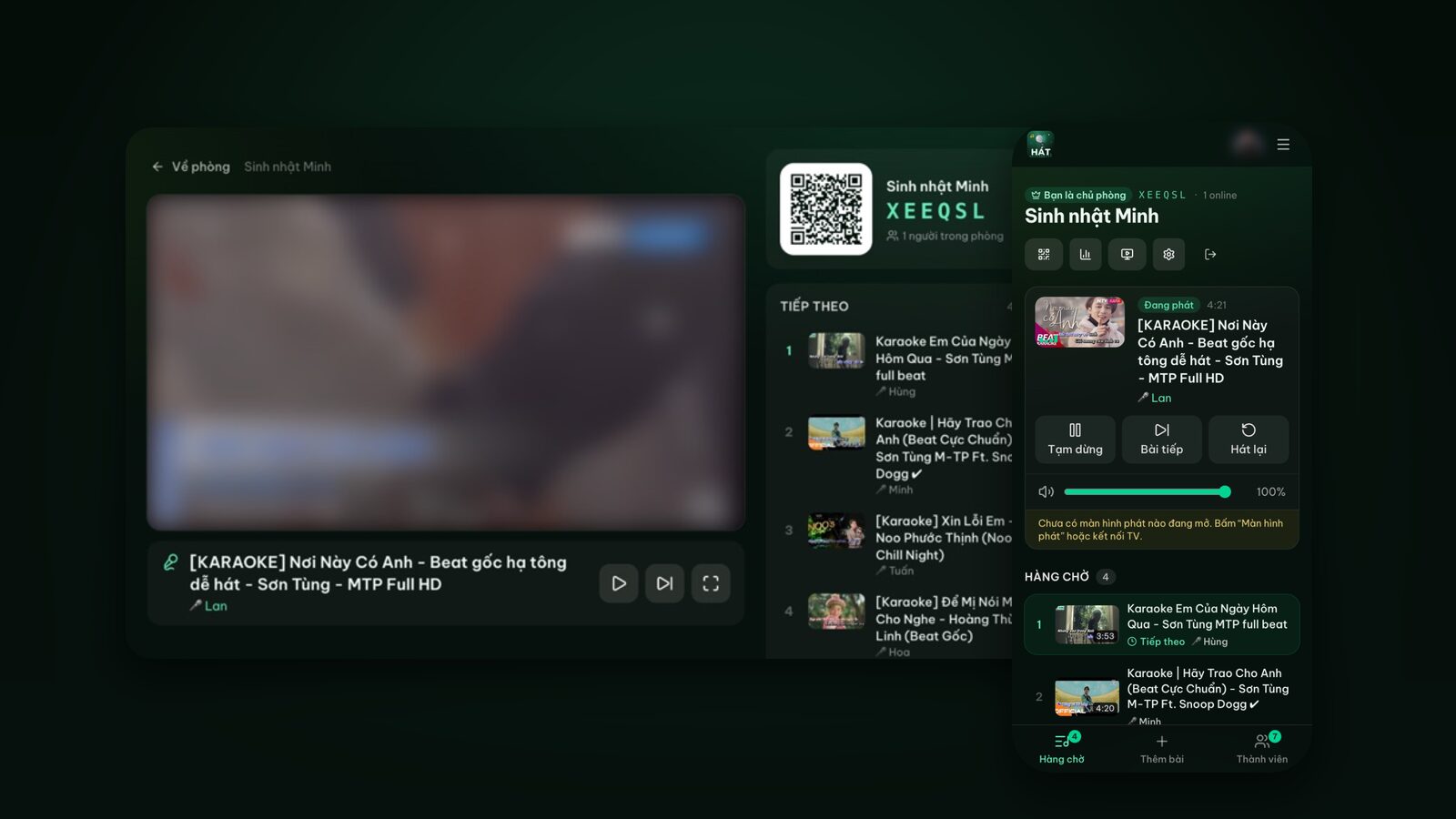
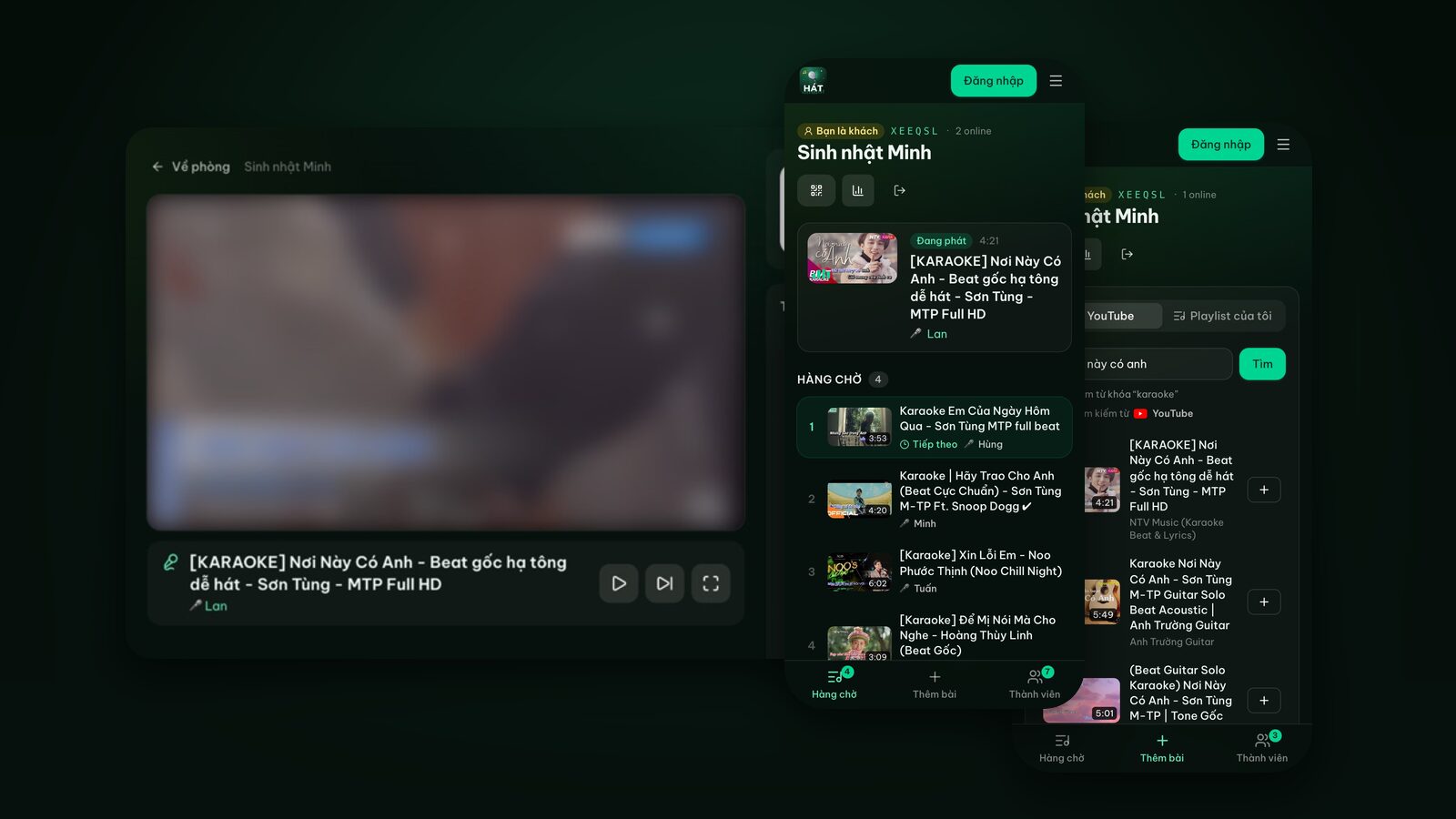
This post shows how to run an office karaoke party at the office, a restaurant or an offsite venue with Hát nhau nghe: a projector or meeting-room TV is the player screen, and each colleague adds songs from their own phone. It focuses on what's different at work: big groups, the need to keep content appropriate, and people who'd rather not sing.
How office karaoke differs from karaoke at home
- Bigger groups: dozens of people can't share one remote.
- Bosses, clients and new hires in the room: one off-colour song or random video on the projector is enough to make everyone cringe.
- Limited time: there are speeches, awards and a raffle. Karaoke gets one slot.
- Not everyone sings: introverts need a comfortable way to take part.
Hát nhau nghe has tools for exactly this: approving songs before they play, a cap on songs per person, moderators, room locking and a password on the share link. It all runs in the browser, so staff install nothing and IT doesn't need to touch the office machines.
Set up the player screen for a big room
A projector or meeting-room TV via laptop
For office events, the most reliable setup is a laptop on HDMI:
- 1Connect the laptop to the projector or TV with an HDMI cable and pick the right input.
- 2On the laptop, sign in with Google and create a room.
- 3Tap the screen icon at the top of the room, choose "This device", tap "Open player screen" and go full screen.
- 4Tap "Start" once if the browser blocks autoplay with sound.
This works with any projector or TV that has HDMI and doesn't depend on the TV's own browser or Wi-Fi. Sound goes over HDMI to the TV or venue sound system, or plug a speaker into the laptop.
A smart TV with a web browser
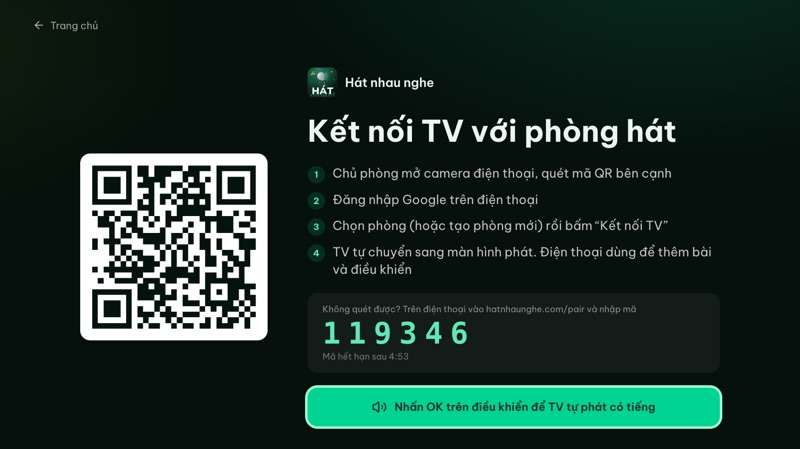
- 1Open the TV's browser and go to hatnhaunghe.com/tv.
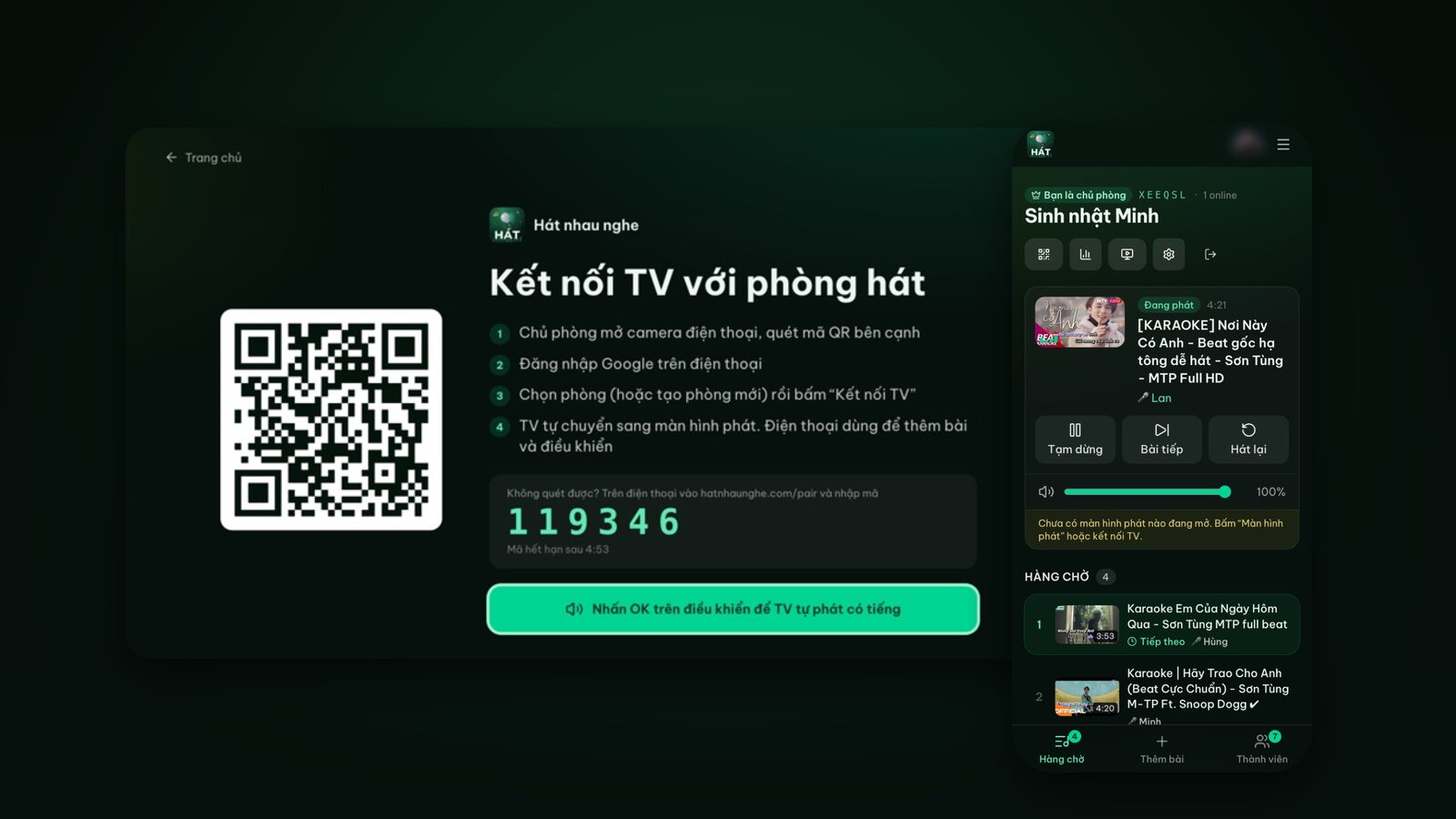
- 2The TV shows a QR code and a 6-digit code.
- 3The organiser scans the QR code, picks the room and taps "Connect TV". If scanning fails, go to hatnhaunghe.com/pair and enter the 6-digit code.
- 4Press OK on the remote once so the TV can play with sound.
You can also cast from Chrome on Android to a TV with Google Cast or a Chromecast, but that's still experimental, so for a company event prefer HDMI or the TV browser. See how to sing karaoke on your TV with your phone for every option.
Check the network
Songs are found on YouTube and played through YouTube's official embedded player. Nothing is downloaded in advance, so the internet connection at the player screen matters. If the office Wi-Fi blocks YouTube or the venue's connection is weak, test a few days ahead and have a backup such as a phone hotspot for the laptop. Colleagues add songs over their own mobile data or guest Wi-Fi; they don't need to be on the same network as the player.
Room size: what to know for big groups
The maximum number of people in a room depends on the host's plan:
- Free plan: up to 10 people per room, host included.
- Premium: no limit on people.
Premium is bought in the Hát nhau nghe mobile app (one year or lifetime). After upgrading, sign in with the same Google account on the web, including on the laptop driving the projector. See Get the app for details.
On the free plan you can still make it work:
- One phone per table: year-end parties are usually seated by table. Each table sends one person into the room to add songs for the whole table.
- One person per department holds a spot in the room.
For a small team outing under 10 people, the free plan is enough.
Invite colleagues
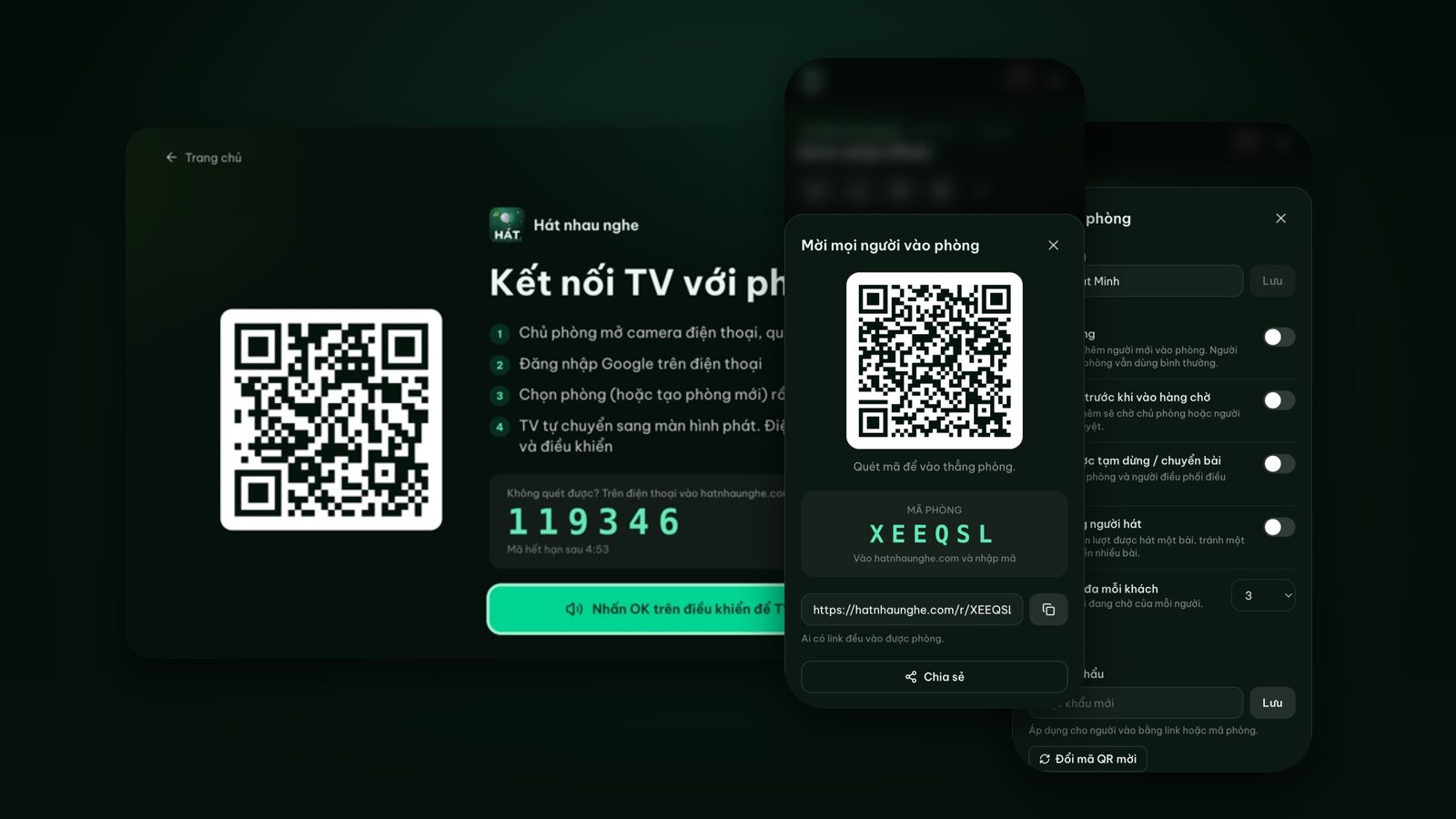
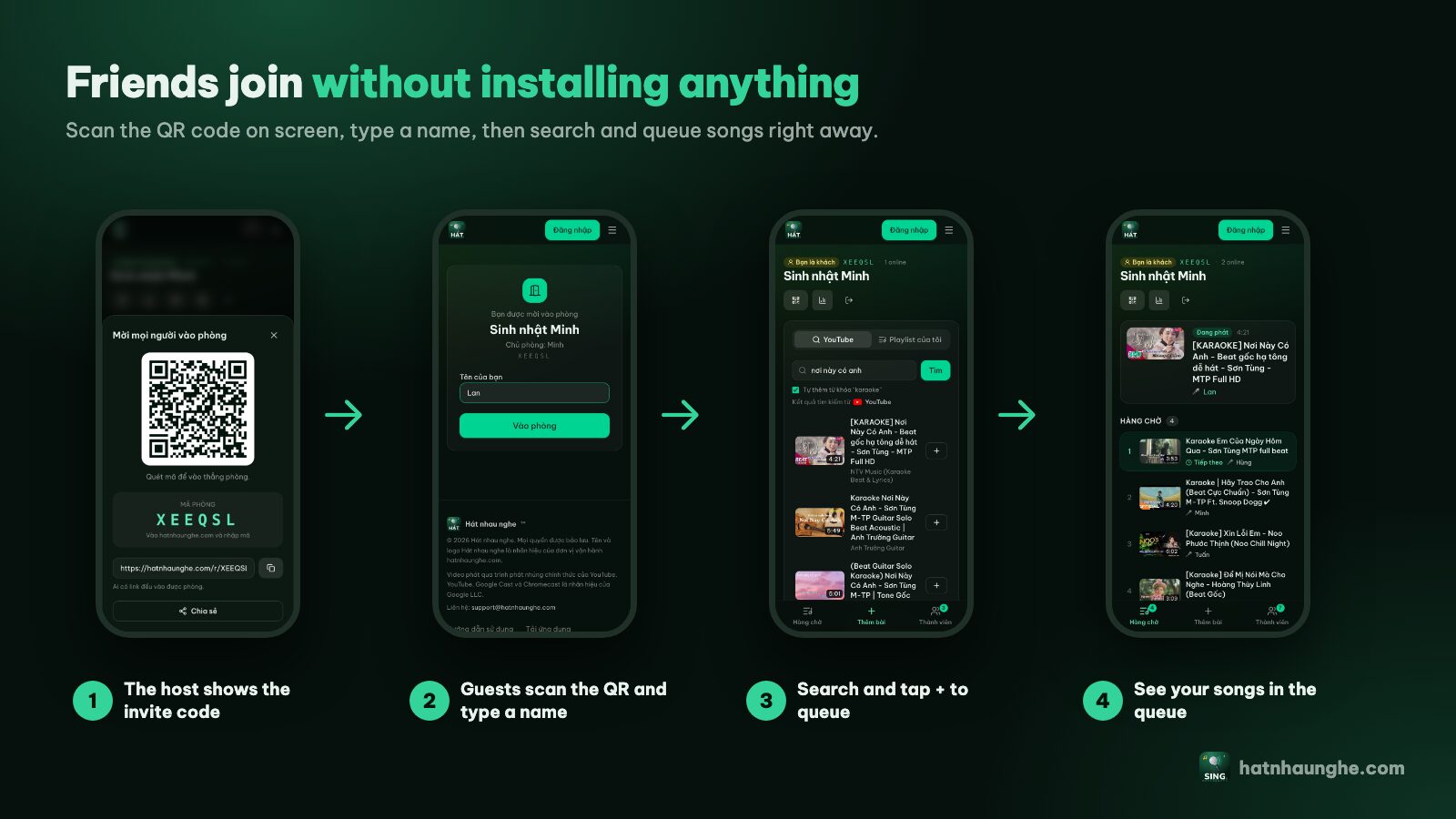
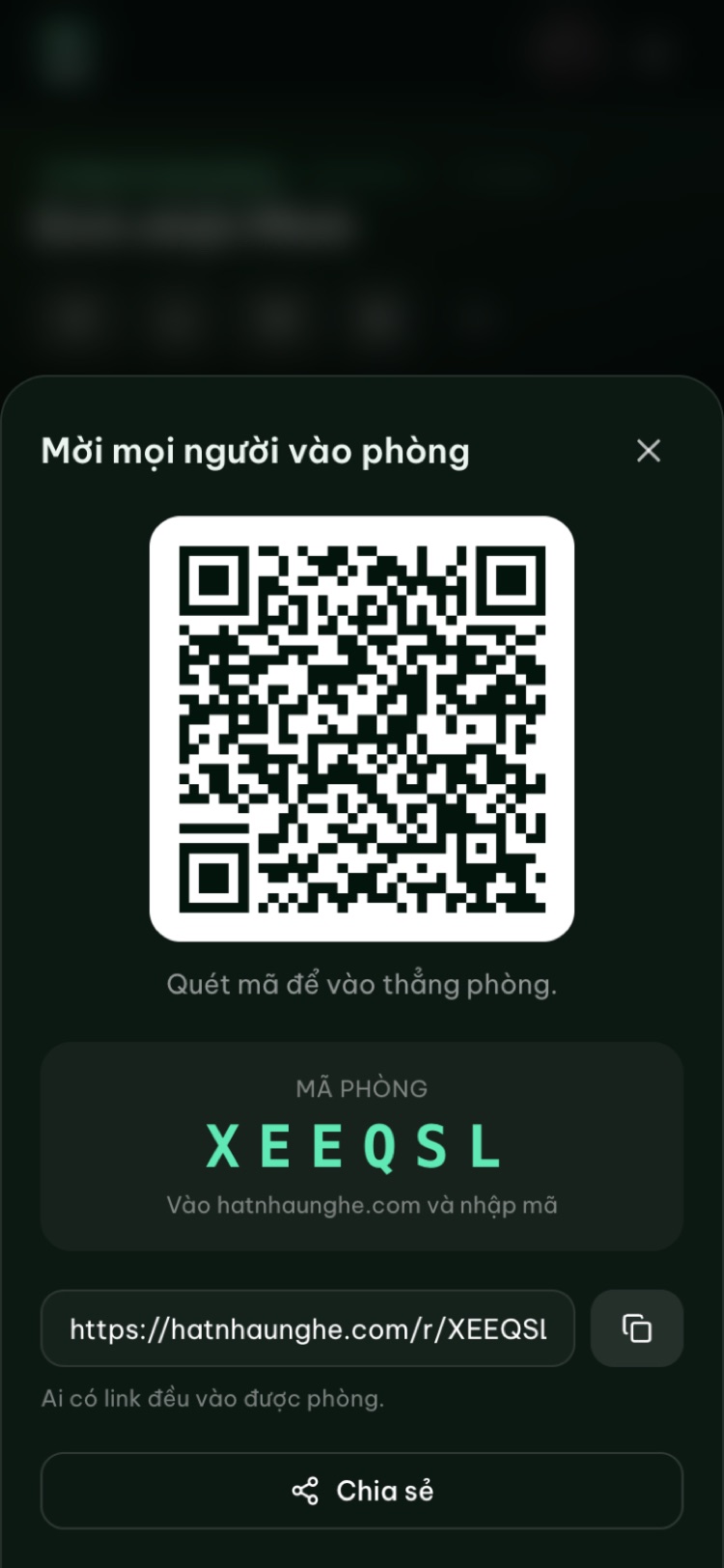
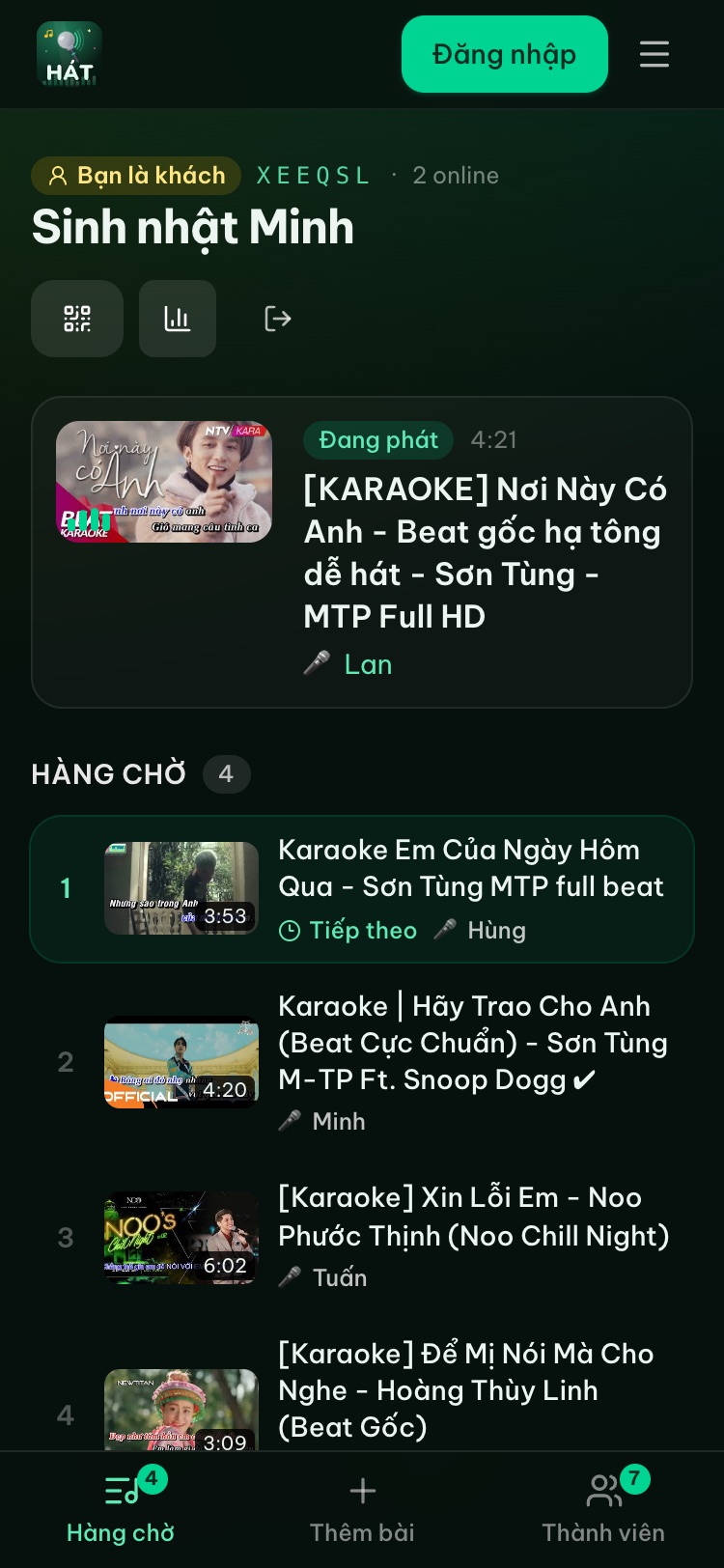
With an empty queue, a large QR code sits in the middle of the projected screen. Once songs are playing, it stays on the right next to the songs up next. Colleagues scan it, type a name and tap "Join room". No accounts.
Share the link in the company chat?
Sharing the link lets people pick songs before the party, but company chats can include people who aren't attending. Set a room password: anyone opening the link or typing the room code must enter it, while people scanning the QR code in the room get straight in.
Lock the room when everyone's in
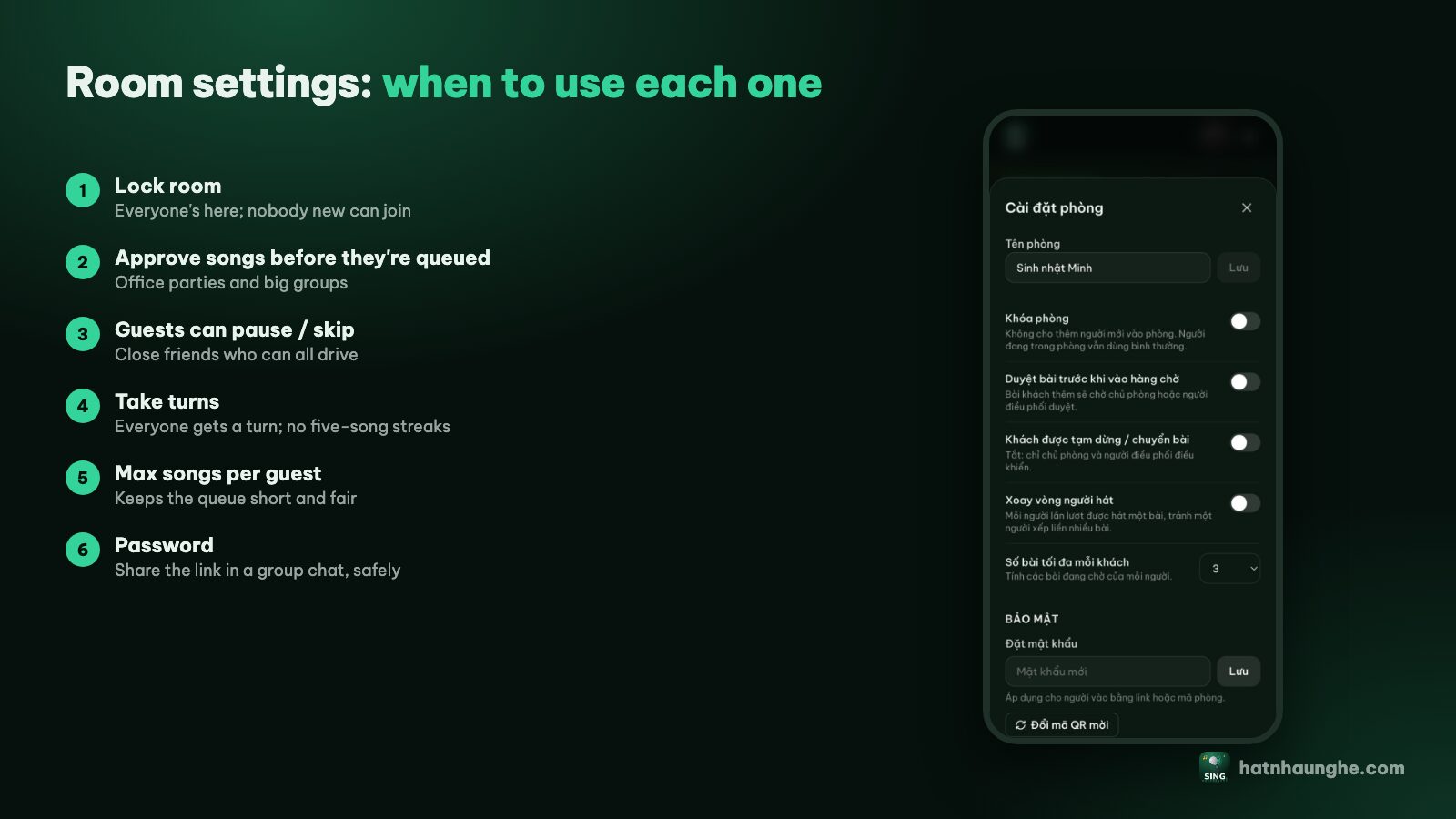
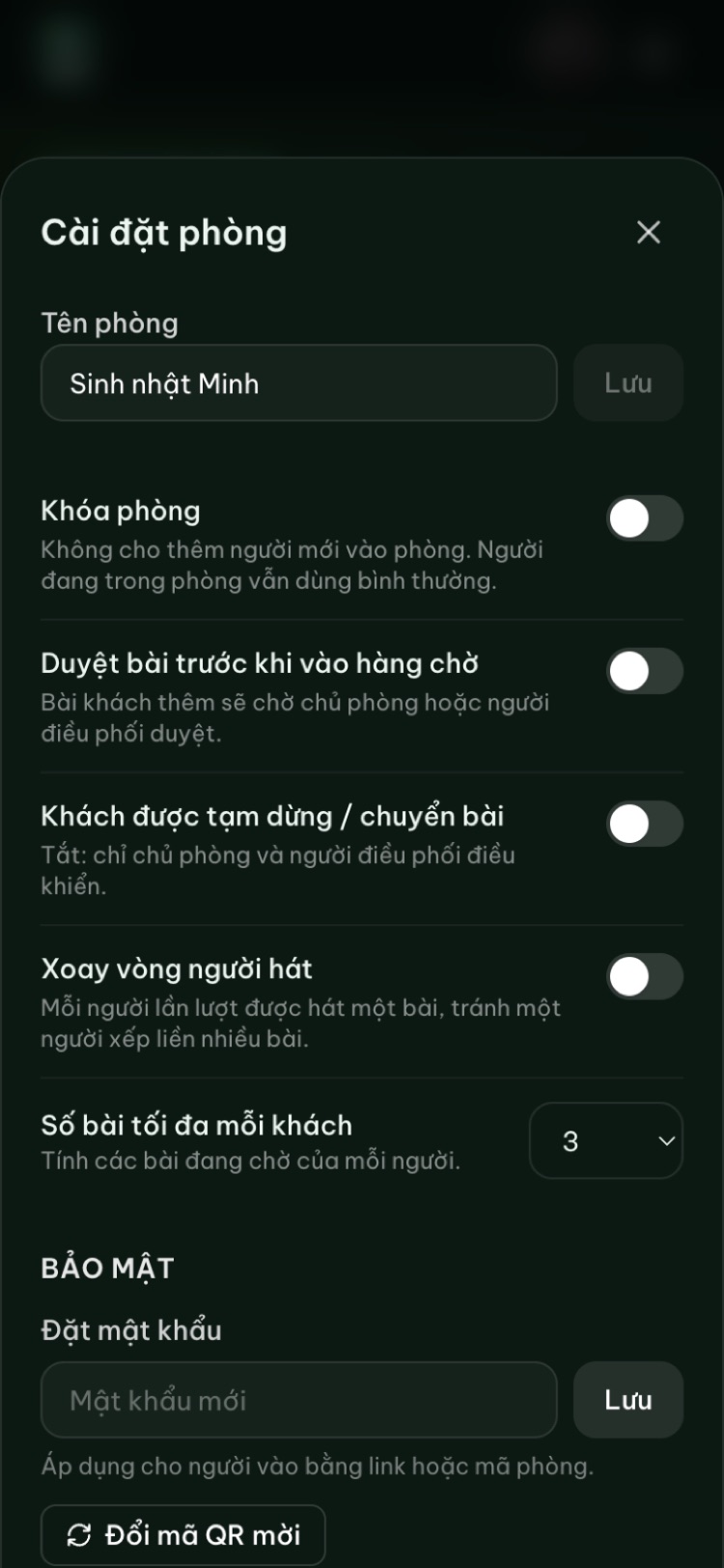
Once everyone has joined, turn on Lock room in the settings. Nobody new can join, and people already in the room carry on as normal. If a stranger gets in, remove them (they can't rejoin), then set a password and use New invite QR code so the old code stops working.
Approve songs: keep it work-friendly
In the room settings, turn on Approve songs before they're queued. Guests' songs then wait for approval instead of playing straight away. The host or a moderator taps ✓ to approve or ✕ to reject.
Approval lets you filter out videos that aren't karaoke versions, skip songs with lyrics or visuals that don't suit a work party, drop very long songs when the programme is running late, and shape the mood: upbeat to open, mellow near the end. Guests see that their song is waiting for approval, so nobody wonders where it went.
Appoint moderators
One organiser can't host and approve songs at the same time. In the Members tab, the host can make someone a moderator. Moderators can approve and skip songs just like the host. A common split: the MC calls up singers, a moderator sits near the screen approving songs, and the host looks after sound and the overall programme.
Who can skip songs?
For a work party, turn off Guests can pause and skip so only the host and moderators control playback. Nobody accidentally skips the CEO's big number.
Cap songs and share turns fairly
- 1Max songs per guest: limits how many songs each person can have waiting, say one or two at a time.
- 2Take turns: each person sings one song in turn, so nobody queues several in a row.
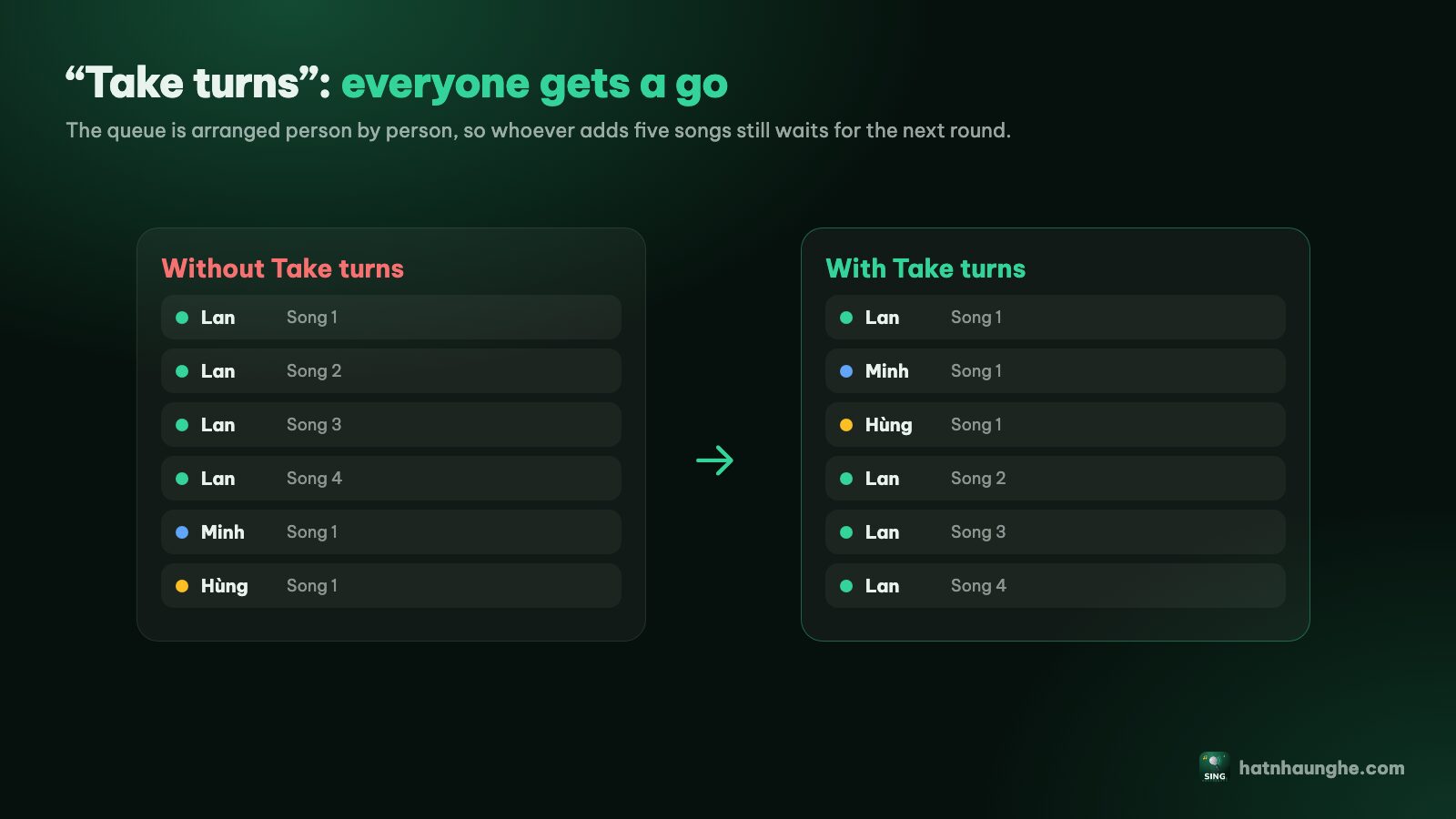
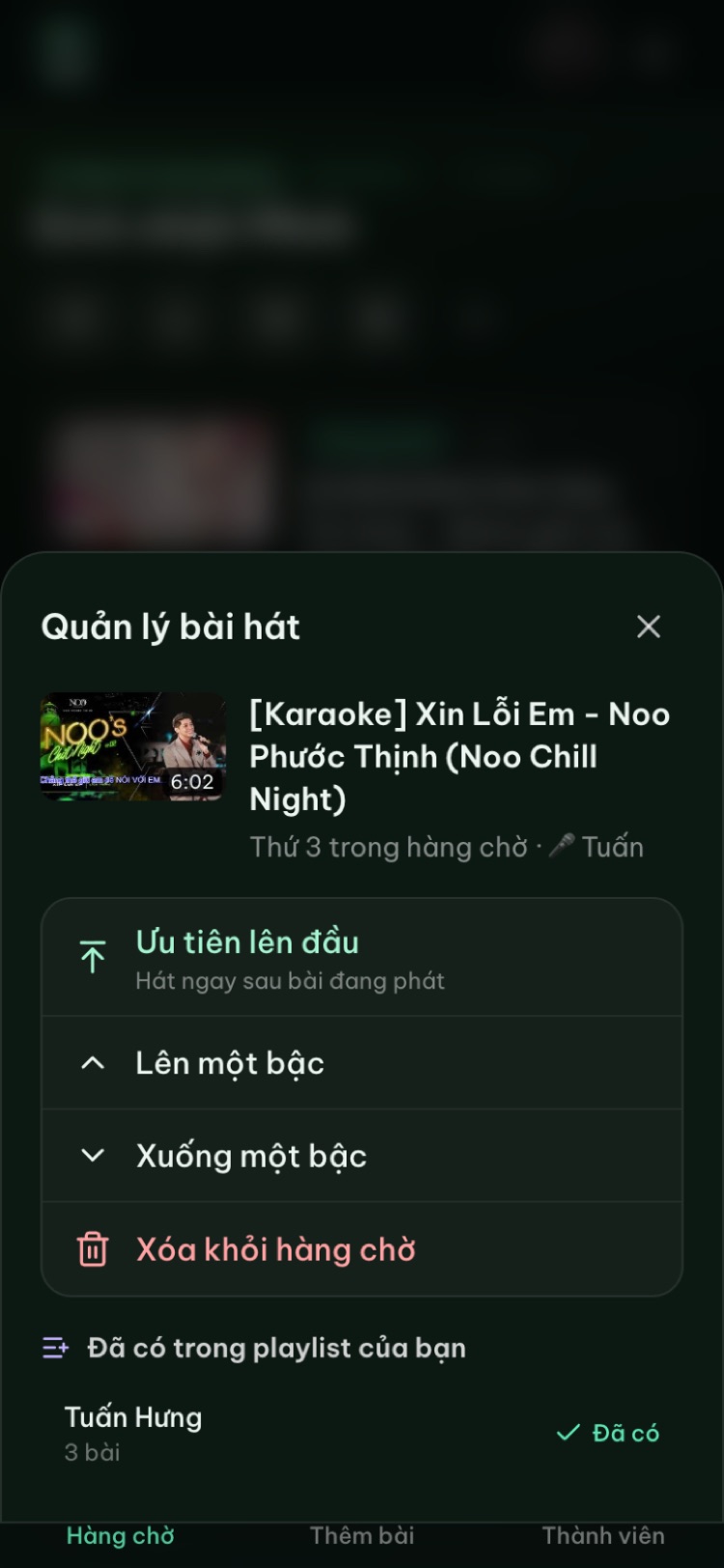
Together, the queue balances itself. To move a special number forward (a department song after the awards, say), tap it in the queue and use "Move up". With Premium, "Play next" puts it right after the current song.
More tips in running a karaoke room so everyone gets to sing.
Try it in your browser
Open a free karaoke room, let friends scan the QR code and start singing in seconds. Nothing to install.
Pick songs everyone knows
- Prepare a playlist. Sign in and build 15 to 20 familiar songs, then open with "Add whole playlist".
- Go for big, easy choruses. Songs like "We Are the Champions" or "Sweet Caroline" get the whole room singing. In a Vietnamese office, a well-known group song works the same way.
- Duets and group songs take the pressure off solo singing. See easy karaoke songs and duets.
- Find proper karaoke versions. Search the title plus the artist and pick a clear karaoke video. See tips for finding karaoke songs on YouTube.
Room for introverts
Not everyone wants to sing in front of 50 colleagues, and that's fine:
- Pick songs for others. Anyone can add a song for the whole room to sing.
- Sing as a group, a table or a department at once.
- No surprise call-outs. A name only appears on screen when that person added the song.
- Watch the queue. The Queue tab shows what's coming, so nervous singers know exactly when their turn is.
Playbooks by event
Year-end party: laptop on the venue projector, tested a day early; password on the room and the link shared in chat; approval on, songs per guest capped, one moderator; pause from your phone when the MC takes the stage; finish with one song for the whole room.
Team building: often smaller, so a smart TV at the venue via hatnhaunghe.com/tv works well. Split into teams by department. A Premium host can turn on scoring, with a score after each song and star votes from everyone; see karaoke scoring and voting.
Welcome or farewell: usually under 10 people, so the free plan is enough. Skip approval, turn on "Take turns", and save the first or last song for the guest of honour.
After the party
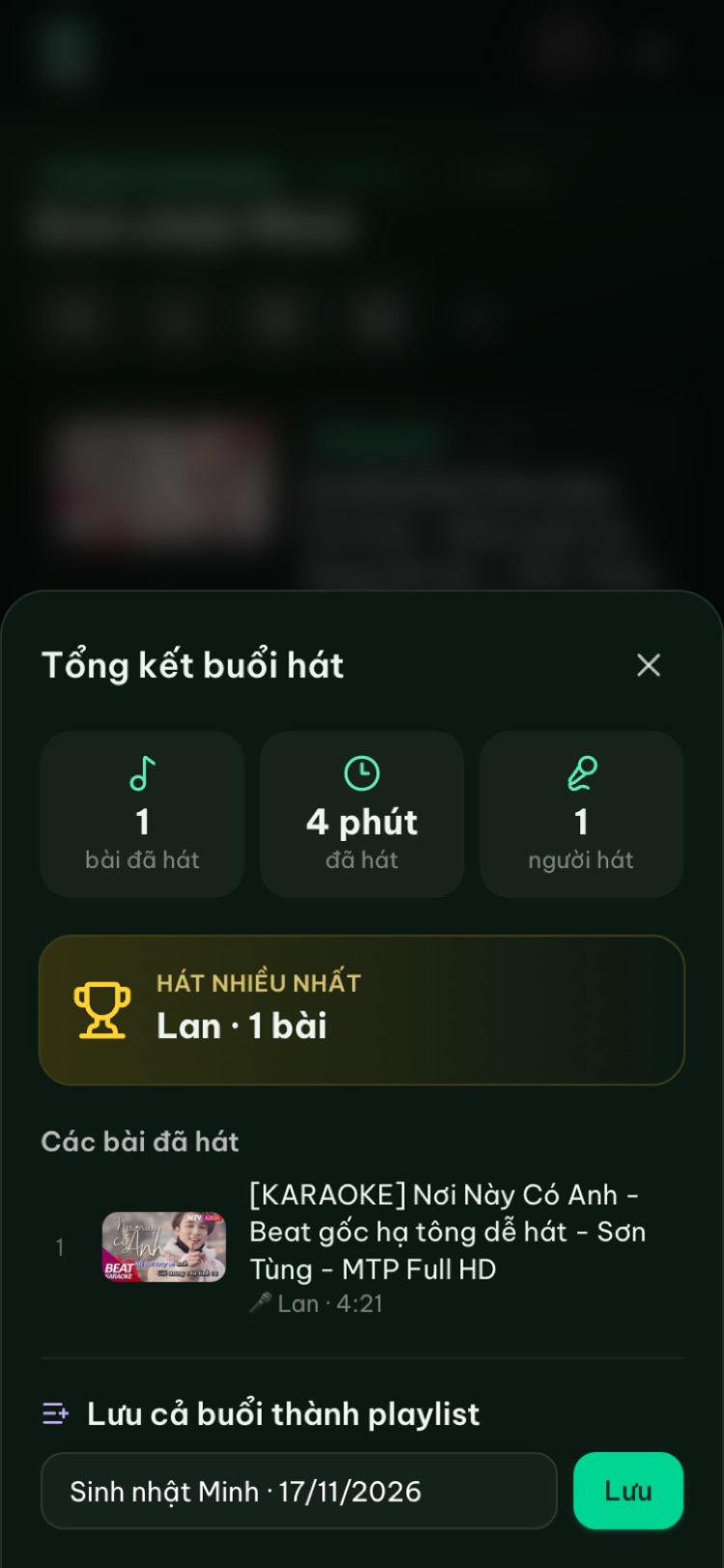
Tap the chart icon at the top of the room for the night's recap: songs sung, total time, number of singers and who sang the most. It's a good screenshot for the company chat the next morning. You can also save the whole night as a playlist for next year. When you're done, choose "Close room" in the settings; otherwise the room is deleted automatically after 24 hours of inactivity.
Try it in your browser
Open a free karaoke room, let friends scan the QR code and start singing in seconds. Nothing to install.
FAQ
Do we need to install software on office computers?
No. It runs in the browser. The organiser signs in with Google and colleagues scan the QR code.
How many people can join one room?
Up to 10 per room on the free plan, host included. Premium removes the limit; it's bought in the Hát nhau nghe app and then works on the web with the same account.
How do we stop inappropriate songs reaching the projector?
Turn on "Approve songs before they're queued". Guests' songs only play after the host or a moderator approves them.
The office Wi-Fi blocks YouTube. Now what?
The player screen needs access to YouTube. Use a different connection for the laptop, such as a phone hotspot. See also the guide and online karaoke vs a karaoke machine.