How to host a karaoke birthday party at home: a checklist
A practical checklist for turning your living room into a karaoke room for a birthday: the day before, the hour before, during the party and after everyone goes home.
A birthday party at home usually has the cake, the food and a room full of family and friends. What it often lacks is something everyone does together, instead of each person scrolling their own phone. Karaoke fills that gap nicely, and you don't need to rent a room or buy a karaoke machine. A TV, a phone and Hát nhau nghe are enough to host a karaoke birthday party in your own living room.
This is a practical checklist, split by time: the day before, the hour before, during the party and after the guests leave.
Why do karaoke at home for a birthday
Karaoke bars are convenient, but they come with familiar downsides: you pay by the hour so everything feels rushed, rooms are too small for the whole family, it's hard to bring young kids and grandparents, and the whole group shares one song book or one remote.
At home:
- You can sing as long as you like.
- Grandparents, parents and kids share one room, and anyone who's tired can step out.
- The food is your own.
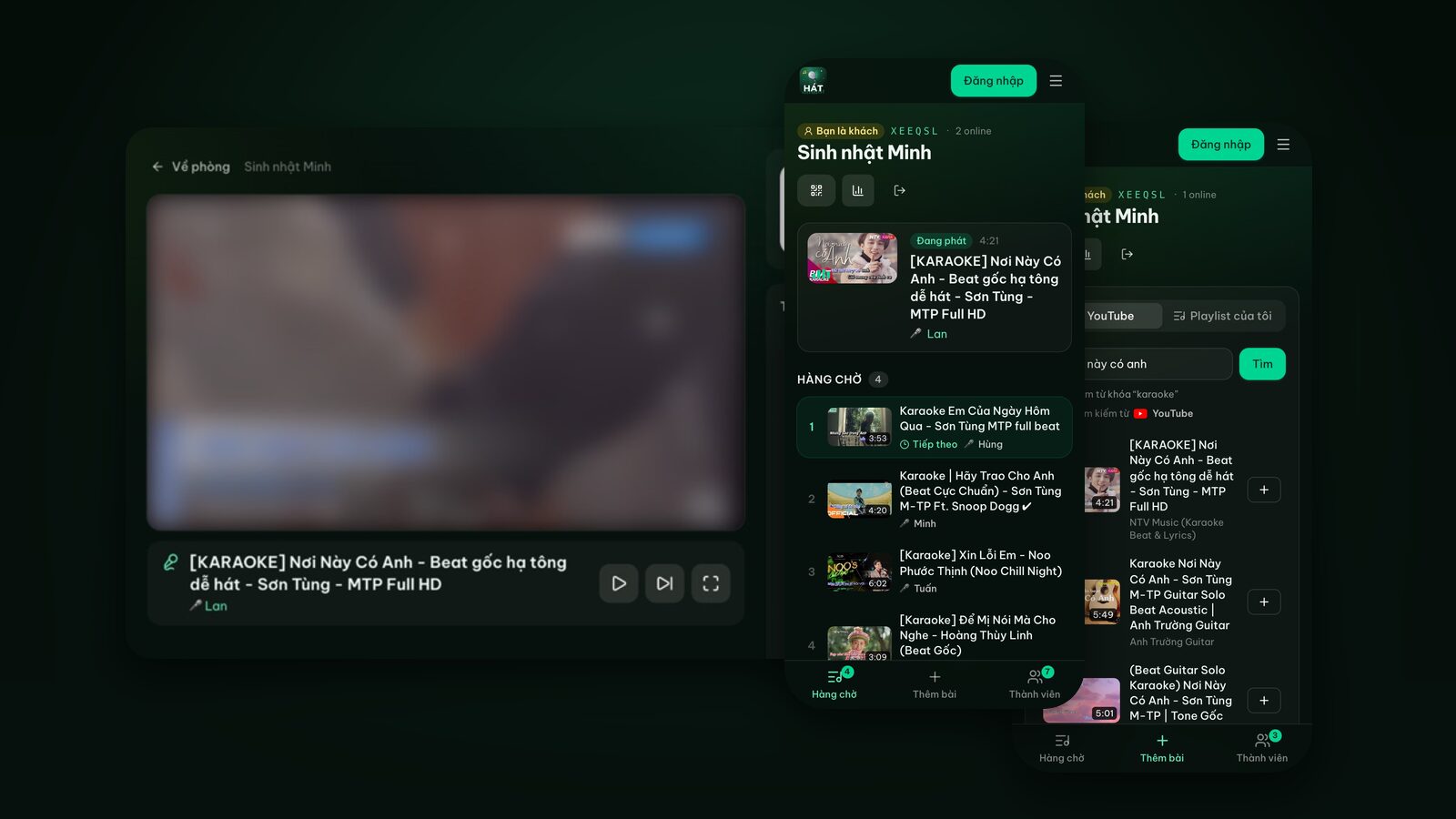
- Everyone picks songs on their own phone instead of passing a remote around.
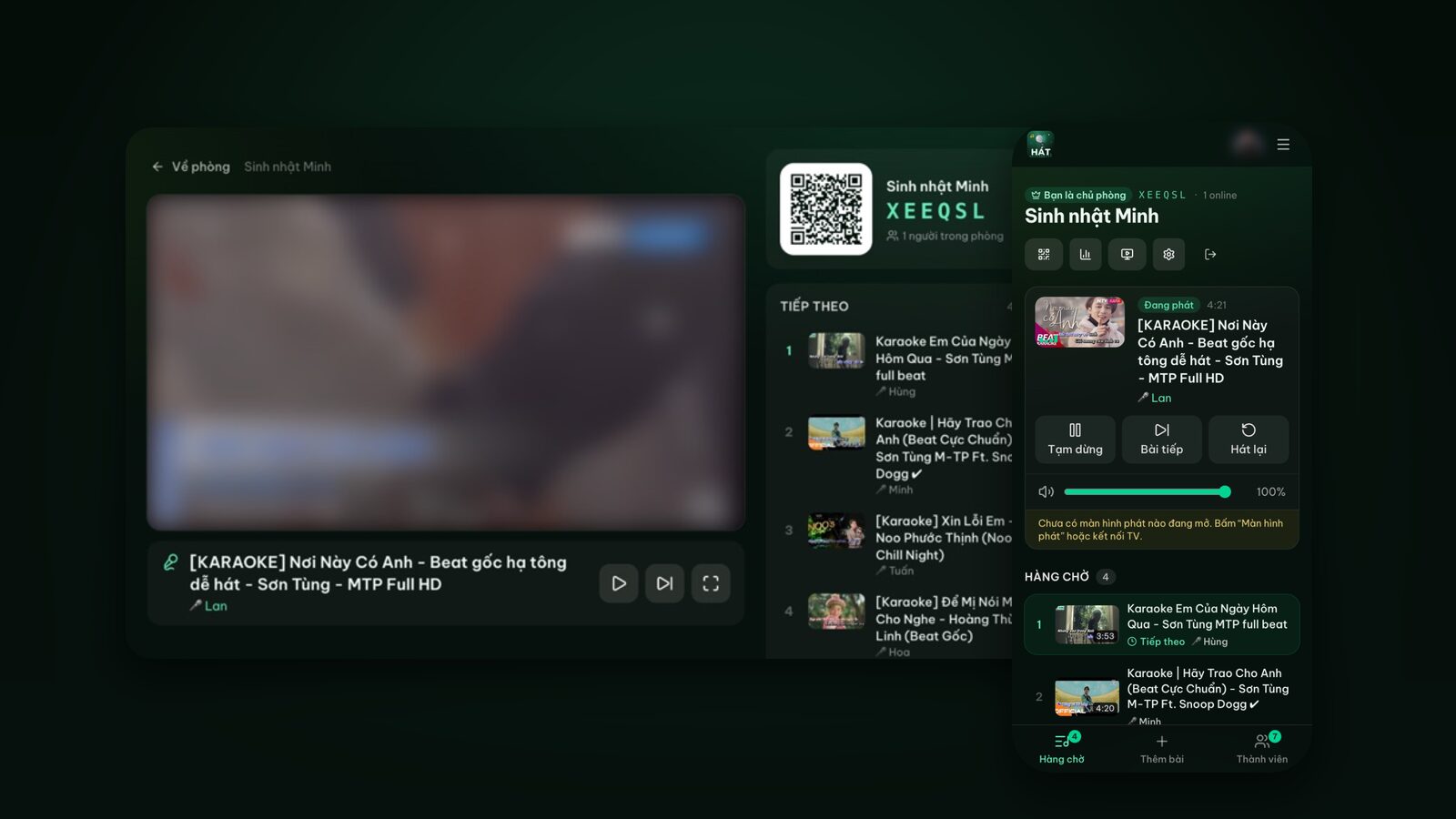
Hát nhau nghe runs entirely in the browser. One big screen (a TV, laptop or projector) plays YouTube karaoke videos, and guests scan a QR code to add songs to a shared queue. Nobody installs anything. If you're new to putting it on a TV, read how to sing karaoke on your TV with your phone.
The day before: things that take time
Pick the player screen
This is the most important step, so test it a day early. Your options:
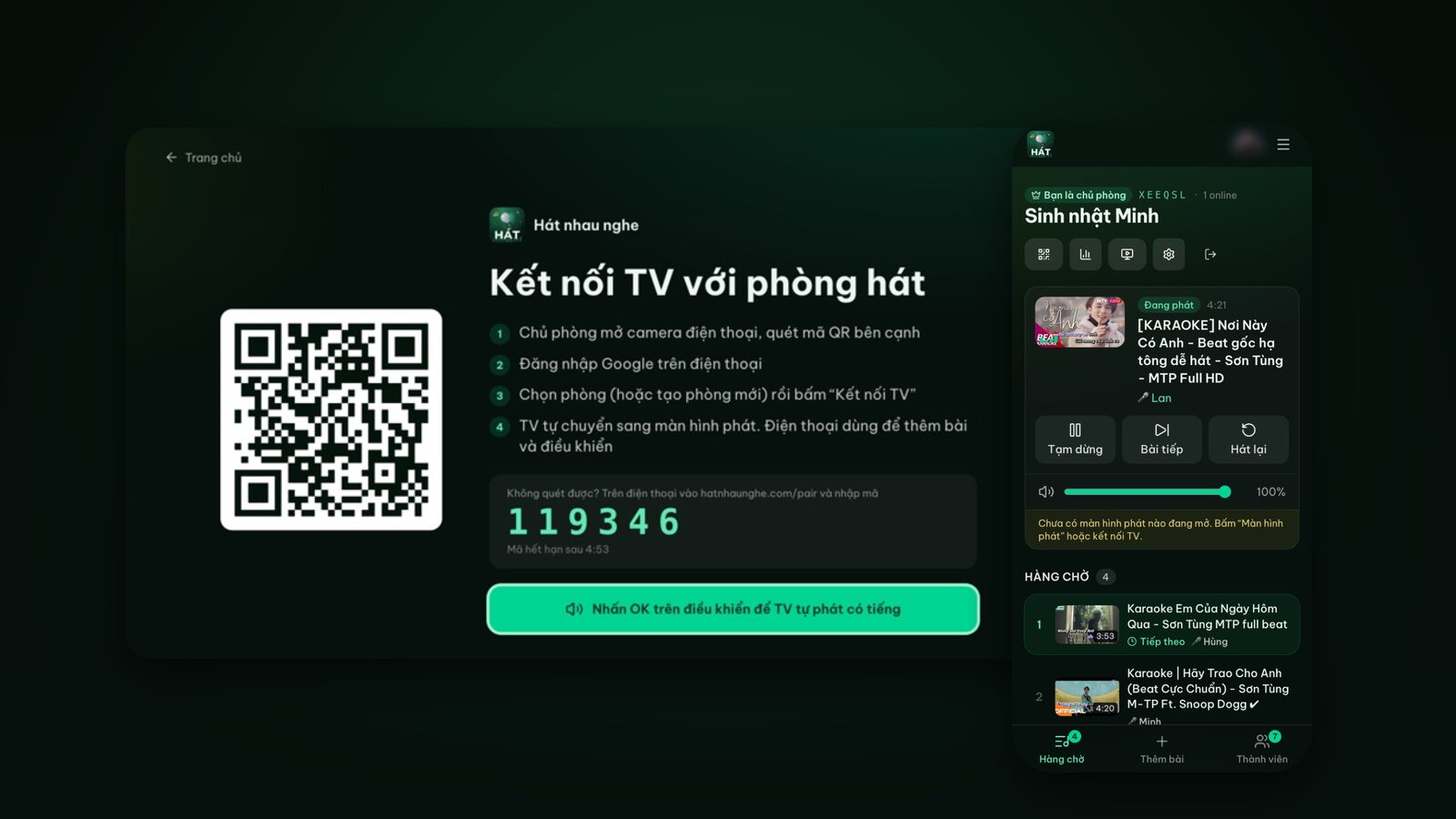
- 1A smart TV with a web browser: open the browser and go to hatnhaunghe.com/tv. The TV shows a QR code and a 6-digit code to pair it with your room.
- 2A laptop on HDMI: the most reliable option, and it works with any TV that has an HDMI port. Open your room on the laptop, choose "This device" and go full screen.
- 3Cast to the TV: if your TV has Google Cast or you have a Chromecast, open the room in Chrome on Android and tap the Cast icon. This is still experimental, and iPhone doesn't support Cast for the web.
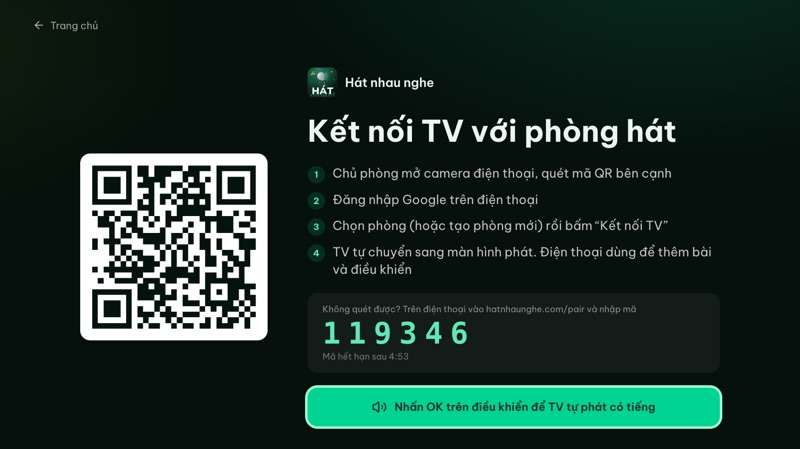
For brand-specific steps, see karaoke on Samsung, LG and Android TV. Bookmark hatnhaunghe.com/tv in the TV browser so it opens in seconds on the day.
Check sound and microphones
Hát nhau nghe handles the picture and the queue. Sound comes out of the TV speakers or whatever speaker you connect to the TV or laptop. If you have a party speaker with microphones, hook it up and sing one song to balance the music and the mic. No mic is fine too; some of the best parties are just the whole room singing along to the lyrics on screen. Karaoke at home without a karaoke machine covers speakers and mics in more detail.
Create a warm-up playlist
The host signs in with Google to create a room. Once signed in, you can build personal playlists ahead of time. On the day, tap "Add whole playlist" and the queue fills up right away, so nobody stares at an empty screen.
A good warm-up playlist has:
- A few upbeat songs with choruses everyone knows.
- One or two duets to get two people up at once (see easy karaoke songs and duets).
- Something for each generation: a pop hit, an older classic for the grandparents, a kids' song if children are coming.
- At least one birthday song saved for the cake.
Keep it to ten or fifteen songs. Guests will add the rest. For finding clean karaoke versions, see tips for finding karaoke songs on YouTube.
Send guests a heads-up
You don't need to send the room link early. Just say "There'll be karaoke tomorrow, think of a few songs." Shy singers get time to warm up to the idea, and keen ones arrive with a list.
The hour before: set the stage
- 1Turn on the player screen. Open hatnhaunghe.com/tv on the TV (or the player screen on your laptop). Scan the TV's QR code with your phone, pick the room and tap "Connect TV". If scanning fails, go to hatnhaunghe.com/pair and type the 6-digit code.
- 2Press OK or "Start" once. Many browsers block autoplay with sound, so press OK on the TV remote once, or tap "Start" on a laptop.
- 3Queue a test song to check the sound comes from the right speaker at a sensible volume.
- 4Review the room settings under the gear icon (more below).
- 5Arrange the seating. Give the seats facing the TV to older guests and leave some space in front for whoever is singing.
The player screen stays awake all night, so it won't go dark in the middle of the cake.
Invite guests with the QR code
When the queue is empty, a large QR code sits in the middle of the player screen. Once songs are playing, it stays on the right next to the songs up next. Guests open their camera, scan it, type a name and tap "Join room". No account, no app.
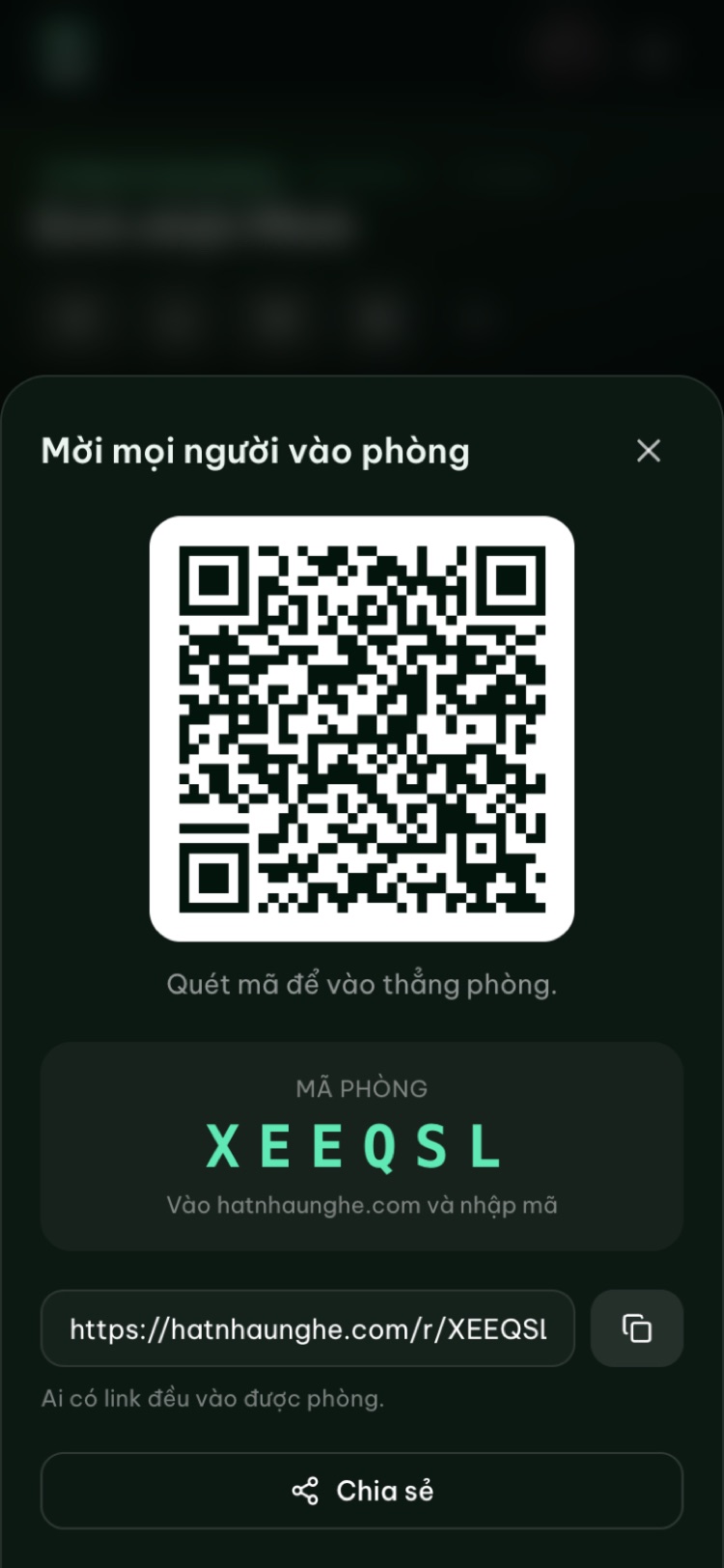
A few notes:
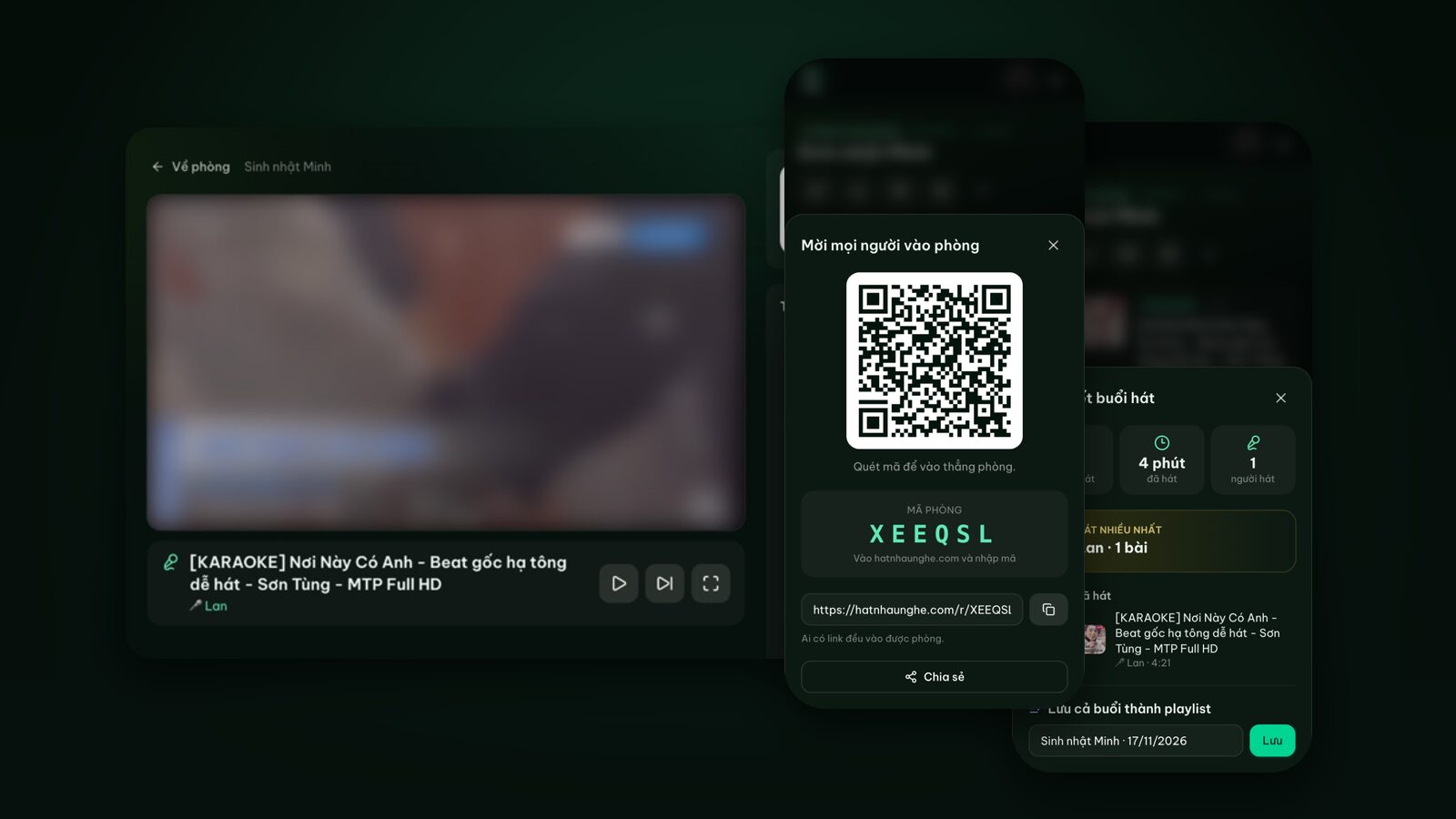
- Can't scan? Go to hatnhaunghe.com and enter the 6-character room code.
- Late or remote guests can get the link from the Invite button and add songs before they arrive.
- Posting the link in a big group chat? Set a room password. People opening the link or typing the code will need it, while people scanning the QR code in the room get straight in.
- Room size: on the free plan a room holds up to 10 people, host included. Family birthdays often fit, since small kids and grandparents rarely have their own phone in the room. For bigger groups, the host can upgrade to Premium (bought in the Hát nhau nghe app) to remove the limit.
Each guest's name appears on the TV when it's their turn, so suggest names people will recognise, like "Grandma" or "Uncle Tom".
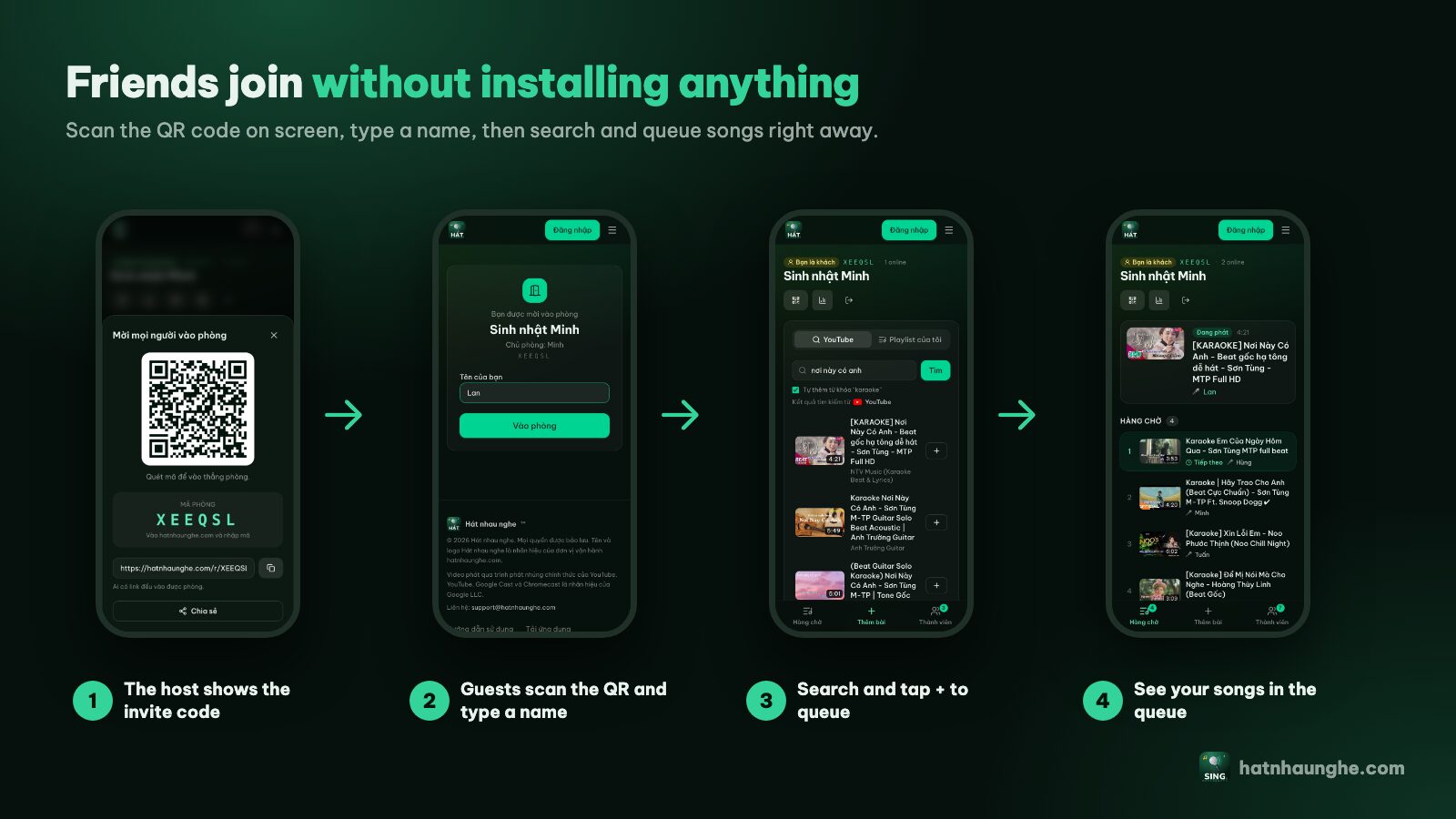
Try it in your browser
Open a free karaoke room, let friends scan the QR code and start singing in seconds. Nothing to install.
During the party: keep it moving
Open with the warm-up playlist
Don't wait for volunteers. Once people arrive, add the warm-up playlist. The host should sing the first song, badly if necessary, to show nobody's judging. While it plays, guests will open the "Add songs" tab and start searching.
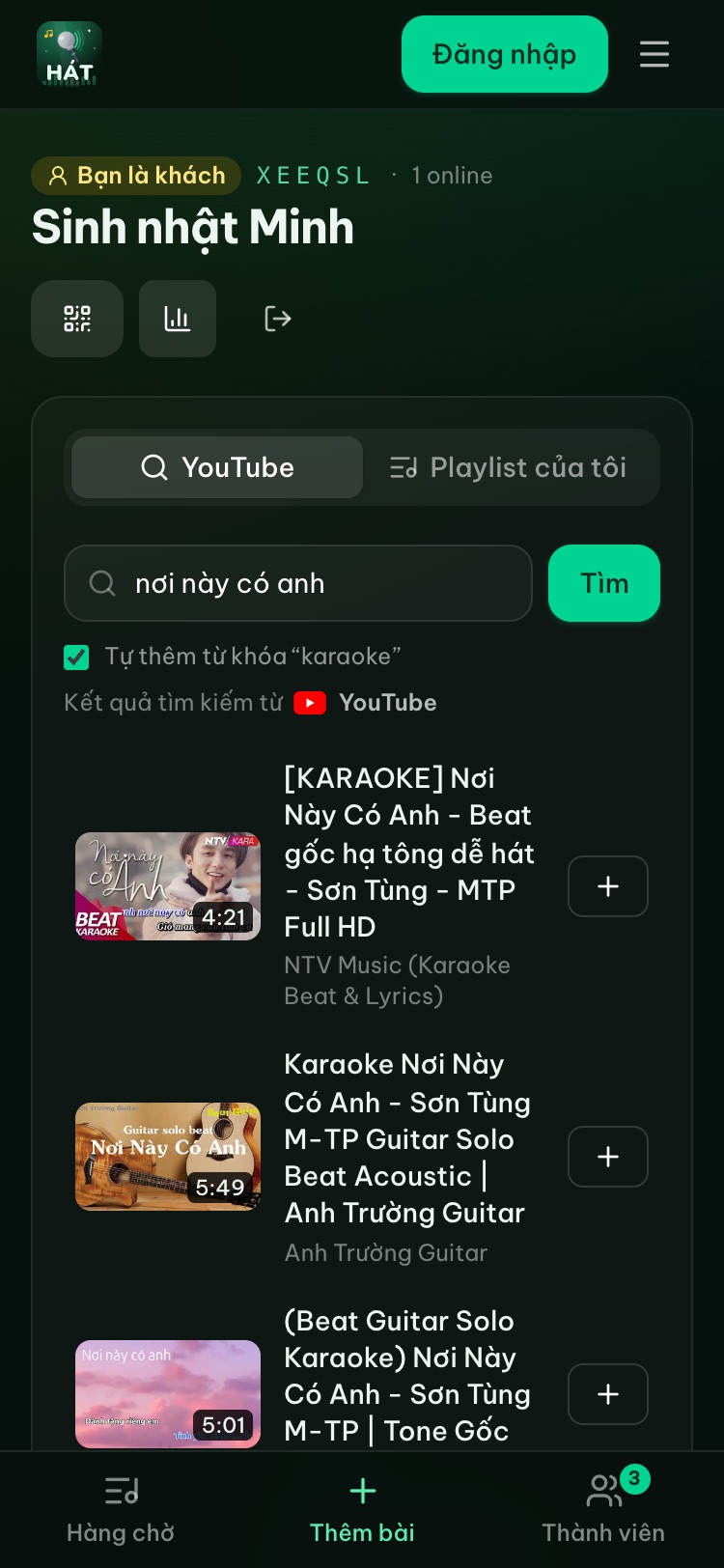
Keep turns fair
Every party has one or two people who end up hogging the mic, usually because they add songs faster. Two room settings help:
- Take turns: each person gets one song in turn, so nobody queues four in a row.
- Max songs per guest: caps how many songs each person can have waiting.
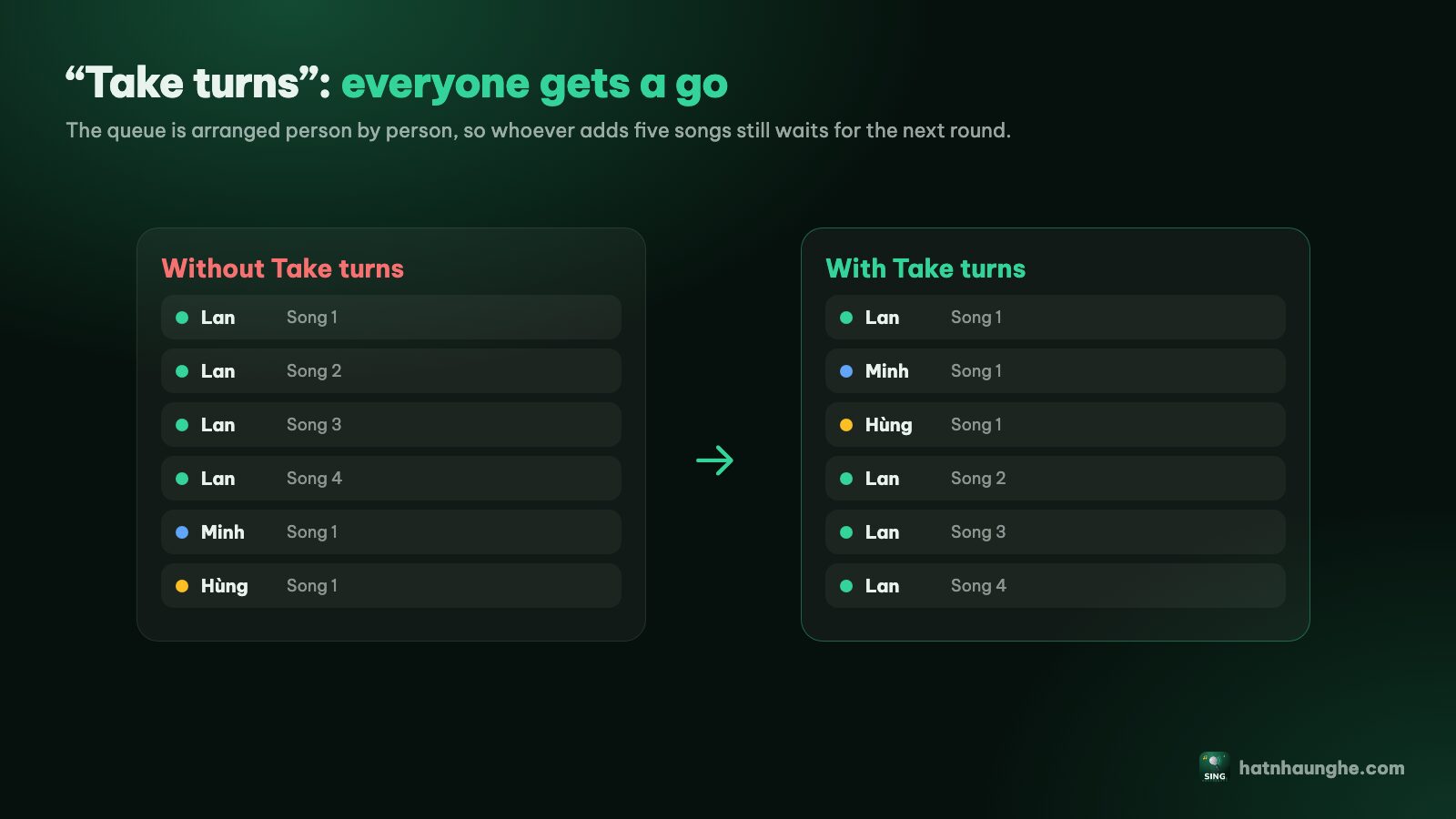
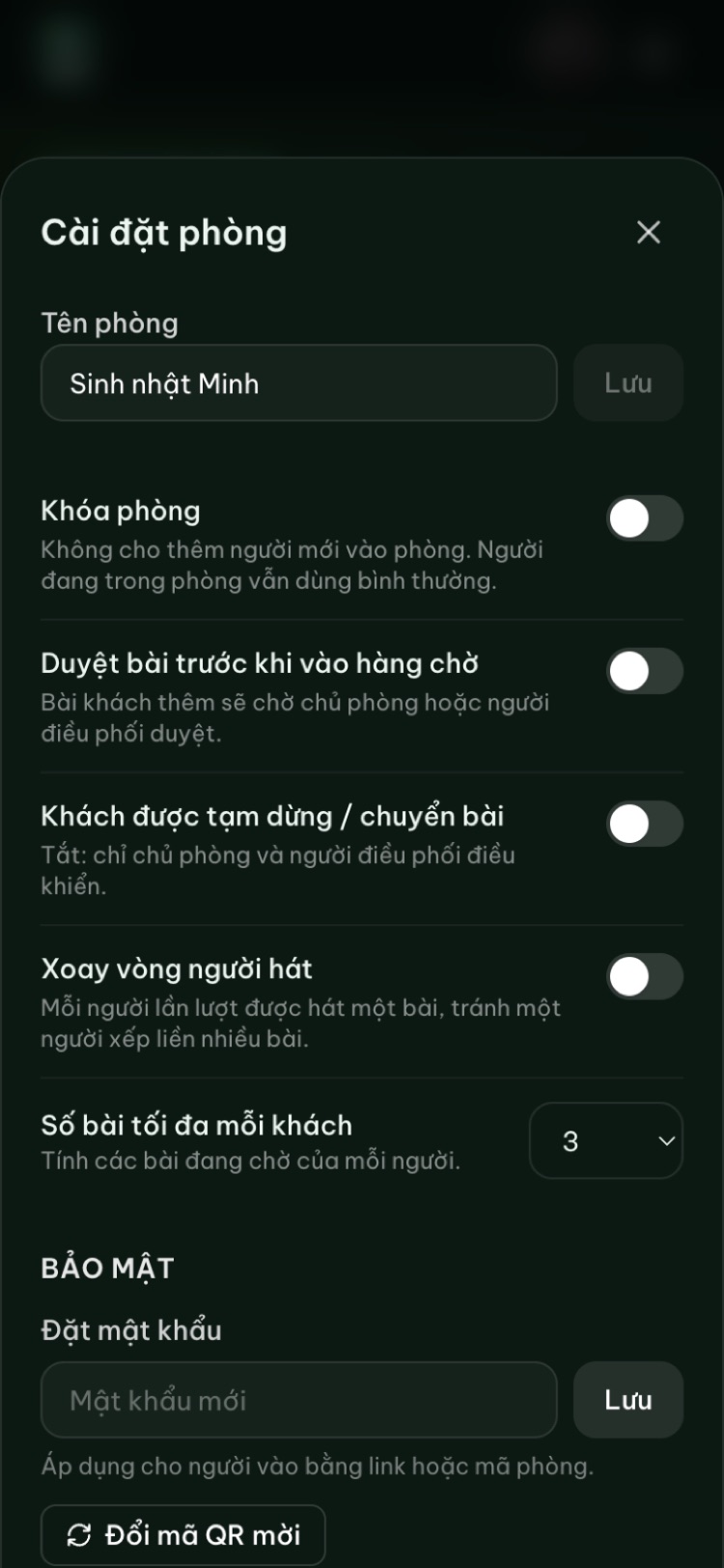
At a family birthday you usually don't need "Approve songs before they're queued". If you're worried about kids skipping songs, turn off "Guests can pause and skip" so only the host and moderators control playback. You can also make a helper a moderator in the Members tab, so they can approve and skip songs while you deal with the cake. More in running a karaoke room so everyone gets to sing.
The birthday song moment
- 1Queue a birthday song in advance (it can be in the warm-up playlist).
- 2When the cake is nearly ready, tap that song in the queue and use "Move up" until it's right after the current song. With Premium, "Play next" does it in one tap.
- 3When the current song ends, dim the lights and bring out the cake. The birthday song starts on its own with the lyrics on screen.
- 4Candles not lit yet? Pause from your phone and resume when ready.
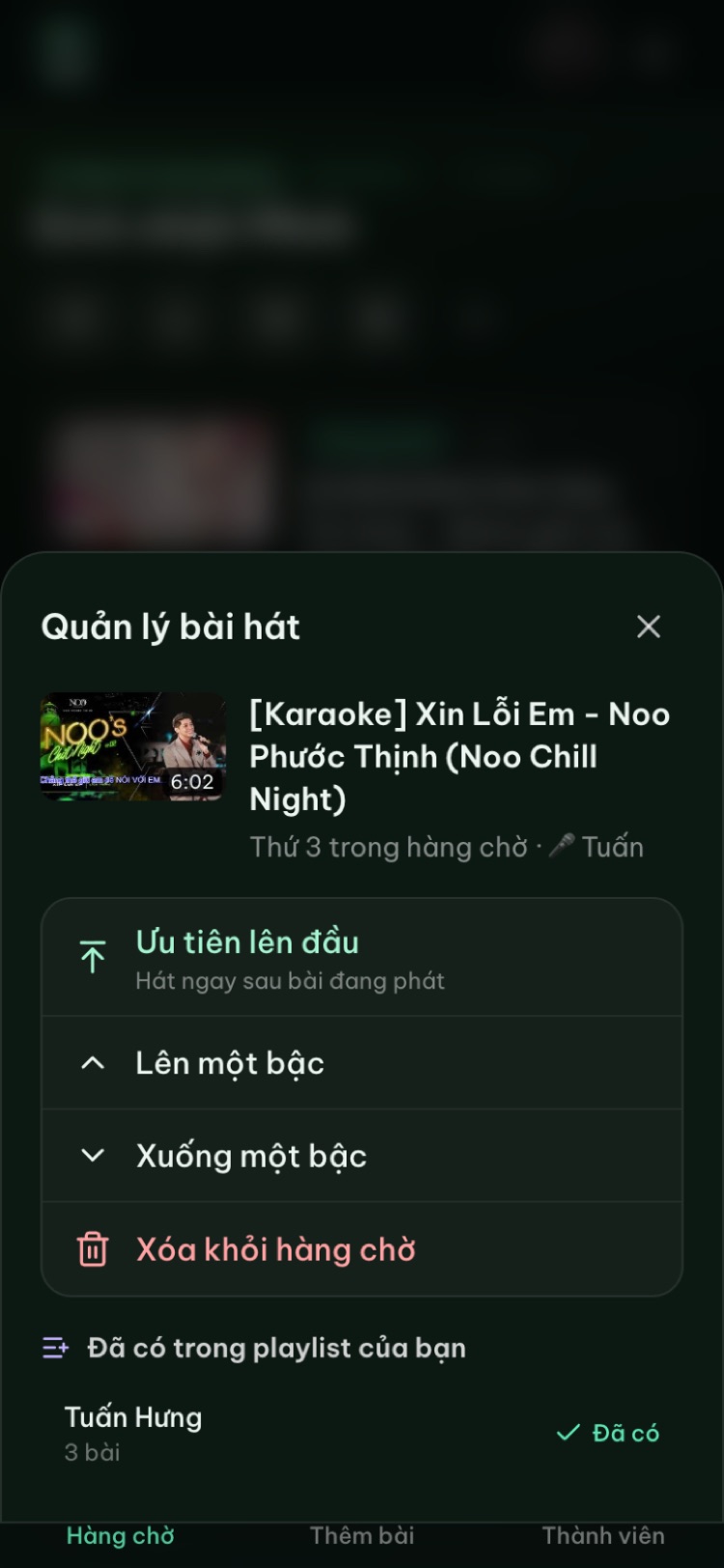
Afterwards, let the birthday person sing something they love. That's the clip everyone wants to film.
Kids and grandparents in the same room
- Grandparents without a phone? Ask what they'd like and add it for them. Call out their name when their song comes up.
- Impatient kids: with rotation on, they can see their turn is coming, which cuts down on squabbles.
- Mix genres. The search box has quick picks for genres like kids' songs, pop and duets, which helps anyone stuck for ideas.
- Cross-generation duets usually get the biggest applause.
- Keep the volume sensible. The host drags the volume slider on their phone to adjust the player screen.
If someone misses their turn, skip ahead and later open History in the queue. It keeps the last 20 songs, and "Sing again" puts one back in the queue.
Want a little competition? A Premium host can turn on scoring: a score appears after each song and everyone rates it with stars on their phone. See karaoke scoring and voting. With kids around, keep it light.
After the party: keep the memories
Before you shut everything down, tap the chart icon at the top of the room to see the night's recap: songs sung, total singing time, number of singers and who sang the most. A screenshot in the family group chat is a nice way to wrap up.
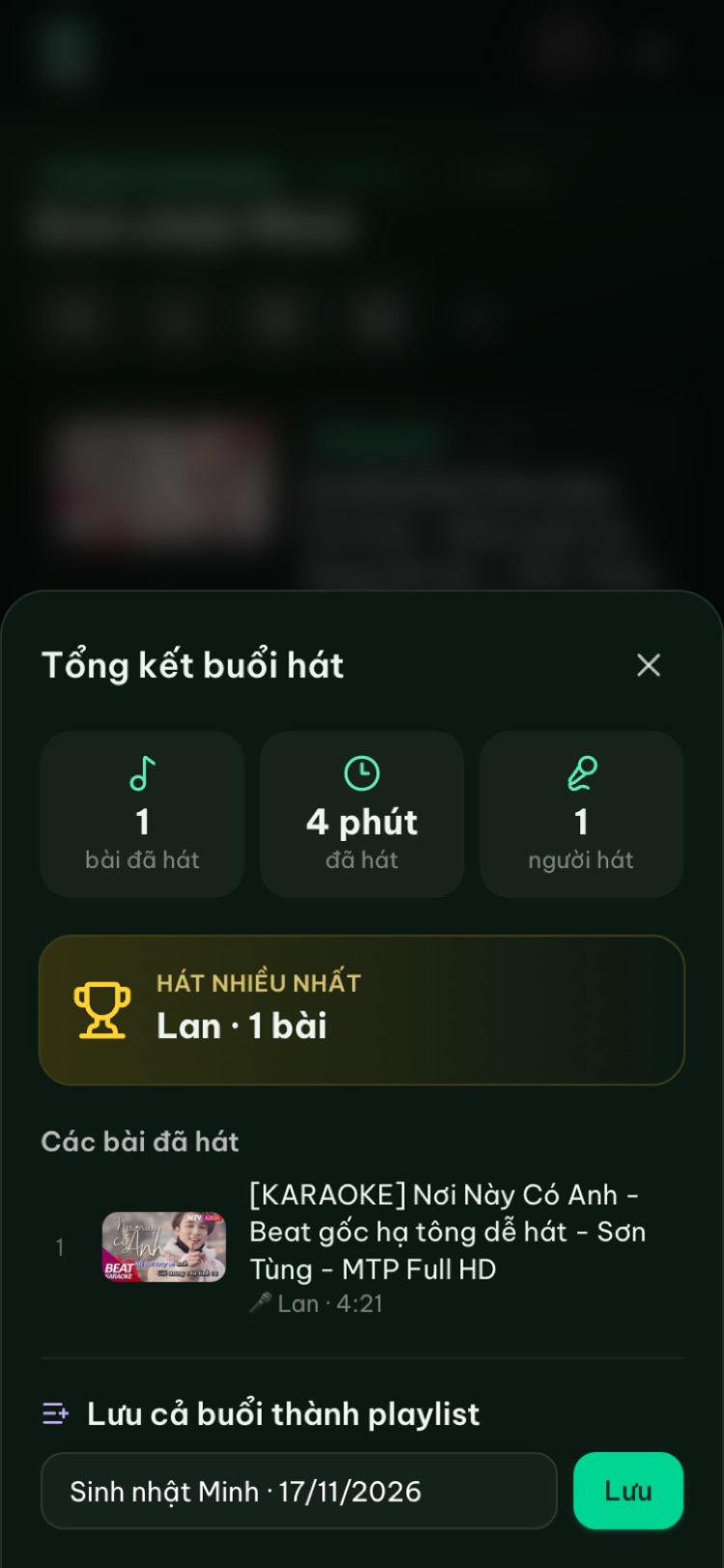
From the recap, tap Save the whole night as a playlist and give it a name like "Mia's 7th birthday". Next time, add the whole list to a new room. Rooms are deleted automatically after 24 hours of inactivity, so save the recap the same day. Your personal playlists stay in your account. When you're done, choose "Close room" in the settings.
Quick checklist
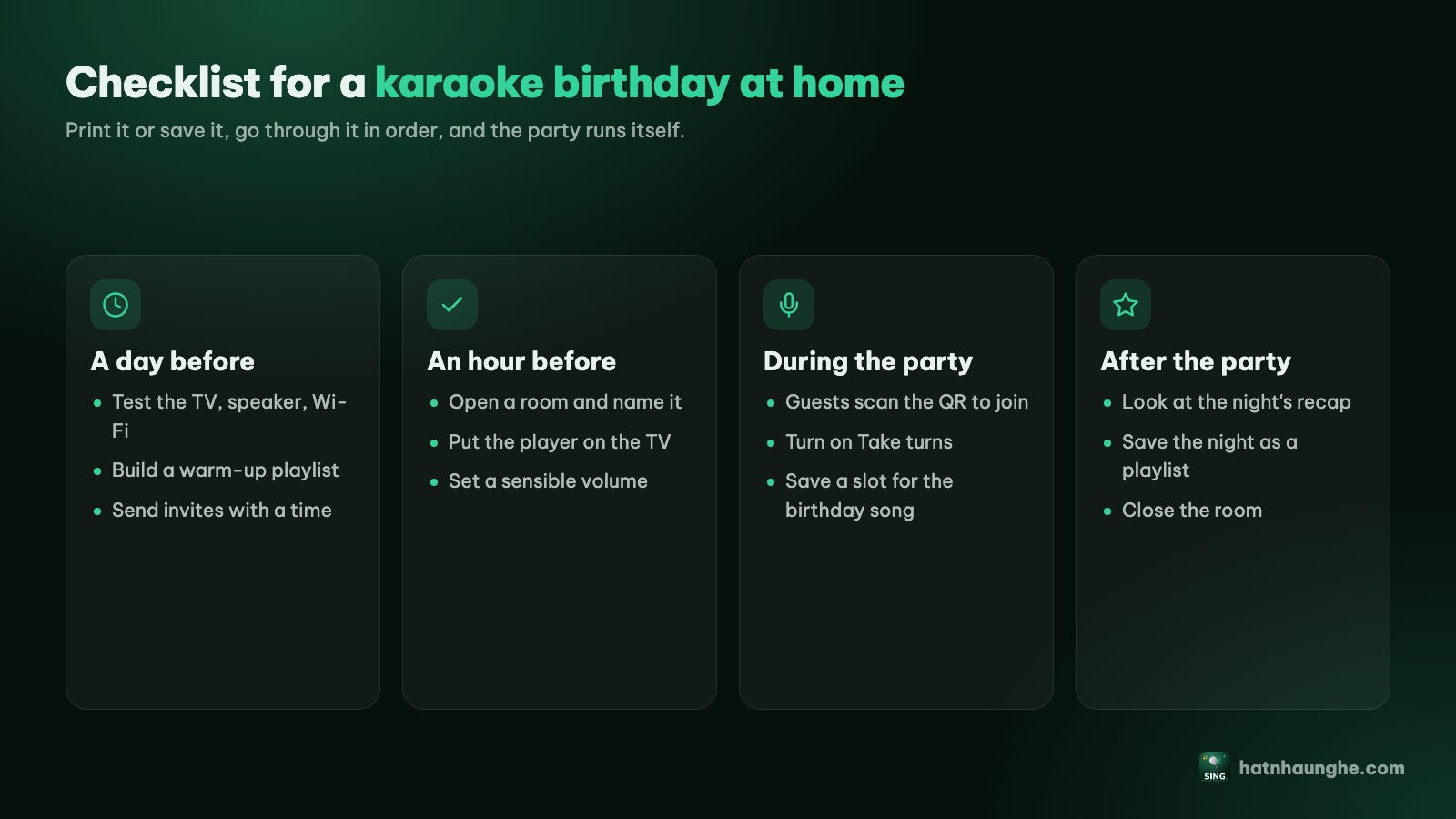
The day before: test the player screen, test speakers and mics, sign in and build a 10 to 15 song warm-up playlist with a birthday song, give guests a heads-up.
The hour before: pair the TV, press OK or "Start" once, play a test song, turn on "Take turns", arrange seating.
During: start with the warm-up playlist, point guests to the QR code, move the birthday song up when the cake is ready, make a helper a moderator.
After: check the recap, save it as a playlist, close the room.
Try it in your browser
Open a free karaoke room, let friends scan the QR code and start singing in seconds. Nothing to install.
FAQ
Does it cost anything?
Hát nhau nghe is free. You need a screen, an internet connection and people's phones. Premium is only needed to remove the room size limit or to use scoring and "Play next".
Do guests need an app or an account?
No. They scan the QR code or enter the 6-character room code and type a name. Only the host signs in with Google.
Do I need to download songs?
No. Songs are found on YouTube and played through YouTube's official embedded player. Nothing is downloaded or stored, so you need a stable internet connection.
My TV has no browser. What now?
Connect a laptop over HDMI, or cast from Chrome on Android if the TV supports Google Cast. See the guide.
What if more than 10 people come?
The free plan allows up to 10 people per room, host included. People can share a phone, or the host can upgrade to Premium in the Hát nhau nghe app to remove the limit.