Home karaoke without a karaoke machine: what you need
Want family karaoke without buying a karaoke player? Here's what you actually need, how to arrange the living room, and how to run your first night from a web browser.
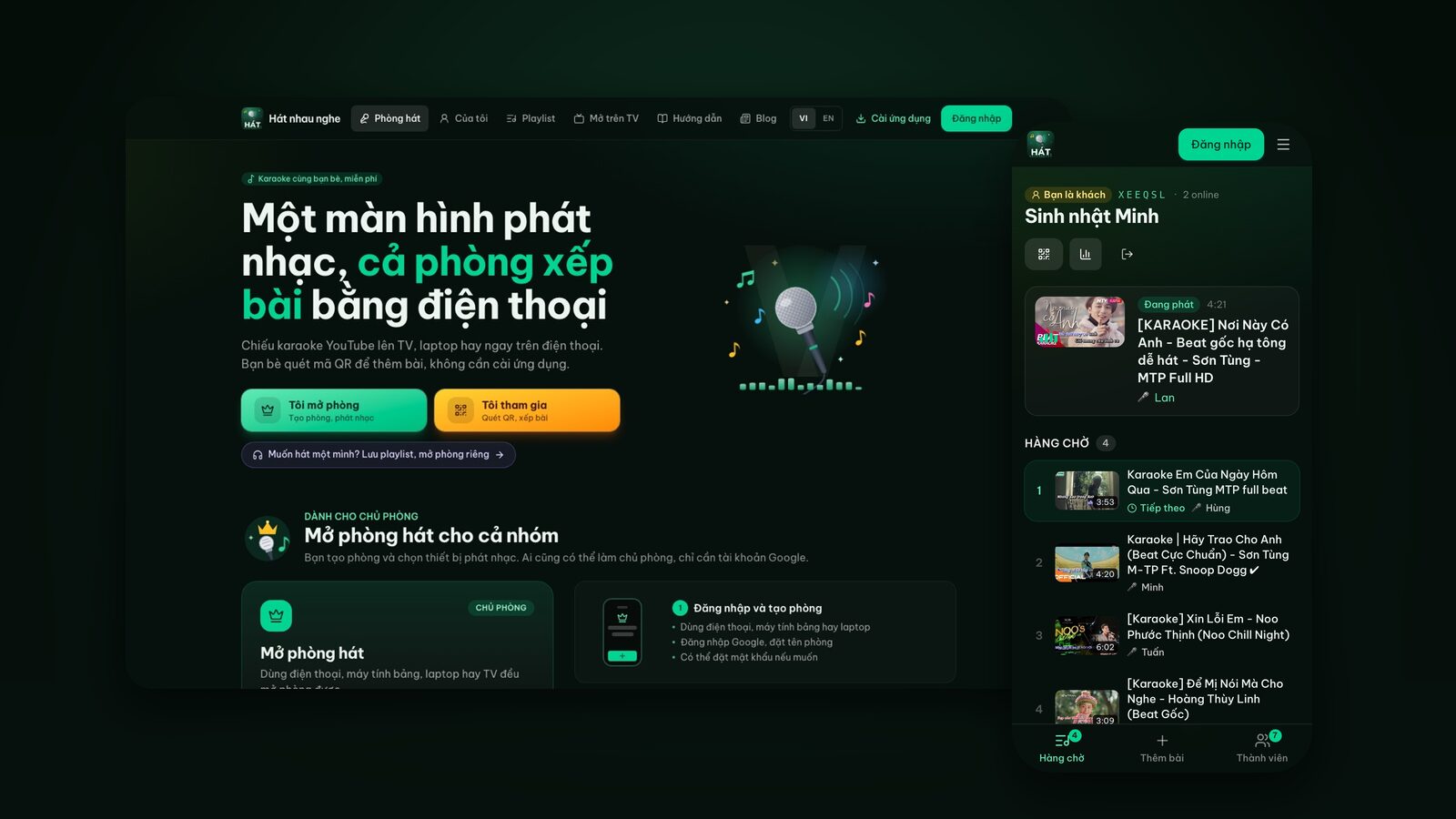
We sing karaoke at home a lot: birthdays, holidays, or just a Saturday night when a few friends drop by. For a long time I assumed "home karaoke" meant a karaoke machine, a big speaker and wireless mics. It doesn't. If you have a TV (or a laptop), a few phones and Wi-Fi, you already have most of the setup.
This post is what I've learned over many nights: what to prepare, where it's worth spending money, how to arrange the room so nobody blocks the screen, how to stay on good terms with the neighbors, and how to run your first night with Hát nhau nghe, a karaoke site that runs right in the browser with nothing to install.
What home karaoke actually needs
Strip away the gadgets and a karaoke night at home needs four things:
- 1A screen for the lyrics. A TV is ideal, but a laptop or tablet works for a small group.
- 2Everyone's phone. This is the new song book: each person finds songs and queues them from their own phone.
- 3A stable internet connection. Songs play from YouTube, so you need to be online. Normal home Wi-Fi is enough.
- 4Sound. TV speakers, a Bluetooth speaker or a karaoke speaker with mics, depending on how serious your group is.
What you don't need is a separate karaoke player. With web karaoke, the song library is YouTube, where almost every song has a karaoke version with on-screen lyrics. For tips on picking a good version, see how to find karaoke songs on YouTube.
The screen: TV, laptop or phone?
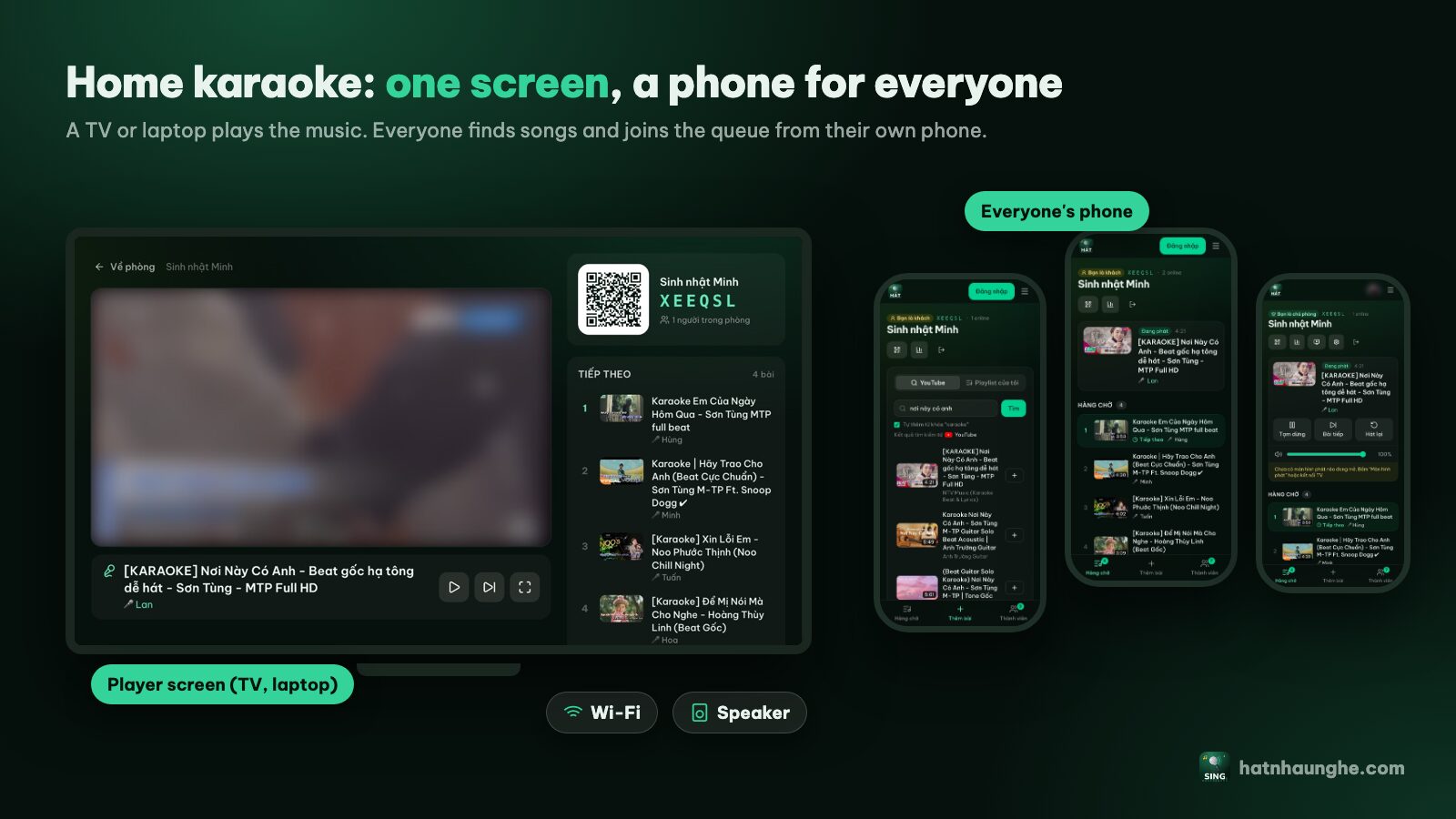
The screen is what the whole room reads from, so bigger is easier. There are several ways to get karaoke onto a big screen:
- A smart TV with a web browser (Samsung, LG, Sony, TCL and most recent TVs): open the TV's browser and go to hatnhaunghe.com/tv. No cables needed.
- Android TV, Google TV and TV boxes: if there's no browser, install one from the TV's app store, then do the same.
- A laptop plugged into the TV over HDMI: the most reliable option, works with any TV that has an HDMI port.
- Cast from Chrome on an Android phone: for TVs with Google Cast. This one is still in beta.
- Two or three people: just play it on a laptop or tablet on the table.
There's more detail per TV in karaoke on Samsung, LG and Android TV and karaoke on your TV with your phone.
Sound: TV speakers, Bluetooth or a karaoke speaker?
This is where people hesitate the most. Honestly, there's no single right answer. It depends on whether you're singing for fun or singing to really belt it out.
TV speakers: enough to start
Built-in TV speakers handle the backing track fine in a small living room. The downside is that you'll be singing unamplified, with no mic. For a family night, kids singing along or a relaxed group, that's plenty. I'd try one night with just the TV before buying anything.
A Bluetooth speaker or soundbar: a fuller sound
If the TV sounds thin, a soundbar or Bluetooth speaker gives the music more body. One thing to know: some Bluetooth speakers add a small delay, which can make sound drift slightly from the picture. Since the music and lyrics come from the same source it usually doesn't matter much for karaoke, but if it bothers you, try a cable (optical, HDMI ARC or 3.5mm, depending on your TV and speaker) instead.
A karaoke speaker with mics: for real singing
If you want an amplified mic with echo, you need a karaoke speaker with a mic input or bundled wireless mics. The general idea: music from the TV or laptop goes into the speaker (by cable or Bluetooth), the mic plugs straight into the speaker, and the speaker mixes the two. Nothing extra is needed on the website side.
What about microphones?
The common options each have trade-offs:
- Wired mics into a karaoke speaker: cheap, stable, no batteries. The cable gets in the way when you pass it around.
- Wireless mics bundled with a karaoke speaker: easy to pass around, but charge them or have batteries ready.
- Handheld karaoke mics with a built-in speaker: handy for kids and casual singing, but the voice and the music come from two places, so balancing them is harder.
- No mic at all: totally fine, especially with sleeping kids or thin apartment walls.
Whatever you get, test it before guests arrive. Set the mic volume lower than you think: a living room is much smaller than a karaoke bar room and feedback (that screech when a mic points at a speaker) happens easily.
Arranging the living room
A little planning makes the night run smoothly:
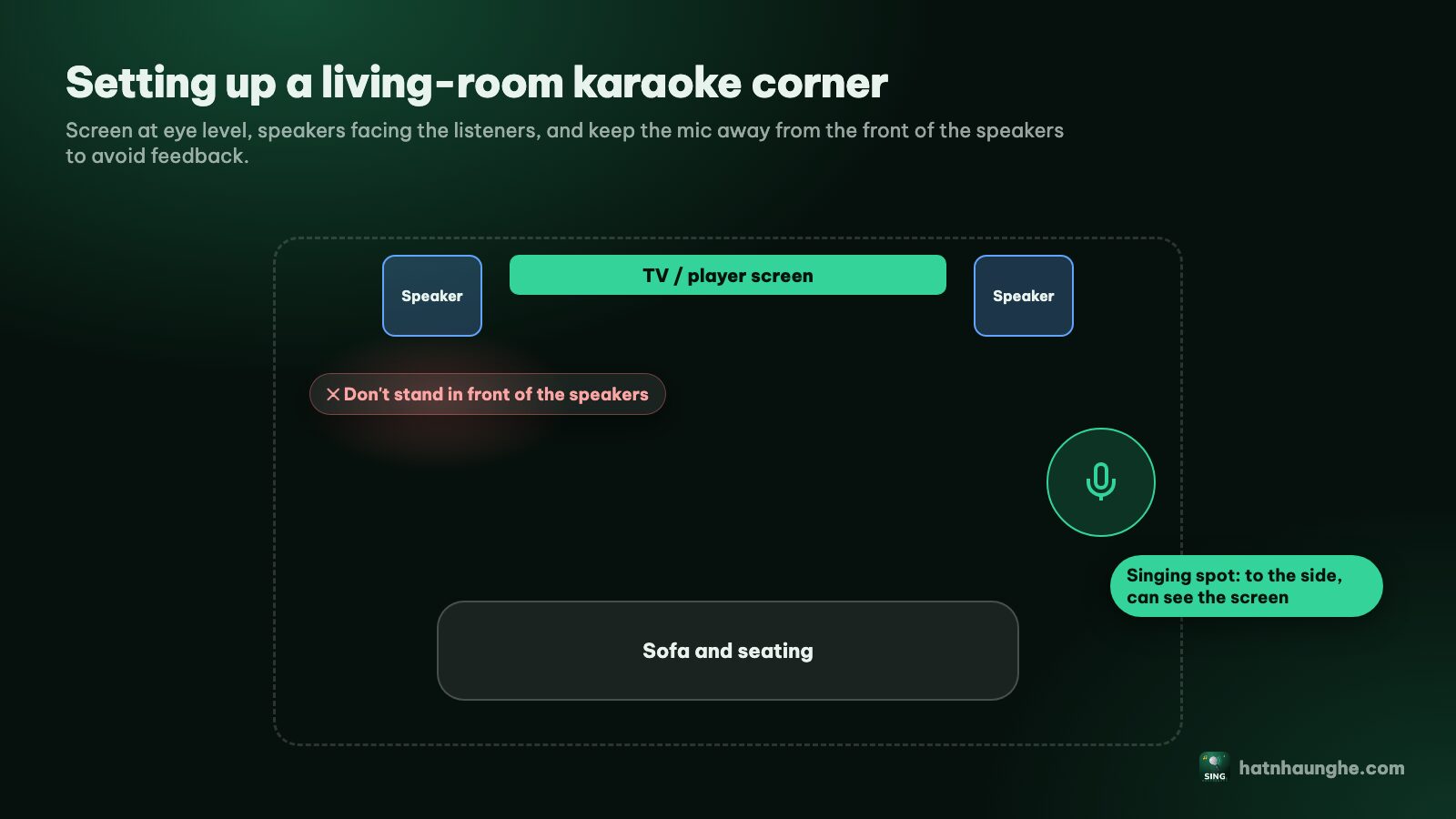
- Put the TV where everyone can see it. The singer should stand or sit off to one side so they don't block the screen.
- Keep the speaker in front of the singer, not behind. A mic pointed at a speaker is the number one cause of feedback.
- Give the mic a home. A tray or small chair next to the TV, so the mic goes back there after each song.
- Plan for chargers. People use their phones all night to find songs, so a power strip with several ports will make you popular.
- Share the Wi-Fi. Put the Wi-Fi name and password near the TV, or use a Wi-Fi QR code.
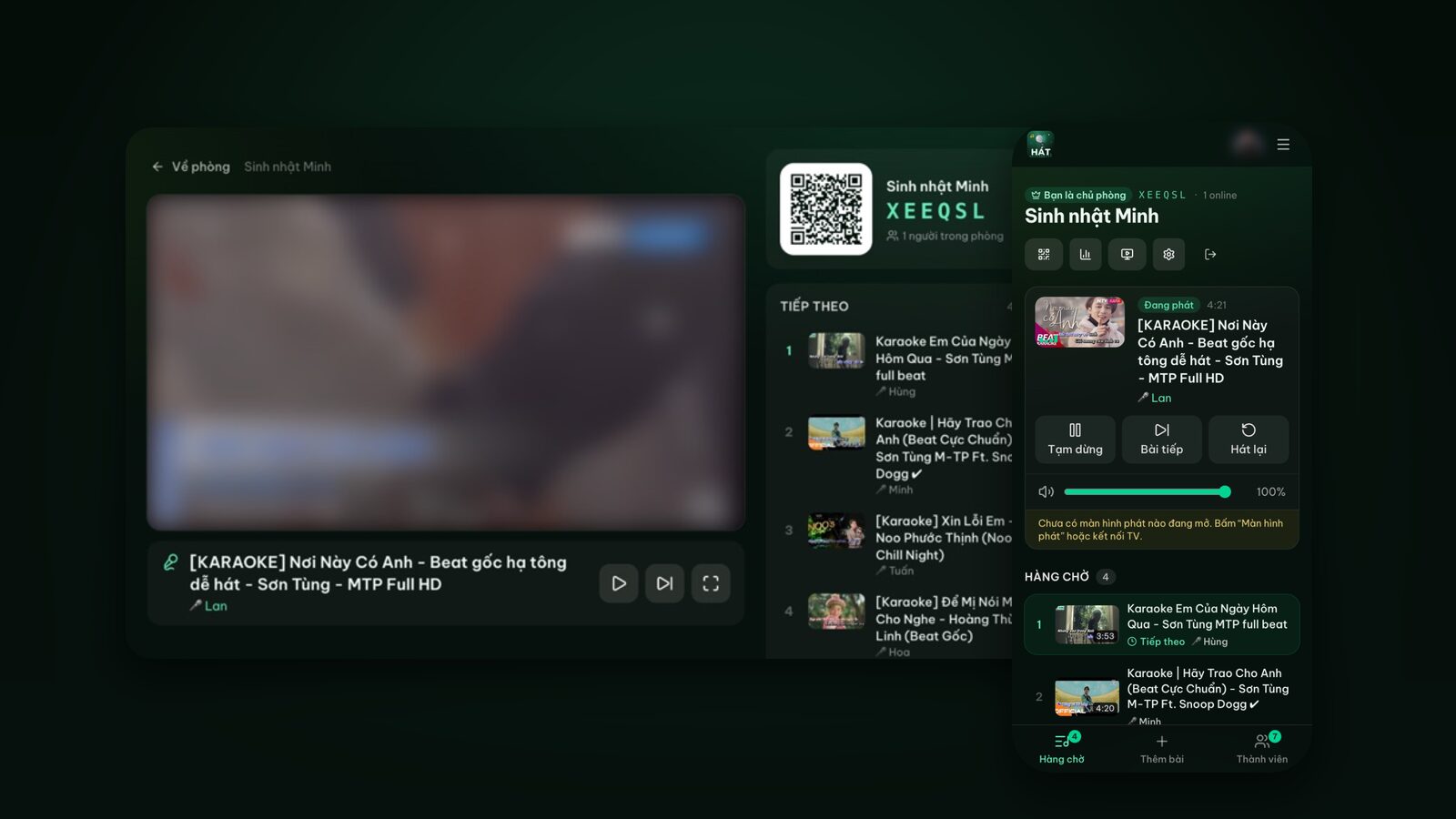
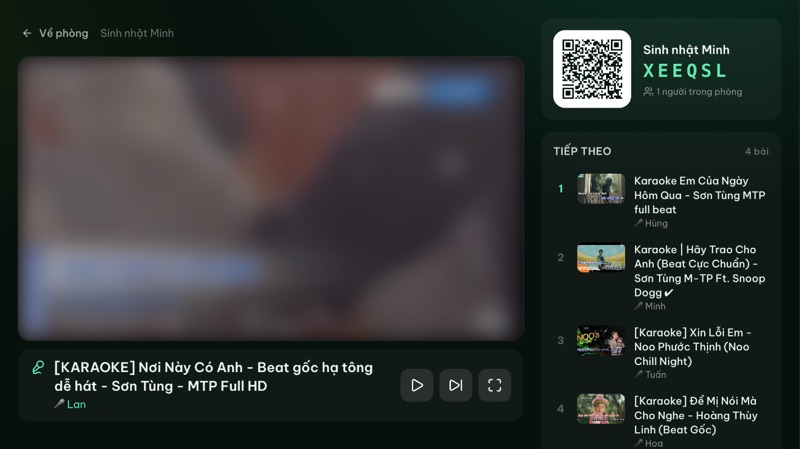
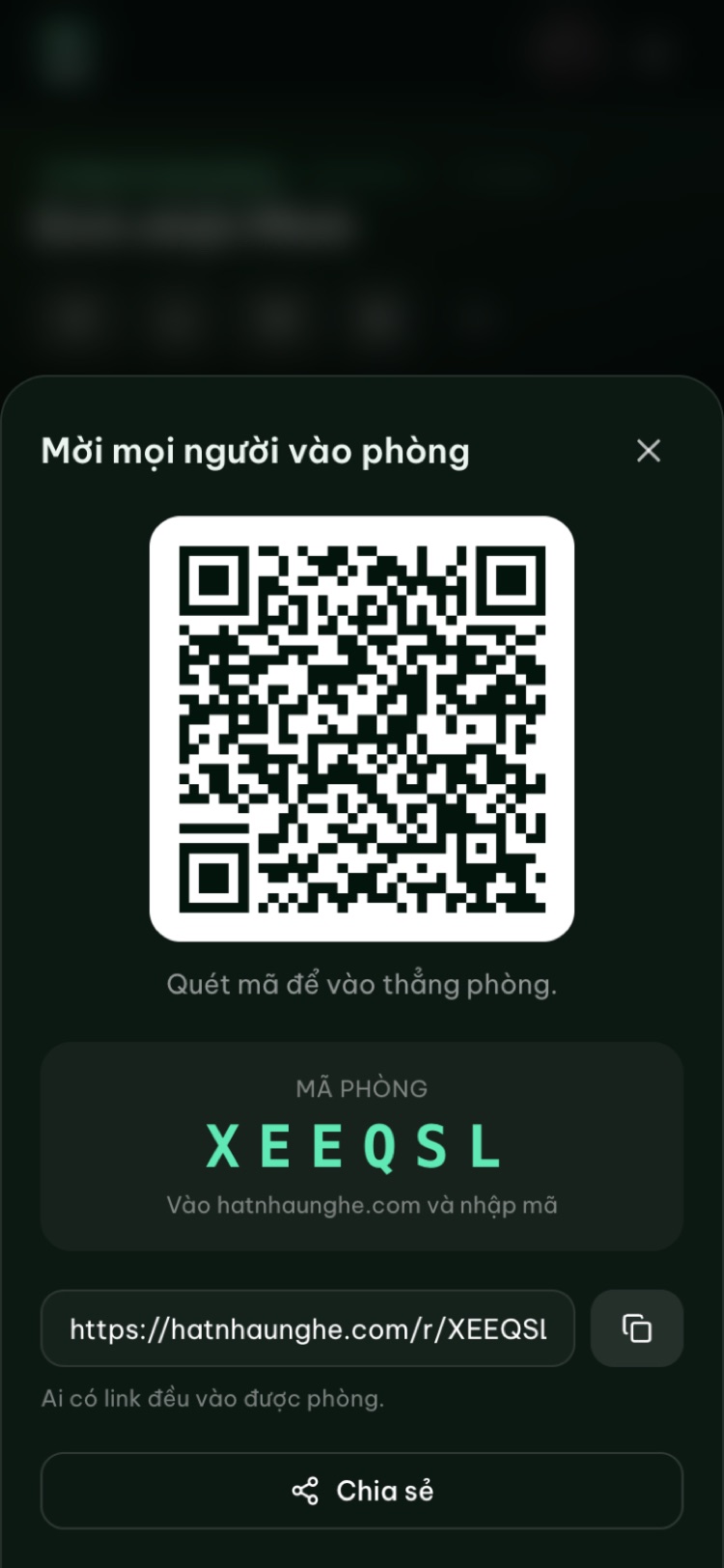
The Hát nhau nghe player screen always shows the room's QR code on the right, so latecomers just scan it. You don't have to read out a code to everyone.
Volume and the neighbors
Home karaoke is fun, but it's also one of the most common reasons neighbors get annoyed. A few rules I always follow:
- 1Give a heads-up before a party. A quick hello, maybe some snacks for next door, goes a long way.
- 2Close doors and draw the curtains. Heavy curtains and rugs noticeably reduce how much sound escapes.
- 3Stop on time. Check the noise rules where you live (apartment buildings often have their own) and wrap up a little before the cutoff.
- 4Lower the volume late at night. The host can adjust the player screen's volume from their phone, no hunting for the TV remote.
- 5Watch the bass. Low frequencies travel through walls further than voices, so turn the bass down first.
Your first night, step by step in the browser
Everything here happens on the web, with no app installed. One person hosts (usually whoever owns the TV), and everyone else just needs a phone with a camera.
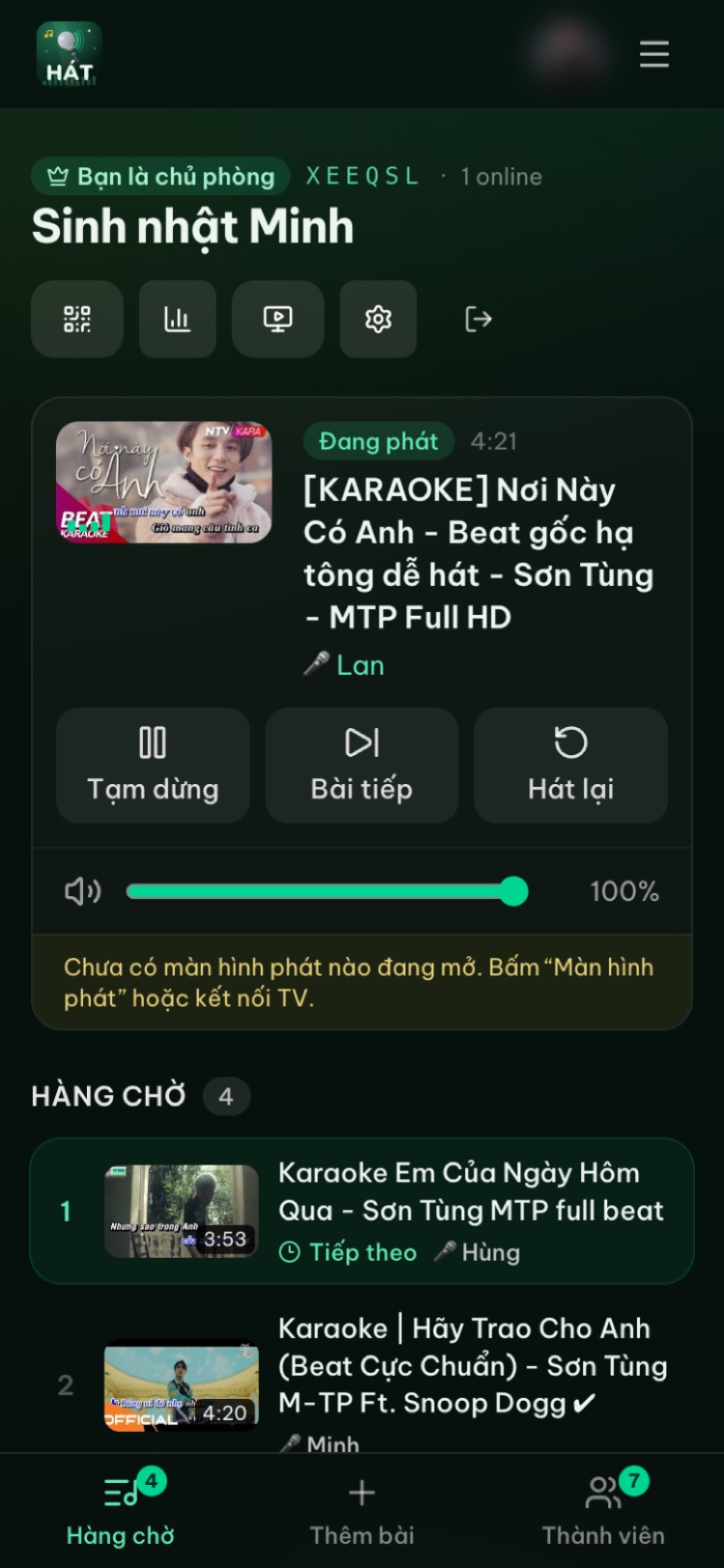
Step 1: The host creates a room
- 1Open hatnhaunghe.com on your phone and choose I'm hosting.
- 2Sign in with your Google account (only the host needs to sign in).
- 3Name the room, something like "Saturday at Minh's", and tap Create room.
If you'll post the room link in a big group chat, you can add a password. People who scan the QR code in the room still get straight in.
Step 2: Put the player screen on the TV
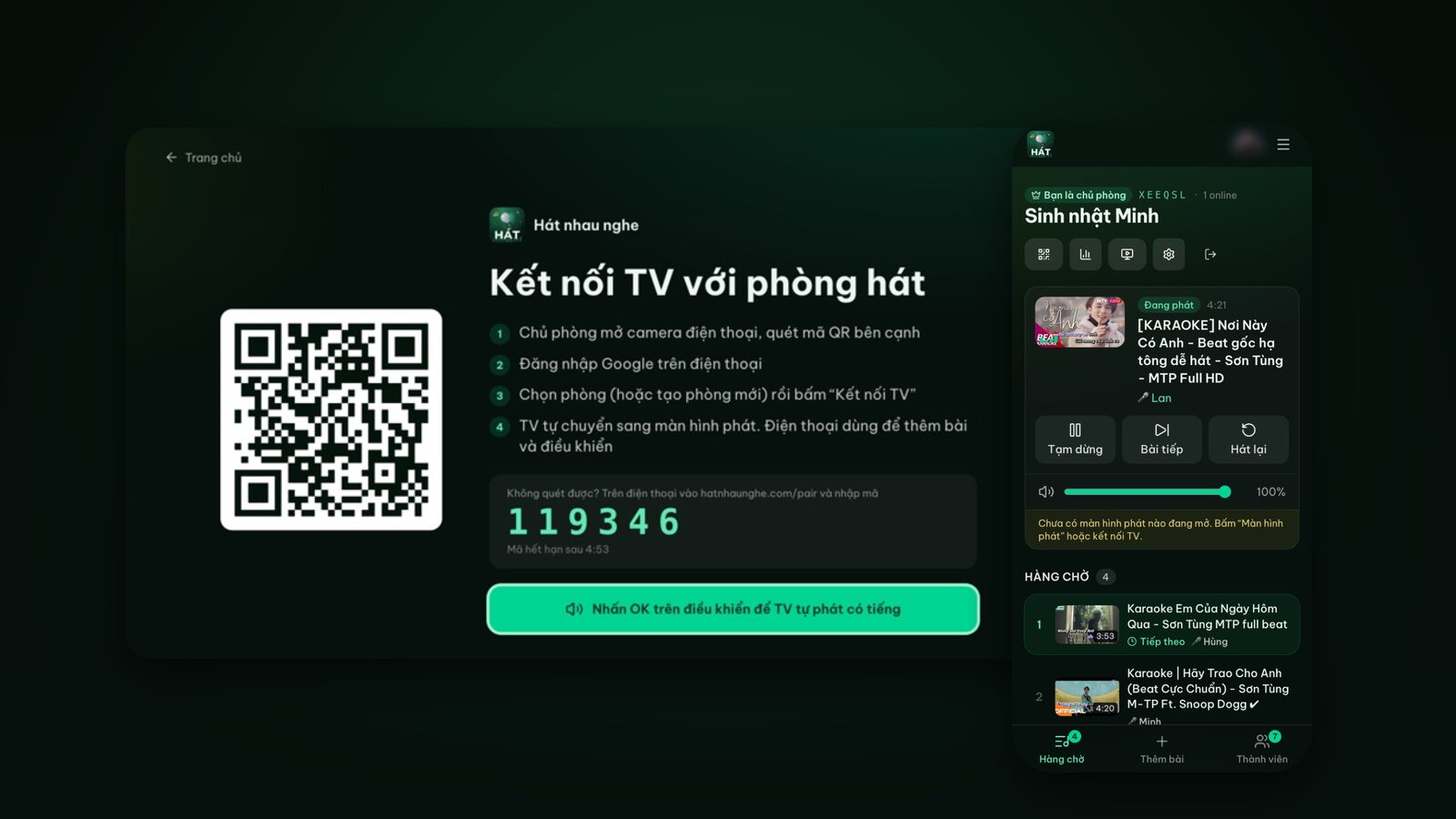
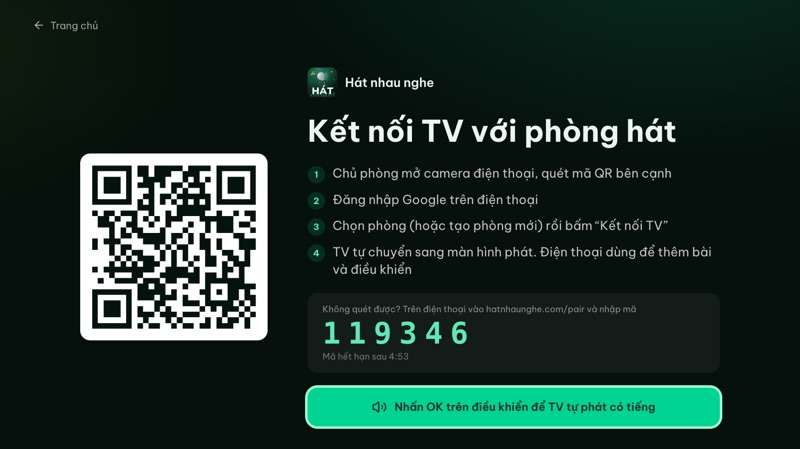
- 1On the TV, open the browser and go to hatnhaunghe.com/tv. A QR code and a 6-digit code appear.
- 2Press OK on the remote once so the TV is allowed to play sound.
- 3The host scans the QR code on the TV, picks the room and taps Connect TV.
- 4Can't scan it? Go to hatnhaunghe.com/pair on the phone and enter the 6-digit code.
With a laptop on HDMI it's even simpler: open the room on the laptop, tap the screen icon at the top, choose This device, open the player screen and go full screen.
Step 3: Get everyone into the room
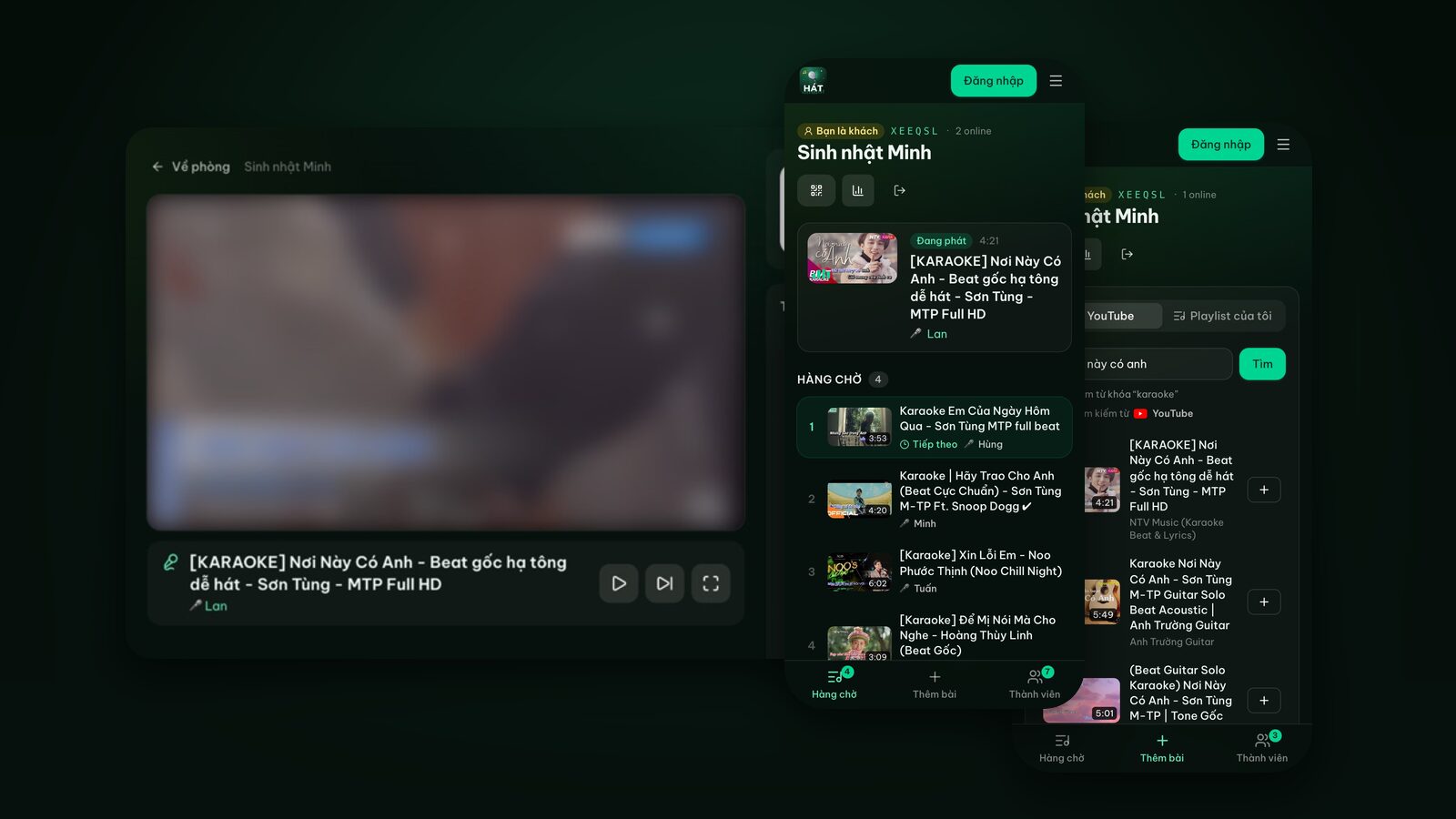
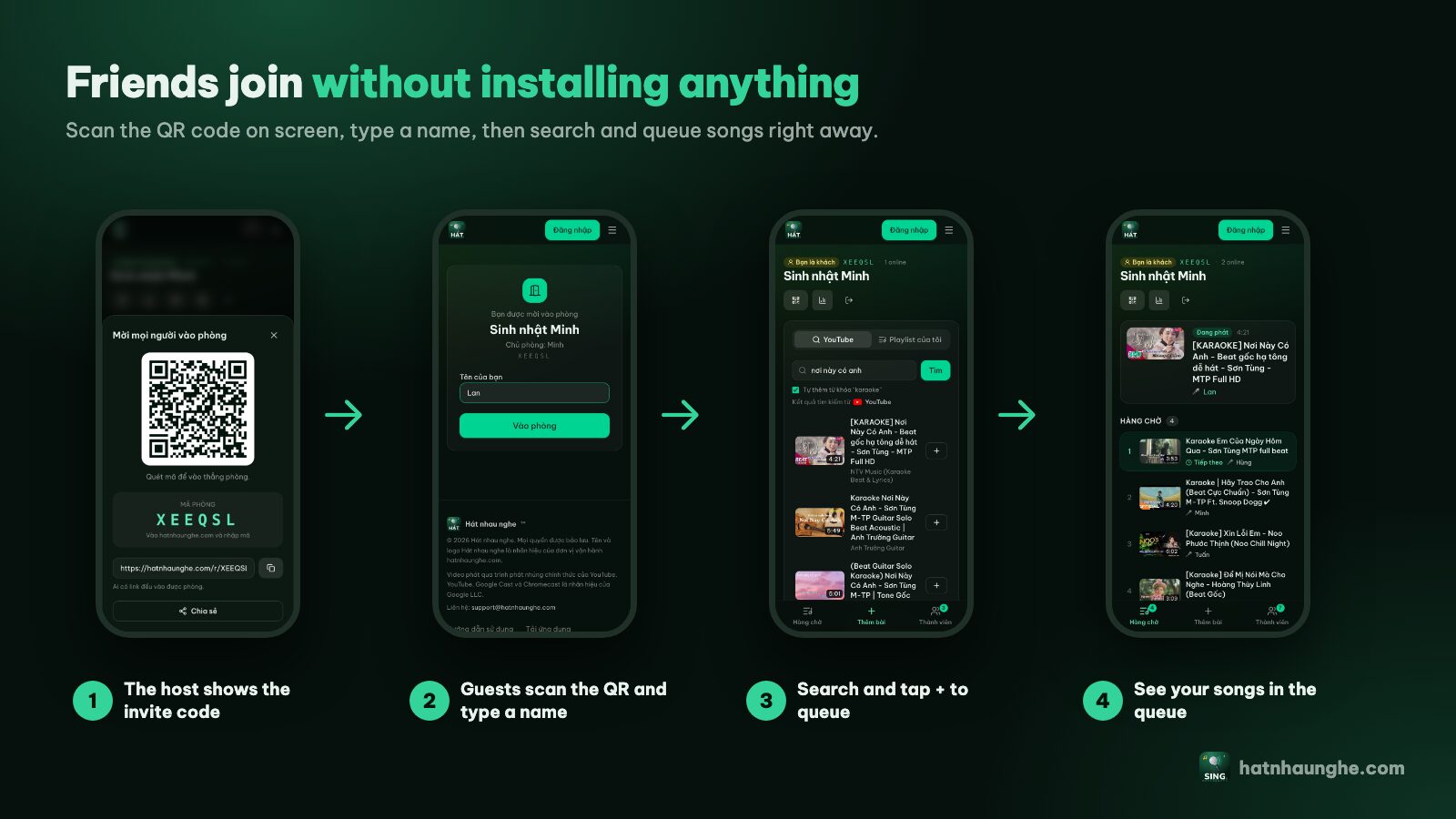
Everyone opens their phone camera, scans the QR code on the TV, types a name and taps Join room. No account, nothing to install. Anyone who can't scan can go to hatnhaunghe.com and enter the 6-character room code.
Step 4: Find songs and queue them
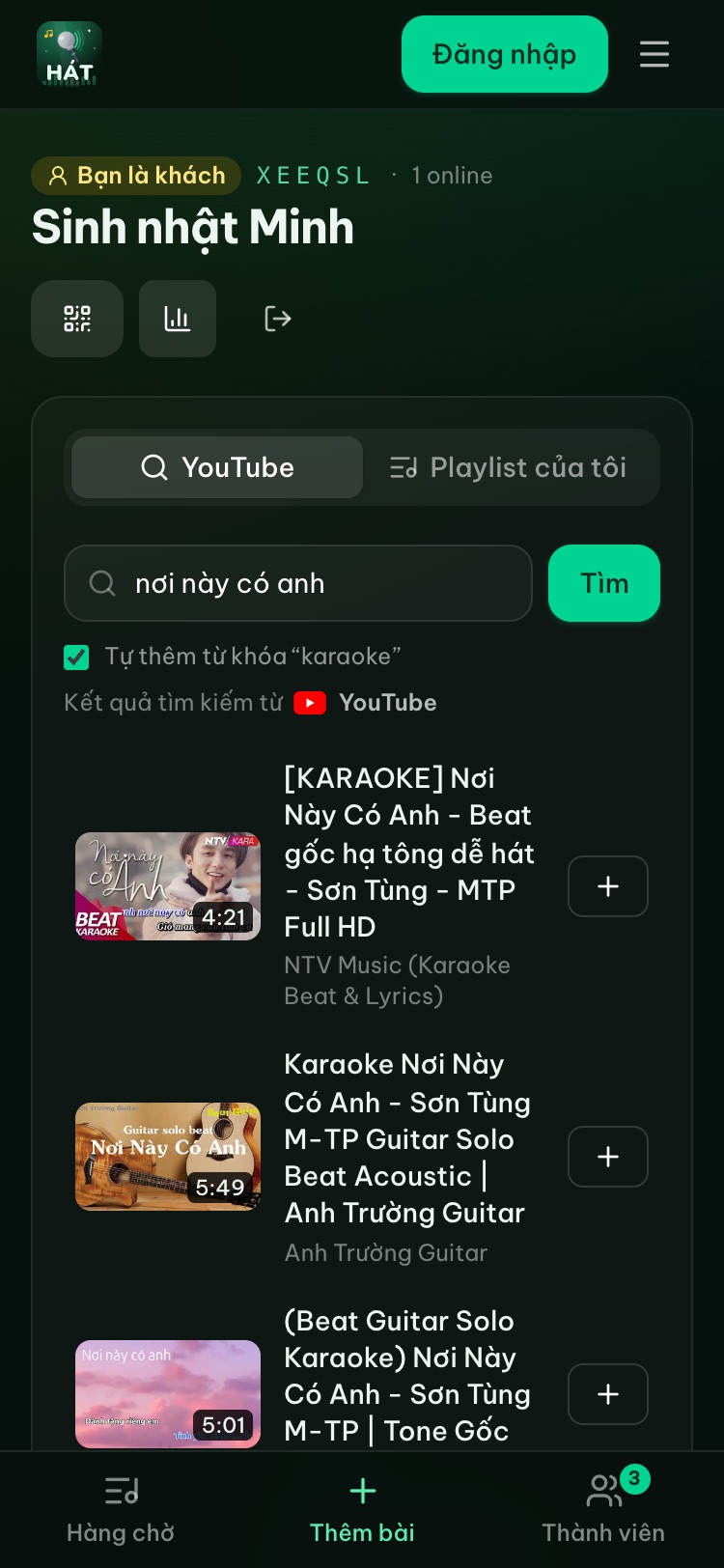
In the Add songs tab, type a song title or artist, tap Search, then tap + to add it to the shared queue. When a song comes up, the player screen shows "Up next" with the singer's name, so nobody has to ask whose song it is.
Step 5: The host runs things from their phone
From the room page, the host can pause, skip, restart a song, drag the player volume, and approve or reject guest songs if approval is on. Tap any song in the queue to move it up or down, remove it, or save it to a playlist.
Try it in your browser
Open a free karaoke room, let friends scan the QR code and start singing in seconds. Nothing to install.
Tips for a smooth family night
- Turn on singer rotation in room settings when it's crowded, so everyone gets one song in turn and nobody stacks five in a row.
- Cap songs per guest if people fight over the queue.
- Build playlists ahead of time. Sign in and save the songs your family always sings, then drop them in on the night. For ideas, see easy karaoke songs and duets.
- Kids around? Turn on song approval so the host sees each song before it plays.
- Check the recap. The night's recap shows how many songs were sung, for how long, who sang the most, and saves the whole night as a playlist in one tap.
For more on keeping turns fair, read running a karaoke room so everyone gets to sing. Planning something special? Hosting a karaoke birthday party at home has a fuller checklist.
Do I need to download an app?
No. Everything in this post works in the browser. If you'd like, the Hát nhau nghe apps for phones and Android TV are listed on the apps page. On Samsung, LG or Apple TV, just use the TV's browser and go to hatnhaunghe.com/tv.
FAQ
Is web-based home karaoke free?
Yes. Hát nhau nghe is free; the host just needs a Google account to create a room. There's an optional Premium plan (bought in the mobile app) for extras like song scoring and moving a song to play next, but you don't need it to sing.
Do I need internet?
Yes. Songs play from YouTube, so the player screen needs internet, and phones need a connection to search for songs.
Will there be ads between songs?
Videos play through YouTube's official player, so any ads are YouTube's, under YouTube's terms. Hát nhau nghe doesn't download or store videos.
Does the site score my singing voice?
No. The site doesn't capture mic audio. If the host has Premium and turns scoring on, the player shows a fun score after each song and people vote with stars on their phones, but that score isn't based on your voice. More in karaoke scoring and voting.
Does the room disappear when I turn off the TV?
The room stays while people are using it and is deleted after 24 hours of inactivity. Your personal playlists are kept for next time.
Should I buy a karaoke machine or use the web?
It depends. If your internet is unreliable or you want voice-based scoring, a karaoke machine still makes sense. I compare them in detail in online karaoke vs a karaoke machine.
For every step with screenshots, see the full guide. Have a great night.
Try it in your browser
Open a free karaoke room, let friends scan the QR code and start singing in seconds. Nothing to install.