How to Connect Your Phone to a TV for Karaoke (4 Ways)
Four ways to get karaoke from your phone onto the TV, from the easiest (scan a QR code and the TV plays by itself) to screen mirroring and HDMI cables as a last resort.
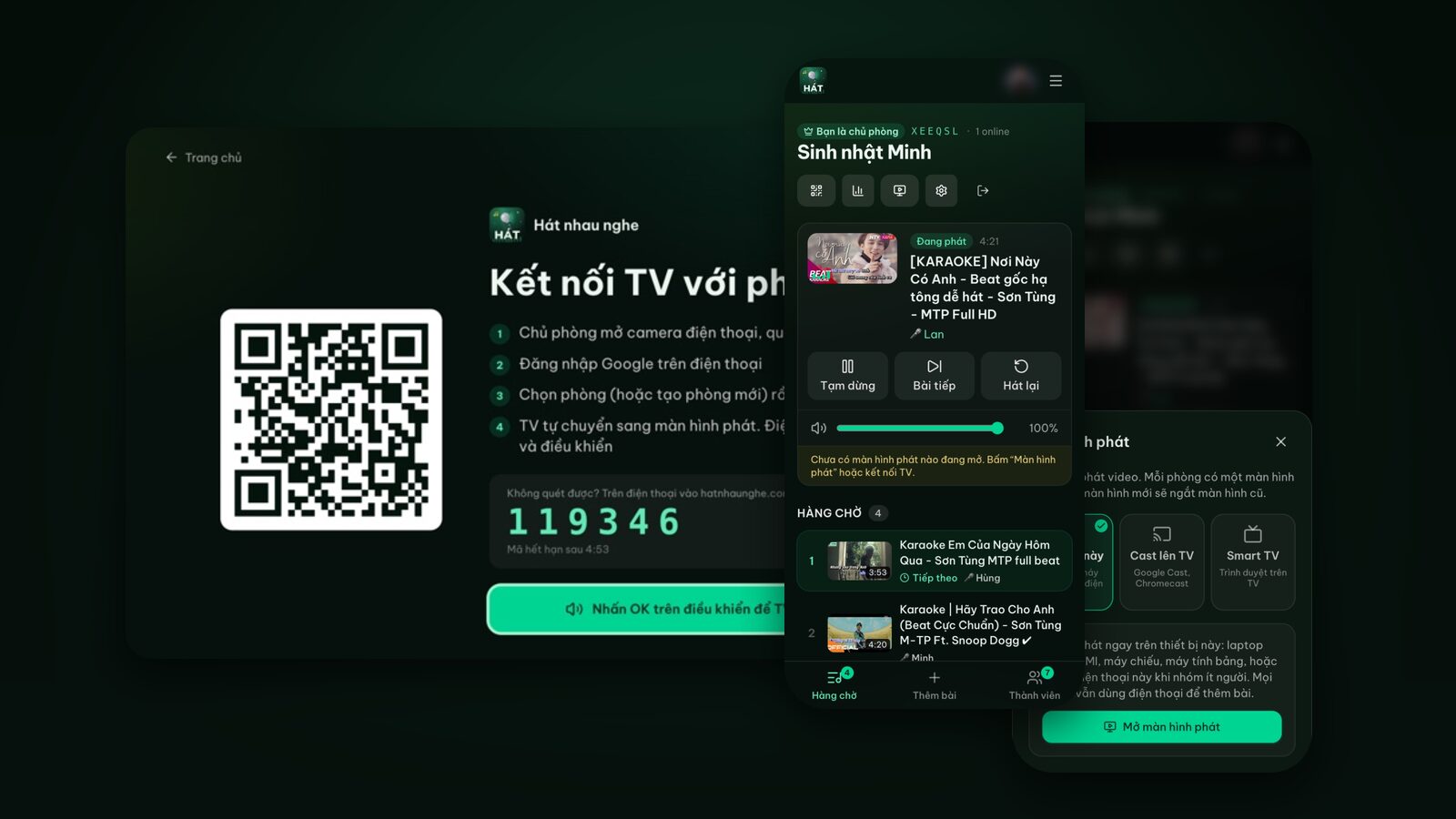
Want karaoke on the big screen but all you have is your phone? There are four ways to do it, in the order I'd try them:
- 1Pair the TV with a karaoke room by QR code (recommended): open hatnhaunghe.com/tv on the TV, scan the code, and the TV plays on its own while your phone stays free.
- 2Cast from Chrome on an Android phone: for TVs with Google Cast or a Chromecast.
- 3Mirror your phone's screen (AirPlay, Smart View, Screen cast): the fallback.
- 4An HDMI cable or adapter: when the TV has no internet or no usable browser.
This guide walks through each one step by step, explains why pairing beats mirroring for a karaoke night, and covers the usual problems. Everything runs in the browser on Hát nhau nghe, with nothing to install.
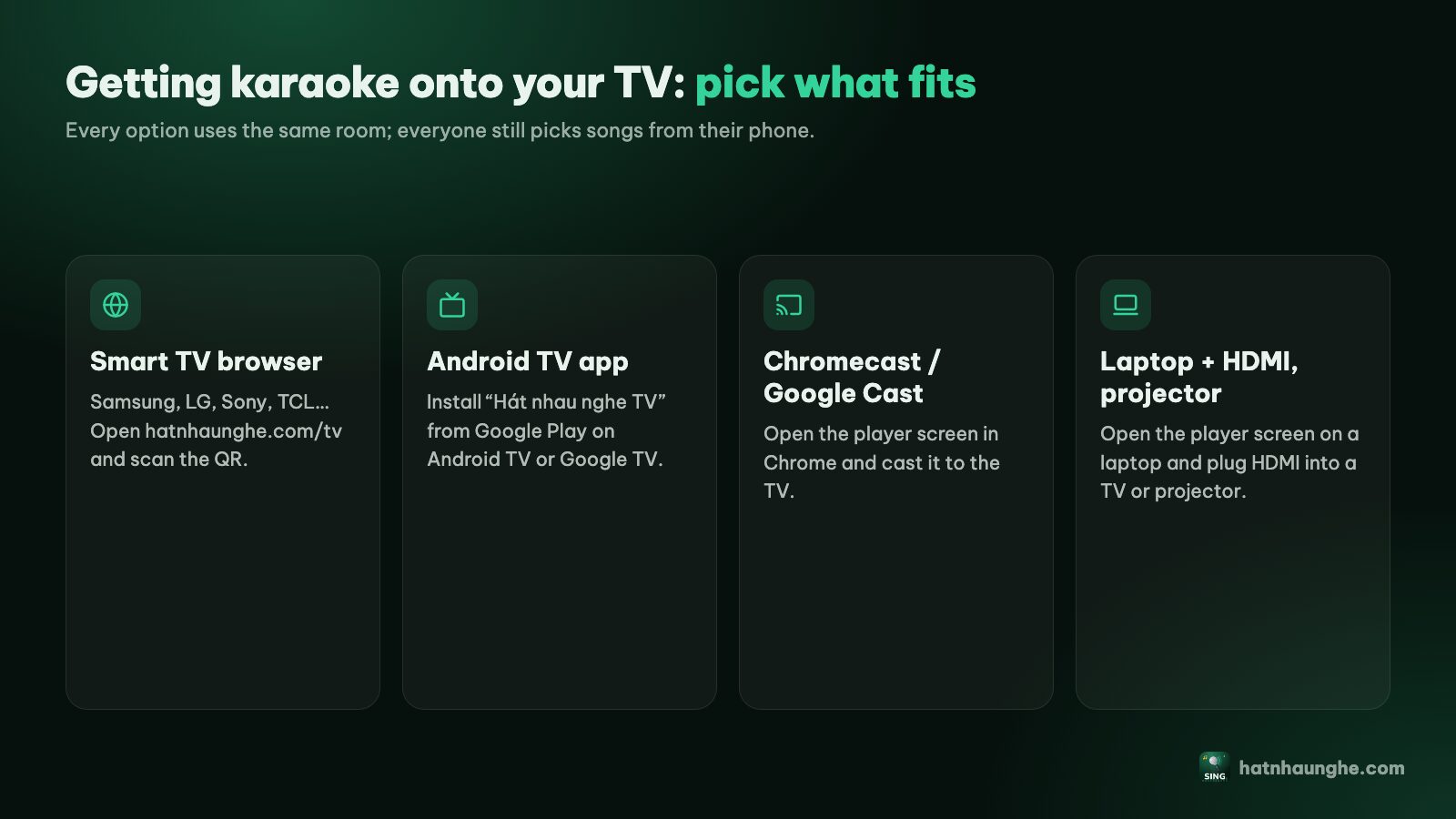
What you need
- A TV. A smart TV with a web browser is easiest. For older TVs without internet, see method 4.
- The host's phone, with a Google account to sign in. Guests don't need to sign in.
- Decent Wi-Fi. Karaoke videos stream from YouTube, so whatever plays them needs a connection.
- Sound. The TV speakers are fine to start with. For microphones, see the sound section below.
Method 1: Pair the TV with the room by QR code (recommended)
This is what I use for almost every karaoke night. The TV opens the player itself and works through the whole queue, and your phone is just the remote. Lock it, take a call, reply to messages: the TV keeps singing.
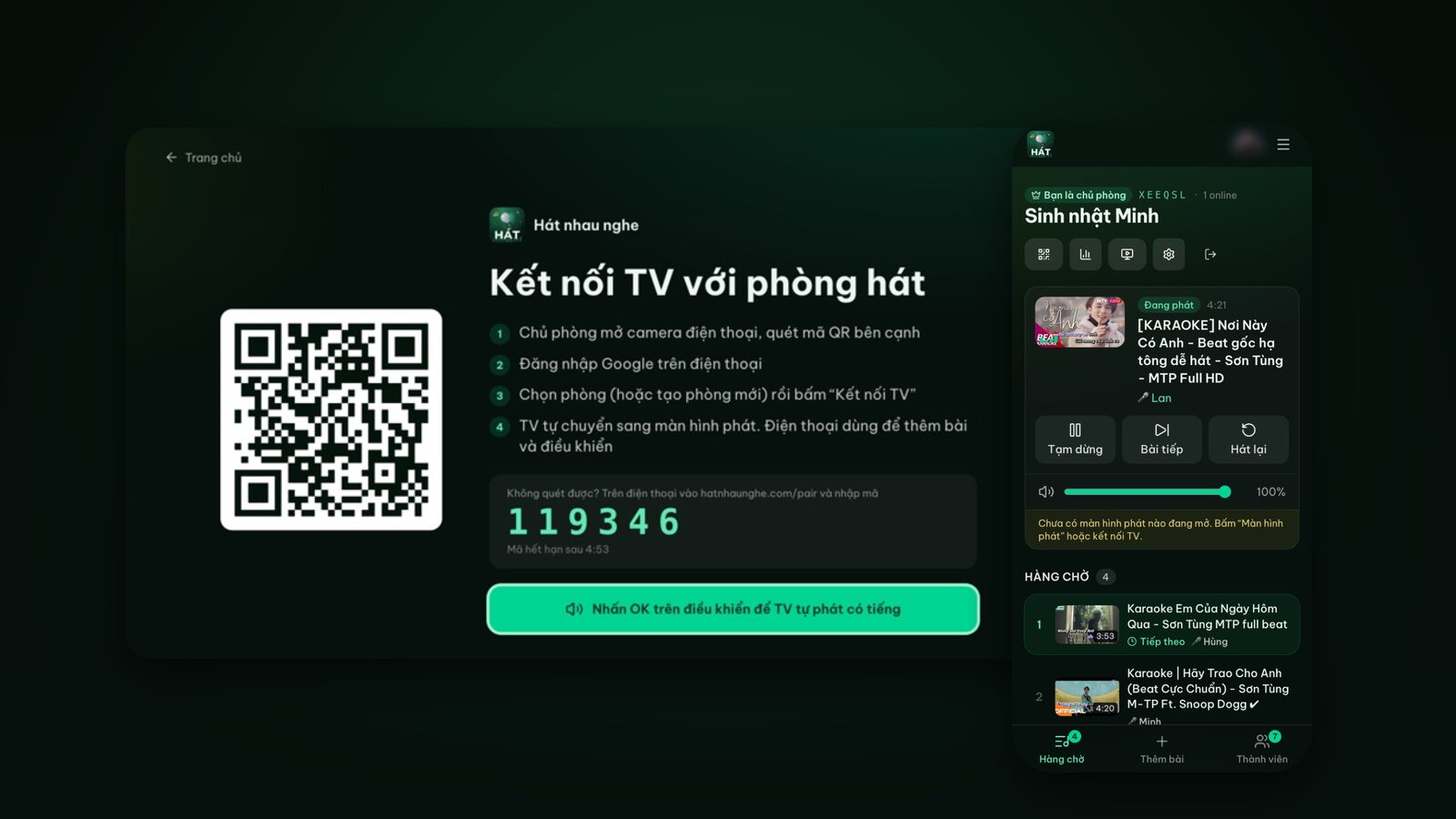
Step 1: Open hatnhaunghe.com/tv on the TV
With the remote, open the TV's browser app. On Samsung it's usually Internet, on LG Web Browser; on Android TV or Google TV you may need to install a browser from the app store first. Type hatnhaunghe.com/tv in the address bar and press OK.
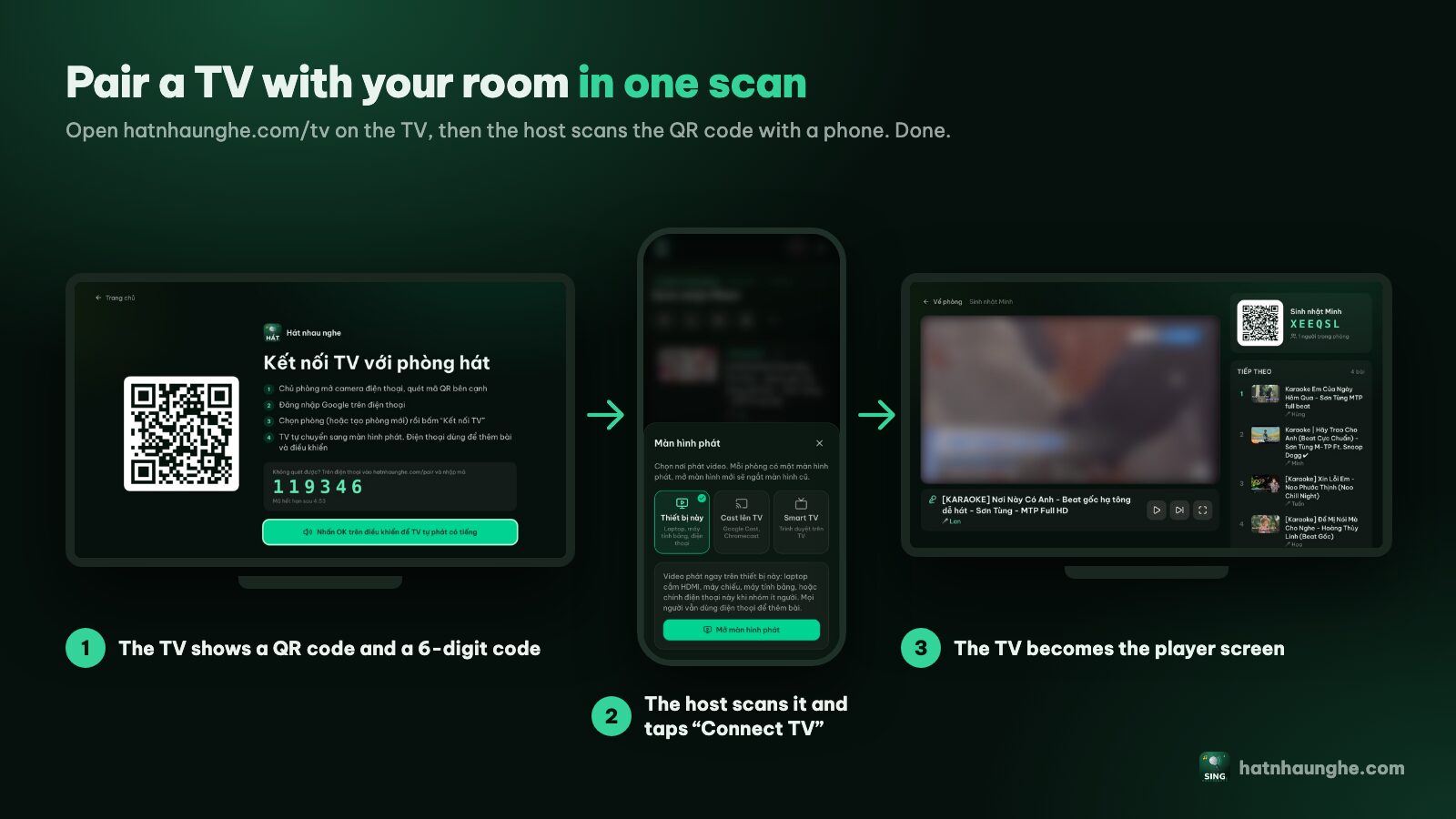
The TV shows a pairing screen with a big QR code and a 6-digit code. The code refreshes every 5 minutes, so just leave the screen open while you do the next step.
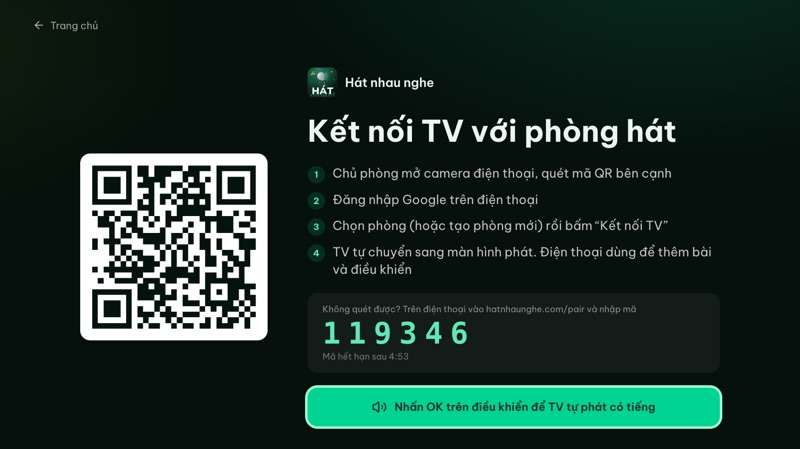
If the button Press OK on your remote so the TV can play with sound is highlighted, press OK once now. Many TV browsers block videos with sound until someone presses a key; doing it here means the first song plays straight away later.
Step 2: Scan the QR code with your phone
Open your phone's camera, point it at the QR code and tap the link that appears. If it won't scan (blurry camera, TV too far away), open your phone's browser, go to hatnhaunghe.com/pair and type in the 6-digit code.
Step 3: Sign in and pick a room
Your phone asks you to sign in with Google if you haven't yet. Then choose one of your open rooms, or tap Create a new room, give it a name, and tap Connect TV.
Step 4: The TV switches to the player
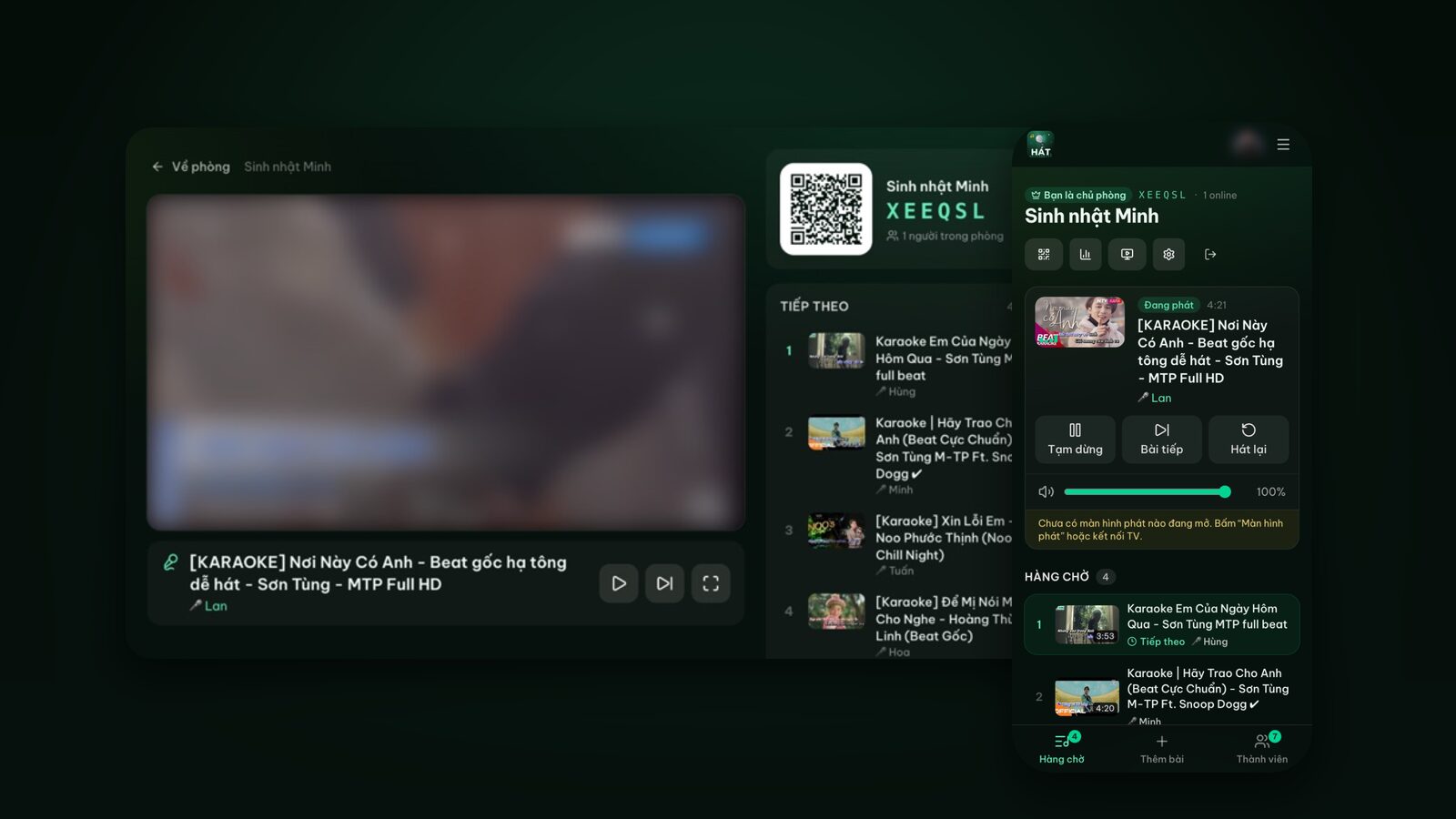
A few seconds later the TV switches to the player screen: the video area, the room's QR code for guests, and the songs up next. Your phone says TV connected; tap Go to the room to add songs and you're off.
Step 5: Add songs and invite everyone
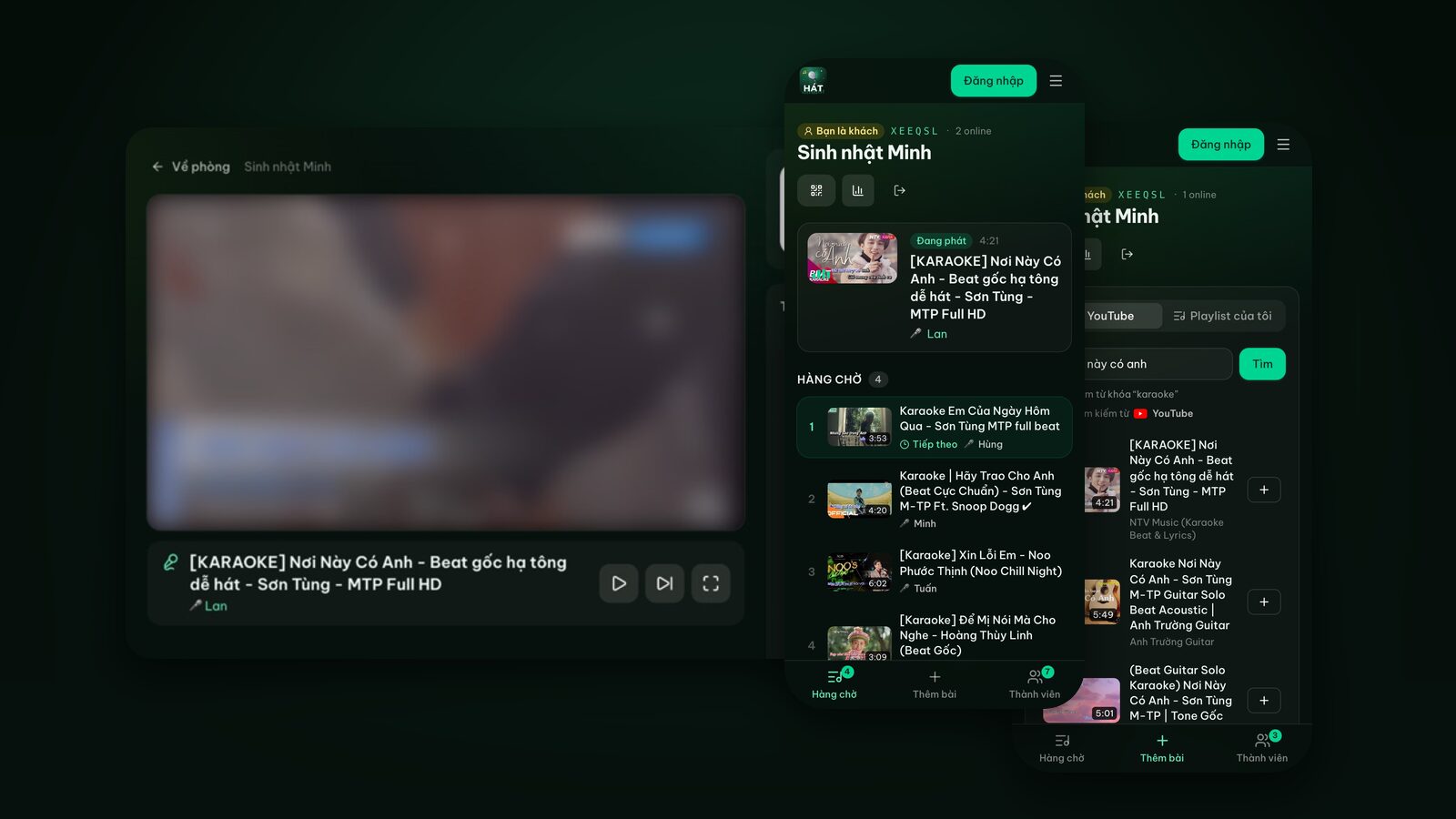
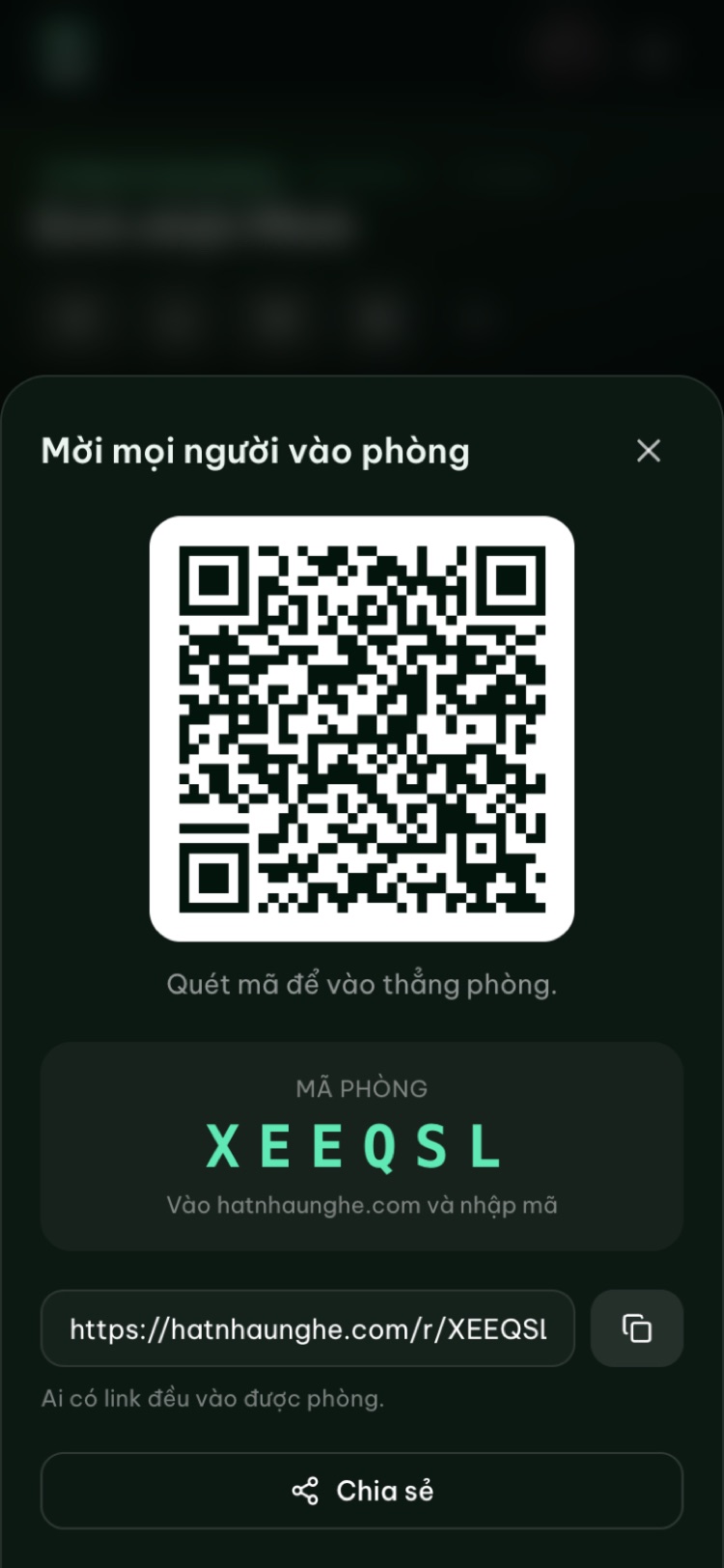
On your phone, open the Add songs tab, search for a song and tap the plus button. To let the whole room pick songs, tap the QR icon at the top of the room to show the invite, or have people scan the QR code already on the TV. Guests just type a name; no account needed. The free plan allows up to 10 people per room.
Why pairing beats screen mirroring
Mirroring is the obvious move because it's built into every phone. For karaoke, though, it has a few problems that only show up a couple of songs in:
- Your phone screen has to stay on all night. Lock it and the TV goes dark. If someone borrows it to search for a song, the whole room watches them type.
- Notifications show up on the TV. Messages, calls, your bank's alerts, all in giant letters for everyone to read.
- Battery drain and stutter. The phone is playing video and encoding the screen over Wi-Fi at the same time. It heats up, the battery drops, and weak Wi-Fi means choppy picture and out-of-sync sound.
- One person is in charge. Every action has to go through that one phone.
When you pair the TV with a room, the TV fetches the videos from YouTube and plays the queue itself. Your phone doesn't send any video; it only sends commands like add, pause and skip. That's why you can lock it, and why everyone in the room can queue songs from their own phone.
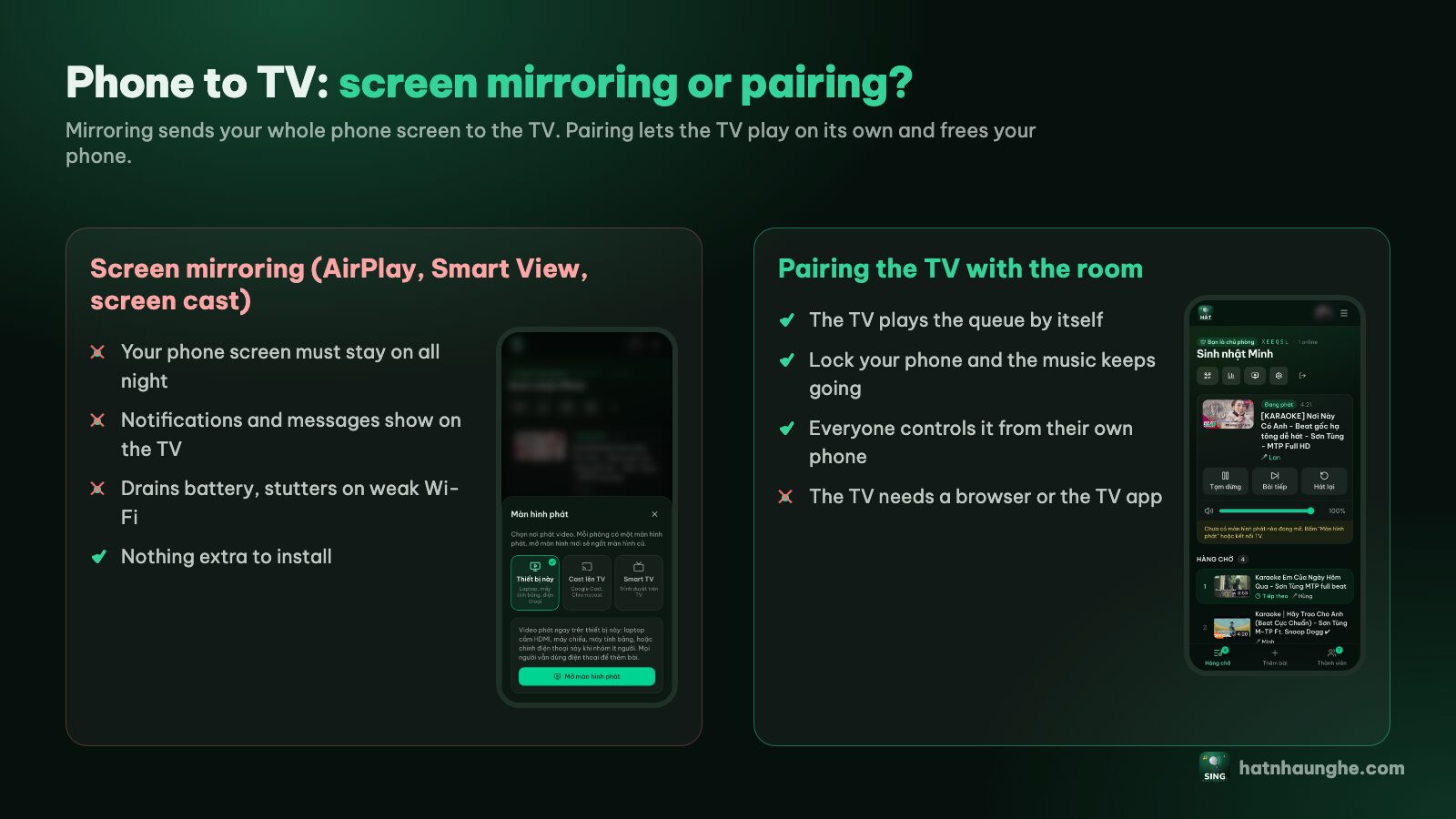
The only catch with pairing is that the TV needs a browser or the TV app. If it has neither, the next three methods have you covered.
Try it in your browser
Open a free karaoke room, let friends scan the QR code and start singing in seconds. Nothing to install.
Method 2: Cast from Chrome on an Android phone
This is for TVs with Google Cast (Android TV, Google TV, TVs labeled "Chromecast built-in") or a TV with a Chromecast plugged in. As with pairing, the TV plays by itself and your phone is the remote. This feature is still in beta.
- 1Put the Android phone and the TV on the same Wi-Fi network.
- 2Open hatnhaunghe.com in Chrome on the phone, sign in and open your room.
- 3At the top of the room, tap the screen icon (Player screen).
- 4Choose Cast to TV, then pick your TV from the list.
- 5When the phone says Casting to followed by your TV's name, you're done. Add songs as usual.
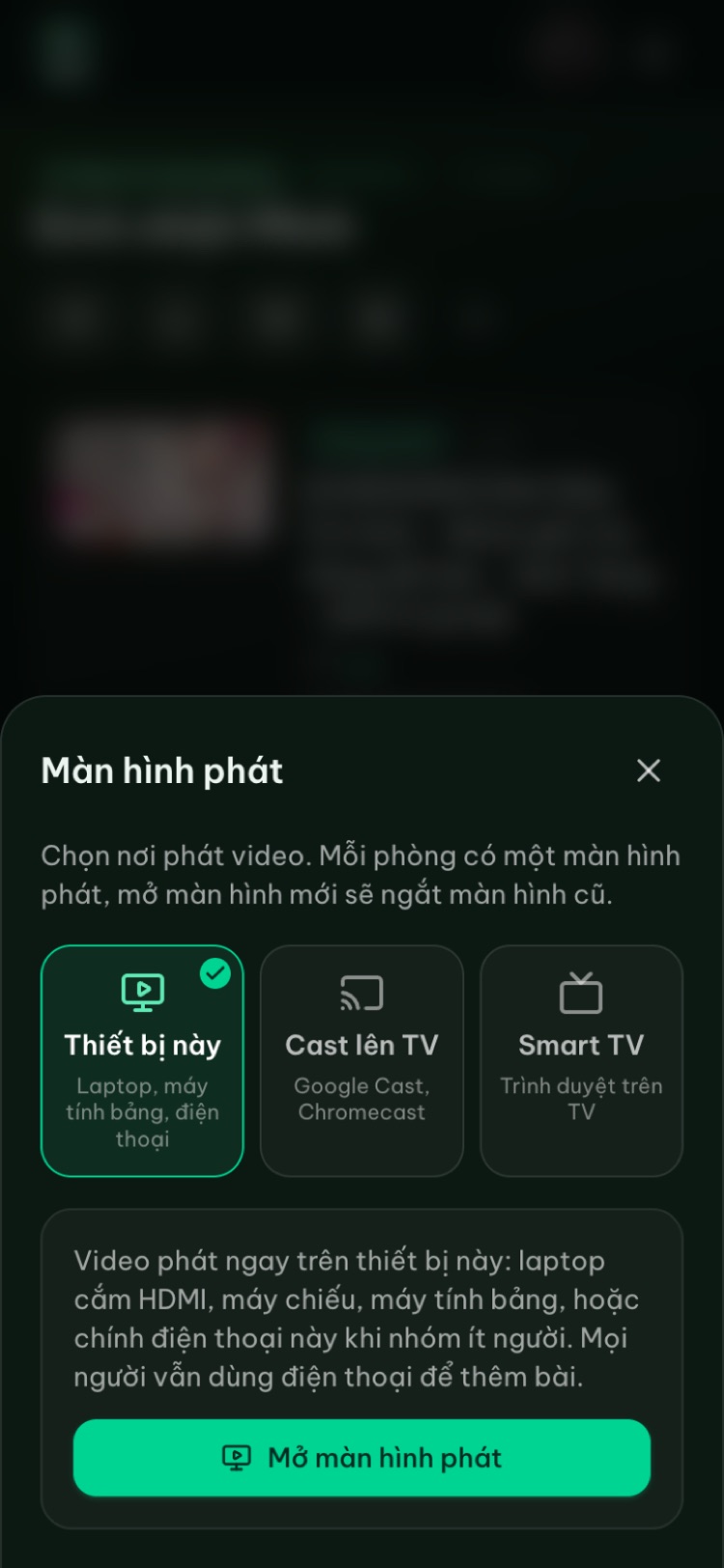
Casting from the web only works in Chrome on Android or on a computer. iPhones and Safari don't support it yet, and the room will tell you the browser can't cast. If your TV doesn't show up, check the Wi-Fi. Everything else is in the Chromecast and Google Cast guide.
Method 3: Mirror your phone's screen (fallback)
If the TV has no usable browser and no Cast but can receive a mirrored screen, you can still sing. The general approach:
- 1On your phone, open the room, tap Player screen, choose This device and tap Open player screen.
- 2Tap Start so the video plays with sound.
- 3Tap Rotate to full screen and turn your phone sideways so the video fills the TV.
- 4Turn on your phone's screen mirroring (see below for your phone).
iPhone and iPad: AirPlay
You need an Apple TV or an AirPlay-compatible TV (many recent Samsung, LG and Sony models support it), on the same Wi-Fi as your iPhone.
- 1Open Control Center (swipe down from the top-right corner on iPhones without a Home button).
- 2Tap Screen Mirroring.
- 3Choose your TV. The first time, the TV may show a code to type on your iPhone.
Samsung phones: Smart View
- 1Swipe down twice from the top to open Quick Settings.
- 2Tap Smart View (if it's missing, tap the edit button to add the tile).
- 3Pick your TV and confirm on the TV if asked.
Other Android phones
The name varies a lot: Cast, Screen cast, Screen mirroring or Wireless display. It's usually in Quick Settings or under Settings in a section such as Connected devices. Some TVs need a receiving mode (for example Screen Share or Miracast) switched on first.
Tips if you have to mirror
- Turn on Do Not Disturb so messages don't pop up on the TV.
- Keep the phone plugged in; mirroring eats battery.
- Move the phone closer to the router if the picture stutters.
- Ideally use a spare phone or tablet for mirroring and let guests add songs from their own phones. The host can sign in on a second device with the same Google account to keep the controls.
Method 4: An HDMI cable or adapter
This is for TVs that can't get online, or Wi-Fi that's too flaky for wireless.
- Android phones with USB-C: some models can output video over USB-C with a USB-C to HDMI adapter. Not every phone supports it, so check your model's specs before buying.
- iPhones with a Lightning port: you need a Lightning to HDMI adapter (Apple sells one).
- iPhones with USB-C: use a USB-C to HDMI adapter.
Plug in, switch the TV to the right HDMI input (the Source or Input button), then follow steps 1 to 3 of method 3. The TV is still just showing your phone's screen, so the downsides of mirroring remain, minus the stutter.
If you have a laptop, plugging it into the TV over HDMI is usually more stable than a phone. See karaoke on a projector or laptop over HDMI.
Running the night from your phone
Whichever method you pick, the room page on the host's phone is your remote: Pause, Next song, Restart and the Player volume slider. If the room says no player screen is open, the TV isn't connected yet; go back to the Player screen menu.
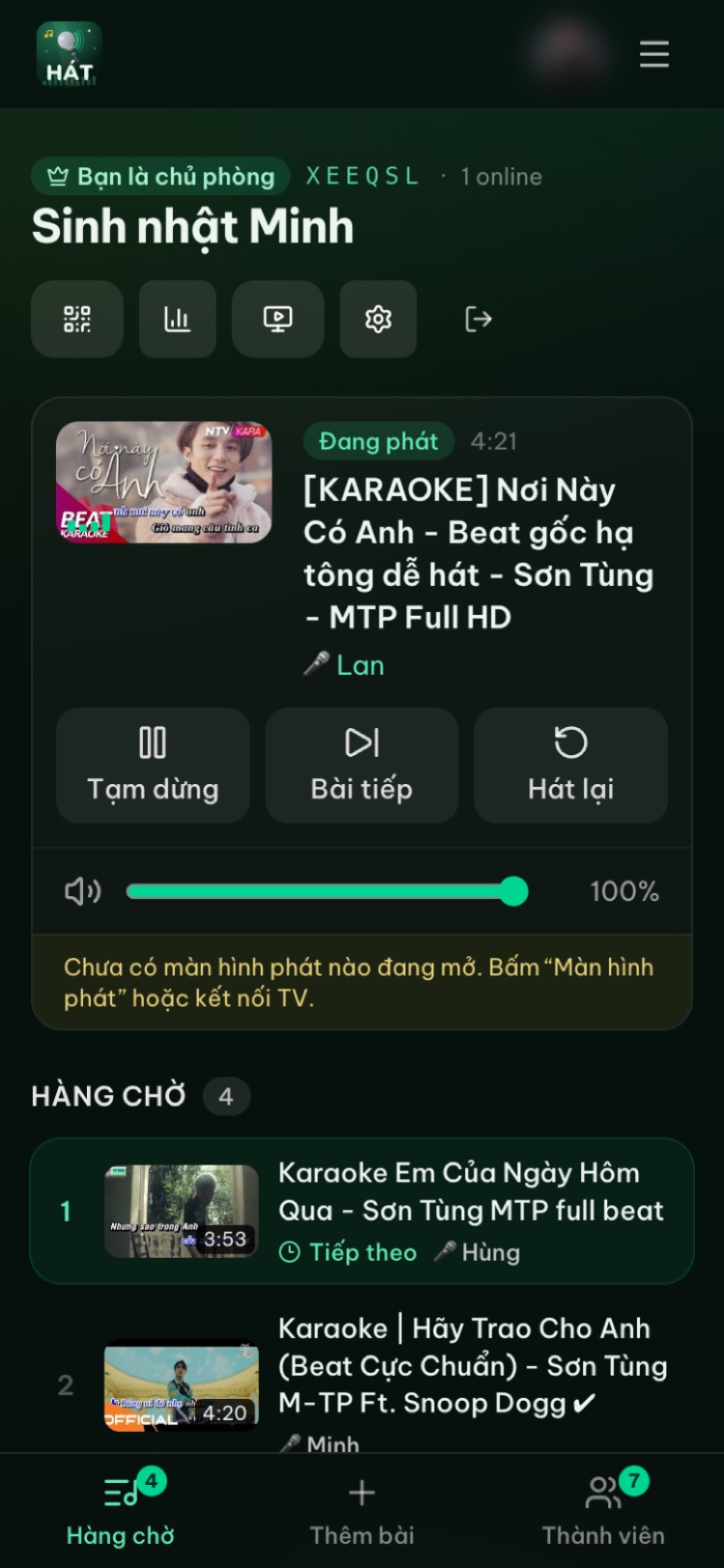
To let everyone pick songs, tap the QR icon at the top of the room. The Invite people to the room panel shows a QR code, a 6-character room code and a link you can send in a group chat.
About sound: the video plays through the TV speakers. For microphones, plug them into a karaoke speaker or mixer and connect the TV to that. The site doesn't capture or process microphone audio. For gear ideas, see choosing speakers and mics for home karaoke.
Troubleshooting
The TV shows the player but there's no sound, or it won't start. Many TV browsers block videos with sound from playing on their own. Press OK on the remote when the TV asks. Next time, press OK on the QR code screen while connecting and the TV will start by itself.
The code on the TV has expired. Codes refresh every 5 minutes. Scan the new QR code on the TV.
The QR code won't scan. Try another camera app or Google Lens, or go to hatnhaunghe.com/pair and type the 6-digit code.
The TV doesn't appear under Cast to TV. The phone and the TV must be on the same Wi-Fi (watch out for routers with separate 2.4GHz and 5GHz network names), and the TV must support Google Cast. On an iPhone, use method 1.
The TV doesn't appear in the mirroring list. Check that the TV supports AirPlay or screen mirroring, switch on its receiving mode if needed, and put both on the same Wi-Fi.
The TV suddenly says "Player screen disconnected". Each room has one player screen. If someone opens the player on another device (say, tapping This device by mistake), the TV is disconnected. Pair the TV again.
Mirroring is choppy. That's the limit of mirroring over Wi-Fi. Switch to pairing (method 1) or a cable.
Try it in your browser
Open a free karaoke room, let friends scan the QR code and start singing in seconds. Nothing to install.
FAQ
Does connecting my phone to the TV for karaoke cost anything?
No. Hát nhau nghe is free on the web. Premium (bought in the mobile apps) only adds scoring, Play next, and higher limits on playlists and people per room. Details are on the download page.
What if my TV isn't a smart TV?
Plug a Chromecast or a TV box into the TV's HDMI port, or connect a laptop over HDMI. A phone adapter works too, but it's less convenient.
Will the TV stop if I lock my phone?
Not with pairing or Cast: the TV keeps playing on its own. With mirroring or an HDMI adapter, yes, because the TV only shows your phone's screen.
Does this work with an iPhone?
Yes. The easiest route for iPhone users is method 1: open hatnhaunghe.com/tv on the TV and scan the code. iPhones can't cast from the web yet, but AirPlay works as a fallback.
Do I need to download an app?
No. Everything works in the browser. The Android, iPhone and Android TV apps are optional extras on the download page. For the whole flow from opening a room to the night's recap, read how to sing karaoke on your TV using your phone.