How to Sing Karaoke on a Samsung Smart TV, Step by Step
A step-by-step guide to karaoke on a Samsung Smart TV using its built-in Internet browser: typing the address with the remote, pairing by QR code, sound, screen savers and fixes.
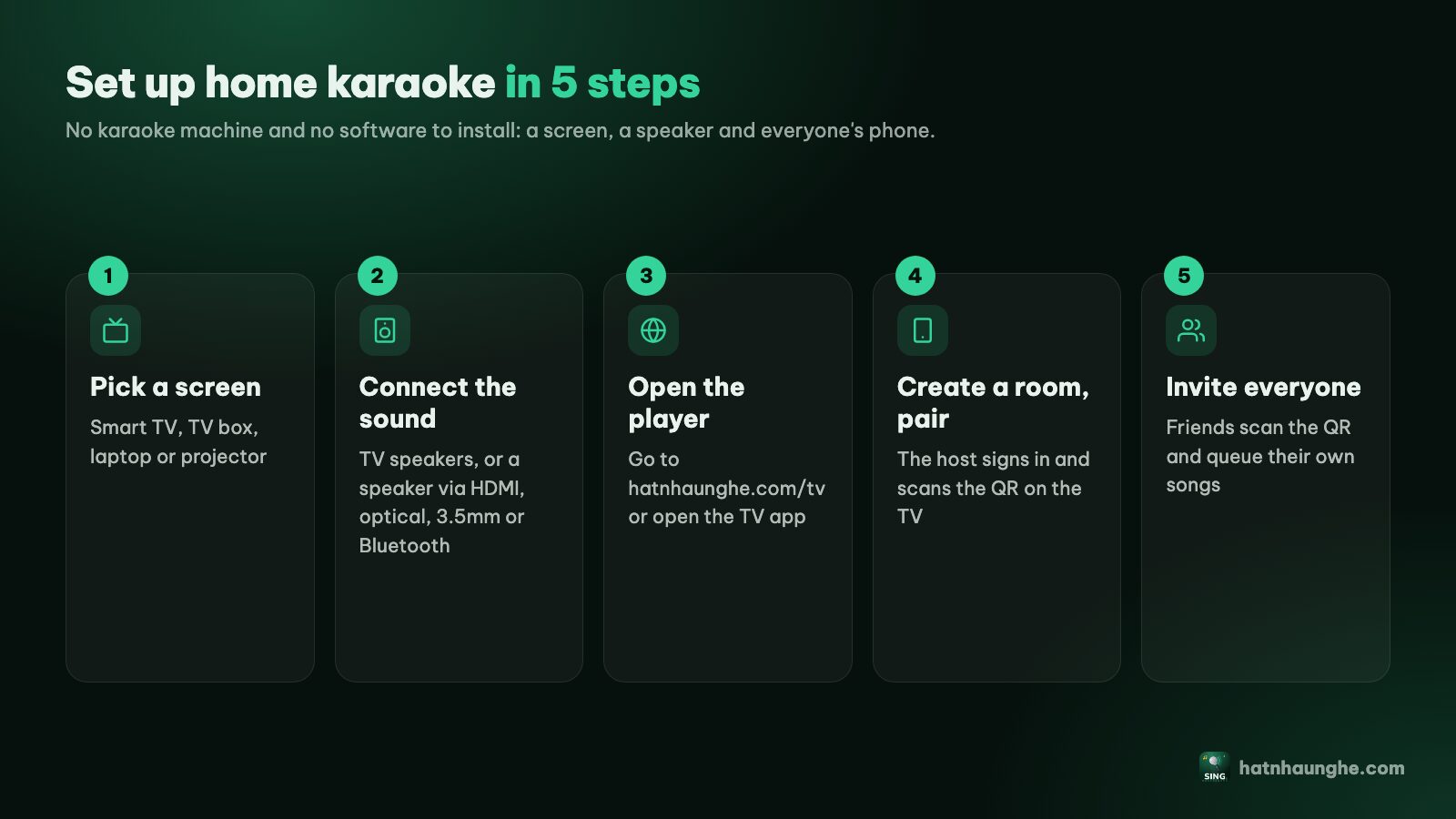
Samsung is the TV brand we run into most at friends' places, and the good news is that almost any recent one can do karaoke right away. No app, no karaoke machine. You need the browser that's already on the TV, the host's phone and Wi-Fi.
This guide goes step by step on a Samsung Smart TV running Tizen (Samsung's smart TV system): finding the browser, typing the address with the remote, pairing with your room, getting sound, choosing speakers, stopping the TV from dozing off mid-party, and what to do when the TV browser won't cooperate. If you want to compare several TV brands at once, the Samsung, LG, Android TV and Chromecast overview has a quick picker. This one is Samsung only, in detail.
What you need
- A Samsung Smart TV connected to the internet (Wi-Fi or Ethernet).
- The TV remote. Any model works, as long as it has arrow keys and an OK button (the round one in the middle).
- The host's phone, with a camera for the QR code and a Google account to sign in.
- Guests' phones so they can add their own songs. Guests don't sign in; they scan and type a name.
- A speaker or soundbar if the TV speakers aren't loud enough (optional).
There's nothing to install. Hát nhau nghe runs in the browser, and the web version has every feature.
Step 1: Open the "Internet" browser
The browser on a Samsung Smart TV is simply called Internet (a blue globe icon). To find it:
- 1Press Home on the remote to bring up the menu.
- 2Go to Apps. On many models it sits in the bar along the bottom of the screen; newer models have a redesigned Home screen, so you may need the menu on the left or the search box instead.
- 3Find Internet among your installed apps. If it isn't there, search for "Internet".
- 4Open it. The first time, it may ask about terms or a default home page; choose whatever suits you.
Step 2: Type hatnhaunghe.com/tv with the remote
- 1In the browser, use the arrow keys to reach the address bar at the top and press OK.
- 2An on-screen keyboard appears. Pick each character with the arrows: hatnhaunghe.com/tv. The slash usually lives on the symbols row or near the ".com" key.
- 3Select Go (or Enter, or the arrow icon).
Typing with arrows is tedious, but you only do it once. A few shortcuts, depending on what your TV supports:
- Voice: if the remote has a mic button, some models let you speak an address or a search. Accuracy with web addresses varies, so check before you hit Go.
- A keyboard: many Samsung Smart TVs accept a USB or Bluetooth keyboard.
- A bookmark: once the page is open, add it to the browser's bookmarks. Next time, open the bookmark and you're done.
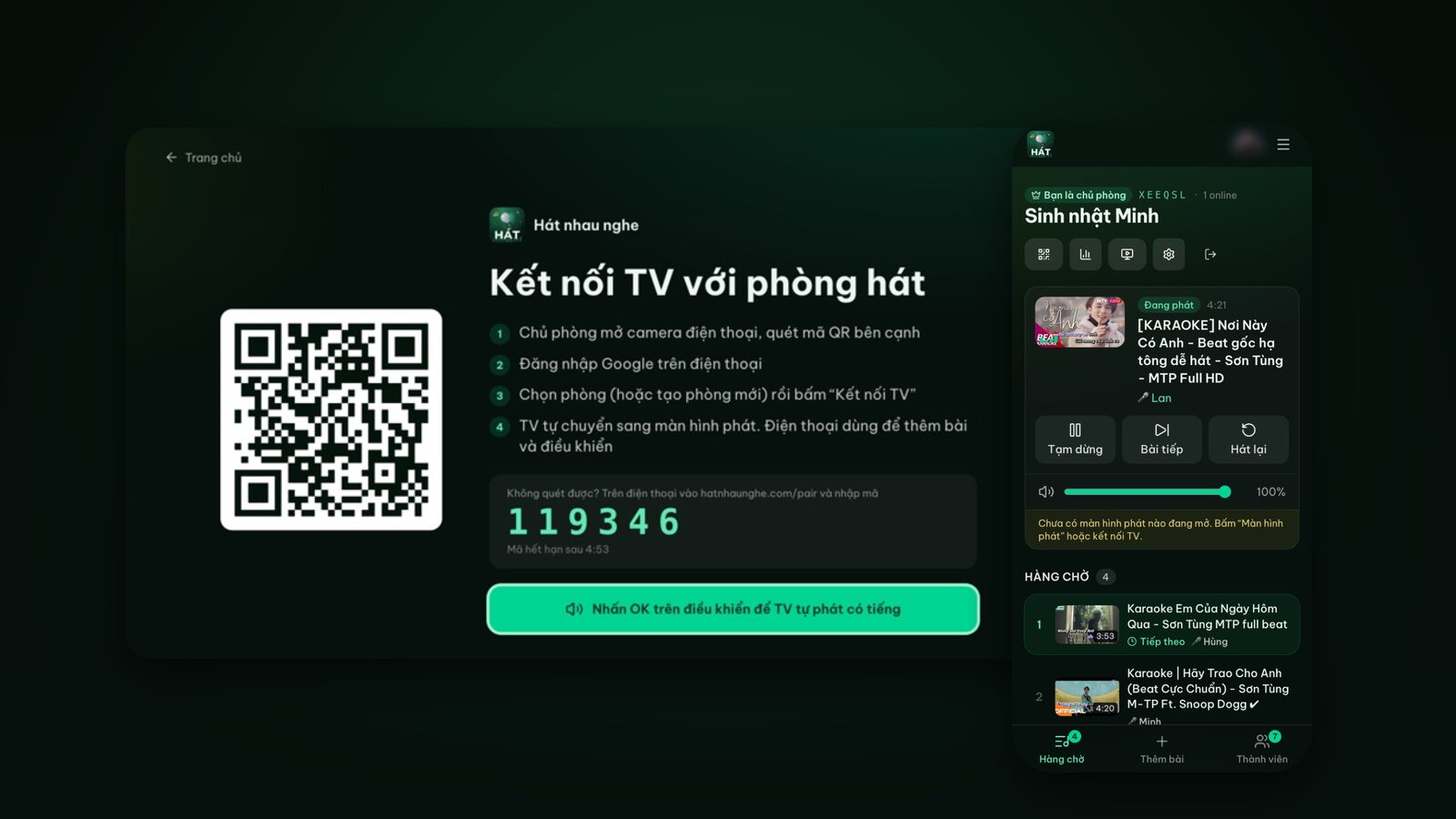
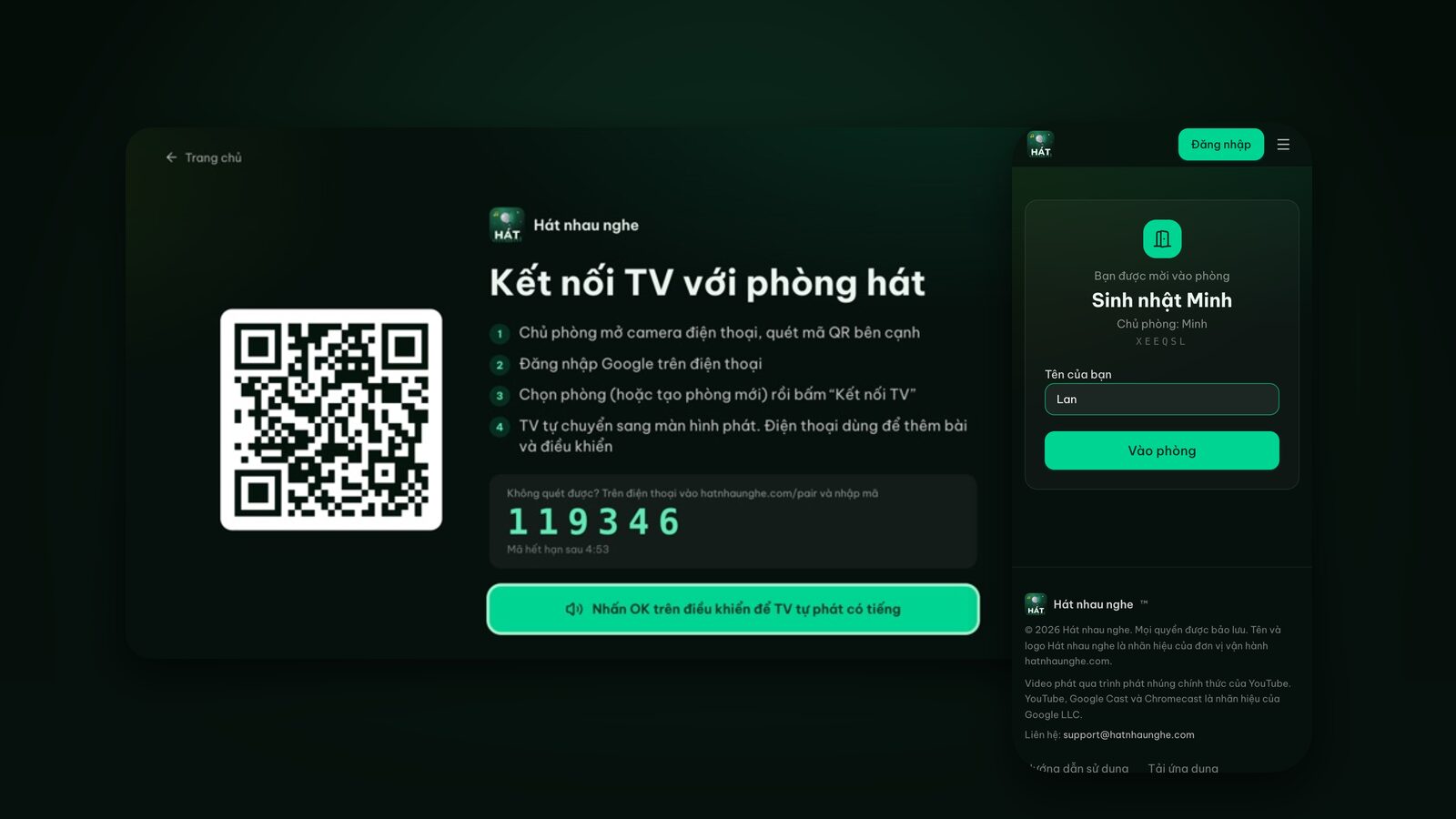
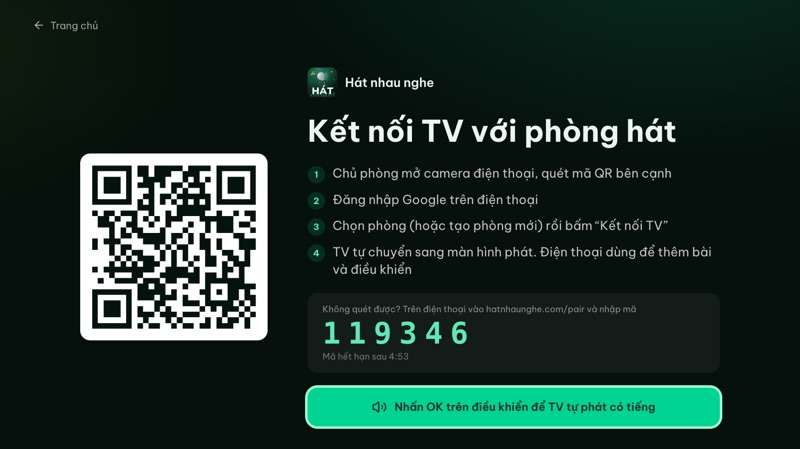
The page that opens is titled "Connect this TV to a karaoke room", with a large QR code on the left, four short steps and a 6-digit code.
Step 3: Press OK once so the TV can play with sound
This is the small step that matters most on a Samsung TV, and the one people skip.
Below the 6-digit code there's a button that reads "Press OK on your remote so the TV can play with sound". It's already selected when the page loads, so just press OK once. The text changes to "TV is ready. Videos will play automatically once connected".
Why: TV browsers, like desktop ones, usually block videos from playing with sound until someone presses a key on the page. That OK press is the key press. Do it on the QR screen and the first song will start by itself later, without anyone getting up for the remote.
Forgot? No problem. If the browser blocks sound when the first song starts, the player shows "Press OK once so the TV can play with sound" with a "Press OK to play" button. Press OK and you're off.
Step 4: The host scans the QR code to pair
Now pick up your phone. The four steps on the TV are the same as these:
- 1Open your phone's camera and scan the QR code on the TV. It opens Hát nhau nghe's pairing page.
- 2Sign in with Google if you haven't already.
- 3Choose the room to play on this TV. Pick an open room, or choose "Create a new room", give it a name and it's created and connected in one go.
- 4Tap "Connect TV". Your phone says "TV connected" and the TV switches to the player screen.
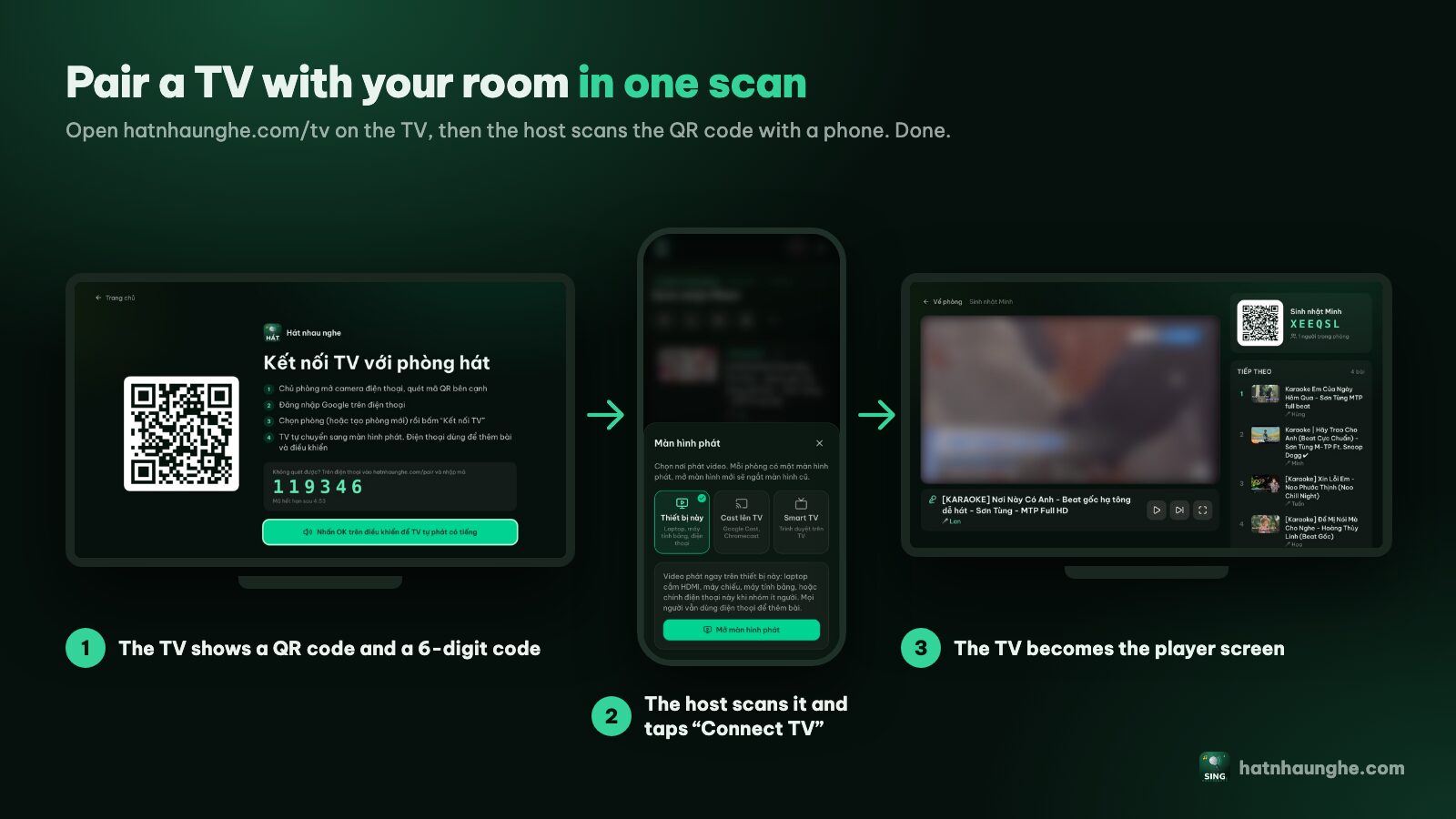
Can't scan (TV too far, glare, older phone)? On your phone, go to hatnhaunghe.com/pair and type the 6-digit code from the TV. The TV page says the same thing in small print.
The code changes every 5 minutes, with a countdown below it. When it runs out, a new one appears on its own; no reload needed.
Handy detail: the TV remembers the room. Next time you open hatnhaunghe.com/tv on the same TV, if the room is still open, it goes straight to the player without another scan.
Try it in your browser
Open a free karaoke room, let friends scan the QR code and start singing in seconds. Nothing to install.
Step 5: Invite everyone and start singing
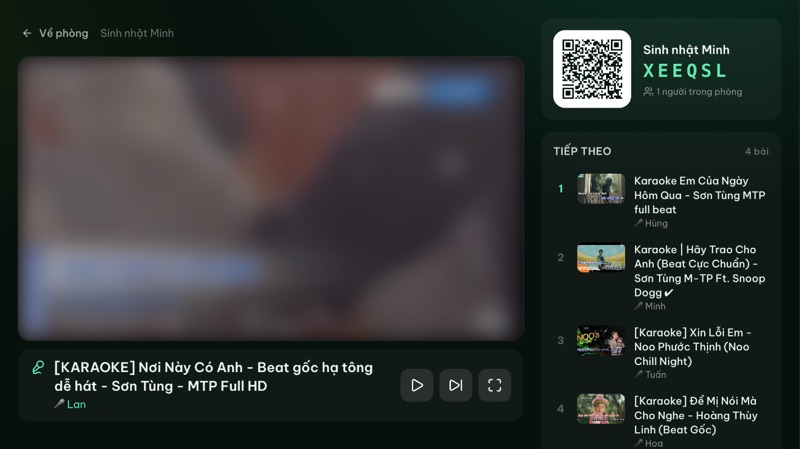
Once the TV is the player screen, everything else happens on phones:
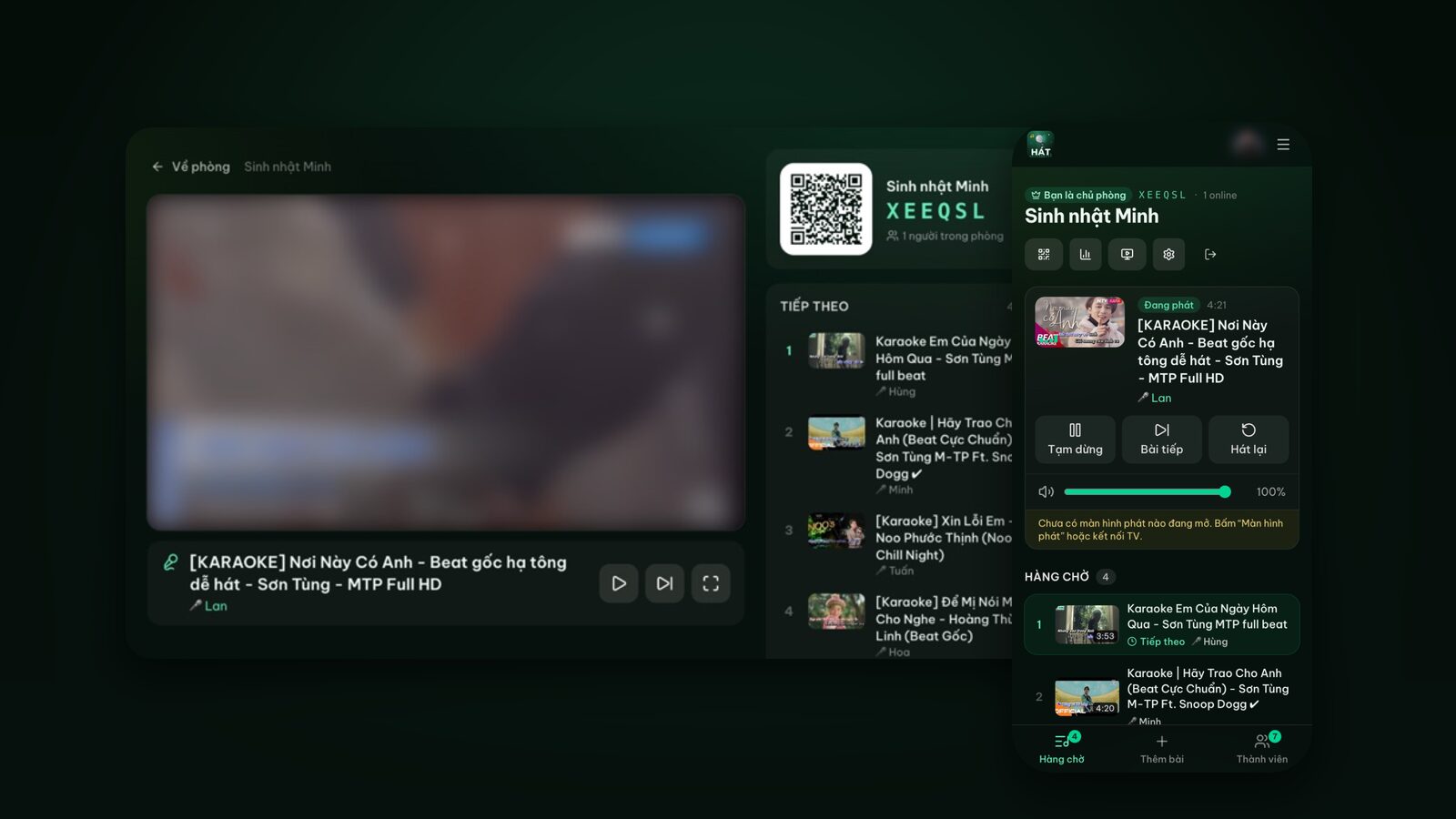
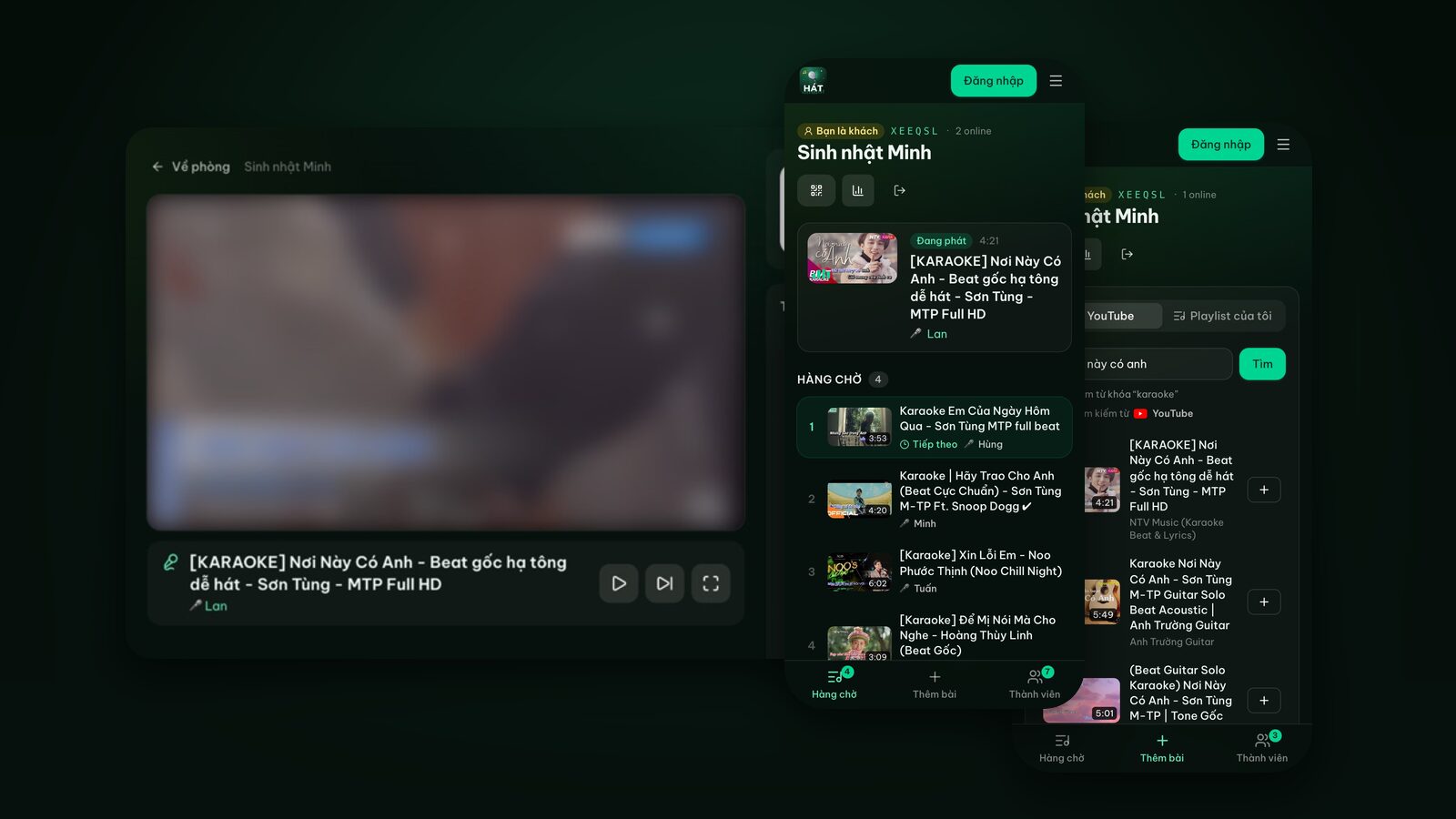
- Guests scan the QR code in the top-right corner of the TV, type a name and they're in. With an empty queue, the QR code sits big in the middle with "Scan to add songs".
- The host can also tap "Invite" to show the QR code and the 6-character room code, or share the link in a group chat.
- Everyone searches YouTube and adds songs to the queue. The first song in the queue starts on the TV automatically.
More on inviting guests and sharing the controls in how to sing karaoke on your TV using your phone.
Using the Samsung remote
You'll mostly control things from phones, but the remote works too:
- Left and right arrows move between the player's buttons (Pause or Play, Next song, Switch room, Home, Disconnect).
- OK presses the selected button.
- Play/pause key (if your remote has one) pauses and resumes.
If you host several rooms, "Switch room" moves the TV to another of your rooms without pairing again.
Step 6: Full screen
The player is built to fill the browser window, but the Internet browser's address bar may still take a strip at the top. On many models the browser menu (often three lines or three dots) has an option to hide the toolbar or go full screen. Names and placement vary by year. If yours doesn't have it, that's fine; the video and lyrics still fit, just slightly smaller.
Step 7: Sound, TV speakers or a soundbar
The karaoke video plays on the TV, so the sound comes out wherever the TV sends its audio. In the TV's Settings, go to Sound and then Sound Output to choose:
- TV speakers: fine for a small group sitting close.
- A soundbar over HDMI (ARC or eARC) or optical: much fuller, and worth it if you have one.
- A Bluetooth speaker: convenient, but Bluetooth often adds delay, which can push the music slightly out of step with the lyrics. If it feels off, use a cable.
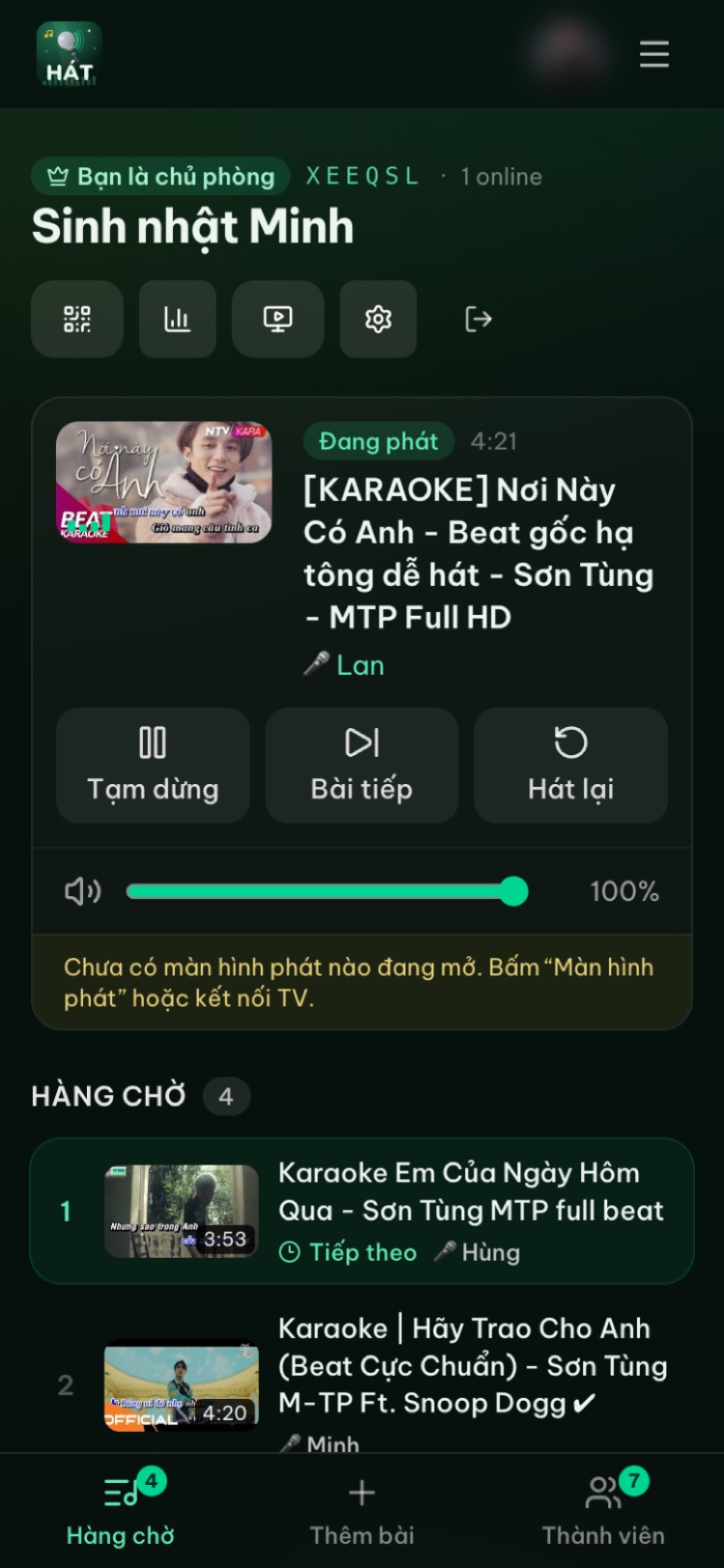
For volume, the host has a "Player volume" slider on the phone, so nobody needs to find the remote. It sets the video's volume on the TV; the TV's or soundbar's master volume still lives on the remote.
Hát nhau nghe doesn't process microphone audio. To sing through a mic, it needs its own karaoke speaker or mixer. See speakers and mics for home karaoke.
Step 8: Keep the TV from going to sleep
The player screen asks the browser to keep the screen on when the browser supports it. Samsung TVs also have their own power-saving features that work independently of any web page:
- Screen saver or Auto Protection Time: the TV switches to a saver image when the picture is still for too long. Rare while a video plays, possible when the queue is empty and only the QR code is showing.
- Auto Power Off, usually under the energy-saving settings: the TV turns itself off after a few hours without a remote press.
These usually live under Settings > General, in the system manager or energy-saving section, but names and locations shift a lot between years. For a long night, check them beforehand and switch them off temporarily.
Other options if the TV browser won't work
A Chromecast or Google Cast device
If you have a Chromecast plugged into the Samsung's HDMI port, this is neat: the host opens the room in Chrome on Android (or Chrome on a computer), taps "Player screen" and picks "Cast to TV". Phone and Chromecast must share Wi-Fi. iPhone and Safari can't cast from the web yet. Details in karaoke with Chromecast.
A laptop over HDMI
The most dependable option for any Samsung, old ones included: connect a laptop by HDMI, open your room, tap "Player screen", choose "This device" and "Open player screen". See karaoke on a computer or laptop.
Smart View from a Samsung phone (last resort)
Samsung Galaxy phones have Smart View to mirror the screen to a Samsung TV (usually in the quick settings panel). Open the room on the phone, choose "This device", "Open player screen", then start Smart View.
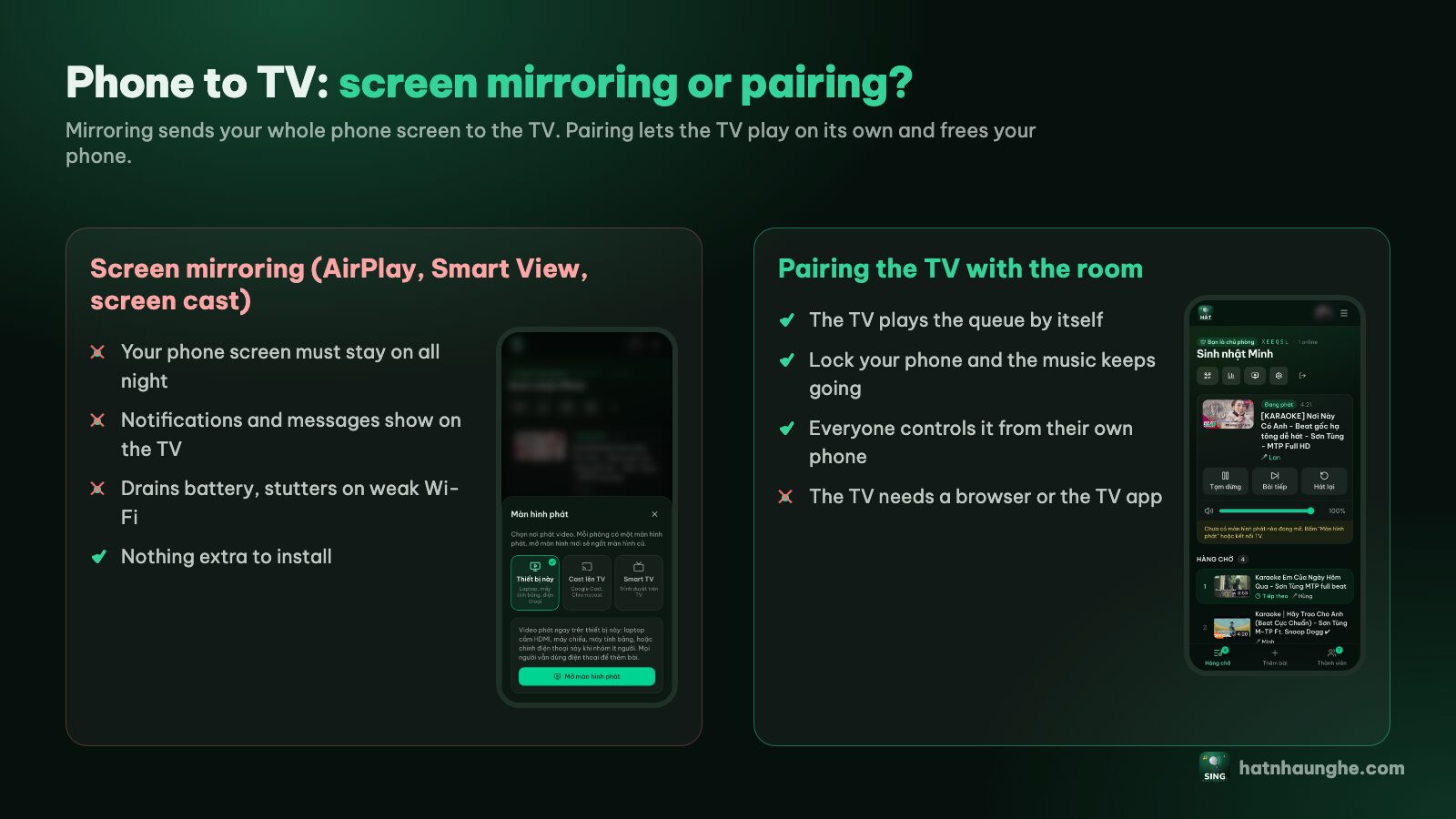
It works, but it's last for a reason: the phone has to stay on that screen all night, notifications pop up on the TV, and it stutters on weak Wi-Fi. Pairing the TV by QR code lets the TV play on its own and frees your phone. Some newer Samsung TVs also accept AirPlay from an iPhone, but that's mirroring too, with the same drawbacks. The full comparison is in connecting your phone to a TV for karaoke.
Is there a Hát nhau nghe app for Samsung TVs?
The Samsung Smart TV app is "Coming soon"; it isn't in Samsung's app store yet. Meanwhile the Internet browser gives you everything. The apps that are out (Android, iPhone, Android TV) are on the apps page.
Troubleshooting on a Samsung TV
The browser is too old and the page won't load
Some older Samsung TVs have an Internet browser that hasn't been updated in years and can't run modern sites. First:
- 1Go to Settings > Support, find Software Update and update the TV if there's a new version.
- 2Reopen the browser and go to hatnhaunghe.com/tv.
Still no luck? Don't fight it. Plug in an Android TV box or a Chromecast, or use a laptop over HDMI. See karaoke on an Android TV box.
No sound
- Press OK on the remote while on the TV page (step 3).
- Check the "Player volume" slider on the host's phone; someone may have dragged it to zero.
- Check that the TV isn't muted and that Sound Output points at the speaker you're using.
Videos won't play
- An empty queue just shows the big QR code. Add a song.
- If you see "Press OK to play", press OK.
- Endless buffering: check the TV's Wi-Fi. Videos stream from YouTube, so a TV far from the router struggles. Try an Ethernet cable if the TV has a port.
- A few videos are blocked from playing on other sites by their owners; pick another karaoke version of the same song.
The QR code expired
Codes change every 5 minutes. The TV shows a new one automatically; scan it or type the current code at hatnhaunghe.com/pair. If your phone says "This TV code has expired", look at the TV and scan again.
The TV says it lost connection
If Wi-Fi drops, the player shows "Lost connection to the server. Queued songs will keep playing." Leave it; it reconnects once the network is back.
Try it in your browser
Open a free karaoke room, let friends scan the QR code and start singing in seconds. Nothing to install.
FAQ
Which Samsung TVs work?
Any Samsung TV with the Internet browser and a network connection is worth a try; newer is smoother. The quickest test is to open hatnhaunghe.com/tv. If the QR code appears, you're good.
Do I need to install anything on the TV?
No. The Samsung app isn't out yet, and you don't need it: the built-in browser is enough.
Do the phone and TV need the same Wi-Fi?
Not for QR pairing; both just need internet. Casting and Smart View do need the same network.
Does it cost anything?
The free plan covers a family night (up to 10 people per room). Premium adds scoring and removes the people limit, and is bought in the phone apps.
What about an LG TV?
Very similar, just a different browser and remote. See how to sing karaoke on an LG Smart TV. The illustrated guide is on the guide page, and you can reach us at support@hatnhaunghe.com or in the "Nghiện Hát" Facebook group.