How to Sing Karaoke on a Computer or Laptop, No Software
Your laptop is the easiest karaoke screen you already own. Here's how to turn it into a player in the browser while everyone picks songs from their phone.
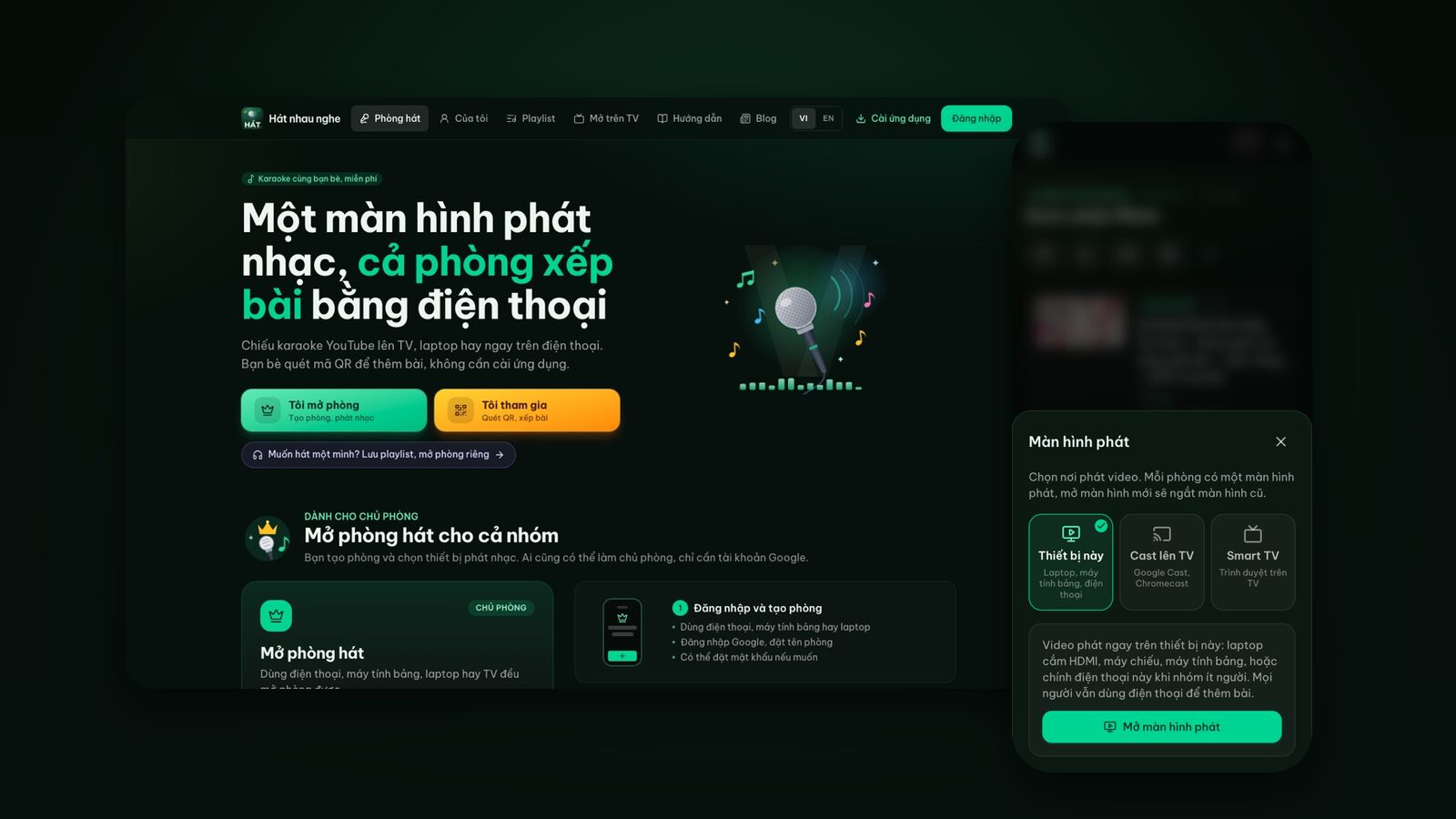
People search for "karaoke software for PC" and end up installing all sorts of things, when the laptop they use every day is already enough. All you need is a browser: Chrome, Edge, Safari or Firefox, on Windows, Mac or a Chromebook.
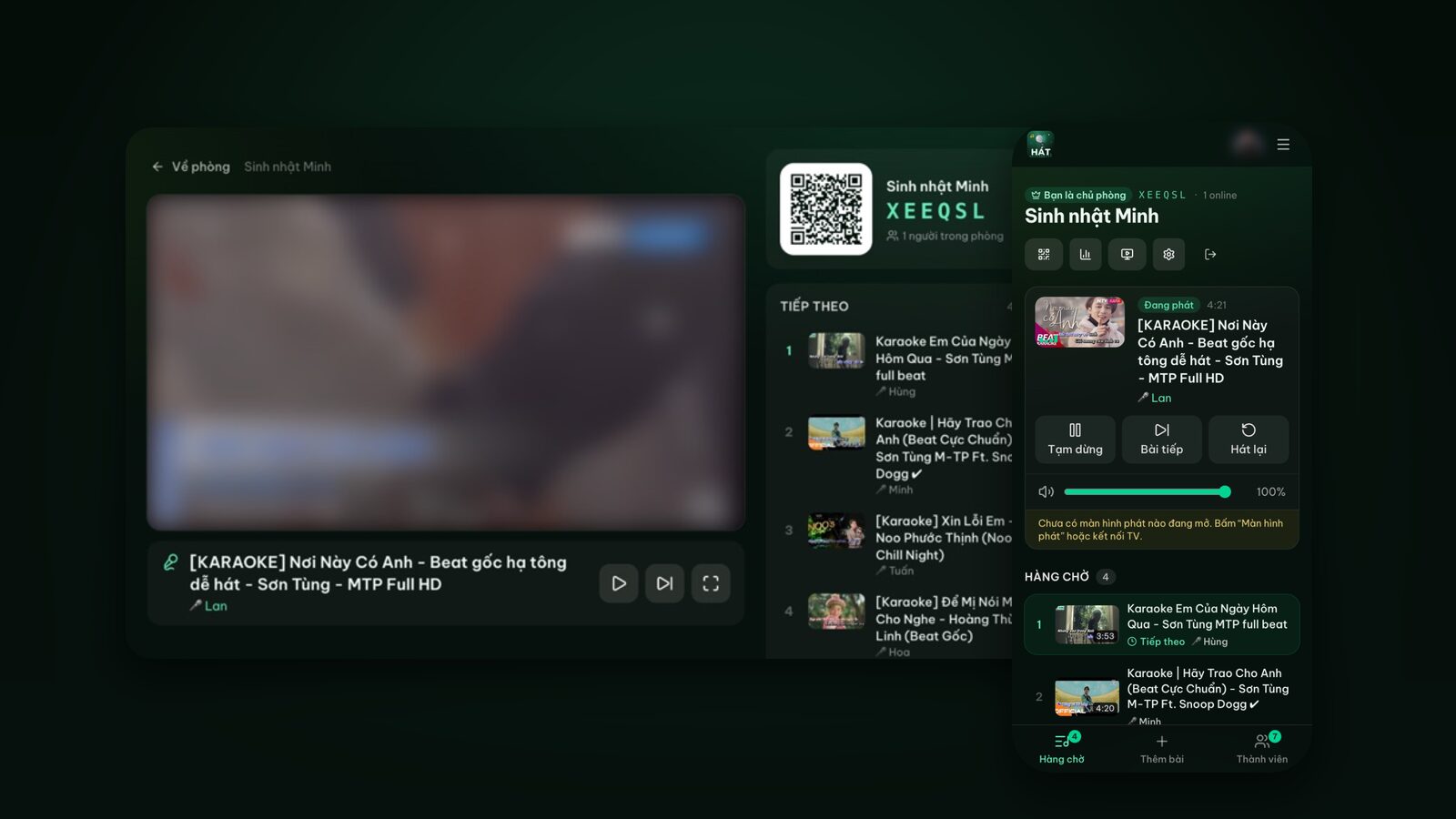
With Hát nhau nghe, the computer becomes the player screen: YouTube karaoke videos play on it, and everyone uses their phone to search and queue songs. This guide goes step by step, from opening the site to working through the queue, plus speakers, keeping the computer awake, and fixing the usual problems.
What you need
- A computer or laptop with an up-to-date browser (Chrome, Edge, Safari, Firefox). Nothing to install.
- A stable internet connection. Videos stream from YouTube; home Wi-Fi or a cable is fine.
- A Google account for the host. Guests don't sign in.
- Everyone's phones to pick songs. Optional, but it's the fun part.
- Speakers if you want more than the laptop's own (see the sound section).
Step 1: Open hatnhaunghe.com and create a room
- 1Open your browser and go to hatnhaunghe.com.
- 2Click I'm hosting.
- 3Click Sign in with Google and choose your account.
- 4Type a room name, add a password if you like, and click Create room.
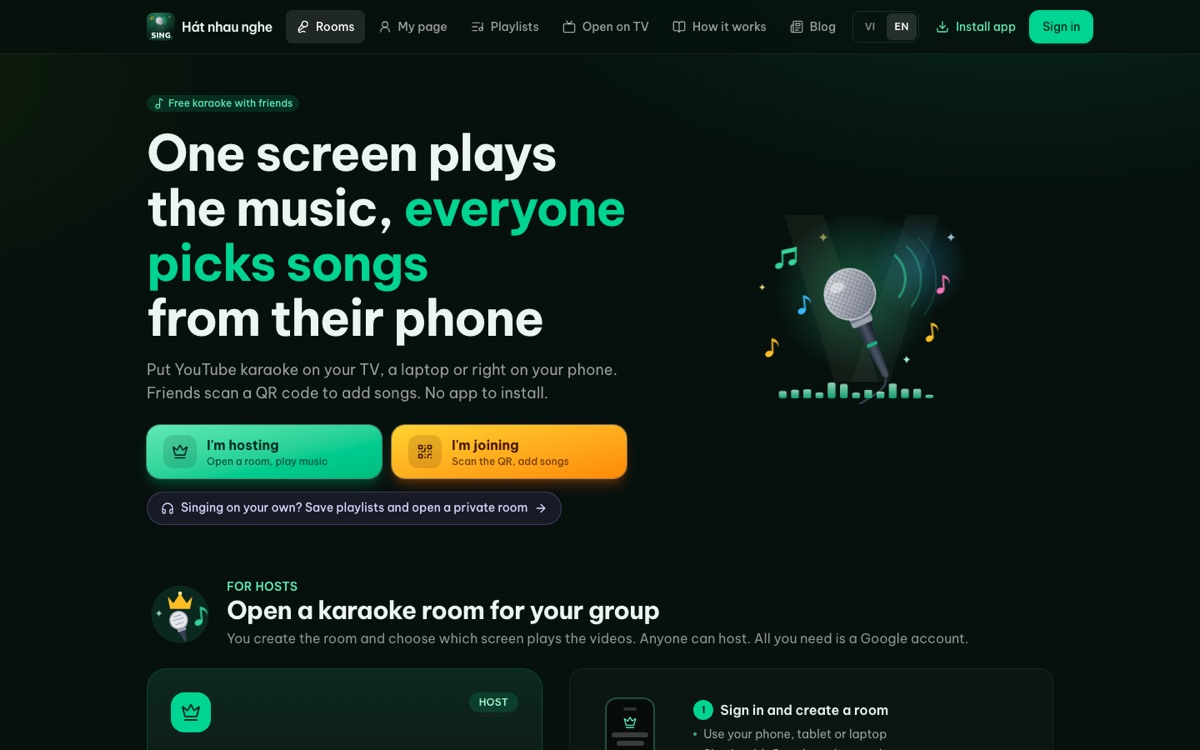
You land straight in the room. Rooms delete themselves after 24 hours without activity, so there's nothing to clean up afterwards.
Step 2: Invite everyone with a QR code
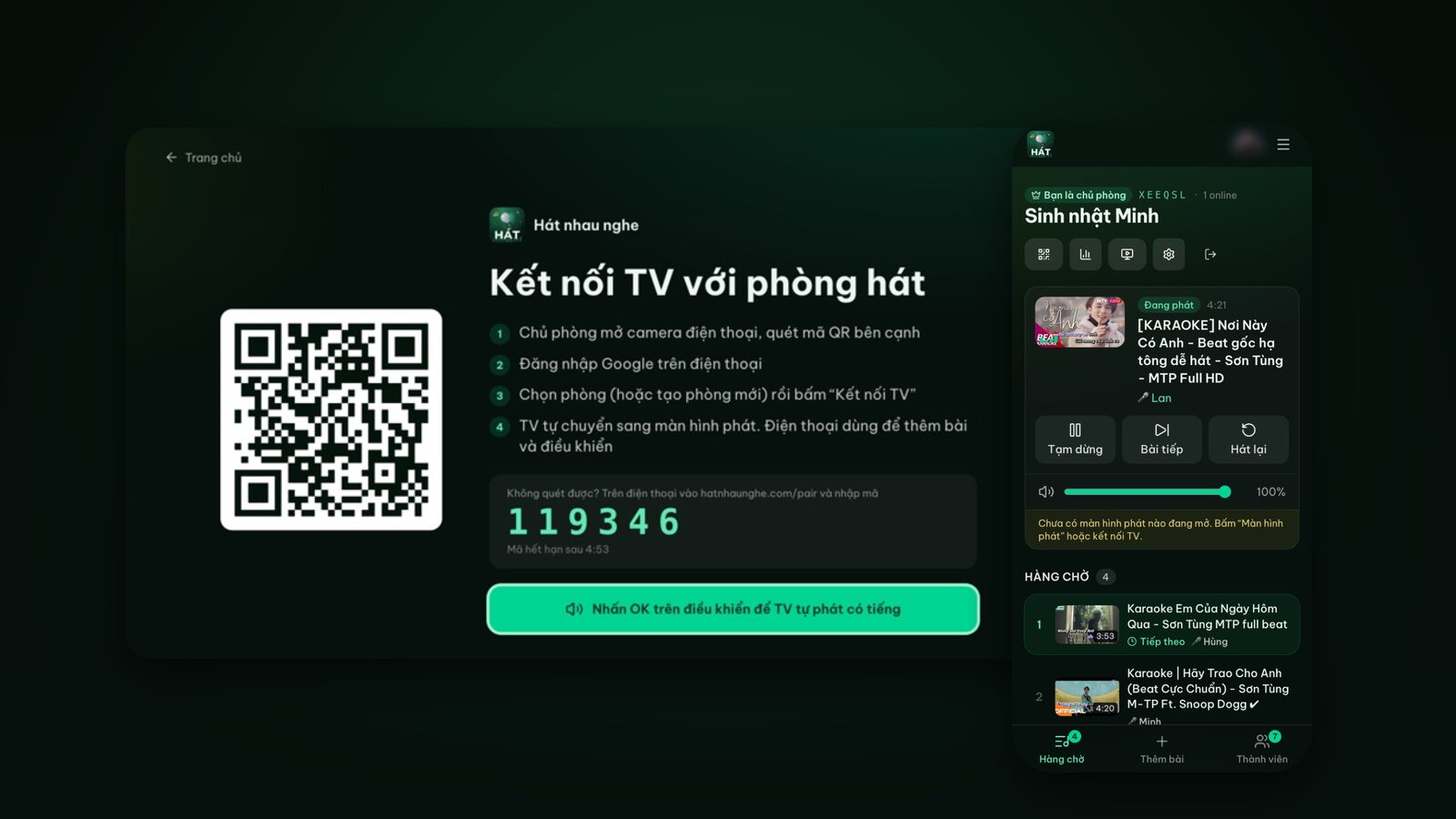
At the top of the room there's a row of icons. Click the QR icon to open Invite people to the room. Guests scan the code with their phone camera and type a name, or go to hatnhaunghe.com and enter the 6-character room code. You can also copy the room link into a group chat.
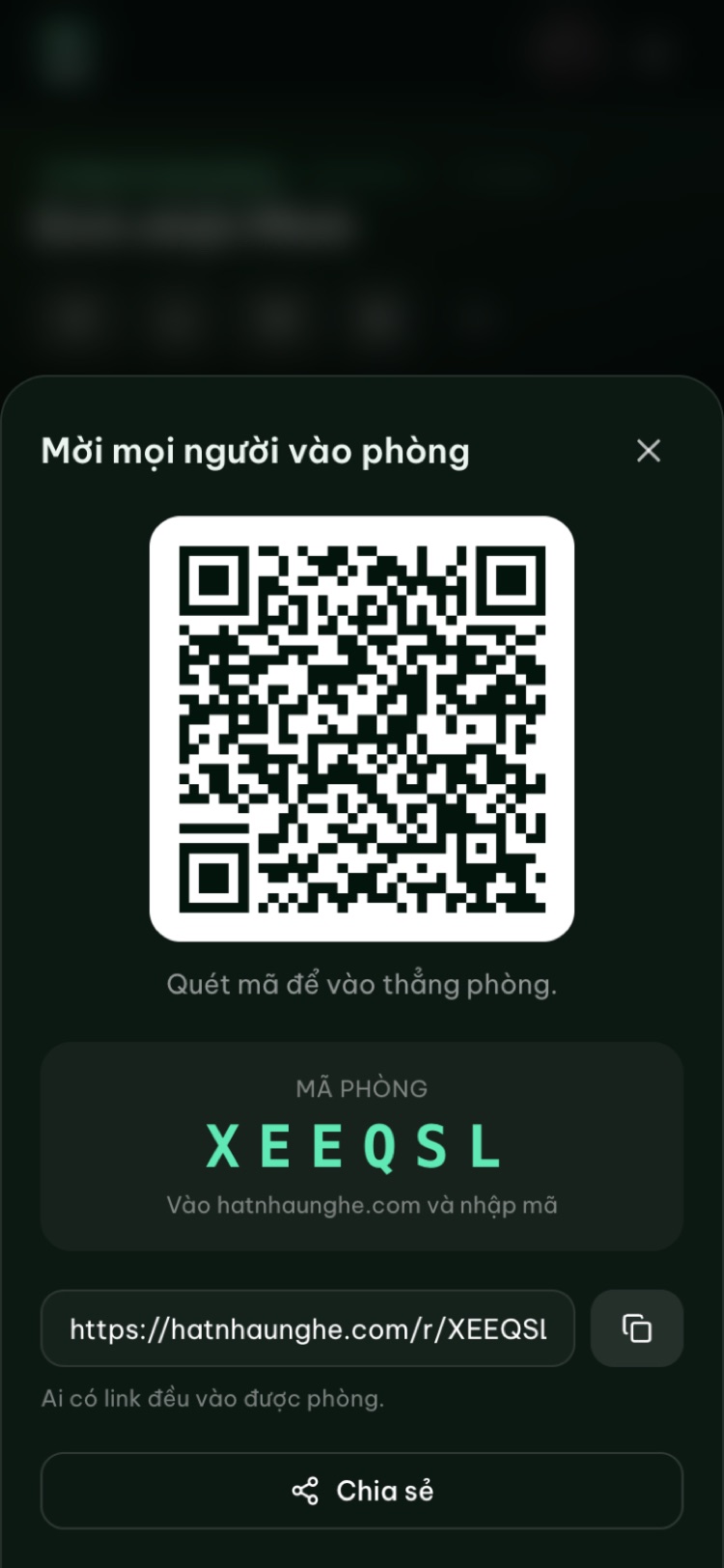
The free plan allows up to 10 people per room, which covers most nights at home.
Step 3: Open the player screen on the computer
This is the step that turns your computer into a karaoke machine:
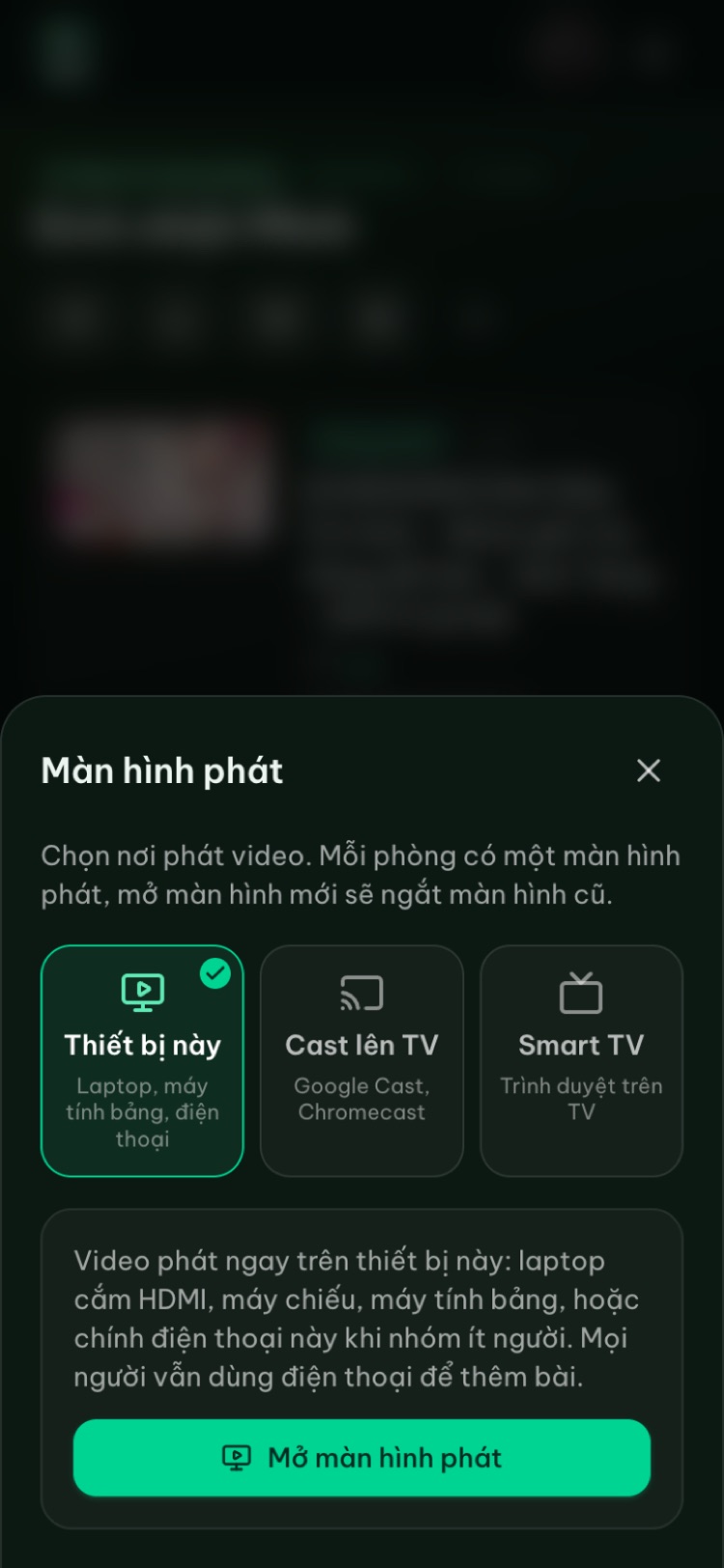
- 1In the row of icons at the top of the room, click the screen icon (Player screen).
- 2Choose This device.
- 3Click Open player screen.
- 4On the player, click Start.
Why the Start click? Desktop browsers usually block a page from playing video with sound until you've clicked something on it. That one click unlocks the sound; after that, songs play back to back, each one introduced by an Up now card with the singer's name.
Step 4: Go full screen and use the keyboard
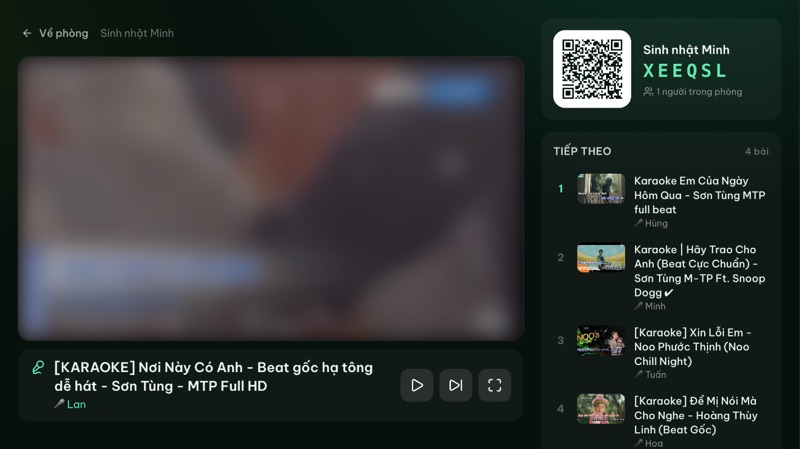
On the player, next to Play/Pause and Next song, there's a Full screen button. Click it and the address bar, tabs and taskbar disappear, leaving the video, the singer's name, the room QR code and the songs up next. Press Esc to leave.
If your keyboard has media keys, they work on the player:
- Play/Pause key: pauses or resumes the current song.
- Next track key (or fast forward): skips to the next song.
On many laptops these live on the F1 to F12 row and may need the Fn key. No media keys? No problem, the host's phone does everything.
Step 5: Run the room from the computer or a phone
You can run the night from the computer itself, with one catch: while the player is full screen, the room page is hidden behind it. Three ways around that:
- Use your phone as the remote (recommended). Open hatnhaunghe.com on your phone and sign in with the same Google account as on the computer. Your phone is then the host too, with Pause, Next song, Restart and Player volume.
- Two screens (a laptop plus a monitor or TV in extended mode): keep the player on the big screen and the room page on the laptop.
- Leave full screen (Esc) whenever you need to approve songs or change settings, then go back.
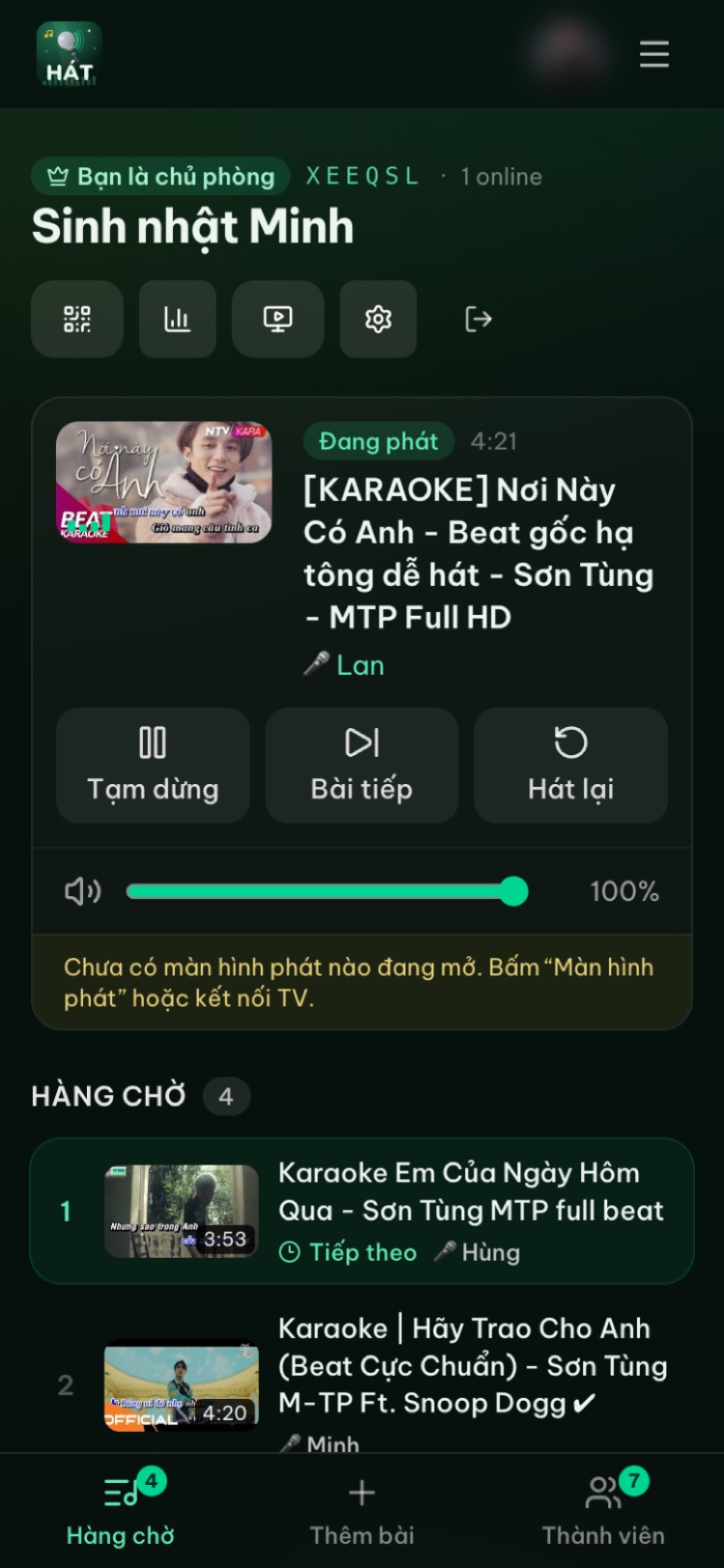
To share the work, make a friend a moderator in the Members tab. For queue tips with a big group, see managing the room so everyone gets a turn.
Step 6: Guests pick songs on their phones
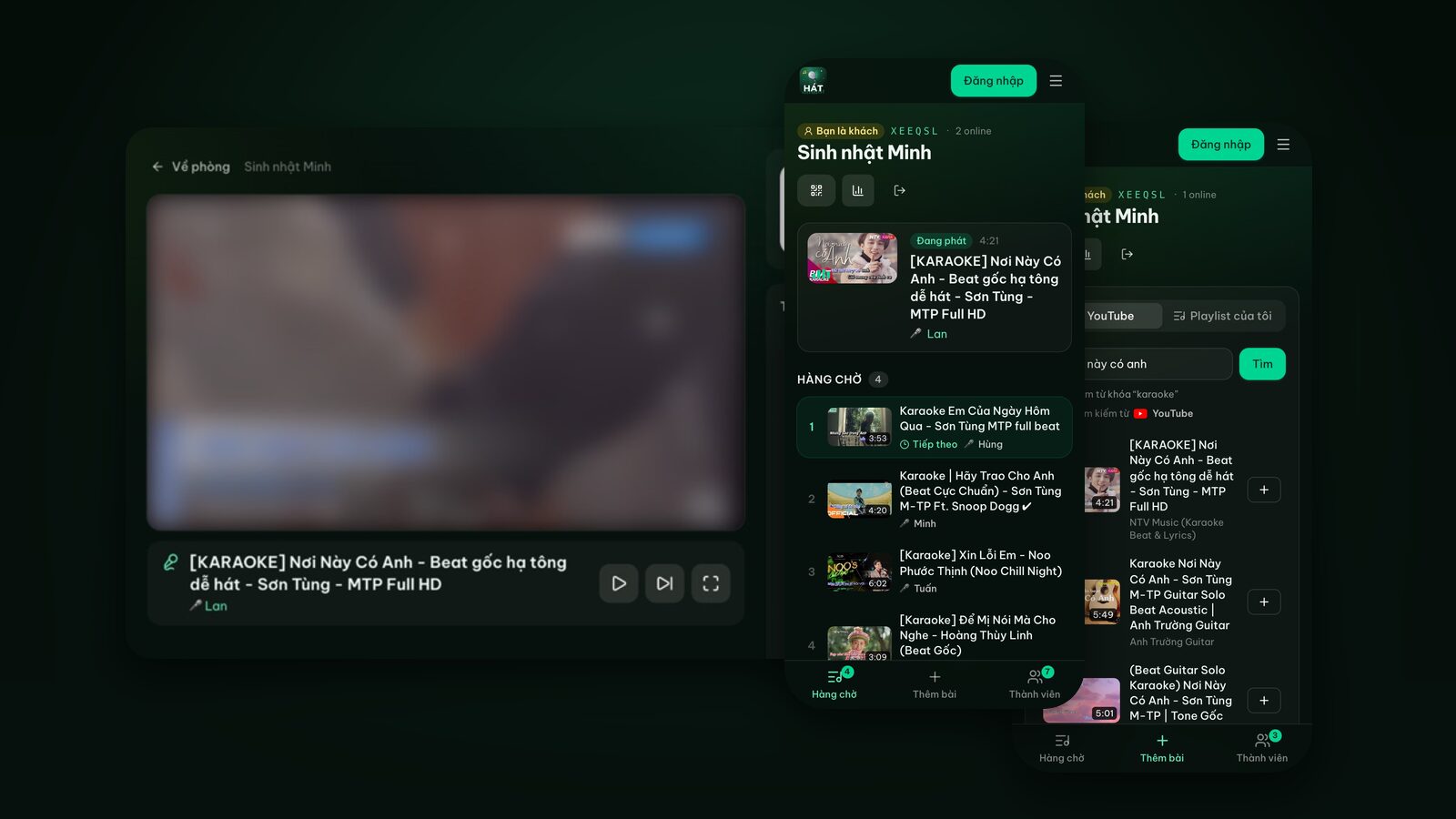
Once in, guests open the Add songs tab, type a song in the search box and tap the plus button. The option to add the word "karaoke" to searches is on by default, so results are versions with lyrics. Songs go into the queue and the computer plays them in turn.
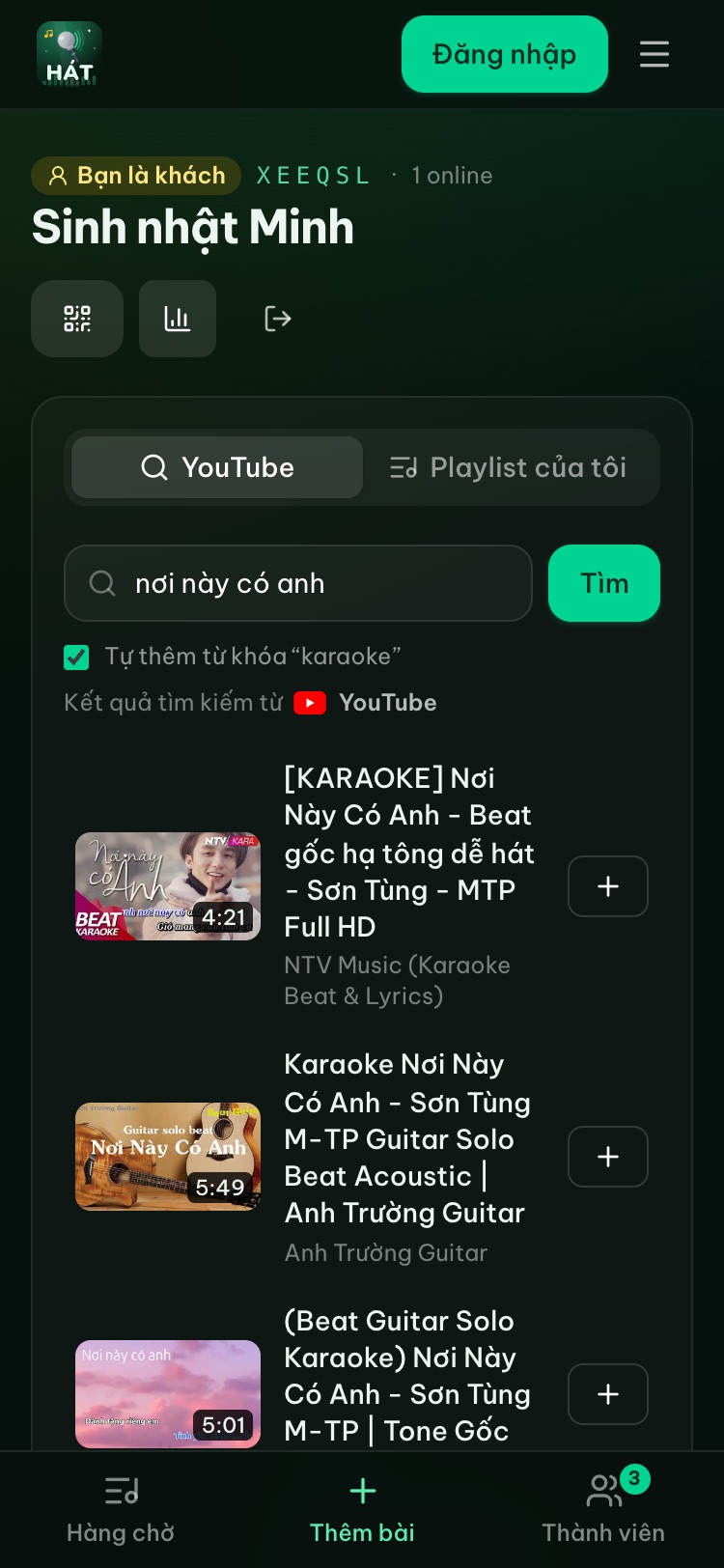
Not enough phones? Anyone can add songs on the computer through the room's Add songs tab. For finding good versions, see tips for finding karaoke songs on YouTube.
Try it in your browser
Open a free karaoke room, let friends scan the QR code and start singing in seconds. Nothing to install.
Sound: laptop speakers or external speakers?
Laptop speakers are fine for two or three people singing quietly in a small room. Any bigger and the voices drown out the music.
External speakers are the best upgrade for the money. Three common ways to connect:
- A 3.5mm cable from the headphone jack to the speaker's AUX input. Simple, low latency.
- HDMI if the computer is plugged into a TV: the sound follows the picture to the TV speakers (or a soundbar on the TV).
- Bluetooth: convenient and wireless, but it can lag slightly so the music drifts from the lyrics. If you notice it, switch to a cable.
If the sound still comes out of the laptop after connecting a speaker, open your system's sound output picker (the speaker icon in the corner on Windows, Mac and ChromeOS) and choose the right device.
Volume tip: set the computer fairly high and leave it, set the speaker to the loudest you'll want all night, then use only the Player volume slider on your phone during the party. For gear, see choosing speakers and mics for home karaoke.
Connecting to a TV or a bigger screen
A 14-inch laptop screen gets hard to read with a crowd. Two ways to go bigger:
- An HDMI cable to a TV, monitor or projector. The most reliable option; works with any TV with an HDMI port.
- Cast from Chrome on the computer to a TV with Google Cast or a Chromecast: in the Player screen menu, choose Cast to TV. This is still in beta.
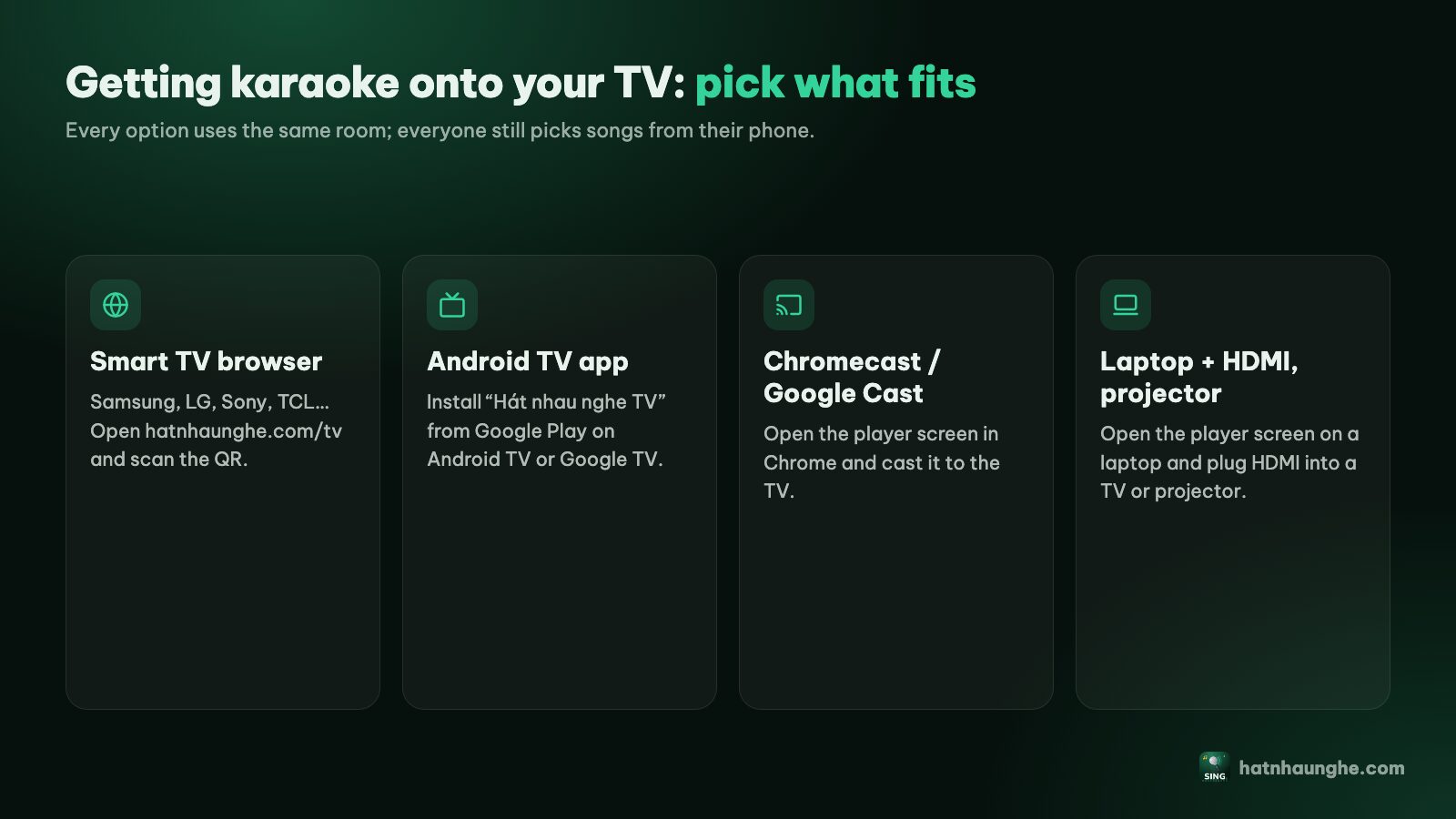
Duplicate vs extend mode, picking the HDMI input and sound through a projector are all covered in karaoke on a projector or laptop over HDMI. If your TV is a smart TV, opening hatnhaunghe.com/tv on the TV itself may be even simpler: see how to connect your phone to a TV for karaoke.
Power and sleep settings
The player asks the system to keep the screen on (in browsers that support it) as long as its tab is visible. Still, check a few things before the party:
- 1Stay plugged in. Hours of video use more battery than you'd think.
- 2Turn off sleep while charging. Windows 11: Settings, System, Power & battery, screen and sleep. Mac: System Settings, Lock Screen and Battery. Chromebook: Settings, Device, Power. Names differ by version and language.
- 3Careful with the lid. Many laptops sleep when you close the lid, even with an external screen attached.
- 4Keep the player tab in front. Switch tabs or minimize the window and the browser may stop keeping the screen on.
- 5Turn on Do Not Disturb so notifications don't pop up mid-song.
- 6Postpone system updates for the night so the computer doesn't restart itself.
Troubleshooting
The player just sits there. You haven't clicked Start, or the browser blocked autoplay. Click Start on the player. If the queue is empty, the player shows Waiting for a song; add one and it starts.
Picture but no sound.
- Check the tab isn't muted (right-click the tab and look for an unmute option).
- Check the system volume and the output device (laptop speakers, HDMI or external speaker).
- Check the Player volume slider in the room isn't at zero.
The computer suddenly says "Player screen disconnected". Each room has one player screen. If someone opened the player on another device (a TV, or tapping This device on a phone), the computer was disconnected. Click Use this device again to take it back, and remind people that only the host should open the player.
A song won't play. Some videos are blocked from embedding by their owner or have been taken down. Click Next song and pick another karaoke version.
Choppy or slow video. Usually the network. Move closer to the router, use a cable, or close heavy tabs and downloads.
The screen turns off mid-party. Go back over the power settings above, and don't switch away from the player tab.
Things act strangely after installing a browser extension. Some ad or script blockers can break the YouTube player. Turn the extension off for this site, or try another browser.
Try it in your browser
Open a free karaoke room, let friends scan the QR code and start singing in seconds. Nothing to install.
FAQ
Do I need karaoke software for my computer?
No. Hát nhau nghe runs in the browser; there's nothing to download or install. The phone apps and the Android TV app are optional extras on the download page.
Does laptop karaoke have scoring?
Scoring is a Premium feature, bought in the mobile apps. A score appears on the player after each song; it's an automatic score for fun, not based on your voice. More in karaoke scoring and voting.
Can I plug a mic into the laptop?
The site doesn't use the computer's microphone, so a mic plugged into the laptop won't come out of the speakers. Plug mics into a karaoke speaker or mixer, and run the computer's sound into the same speaker.
Does it work on a Chromebook?
Yes. Chromebooks run Chrome, so the player works as usual, and you can also cast to a TV with Google Cast.
Can I sing alone on my computer?
Sure, no guests needed. Open a room, open the player and add songs right on the computer. Practice tips are in singing karaoke alone to train your voice.