Karaoke on a projector or laptop over HDMI: full setup
A laptop and a projector give you a cinema-sized karaoke screen. Here's how to open the player, plug in HDMI, get the sound right and keep everything running all night.
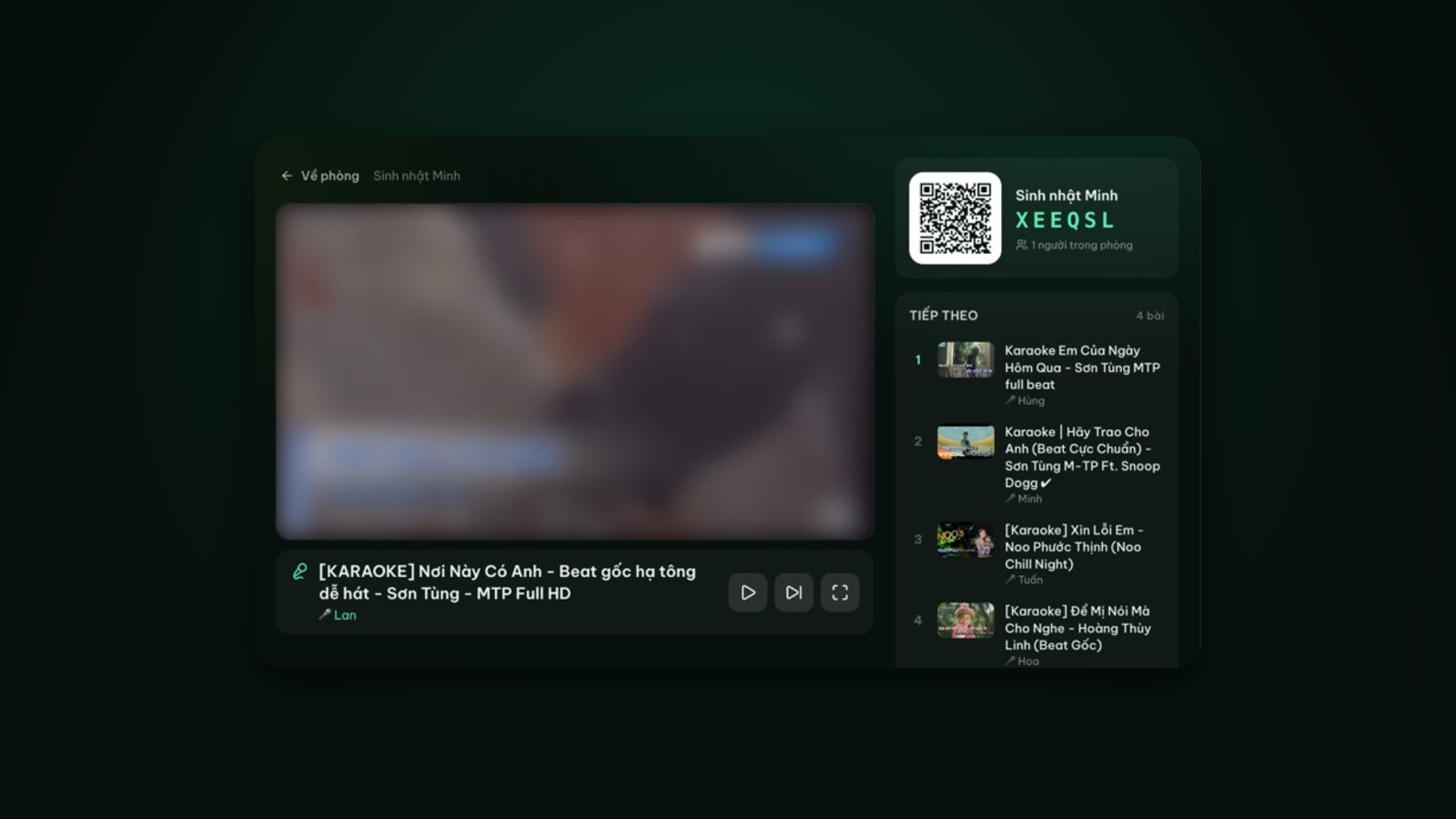
Some karaoke nights outgrow the living-room TV: an office year-end party, a birthday in the backyard, a reunion at a rental house that happens to have a projector. That's when a laptop plugged into a projector (or a big TV) over HDMI is my go-to. No checking whether the TV has a browser, nothing to install, and almost every projector and TV has an HDMI port.
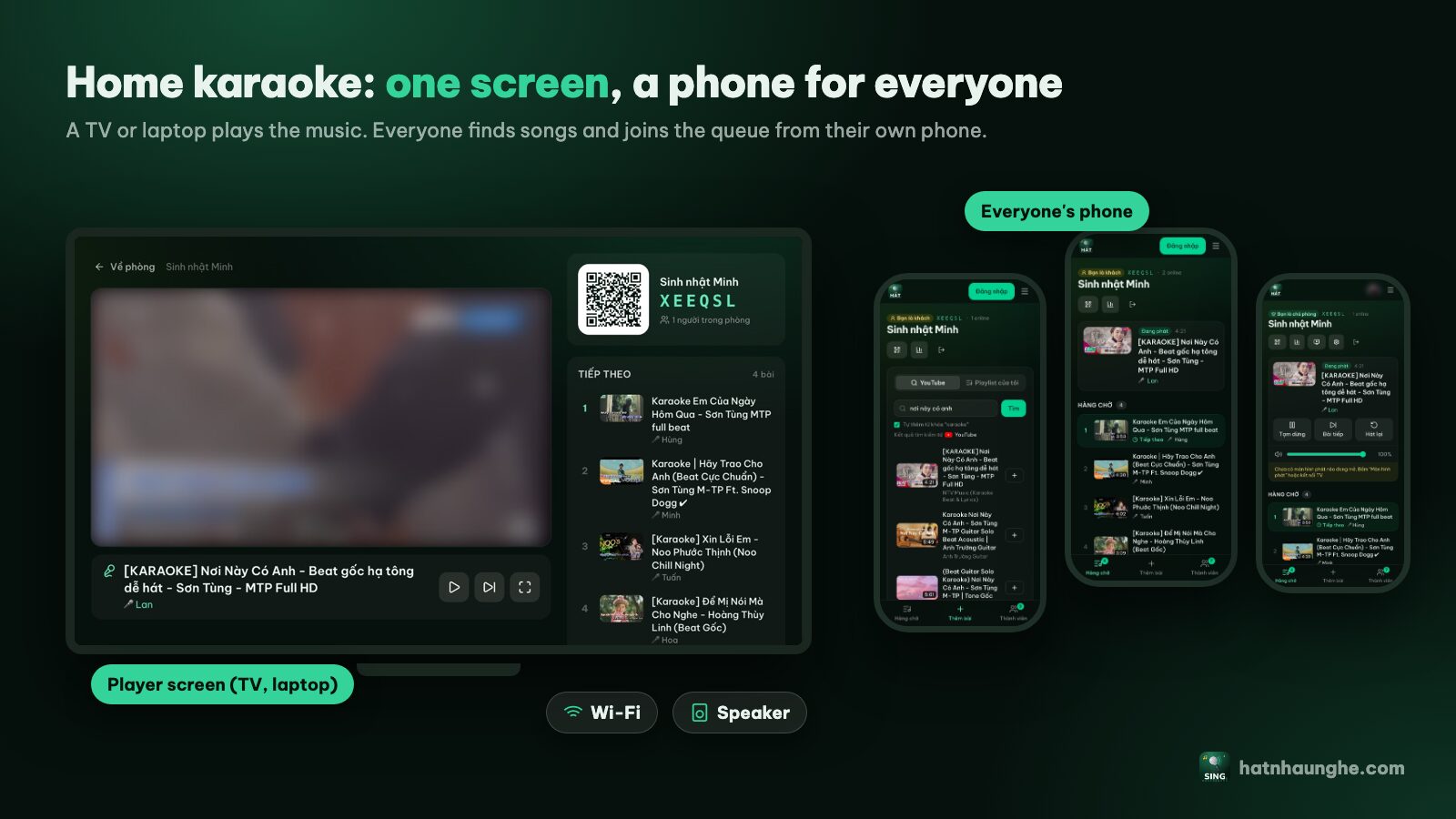
This post covers the whole thing: opening the Hát nhau nghe player screen on a laptop, connecting the cable, getting the sound right, keeping the laptop from falling asleep mid-song, lighting for projectors, and what changes in a big room or outdoors. The idea is simple: the laptop only plays, and everyone picks songs from their own phone.
Why a laptop over HDMI is the safest bet
There are several ways to get Hát nhau nghe onto a big screen: a smart TV's browser, the Android TV app, casting from Chrome, or a laptop on HDMI. Each fits a different situation, but the laptop has some clear advantages:
- It works with any screen that has HDMI: older TVs with no browser, office projectors, conference-room displays.
- A laptop browser is faster and more familiar than a TV browser, so video plays smoothly with fewer quirks.
- You control the sound: send it over HDMI, a 3.5mm cable to a speaker, or Bluetooth.
- It travels. One laptop and one cable, and you can run karaoke anywhere with power and internet.
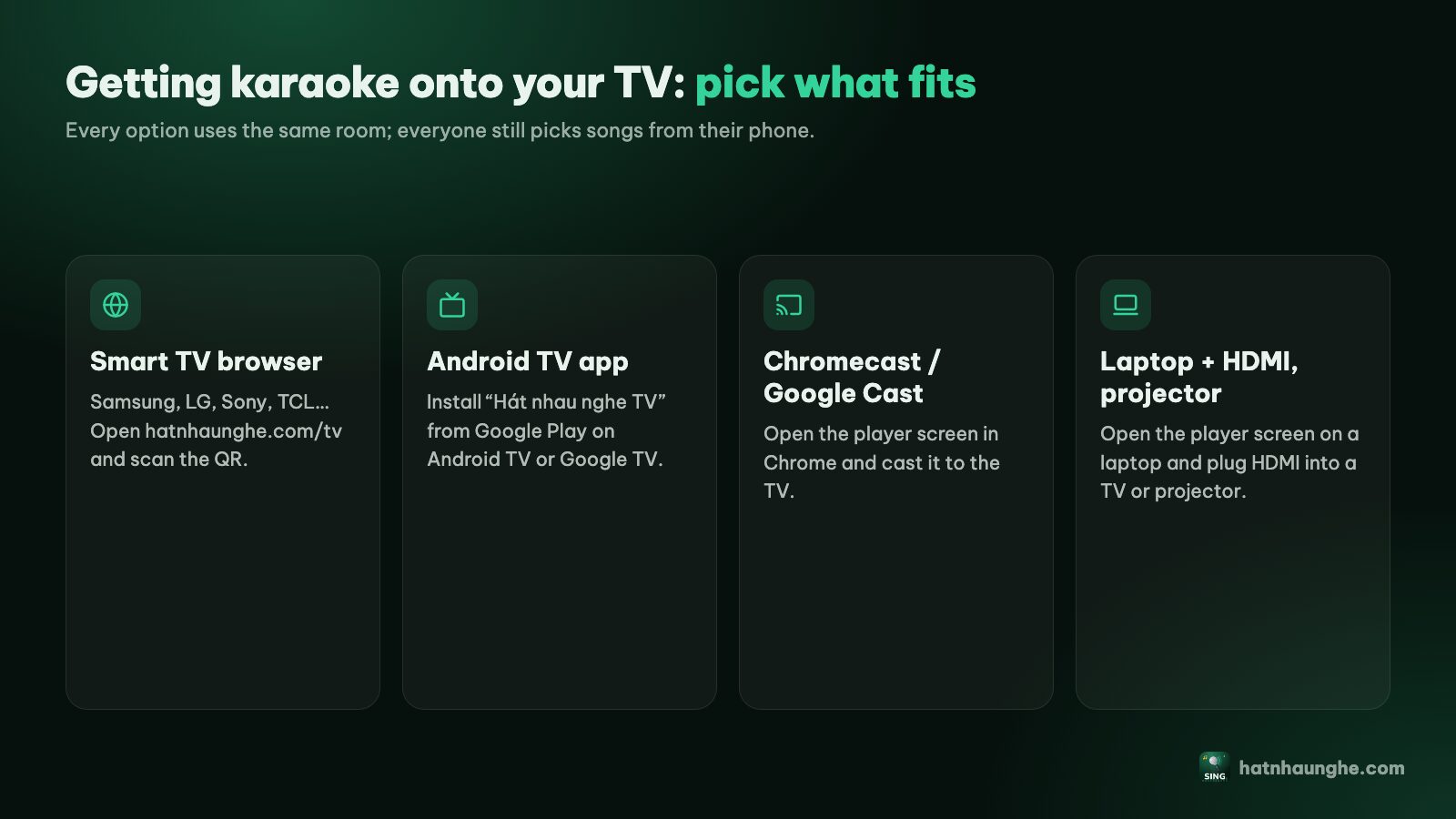
If your TV has a browser, the quickest route is still hatnhaunghe.com/tv; see karaoke on your TV with your phone. For TVs with Google Cast, read karaoke with Chromecast and Google Cast. This post is for when you go the laptop route.
What you need
- 1A laptop with a browser (Chrome, Edge, Safari or Firefox) and a video output: HDMI, or USB-C with video output plus an HDMI adapter.
- 2An HDMI cable long enough to reach the projector or TV.
- 3The laptop charger and a nearby outlet. Don't run on battery all night.
- 4Internet for the laptop. Videos stream from YouTube, so it needs a stable connection, Wi-Fi or Ethernet.
- 5A speaker, if the projector or TV speaker isn't loud enough (more on this below).
- 6Everyone's phones for picking songs. Nobody sits at the laptop typing.
Opening the player screen on the laptop, step by step
Step 1: Connect the cable and pick the input
Plug the HDMI cable into the laptop and the projector or TV, then use the remote to select the right HDMI input (usually an Input or Source button). Most laptops detect the second screen within seconds.
You'll pick a display mode:
- Duplicate (Windows) or Mirror (Mac): the big screen shows exactly what's on the laptop. Easiest for a first try.
- Extend: the big screen becomes a separate display. Drag the player window onto it and keep the laptop screen for other things, such as the room page.
On Windows, Windows + P opens this choice. On a Mac, go to the Displays settings.
Step 2: Open the room on the laptop
Only the host or a moderator can open a player screen, so there are two ways:
- Simplest: open hatnhaunghe.com on the laptop, sign in with the same Google account you host with, and open your room. No room yet? Create it on the laptop; your phone, signed in to the same account, still controls it as the host.
- Someone else's laptop (say, a work machine): join the room on the laptop as a guest with the room code, using an obvious name like "Laptop". Then the host opens the Members tab on their phone and taps Make mod for that laptop.
Step 3: Choose "This device" and open the player
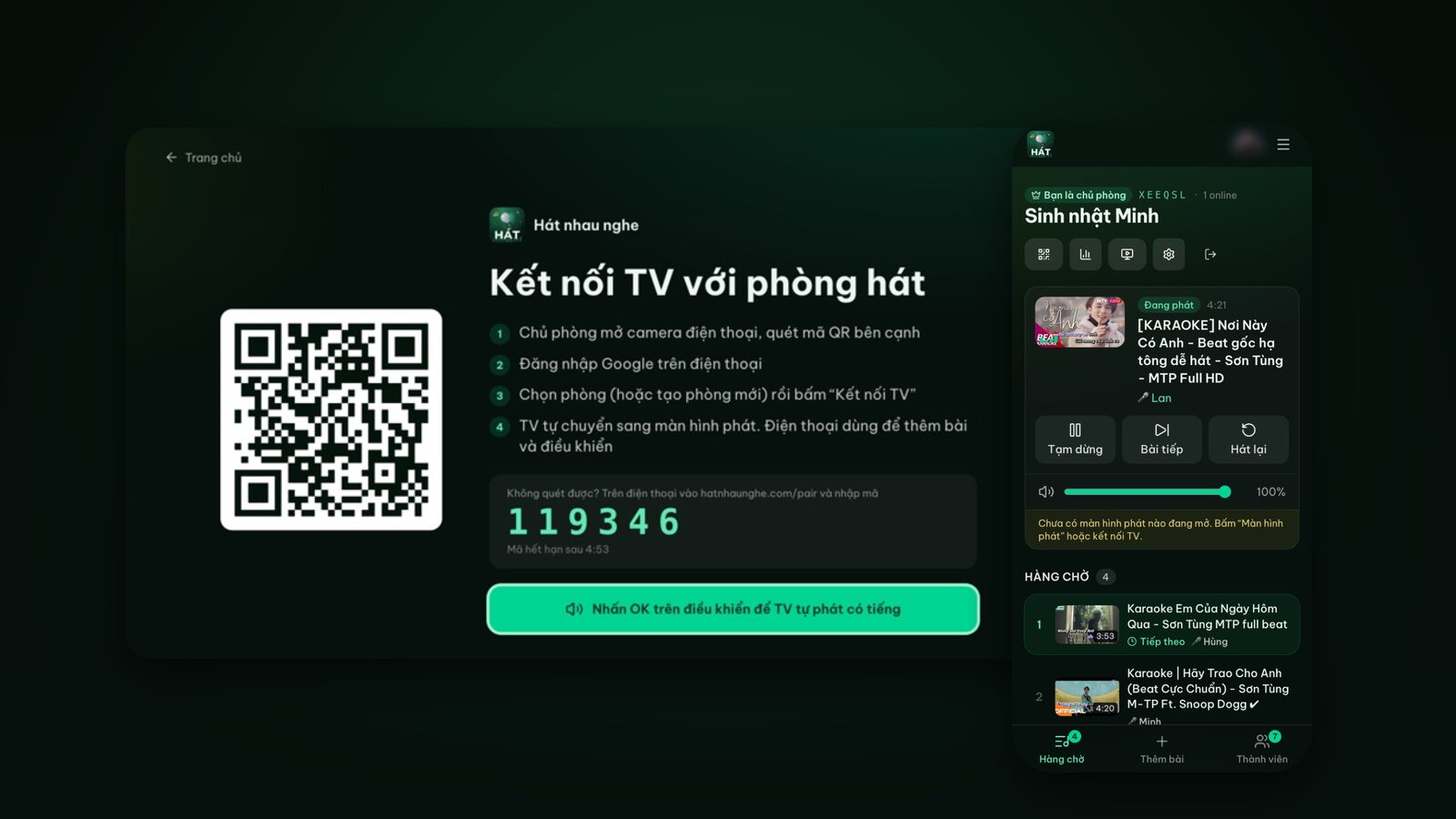
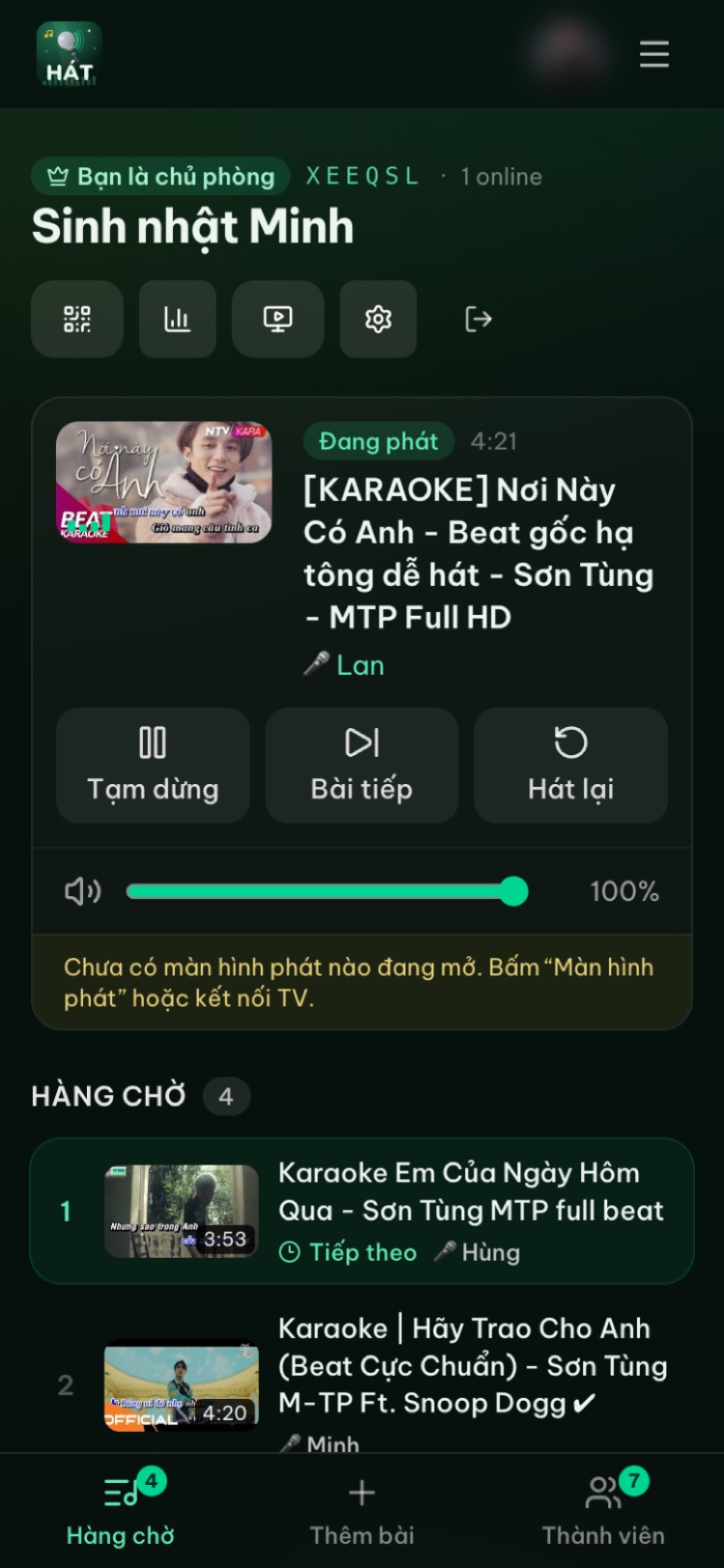
At the top of the room page there's a row of icons. Tap the screen icon (Player screen), choose This device, then tap Open player screen.
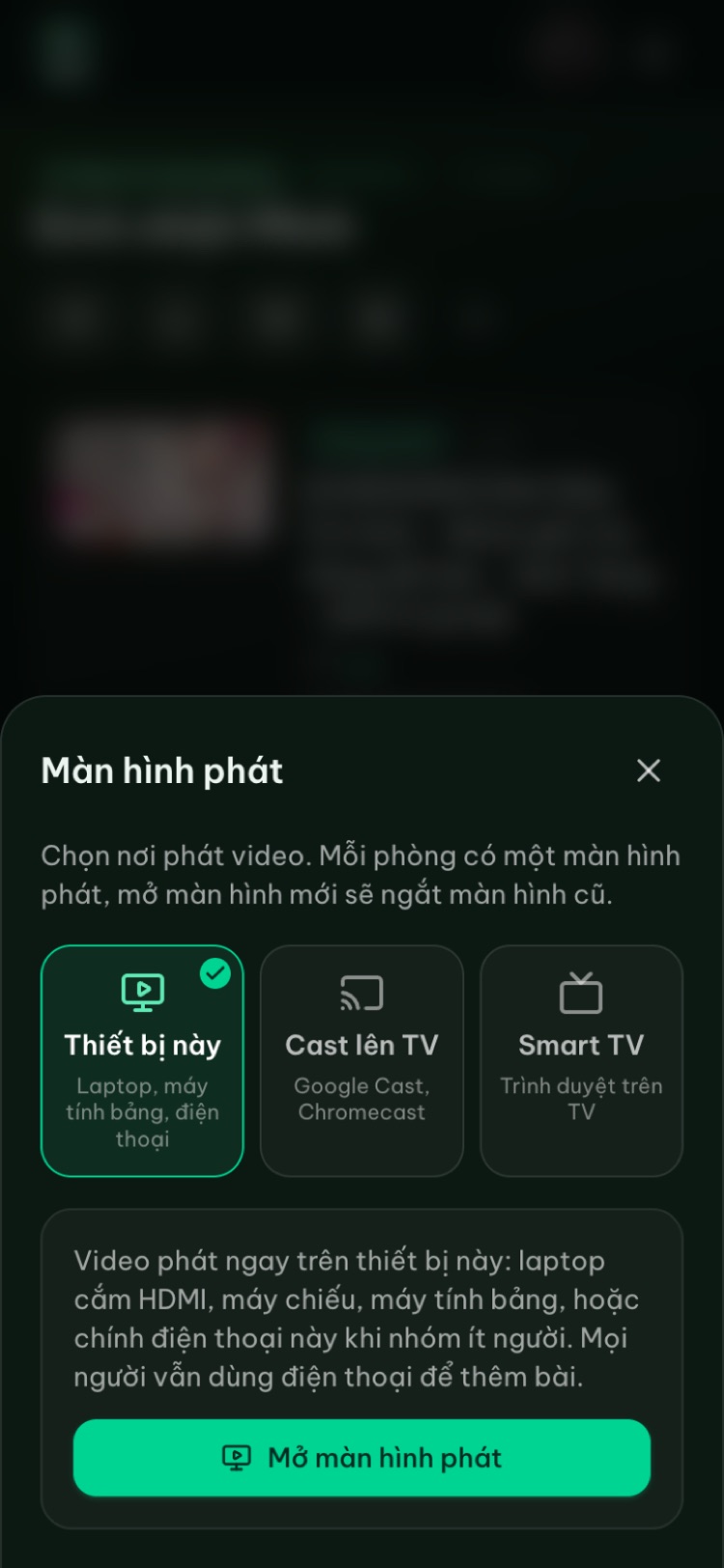
Each room has one player screen. If a TV was connected before, opening the player on the laptop disconnects it, so you never get two screens playing out of sync.
Step 4: Go full screen
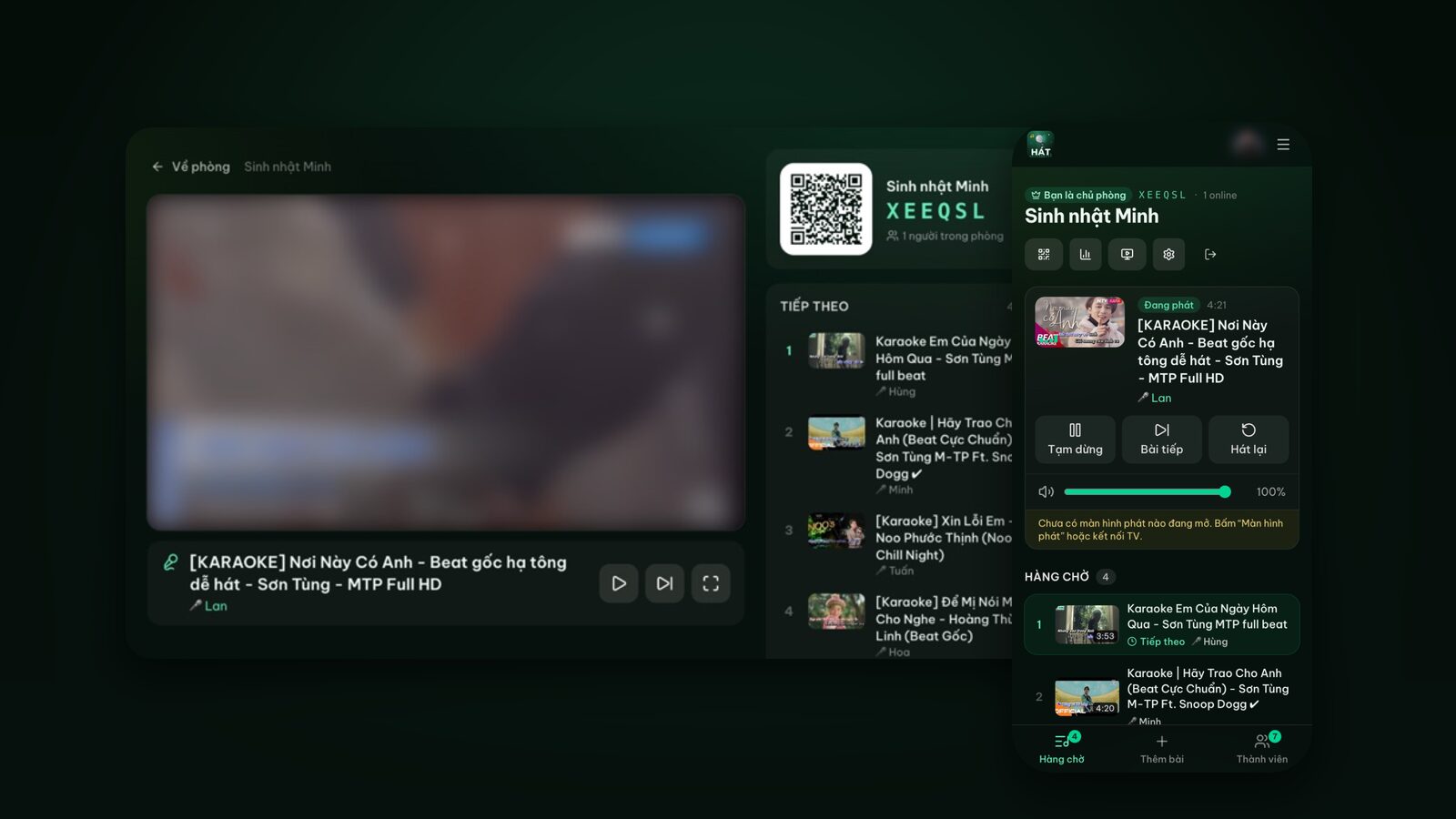
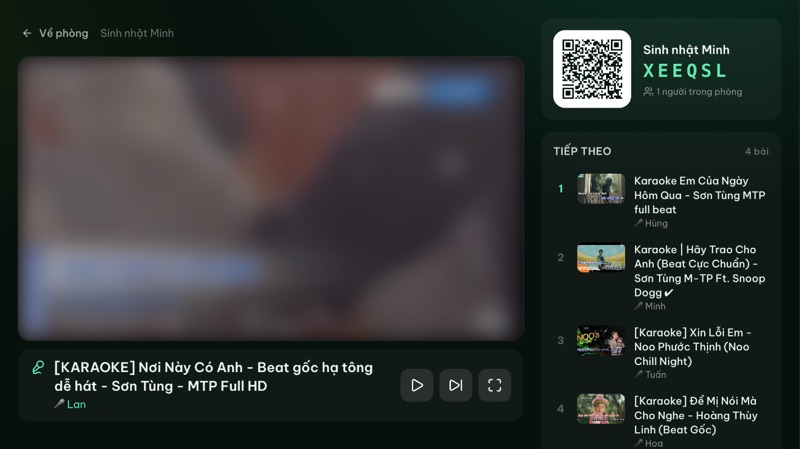
On the player, next to the play and next-song buttons, there's a Full screen button. It hides the address bar, tabs and taskbar, leaving only the video, the singer's name, the QR code and the songs up next. Press Esc to leave.
If the browser blocks autoplay with sound, the player asks you to tap Start once. After that, songs advance on their own, each opening with an Up now card showing who's singing.
Sound: TV, projector or an external speaker?
This is where laptop setups confuse people most, because the sound can take three different paths.
Sound over HDMI
HDMI carries both picture and sound. Plugged into a TV, audio usually switches to the TV speakers automatically. If the laptop keeps playing through its own speakers, open its sound output settings (the speaker icon in the corner on Windows, or Sound settings on a Mac) and pick the TV or projector.
TV speakers are often fine for a living room. Projectors are different: built-in projector speakers are usually small, fine for a meeting but thin when a whole room is singing. And projectors often sit on the ceiling or at the back, so the sound comes from behind the audience.
Sound over a 3.5mm cable to a speaker
The usual projector setup: run a 3.5mm cable from the laptop's headphone jack into the AUX (Line in) port of a speaker. Picture goes to the projector over HDMI, sound goes to the speaker over the cable. Put the speaker at the front, near the screen, so sound and picture come from the same direction.
Many projectors and TVs also have an audio out port, so you can send sound over HDMI and then out to a speaker. Either works; just test first.
Sound over Bluetooth
Bluetooth is convenient and cable-free, but it adds latency: the music can reach your ears slightly after the lyrics change on screen. When you're singing along to the words, that small gap can be annoying. If you notice it, switch to a cable.
Where to set the volume
You'll have three volume controls: the laptop's system volume, the speaker (or TV), and the Player volume slider on the host's phone. My approach: set the laptop to a fairly high fixed level, set the speaker to the loudest you'll want all night, then use only the phone slider during the party. Nobody has to walk over to the laptop.
Try it in your browser
Open a free karaoke room, let friends scan the QR code and start singing in seconds. Nothing to install.
Keep the laptop awake and charged
Nothing kills the mood like the screen going black mid-chorus because the laptop fell asleep. Before the night:
- 1Keep it plugged in. Hours of full-screen video drain the battery faster than you'd expect.
- 2The player asks to stay awake. In browsers that support it, the player screen asks the system to keep the display on while it's running and visible. Still check your power settings to be safe.
- 3Turn off sleep and the screen saver in Windows or macOS power settings, at least while plugged in.
- 4Don't close the lid unless you've set the laptop not to sleep when the lid closes. Many laptops sleep by default.
- 5Keep the player tab in front. If you switch tabs or minimize the window, the browser may stop keeping the screen on. Use Extend mode if you need the laptop for something else.
- 6Silence notifications. Turn on Focus or Do Not Disturb so chat messages and meeting reminders don't pop up on the big screen.
- 7Postpone system updates for the evening so the laptop doesn't restart itself.
A small bonus: if the laptop keyboard has play/pause and next-track keys, they work on the player screen. In practice you'll rarely need them, since the host's phone does it all.
Projectors: light and placement
How good a projector looks depends on the room lighting more than you'd think.
- Turn off lights near the screen. Light falling on the screen washes out the picture and makes lyrics hard to read. Keep a few small, warm lamps at the back or sides so people can see their way and their phones.
- Draw the curtains in daytime. Most home projectors can't compete with sunlight.
- Lyrics need to be sharper than the video. Adjust focus until small text in the corners is readable, and fix the keystone so the words aren't skewed.
- Don't go too big. A huge image from a dim projector makes lyrics blurry. A slightly smaller image is brighter and clearer.
- Try a bright picture mode. Many projectors have a presentation or bright-room mode that's easier to read than cinema mode.
The player has a dark background and large text, so it reads well on a projector. The QR code on the right is large enough to scan from nearby seats. In a big room, people further back can join with the 6-character room code instead.
One laptop plays, everyone picks songs on their phone
This is what sets this apart from one person sitting at the laptop typing for the whole room. The laptop sits still, maybe right next to the projector, and nobody touches it. Everyone else:
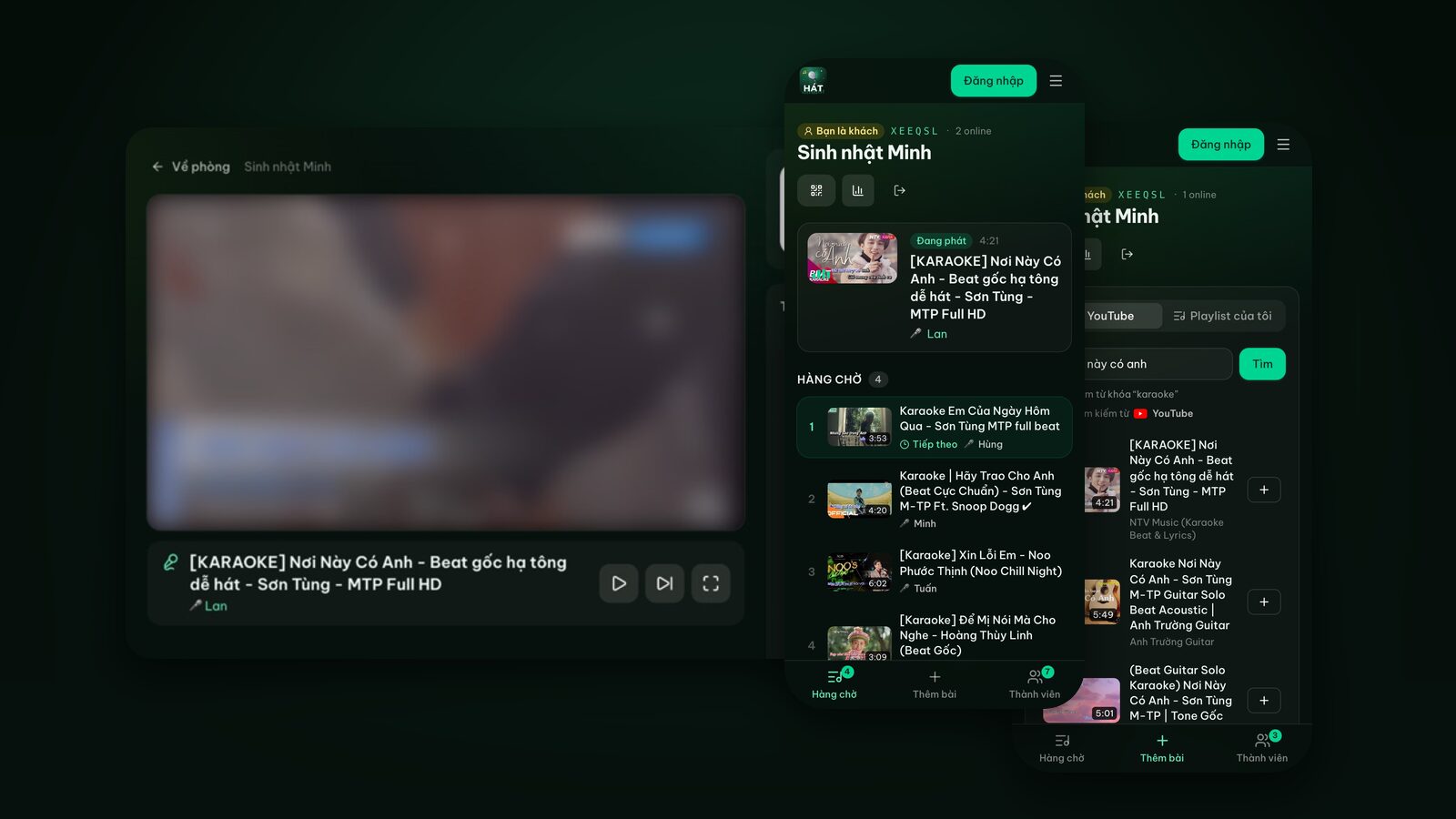
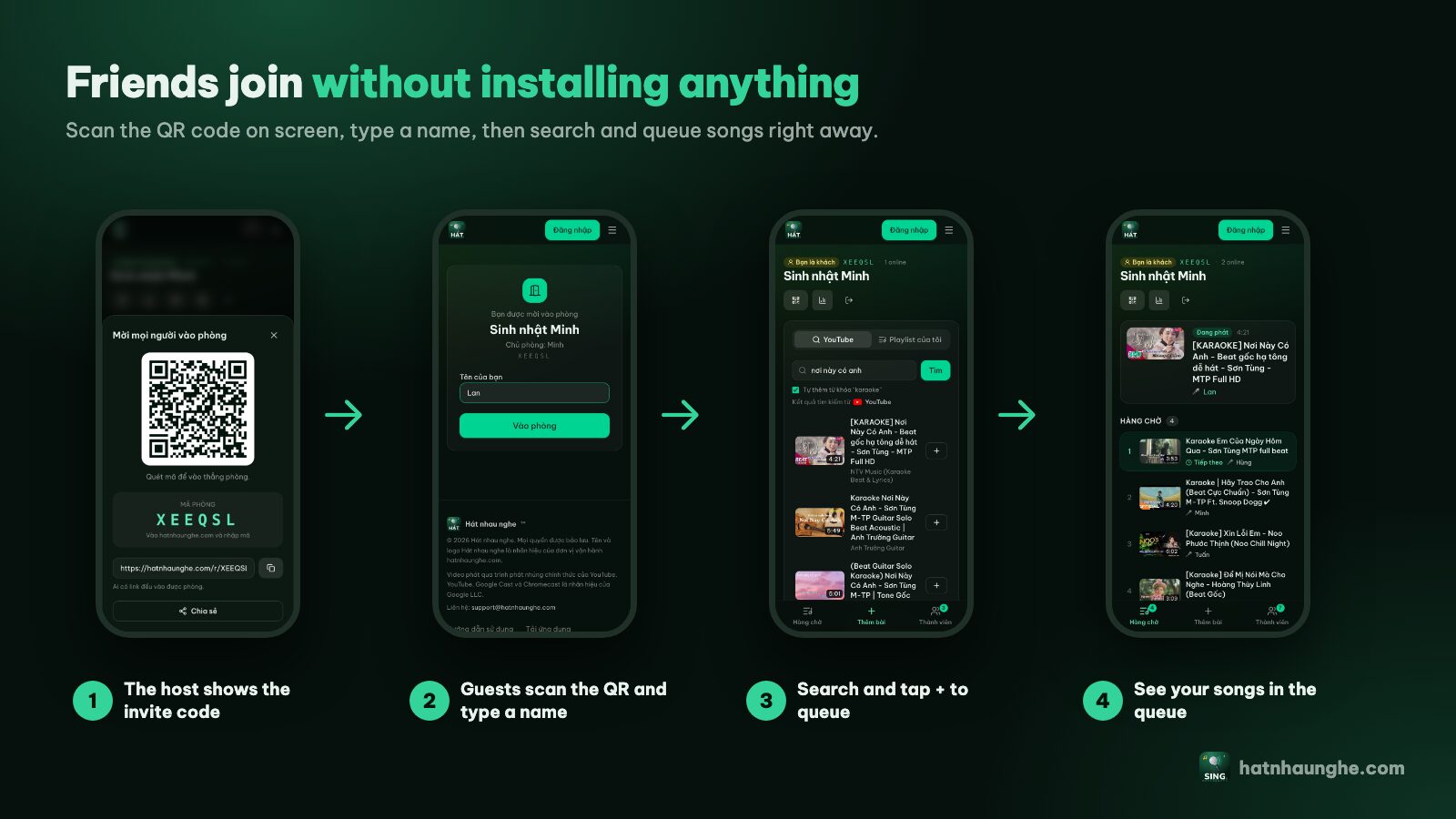
- 1Scans the QR code on the screen with their phone camera (or goes to hatnhaunghe.com and enters the room code).
- 2Types a name and taps Join room. No account needed.
- 3Opens Add songs, searches, and taps + to queue a song.
- 4Checks where their song is in the Queue.
The host keeps control on their phone: pause, skip, restart, approve songs and reorder the queue. In a crowd, turn on Take turns in Room settings so everyone gets a go. Running a karaoke room so everyone gets to sing goes deeper on these settings.
Big rooms and outdoor screenings
A laptop and projector are a classic combo for office parties, reunions and backyard evenings. A few lessons for anything bigger than a living room:
Put the laptop next to the projector, control it from your phone
Long HDMI runs are more likely to drop the signal. Rather than running a long cable from the MC's table to the projector, put the laptop right beside the projector on a short cable and run everything from your phone. If you must go long, test with that exact cable first.
Internet for the whole room
The laptop needs internet to play, and guests' phones need it to search. In halls or outdoors, Wi-Fi may be weak or missing. Check ahead: give the laptop the best signal (or Ethernet if available), and let guests know their mobile data works fine, since phones only need a connection to find and add songs.
A speaker that matches the space
Outdoors there are no walls to bounce sound back, so it fades fast. A projector's built-in speaker won't cut it. Use an external speaker at the front, facing the audience.
Screen and light outdoors
Wait until it's fully dark. A taut projector screen or a white wall works, as long as it's flat and there's no streetlight shining on it.
How many people can join
The free plan allows up to 10 people per room, including the laptop if it joined as a member. For bigger crowds, a host with Premium has no people limit. Not everyone needs to join, only those who want to pick their own songs.
Office parties and businesses
For year-end parties and team events, karaoke for office parties and team building has ideas for teams and song picks. If you're using a projector to entertain customers at a café or guesthouse, note that playing music publicly in a business may require performance-rights licensing, and YouTube's terms still apply. Check the rules where you are; see also karaoke for cafés and homestays.
Quick checklist before you start
- Laptop plugged in, sleep and notifications off.
- HDMI cable secure, projector or TV on the right input.
- Correct audio output selected, test song played.
- Lights near the screen off, focus set, lyrics readable from the back row.
- Room created, player screen open and in full screen.
- QR code visible, Wi-Fi or mobile data ready for guests.
Try it in your browser
Open a free karaoke room, let friends scan the QR code and start singing in seconds. Nothing to install.
FAQ
Do I need to install anything on the laptop?
No. Just a browser and internet. Open hatnhaunghe.com, open your room, choose This device, and the laptop becomes the player screen.
The picture is on the projector but sound still comes from the laptop. Why?
The laptop's audio output hasn't switched to HDMI. Open its sound output settings and choose the TV or projector, or run a 3.5mm cable to an external speaker.
Can I play on a TV and a projector at the same time?
Each room has one player screen. To show it on two displays, mirror the laptop screen or use an HDMI splitter rather than opening two player screens.
Can I plug a mic into the laptop and sing through the site?
No. Hát nhau nghe doesn't capture mic audio. Mics plug into a karaoke speaker or a mixer.
Are there ads?
Videos play through YouTube's official player, so any ads are YouTube's. Hát nhau nghe doesn't download or store videos.
Does the room disappear when I turn off the laptop?
No. The room stays while people use it and is only deleted after 24 hours of inactivity. Turn the laptop back on, open the room, choose This device again and carry on.
For other setups with screenshots, see the guide. Enjoy the big screen.