How to sing karaoke on your phone, alone or with friends
No TV? Your phone can be the karaoke screen, a Bluetooth speaker handles the sound, and a second phone becomes the remote. Step by step in the browser, with battery tips and an easy path to the TV.
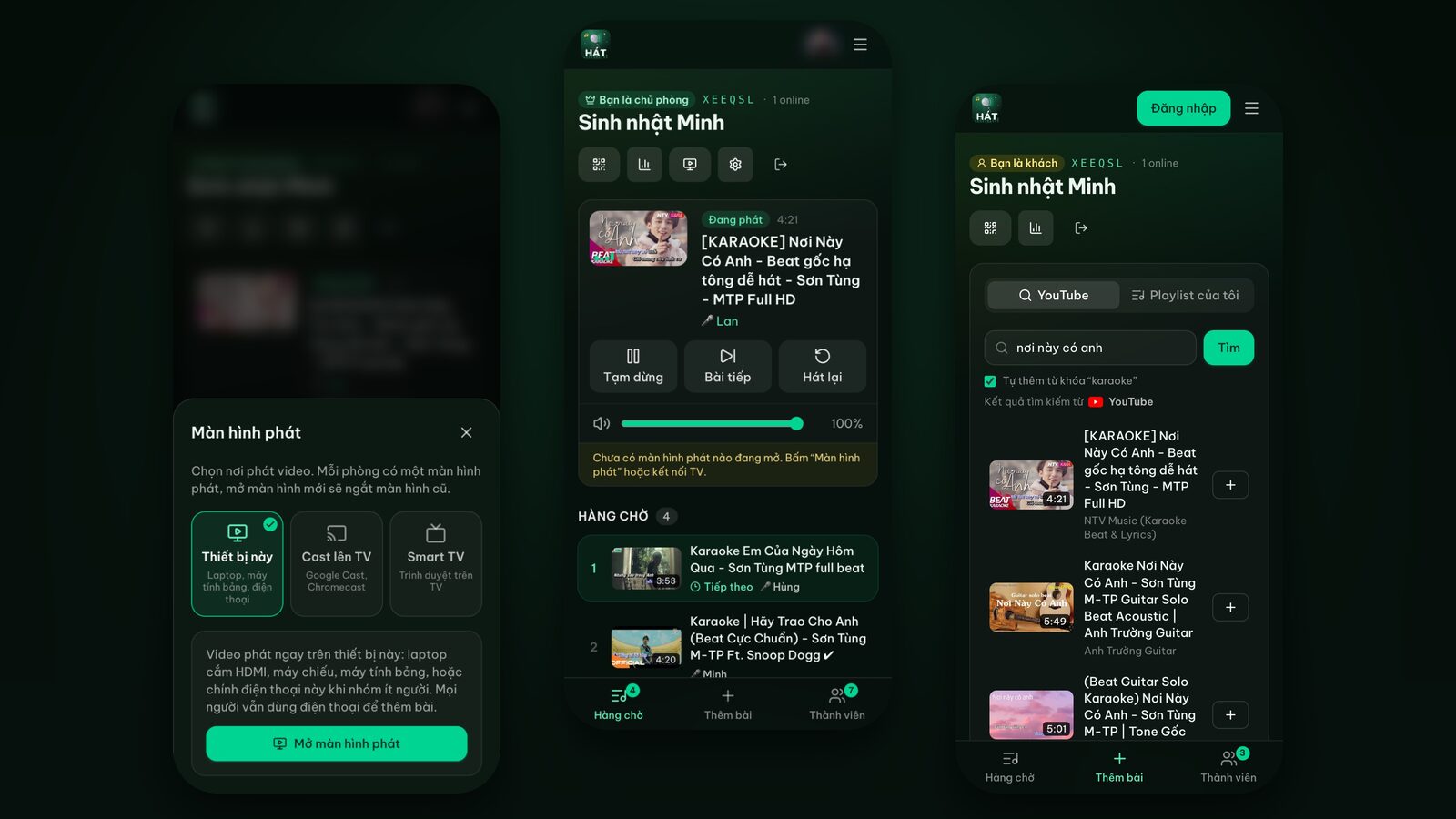
On a trip, at a friend's place without a TV, or just alone on a weeknight wanting to sing a few songs: there isn't always a big screen around, but there's always a phone. This guide shows how to sing karaoke on your phone with Hát nhau nghe, a karaoke site that runs in the browser with nothing to install, from opening a room to hooking up a speaker and letting someone else pick songs for you.
One thing up front: Hát nhau nghe doesn't record or process your microphone. The site handles the karaoke video (played through YouTube's official player) and the song queue. Your voice is between you, your speaker and your audience.
What you need
- One phone as the player screen. Android or iPhone, any recent browser (Chrome, Safari and so on). A bigger screen makes the lyrics easier to read.
- An internet connection. Wi-Fi or mobile data. Videos stream from YouTube, so on mobile data keep an eye on your plan.
- A Google account for whoever opens the room. People joining don't need one.
- Optional: a Bluetooth or karaoke speaker, a second phone for picking songs, a power bank and a phone stand.
That's it. No karaoke machine, no software.
Step 1: Open a room on your phone
- 1Open your browser and go to hatnhaunghe.com.
- 2Tap I'm hosting and sign in with Google.
- 3Name the room (say, "Beach house karaoke") and tap Create room.
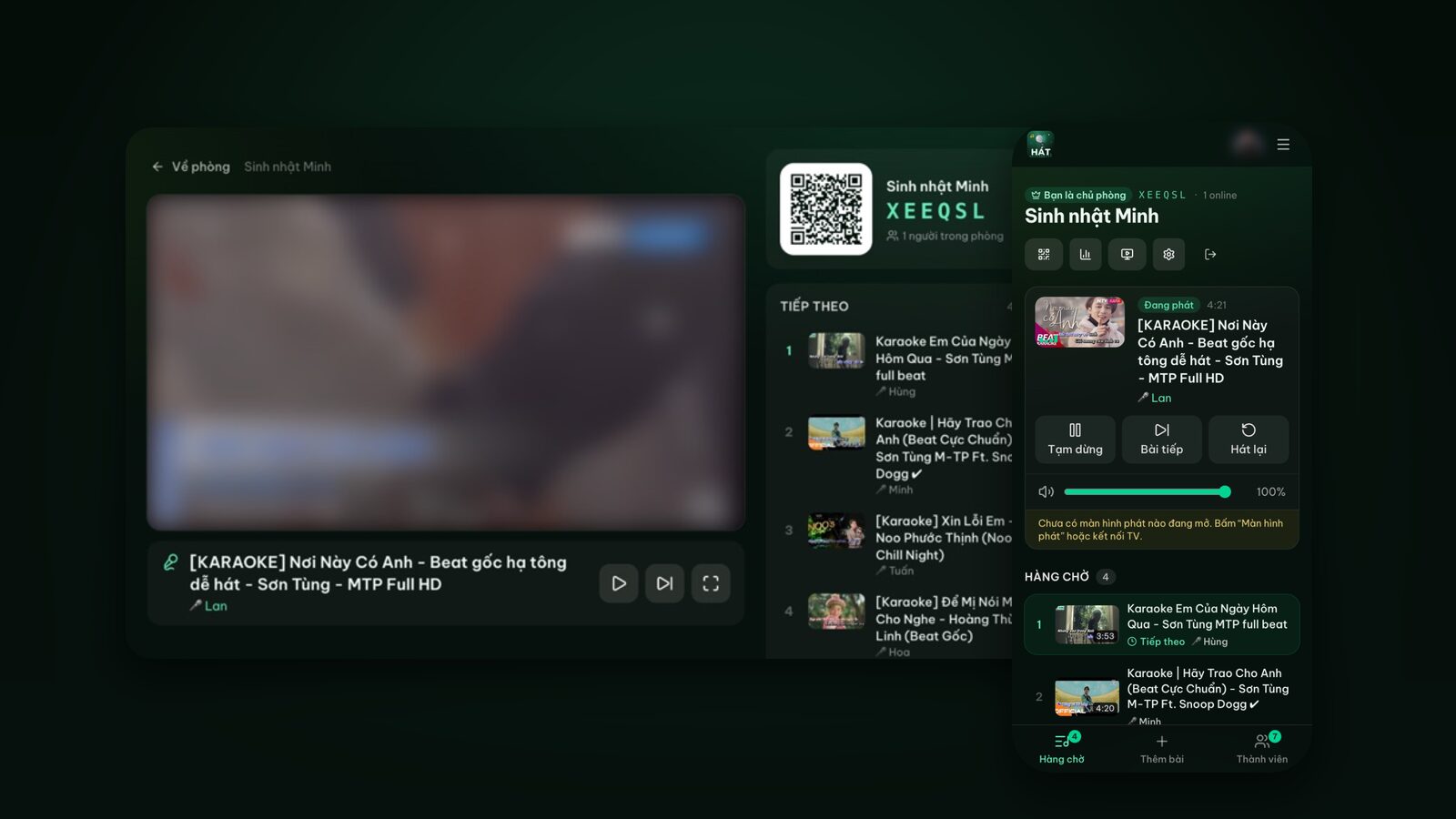
You'll land on the room page with three tabs at the bottom: Queue, Add songs and Members. The row of icons at the top holds Invite (the QR code), Player screen, Night recap and Room settings.
Step 2: Queue a few songs first
A habit I picked up early: queue three to five songs before you start the player. Once your phone is the player screen you'll want to leave it alone, not keep switching away to search.
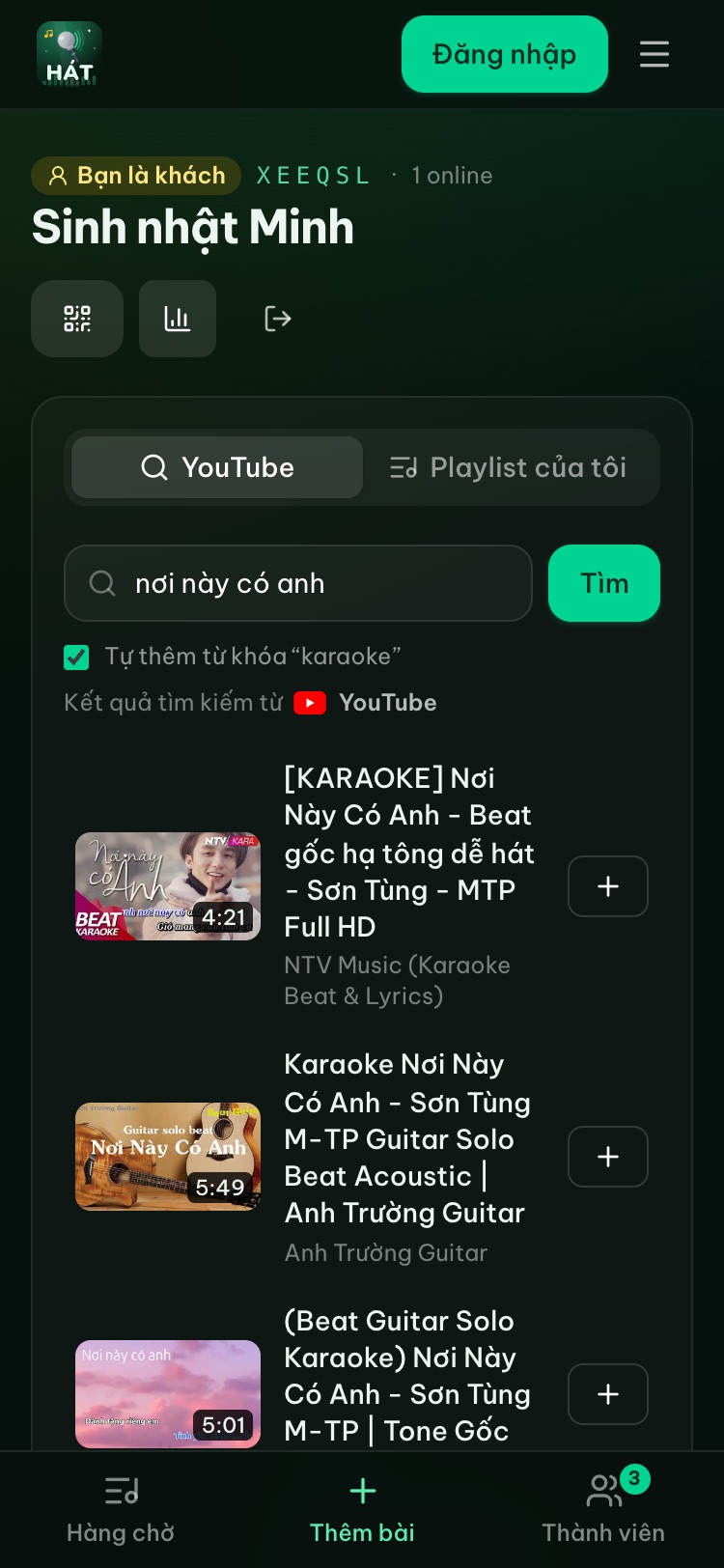
- 1Open the Add songs tab.
- 2Type a song title or artist and tap Search. Adding "karaoke" or "instrumental" helps you find versions with on-screen lyrics.
- 3Tap + next to a video to add it to the queue.
Not sure which version to pick? How to find good karaoke videos on YouTube covers keys, lyrics and what to avoid.
Step 3: Choose "This device" to make the phone the player
This is the key step:
- 1At the top of the room page, tap the screen icon (Player screen).
- 2A panel opens with three choices: This device, Cast to TV and Smart TV. Pick This device (the small print says "Laptop, tablet or phone").
- 3Tap Open player screen.
- 4The next page says "Use this device as the player screen". Tap Open player screen once more to confirm.
- 5If the browser blocks autoplay with sound, tap Start once.
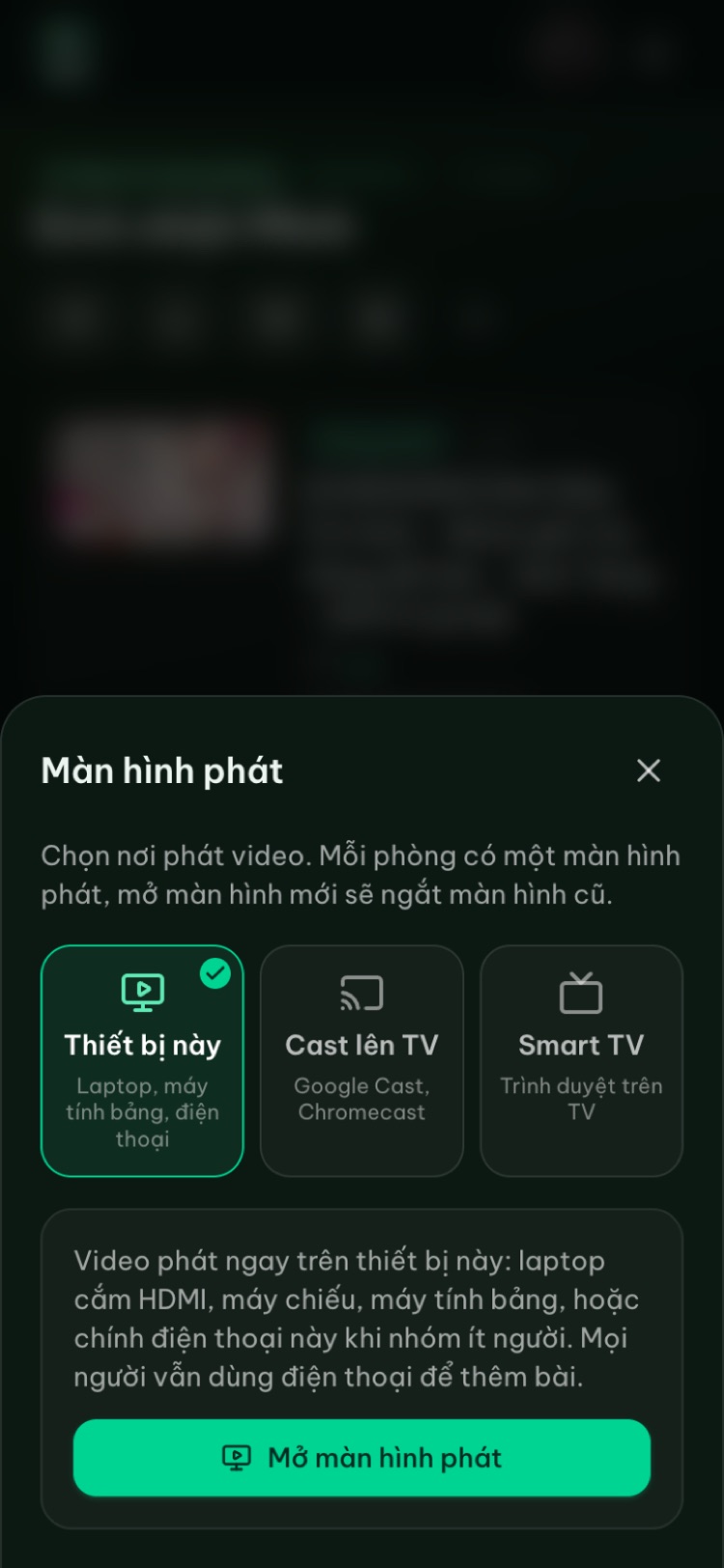
Each room has one player screen. If you later open the player somewhere else (a TV or laptop), the phone disconnects and the new screen carries on with the queue.
Step 4: Turn it sideways for a bigger picture
Held upright, the phone player shows the video at the top, a now-playing strip with Pause and Next song, an Up next button that pulls the queue up from the bottom, and a "Scan to add songs" card with the room's QR code.
For bigger lyrics, tap Rotate to full screen (the circular arrow next to Next song). On Android the video goes full screen in landscape. On iPhone the page rotates the video to fill the screen. Tap the X in the corner to go back.
Step 5: Hold it or prop it up?
Sounds trivial, but it makes a real difference to how comfortable the night is.
Holding the phone works when you're singing alone, curled up on the sofa or riding in a car (as a passenger). Hold it sideways and keep your thumbs off the bottom edge where the lyrics usually run.
Propping it up is better with two or more people, or when you're holding a mic:
- Use a phone stand, a case with a kickstand, or lean it against a mug or a stack of books.
- Put it at eye level about an arm's length away. Phone screens are small, and too far means unreadable lyrics.
- With three or four people, sit in an arc around the phone with the singer in the middle.
- Turn the brightness up a bit outdoors.
Past five people a phone screen starts to feel cramped. That's when it's worth moving to a TV (see below).
Step 6: Connect a Bluetooth or karaoke speaker
The phone's own speaker is fine for singing alone, but a group will want more volume. The karaoke video's sound goes wherever your phone sends audio, so you connect a speaker exactly as you would for music:
- 1Turn the speaker on and put it in Bluetooth pairing mode (usually by holding its Bluetooth button until the light blinks).
- 2On the phone, go to Settings > Bluetooth and pick the speaker. Menu names vary by brand and model.
- 3Go back to the player screen and check the sound comes out of the speaker.
- 4Set the volume on the speaker first, then fine-tune on the phone.
If your karaoke speaker has mics, plug them into the speaker as usual. The speaker mixes the music from your phone with the mic. The site doesn't need to know anything about your mic.
A few Bluetooth notes:
- Delay: some Bluetooth speakers lag slightly behind the picture. Since the lyrics and music come from the same video it's usually tolerable, but if it's obvious and your speaker has an AUX or 3.5mm input, try a cable (newer iPhones and many Android phones need an adapter).
- Feedback: keep the speaker in front of the singer and never point the mic at it.
- Notification sounds: they'll come through the speaker too. Turn on Do Not Disturb before you start.
For help choosing gear, see speakers and mics for home karaoke.
Try it in your browser
Open a free karaoke room, let friends scan the QR code and start singing in seconds. Nothing to install.
Step 7: Use a second phone as the remote
This is what makes phone karaoke genuinely pleasant. Instead of picking up the playing phone every time someone wants a song, let another phone do the searching.
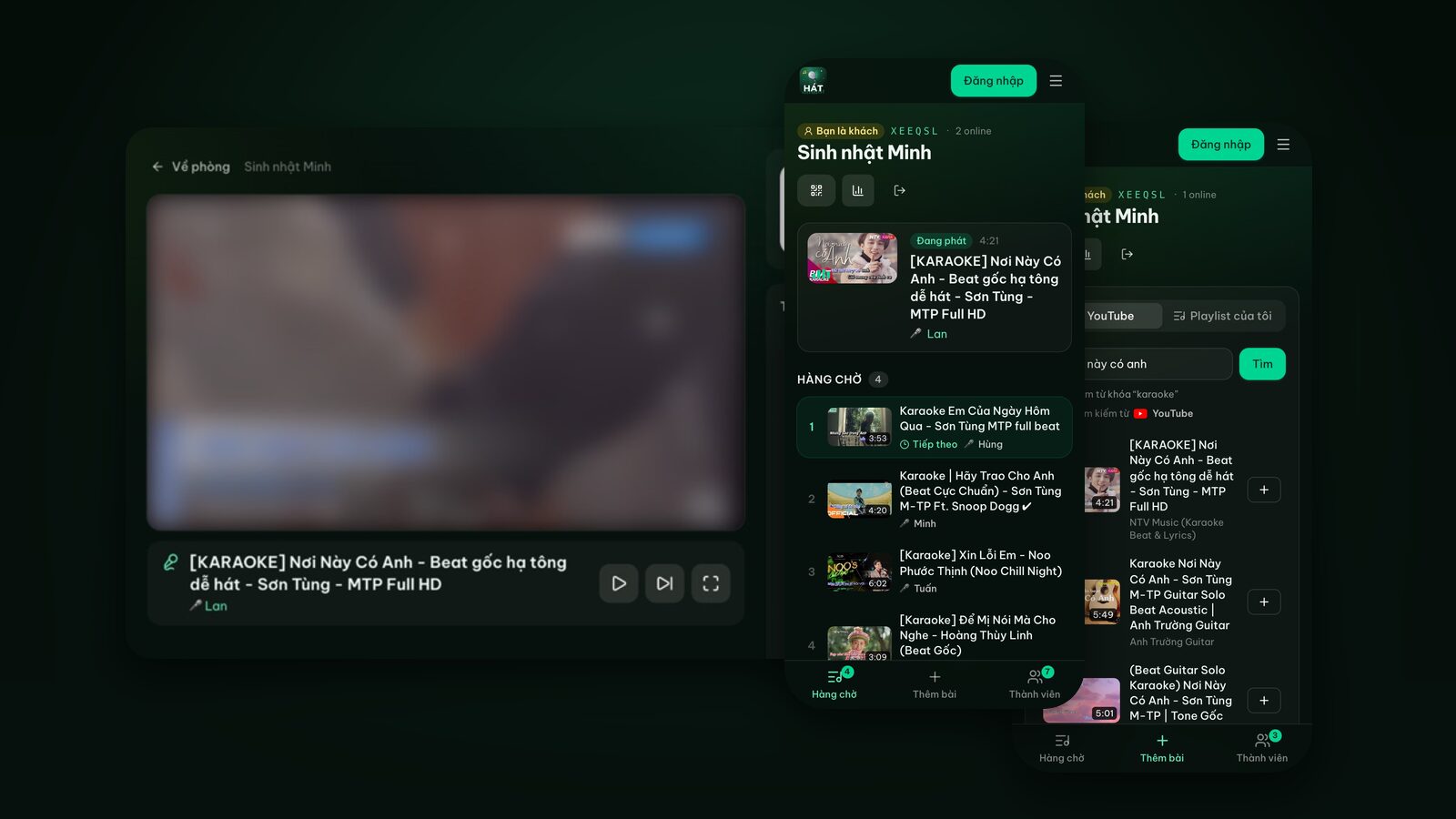
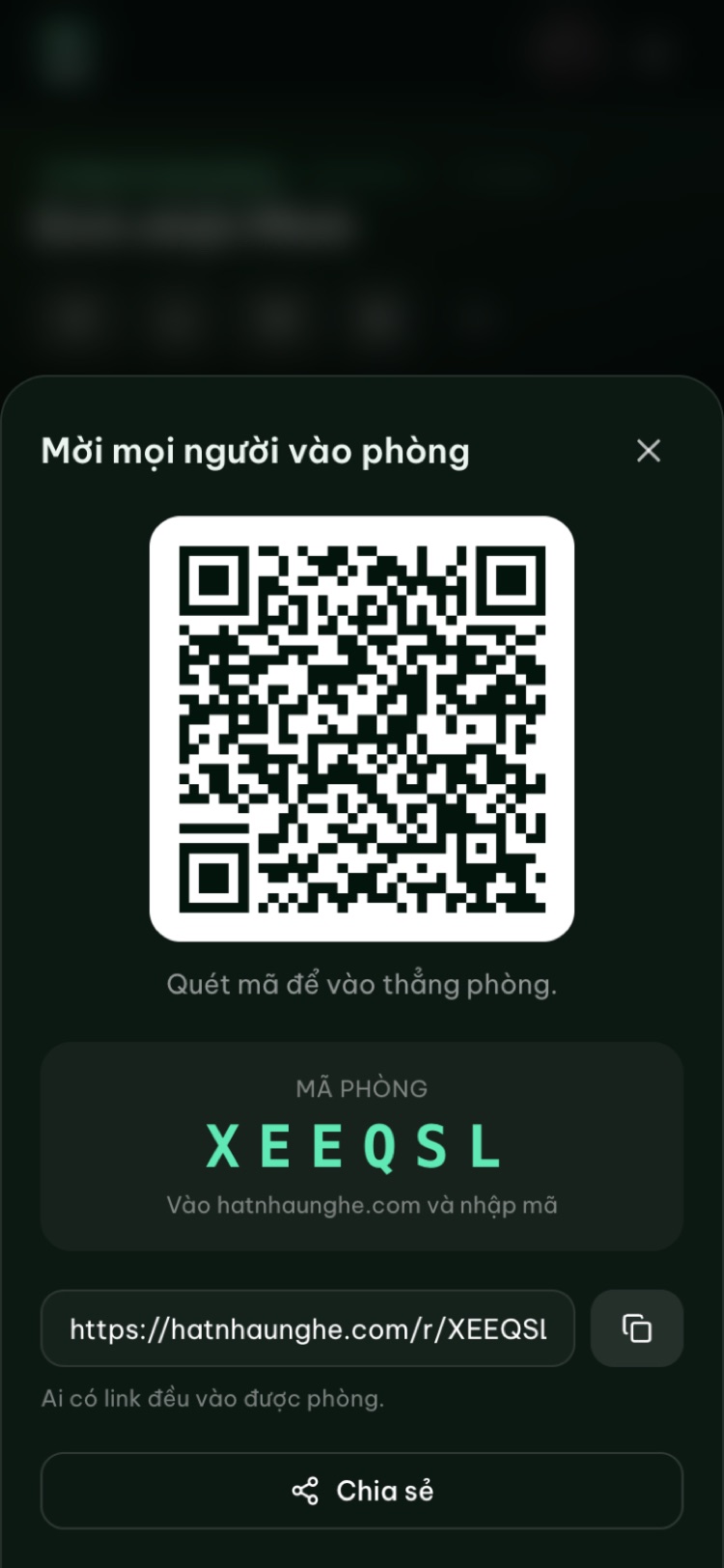
- 1On the playing phone, show the QR card on the player screen (portrait view), or go back to the room and tap Invite for a bigger QR code.
- 2The person with the second phone opens their camera, scans the code, types a name and taps Join room. No account, nothing to install.
- 3Can't scan? Go to hatnhaunghe.com and enter the 6-character room code.
- 4On the second phone, open Add songs to search and queue. Songs go into the shared queue and the playing phone gets to them in turn.
If the second phone should also pause and skip, you have two options:
- In Room settings, turn on Guests can pause and skip.
- Or in the Members tab, tap Make mod next to that person so they become a moderator (approve and skip songs).
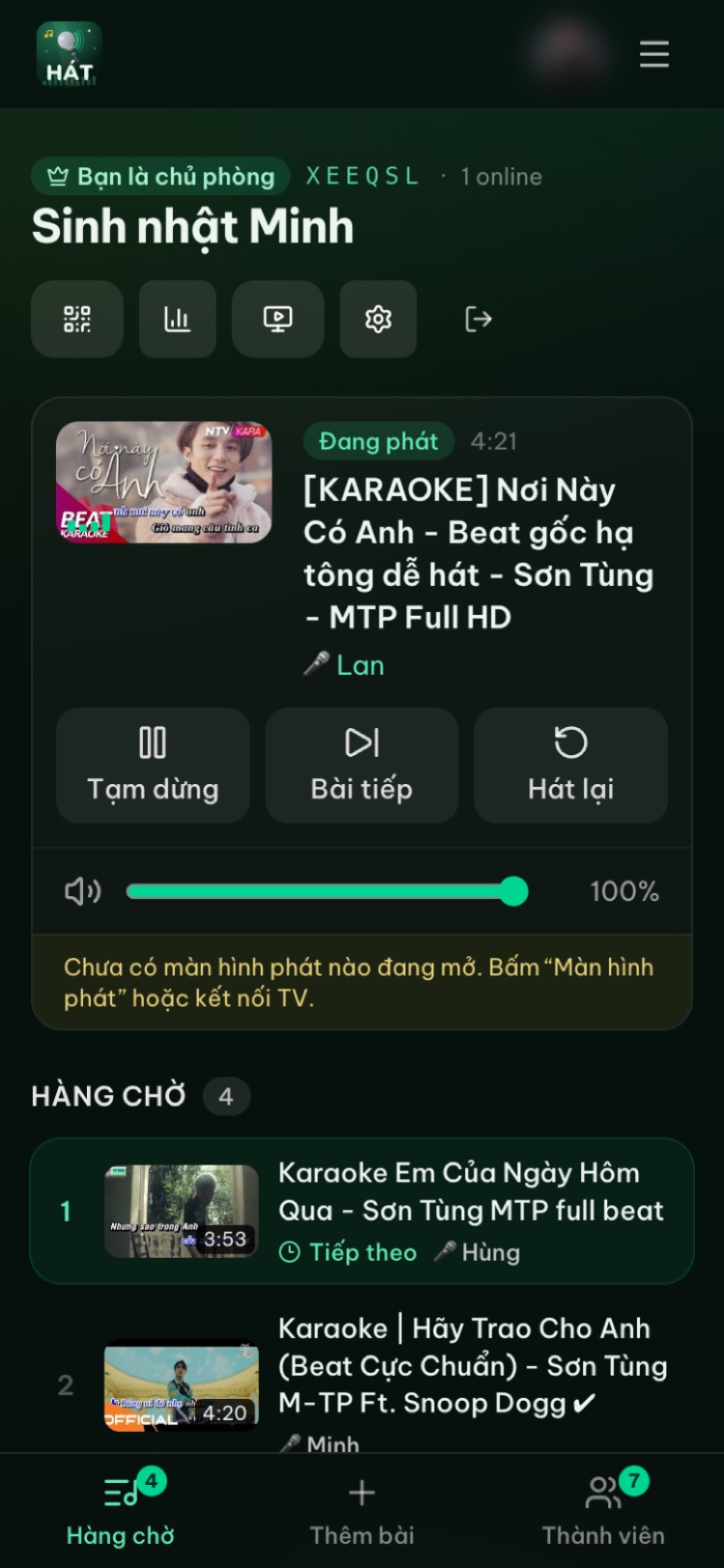
A nice detail: the Player volume slider on the room page controls the volume of the playing phone itself, so someone across the room can turn it down without reaching for it.
With friends, everyone scans once and picks songs from their own phone. The free plan allows up to 10 people per room, plenty for a small group huddled around one phone.
Battery and screen-sleep tips
Continuous video, Bluetooth and a bright screen drain a battery faster than you'd expect:
- Charge before you start. If the phone is propped up anyway, keep it plugged in or put a power bank next to it.
- Lower the brightness to what you need. In a dim room, half brightness is plenty.
- Close background apps you don't need, especially navigation and games.
- Prefer Wi-Fi over mobile data when you can. Less data, less heat.
- Don't bury a charging phone in a blanket or cushion. Hot phones stutter.
About the screen going dark: the player screen asks the browser to keep the display on while it plays, so normally your phone won't lock mid-song. But if you switch apps, lock the phone, or use an older browser without support for this, the screen may sleep and the video may stop. If that happens:
- 1Go back to the player tab and press play if needed.
- 2If the phone still keeps dimming, lengthen the auto-lock time in your display settings (it may be called "Screen timeout" or "Auto-Lock" depending on the phone).
- 3Battery saver modes on some phones shorten the screen timeout. Turn it off while you sing if the phone is charging.
When to move up to a TV
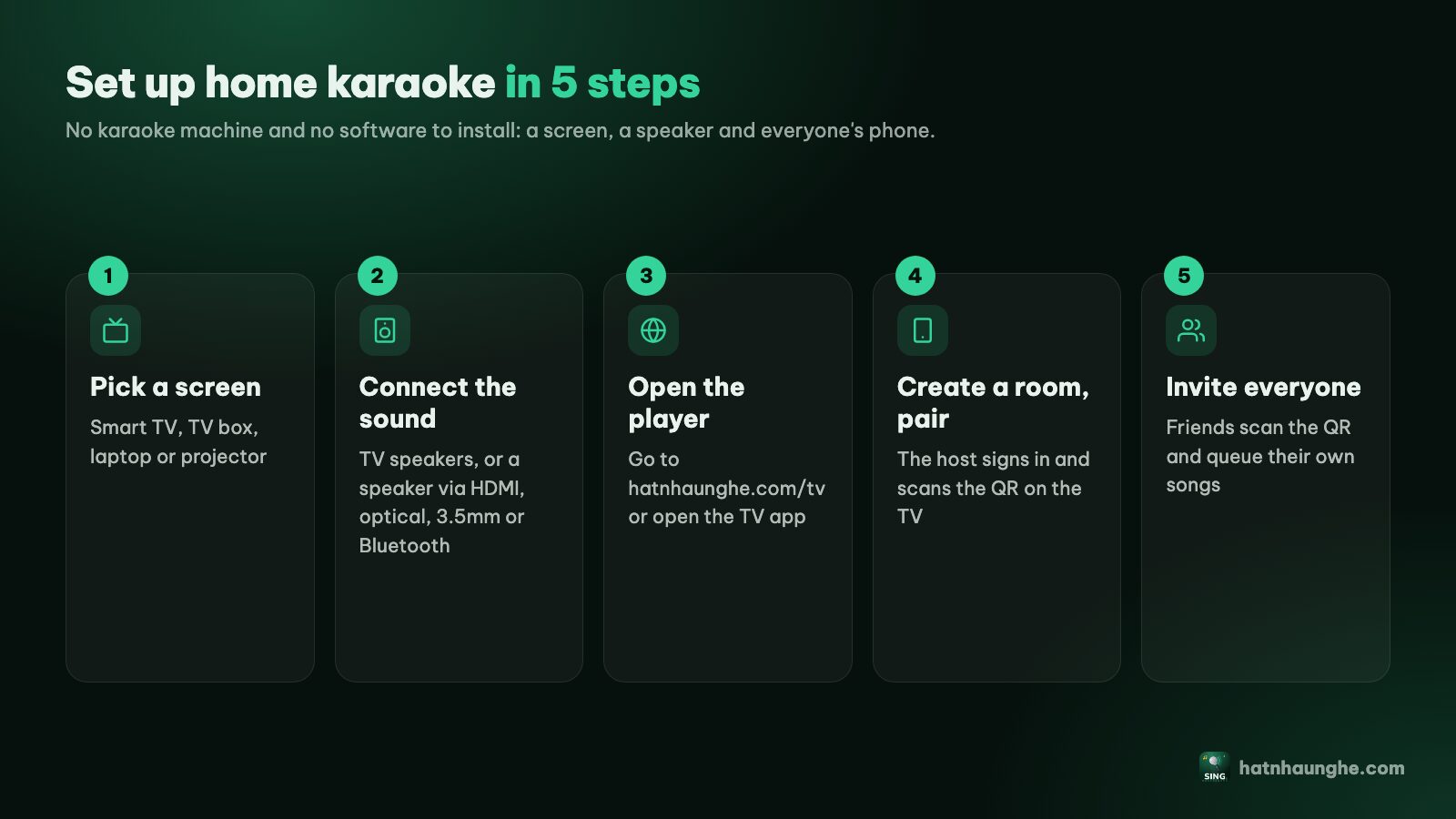
Phone karaoke is great for one to four people. Beyond that, the small screen gets in the way. The good news is you don't have to start over. You just change the room's player screen:
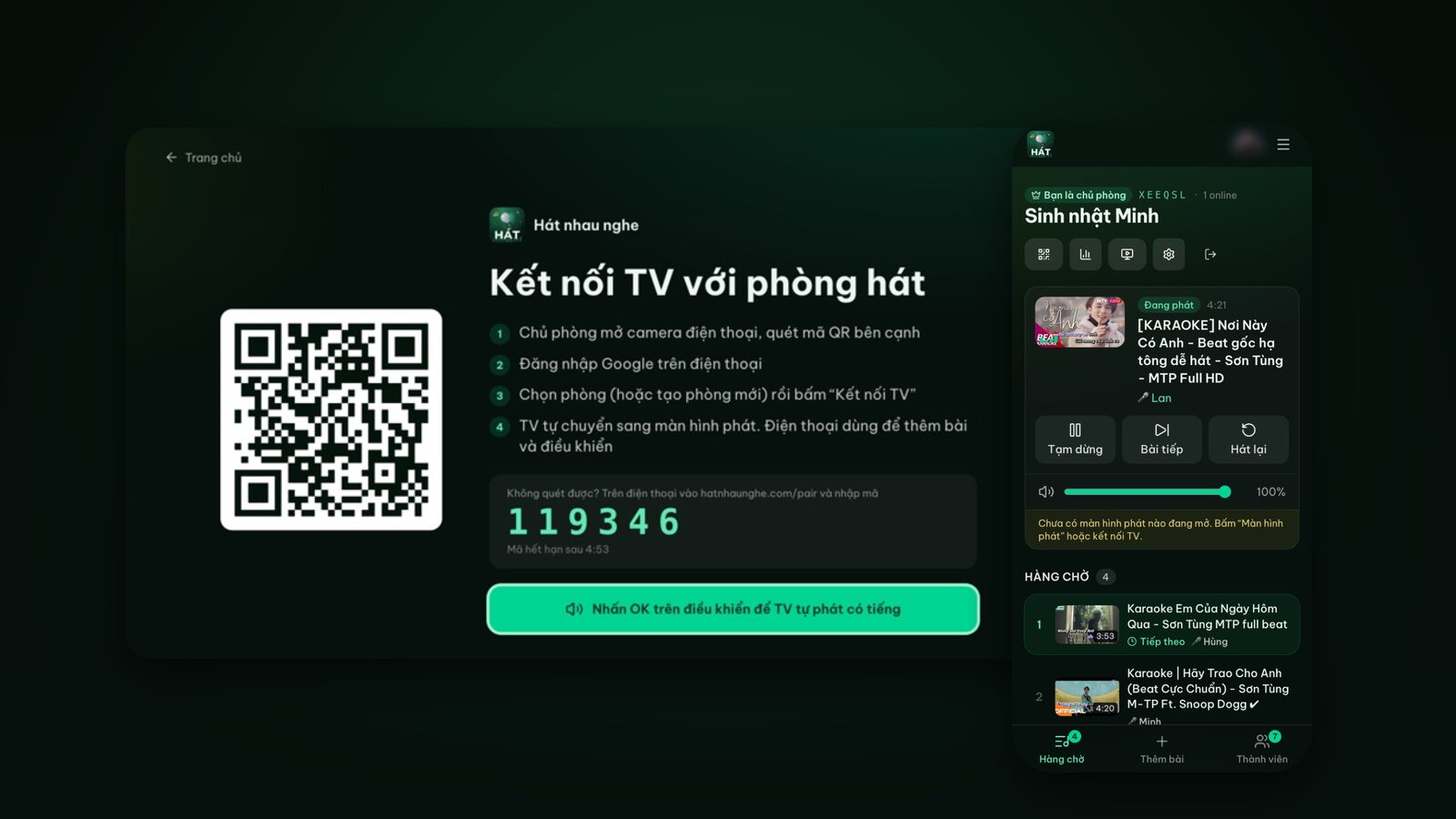
- 1On the TV, open the web browser and go to hatnhaunghe.com/tv. A QR code and a 6-digit code appear.
- 2Press OK on the remote once so the TV can play sound.
- 3On your phone, scan the QR code on the TV, choose the room you're already using and tap Connect TV. Or go to hatnhaunghe.com/pair and type the 6-digit code.
- 4The TV becomes the player and the phone disconnects. The queue stays the same and everyone stays in the room.
Now your phone is free: lock it, pocket it, and the TV keeps playing through the queue. That's very different from screen mirroring (AirPlay, Smart View and the like), which keeps your phone awake all night and shows your notifications on the TV.
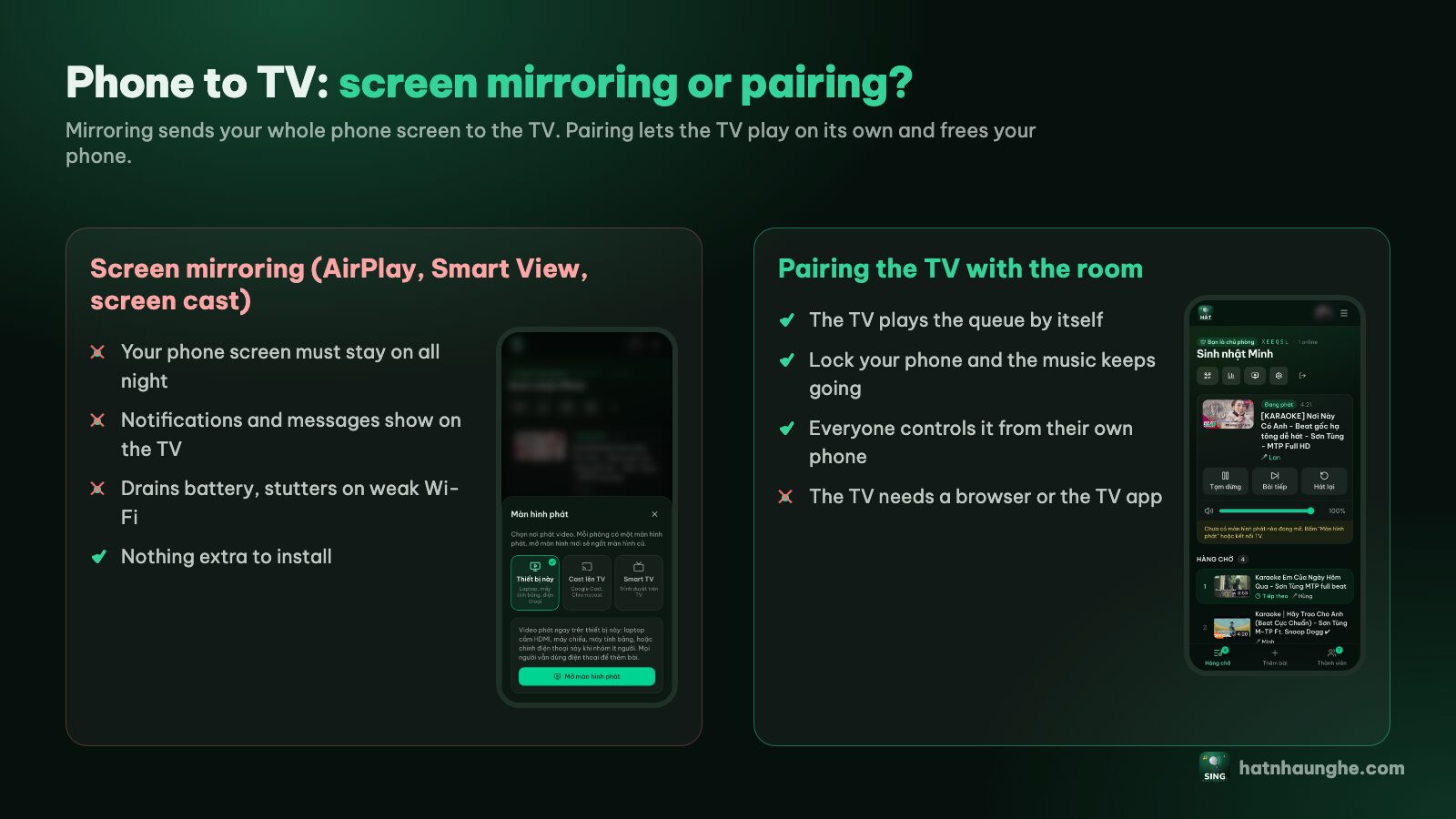
Each kind of TV has its own route: Samsung, LG, Android TV boxes, Chromecast or a laptop on HDMI. Connecting your phone to the TV for karaoke and setting up home karaoke from A to Z walk through each case.
The Android and iPhone apps (optional)
Everything above works in the browser. If you sing often, there are Hát nhau nghe apps for Android (Google Play) and iPhone and iPad (App Store), linked on the apps page. They include the Play on this phone option, a built-in QR scanner and an Invite button that shares straight to your messaging apps.
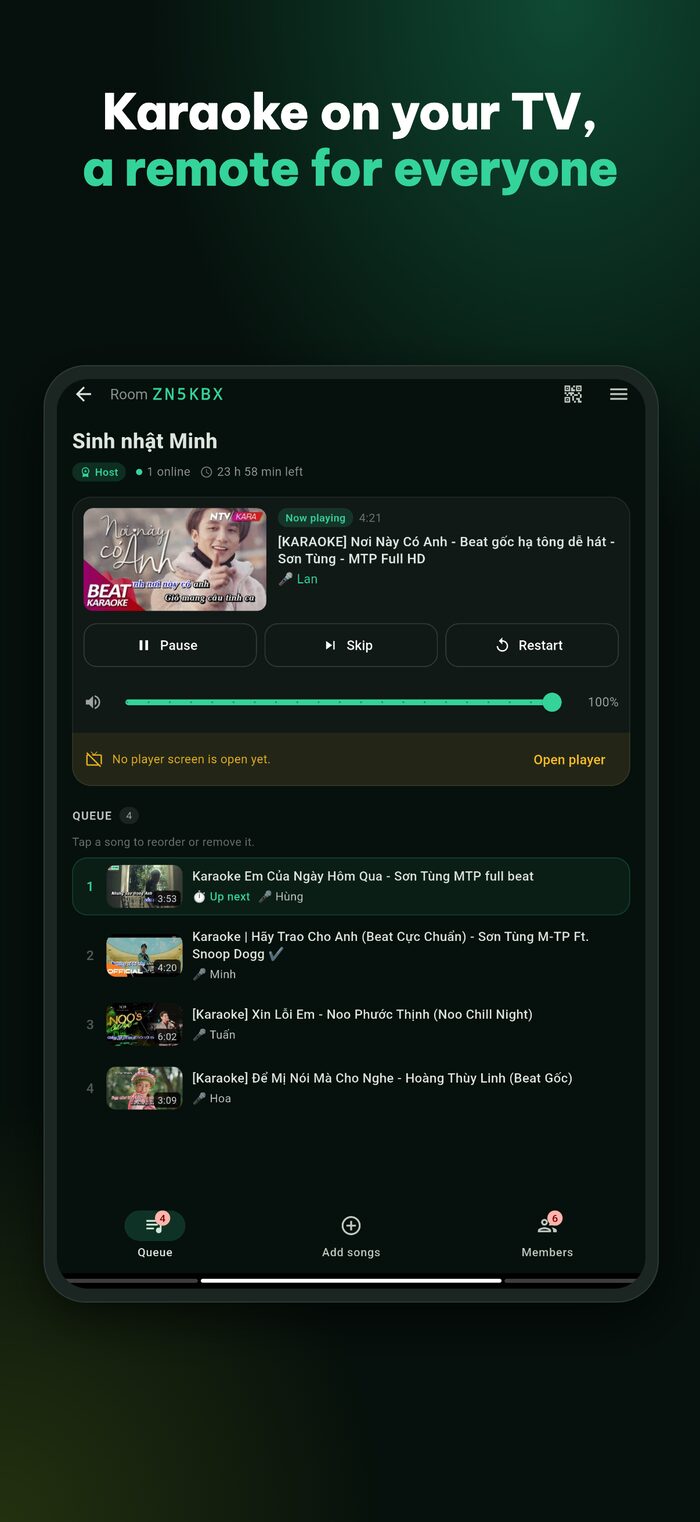
Premium is sold only in the apps (one year or lifetime) and adds scoring after each song and Play next. The free plan is all you need to sing. More in the Hát nhau nghe apps for phone and TV.
Troubleshooting
No sound. Check the silent switch (iPhone), the phone's media volume and the Player volume slider on the room page. If the player shows a Start button, tap it so the browser allows sound.
Sound comes from the phone, not the Bluetooth speaker. The speaker isn't connected or dropped out. Reconnect it in Settings > Bluetooth and replay the song.
The video stutters or buffers. Weak connection. Move closer to the router, pause heavy downloads on other devices, or switch between Wi-Fi and mobile data.
I don't see "This device". It's in the Player screen panel, which is for the host (or a moderator). Regular guests can't open the player.
I added a song and nothing plays. Check the Queue tab. If song approval is on, guest songs wait for approval. If a player screen is open somewhere else (say, a laptop left on at home), songs play there instead. Open This device again to take the player back.
A song shows an error and skips. Some YouTube videos don't allow playback on other sites. Pick a different karaoke version of the same song.
FAQ
Is singing karaoke on my phone free?
Yes. Hát nhau nghe is free in the browser; the host just needs a Google account. Any ads in videos are YouTube's.
Does the app score my singing voice?
No. Neither the site nor the apps capture mic audio. With Premium, the player shows a fun 70 to 99 score after each song and people vote with stars, but it isn't based on your voice. See karaoke scoring and star ratings.
Can I sing alone with just one phone?
Yes. Queue a few songs, open This device, rotate to full screen and sing. To add more, go back to the room page. If you're singing alone to practice, singing karaoke alone and practicing has more ideas.
Does online karaoke on a phone use a lot of mobile data?
It does, because it's YouTube video. How much depends on video quality and how long you sing. Use Wi-Fi at home and watch your plan on mobile data.
Can I use a tablet instead?
Yes, and lyrics are easier to read on one. It's the same: pick This device in the Player screen panel.
What happens to the room afterwards?
Rooms are deleted after 24 hours of inactivity. Before you leave, open the Night recap to see how many songs you sang and save the whole night as a playlist.
For every step with screenshots, see the full guide. Have fun, even if all you've got is one phone.
Try it in your browser
Open a free karaoke room, let friends scan the QR code and start singing in seconds. Nothing to install.