Hát nhau nghe apps for phone, iPad and Android TV
The website already does it all, so what do the Hát nhau nghe apps add? Faster QR scanning, an alert before your turn, Premium, an Android TV player that autoplays with sound, plus install, sign-in and account deletion.
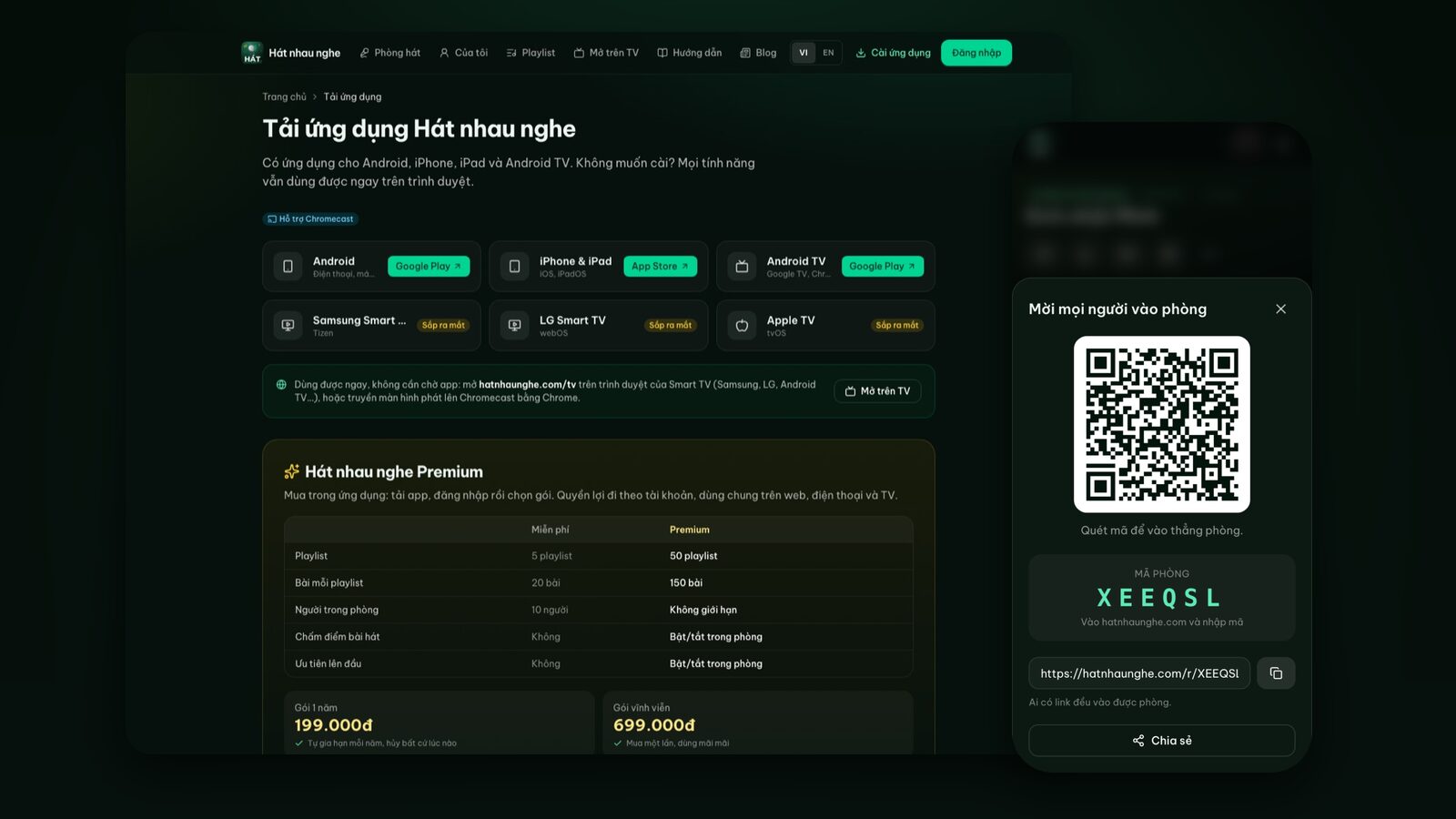
Hát nhau nghe started as a website: open hatnhaunghe.com on your phone, put the player screen on the TV, and friends scan a QR code to start singing. That still works great, and it's still how I do it at a friend's place. But a few things are just smoother in a native app: scanning QR codes, getting told your turn is coming while you're in another app, and buying Premium.
So there are now apps for Android phones, iPhone and iPad, plus a separate Android TV app called "Hát nhau nghe TV". This post covers what the apps add over the web, where to get them, how sign-in works, how Premium is shared, and how to delete your account if you stop using it. And to be clear from the start: if you don't want to install anything, everything still works on the web.
Which apps are there?
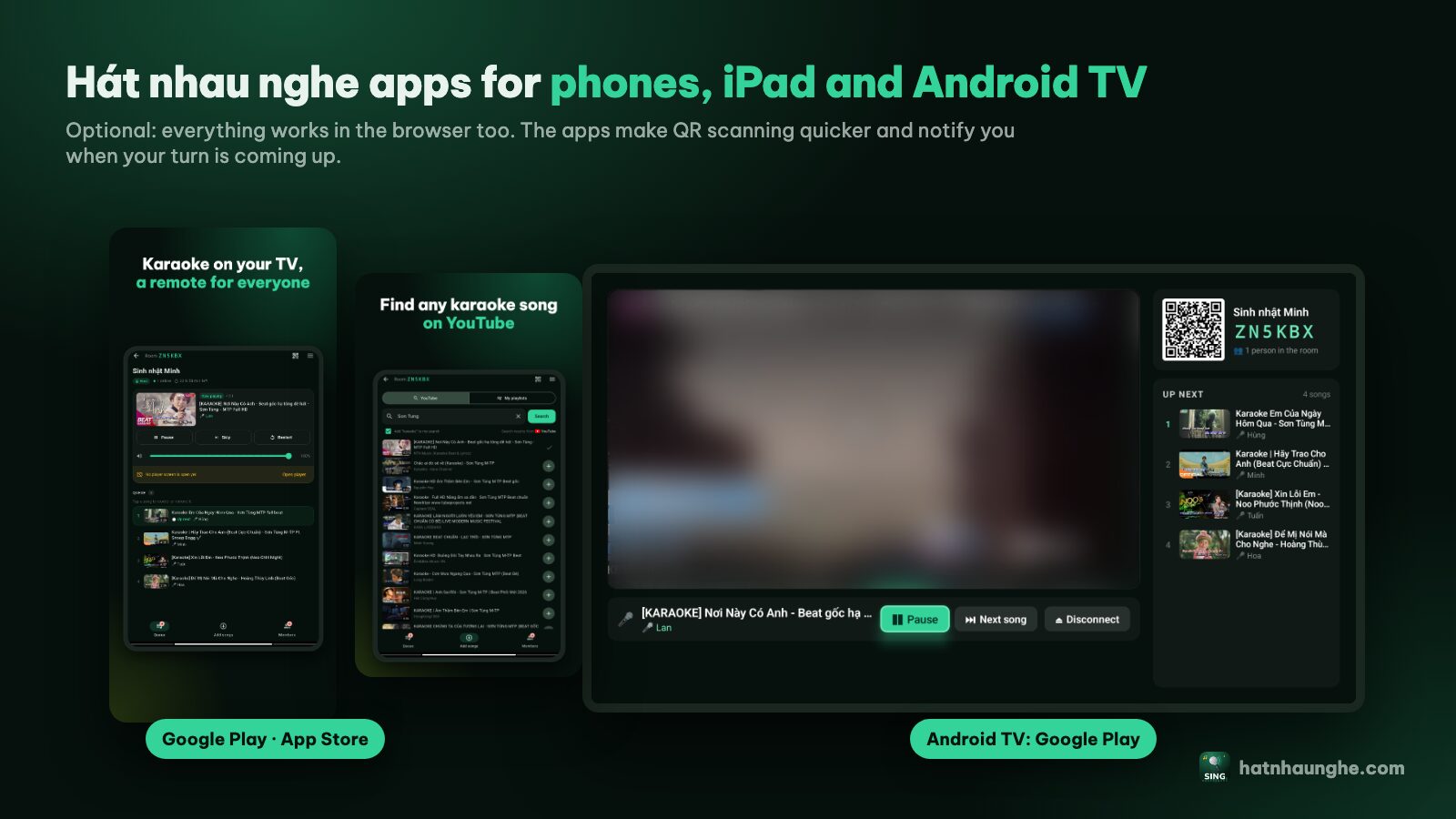
- Android (phones and tablets): on Google Play.
- iPhone and iPad: on the App Store.
- Android TV (Google TV, Chromecast with Google TV, Android TV boxes): the "Hát nhau nghe TV" app on Google Play.
- Samsung Smart TV, LG Smart TV and Apple TV: marked "coming soon". Meanwhile, open the TV's browser and go to hatnhaunghe.com/tv.
The official links for each one are on the download page. Get them from there so you're sure it's the right app and not a lookalike.
What the phone app adds over the web
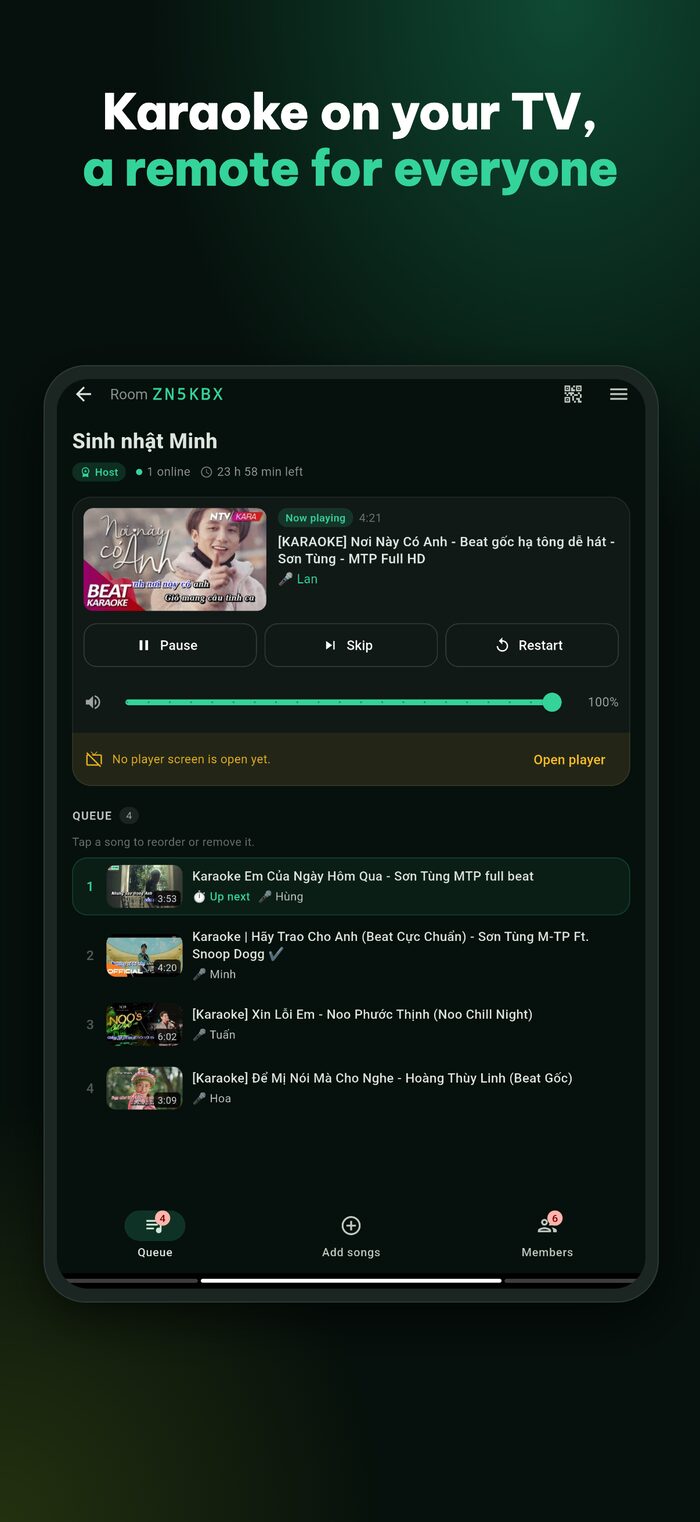
The core is the same as the web: open a room, invite friends, search YouTube, queue songs and control the player. On top of that the app adds a few things.
A built-in QR scanner
The home screen has a Scan QR code button. Tap it, point the camera at the code on the TV or on the host's phone and you're in the room, with a Flashlight button for dark rooms. The camera is only used for scanning; images are processed on the phone and never stored or sent anywhere. You can still type the 6-character room code instead.
An alert when your turn is coming up
This is my favorite part. On the web you have to keep an eye on the screen to know when your song is close. With the app, when your song becomes the next one in line, your phone gets a "you're up next" notification. Go grab a drink, chat, scroll something else; when it buzzes, get ready for the mic.
The app sends two other kinds of notifications:
- Songs awaiting approval: to the host and moderators, when song approval is on and a guest adds something.
- Someone followed your playlist: when you've made a playlist Public.
Notifications are only sent if you allow them, and you can turn them off any time in your phone's settings.
Pair a TV with the app's camera
The host taps Connect a TV, then Scan the QR code on the TV (or types the 6-digit code), picks an existing room or creates a new one, and taps Connect TV. The TV becomes the player. The TV's code expires after a few minutes; when it does, the TV shows a new one and you just scan again.
Invite and share
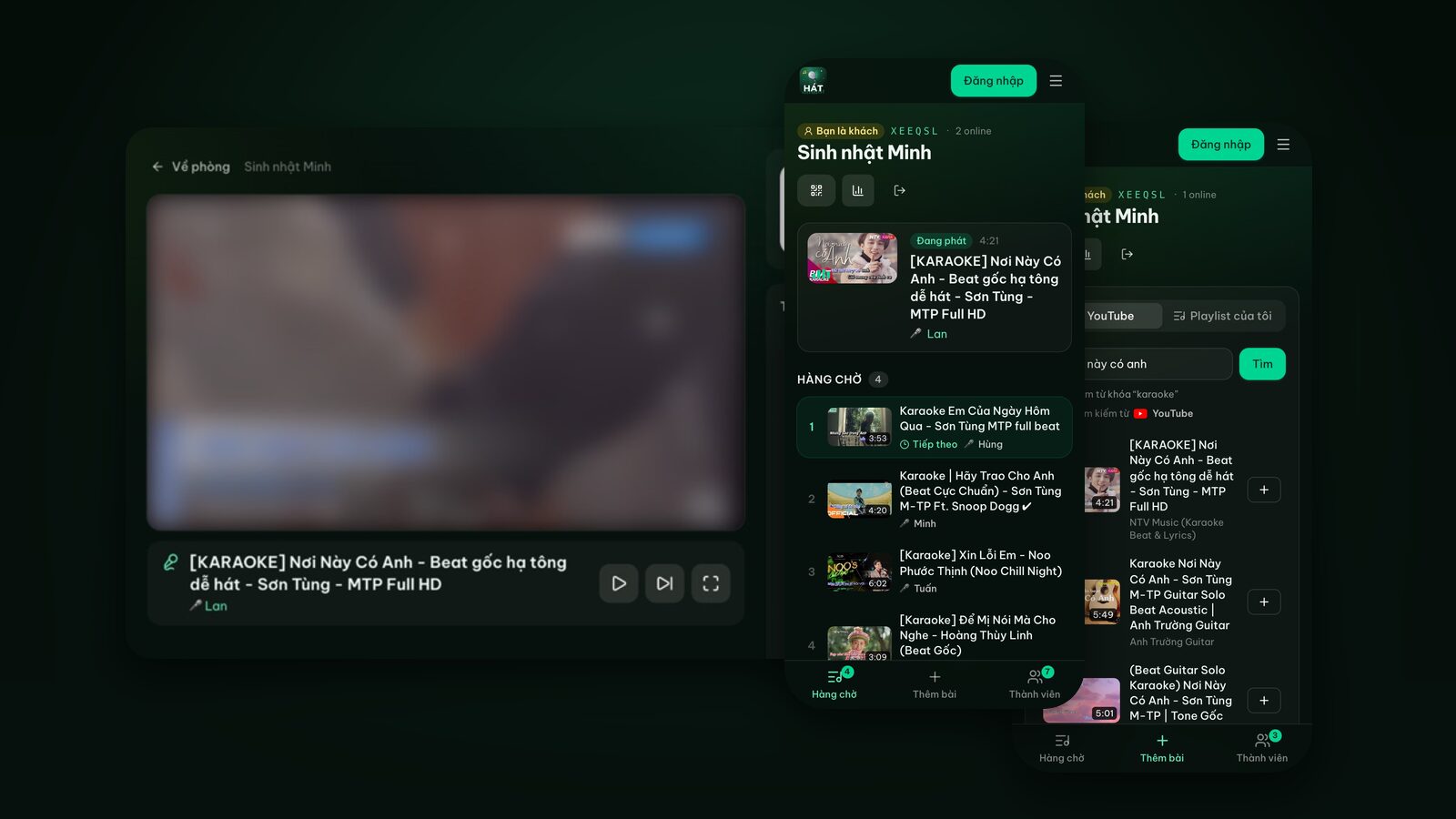
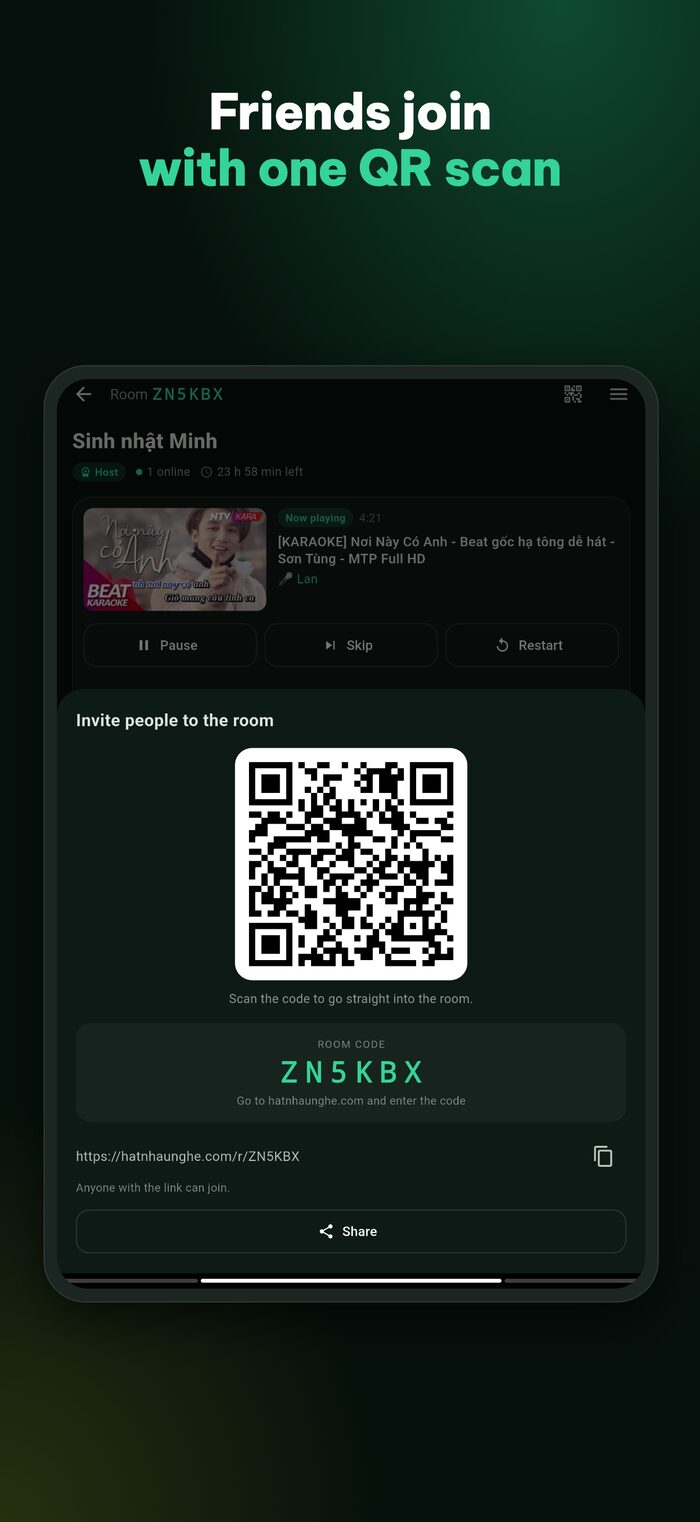
The Invite button shows the QR code, room code and room link, with a share button that sends it to WhatsApp, Messenger or any messaging app on your phone. Friends can scan with their normal camera too: they join through the browser without installing anything.
Play on the phone or tablet itself
Just two or three of you and no TV? In the player screen menu choose Play on this phone or Play on this tablet. Videos play in YouTube's official player. An iPad on the table works well for a small group, and on tablets the song search sits in a left-hand panel so you can watch and pick at the same time.
Small but handy
- My page: rooms you host and rooms you've joined, searchable by name or code.
- Charts: the most-sung songs and most-followed playlists lately, for when you can't decide what to sing.
- Public playlists: make one Public and send the link; friends can Follow it or Save a copy.
- Settings: choose Vietnamese, English or automatic, open the guide, contact support, or join the "Nghiện Hát" Facebook group.
Try it in your browser
Open a free karaoke room, let friends scan the QR code and start singing in seconds. Nothing to install.
What the Android TV app does
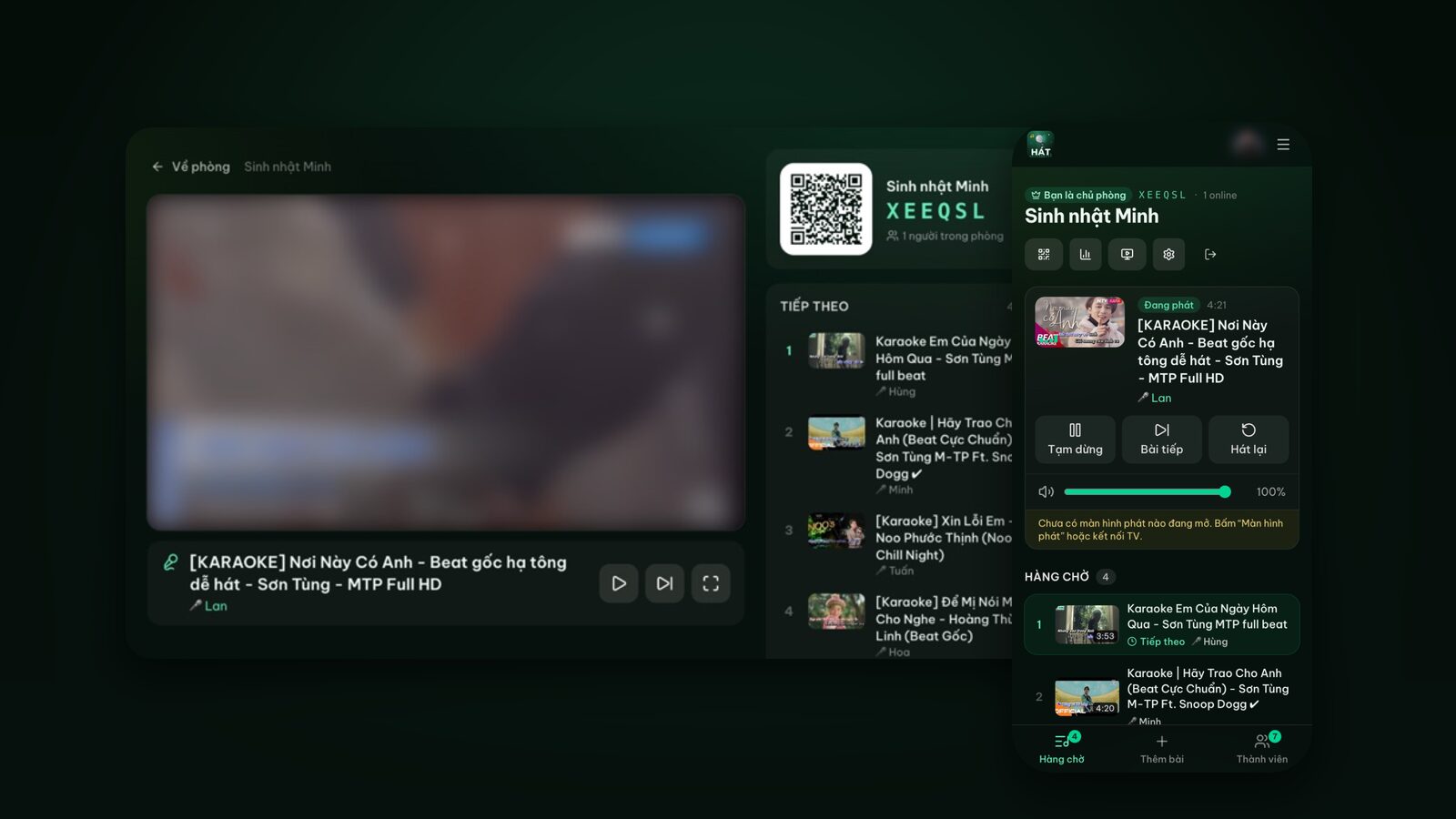
"Hát nhau nghe TV" does one job: it turns the TV into the room's player screen. Choosing songs still happens on phones.
The QR pairing screen
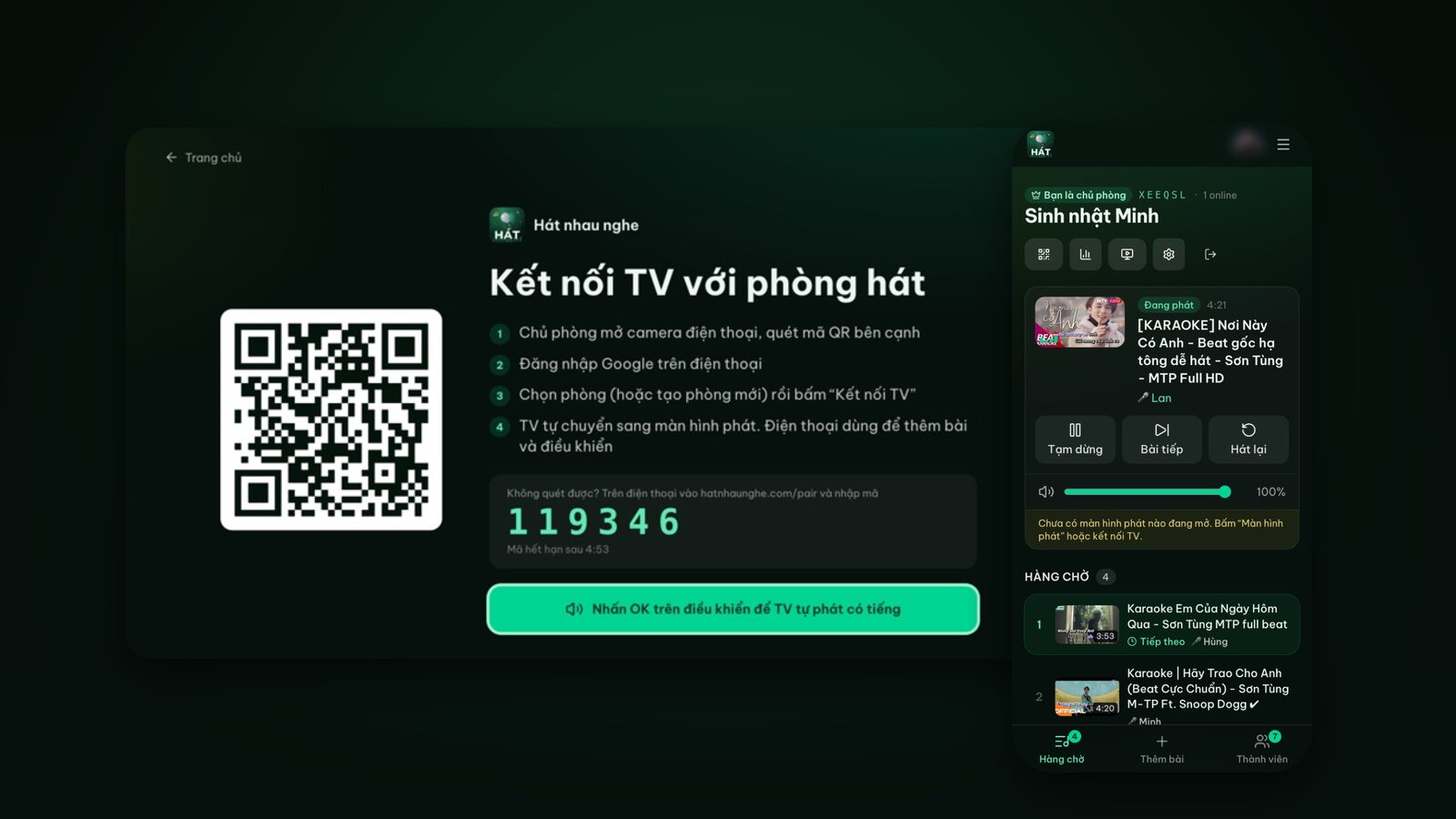
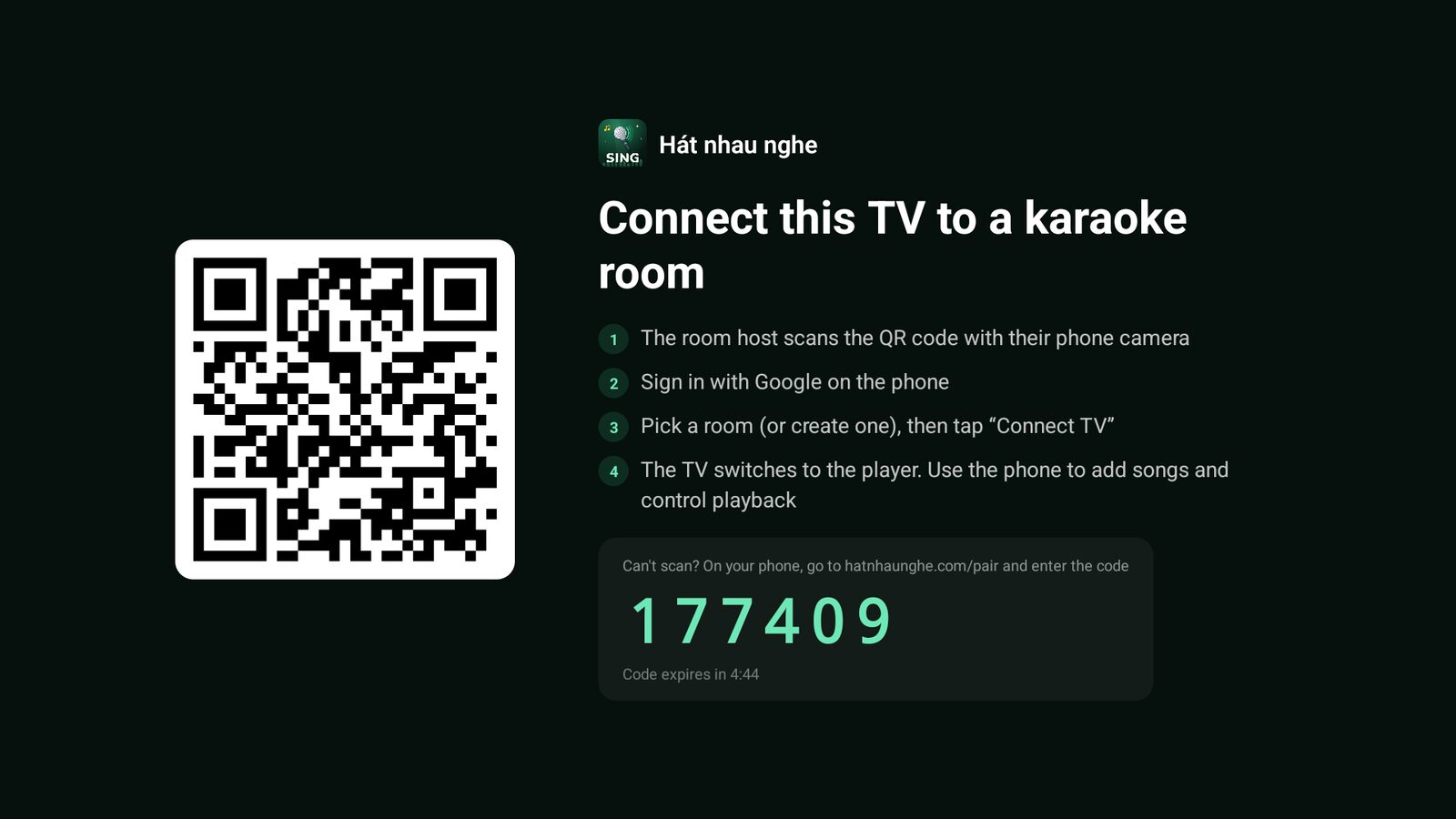
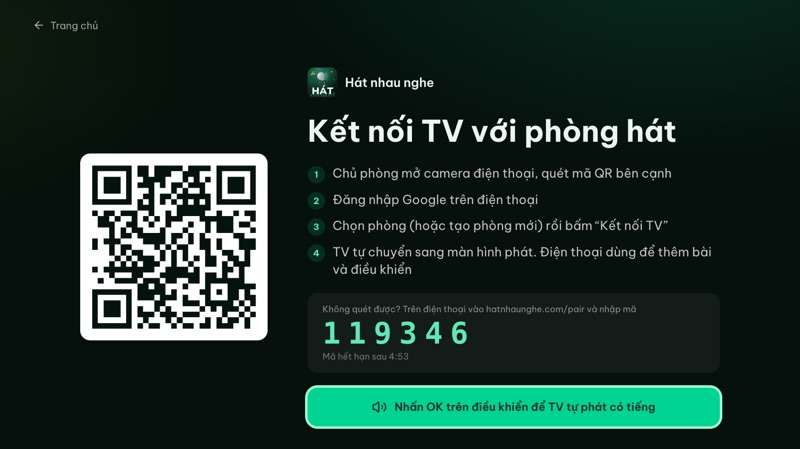
Open the app and the TV shows a large QR code, a 6-digit code and the steps. The host scans the code with their phone camera or the app, signs in, picks a room (or creates one) and taps Connect TV. The TV switches to the player. Can't scan? Go to hatnhaunghe.com/pair on the phone and enter the 6 digits.
The player
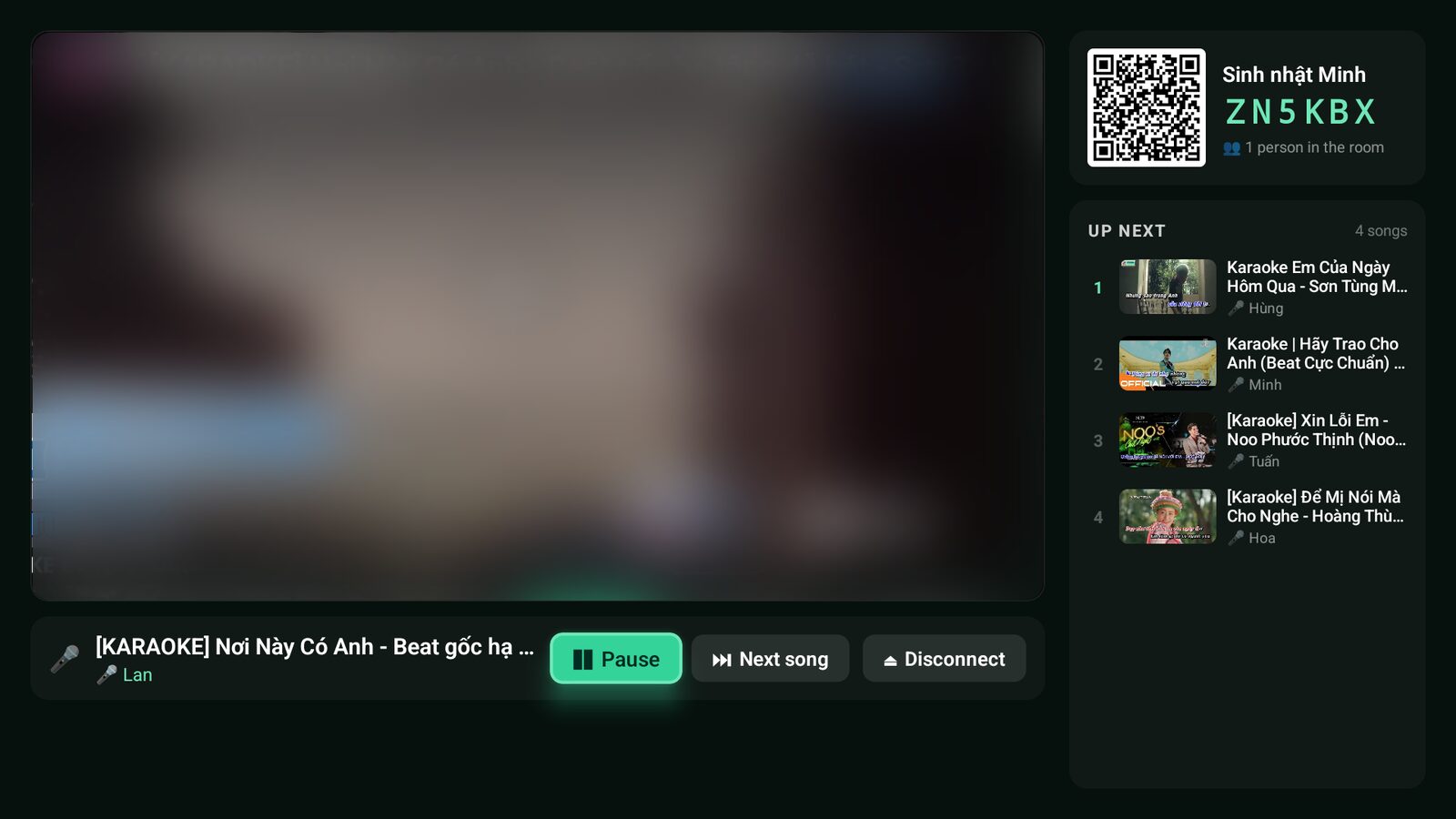
The TV player shows the karaoke video, the song and singer, Pause, Next song and Disconnect buttons you reach with the remote, and a sidebar with the QR code, room code, how many people are in the room and the Up next list. The play, pause and next keys on the remote work too.
Two differences from opening hatnhaunghe.com/tv in a TV browser:
- No OK press to unlock sound. In a TV browser you press OK once so the TV can autoplay with sound. The app plays with sound as soon as a song comes up.
- Keeps singing through a shaky connection. If it loses the server, the TV shows a small "Connection lost, retrying…" badge but carries on with the songs already queued from its own copy of the queue, then syncs back up when the connection returns.
A score after each song
If the host has Premium and turns on Song scoring, the TV shows the singer's score with a bit of praise after each song, plus the average star rating people give on their phones. It's an automatic fun score, not based on anyone's voice; neither the web nor the apps capture mic audio. More in karaoke scoring and star ratings.
Videos always play through YouTube's official embedded player: nothing is downloaded, ads aren't blocked, and nothing is drawn over a playing video. To compare all the ways to get karaoke on a TV, see karaoke on Samsung, LG and Android TV.
Installing
- 1Open the download page on your phone and tap the Google Play or App Store button.
- 2For Android TV: on the TV, open Google Play, search for "Hát nhau nghe TV" and install it. Or tap the Android TV Google Play button on the download page and install it to your TV if Google Play lets you pick a device.
- 3Open the app, sign in and start singing.
Signing in, and one account everywhere
- In the phone app: sign in with Google, or with Apple on iPhone and iPad. In the app, both hosts and guests sign in before joining a room.
- On the web: hosts sign in with Google. Guests just type a name; no account needed.
The web and the apps run on the same system: the same accounts, rooms and playlists. You can open a room on the web and control it from the app or the other way round, and web users and app users share a room without any trouble.
Premium: buy it in the app, use it everywhere
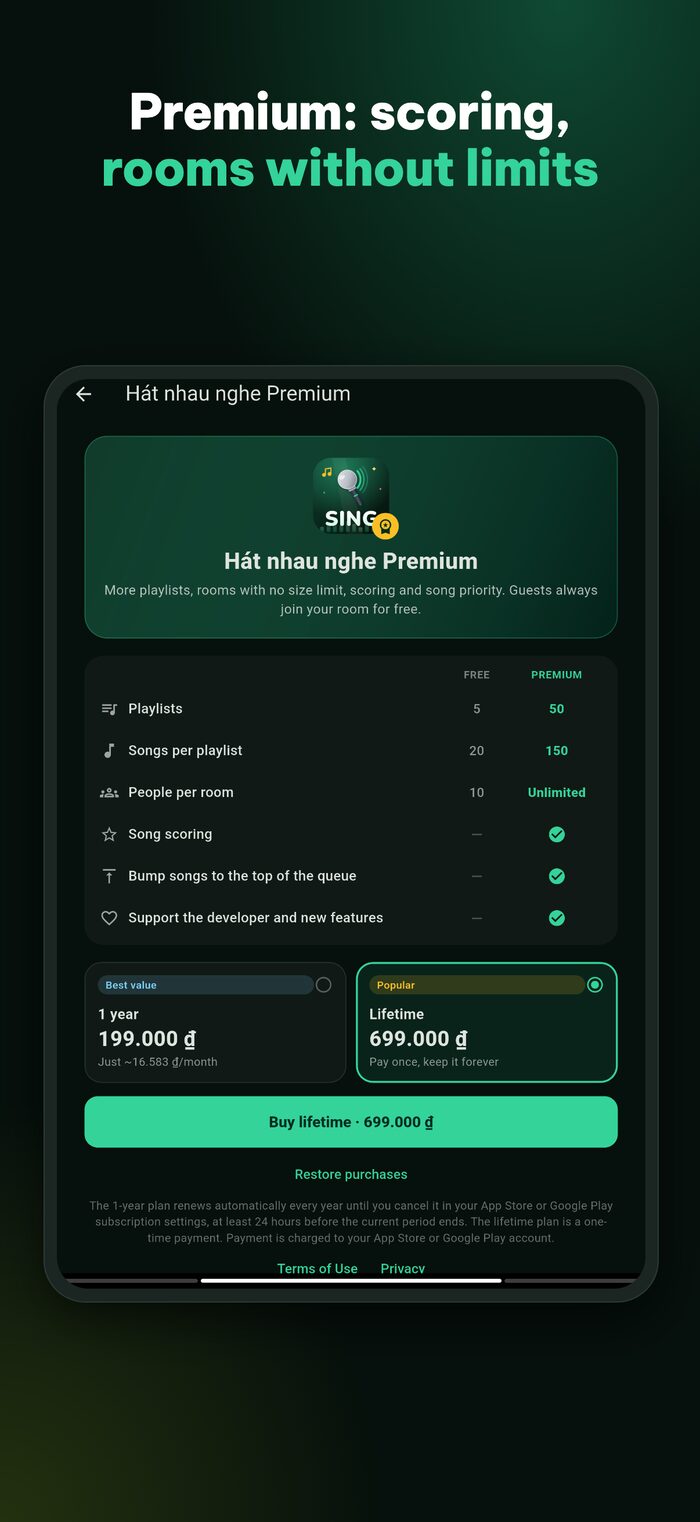
Hát nhau nghe is free. Hát nhau nghe Premium is optional and can only be bought in the phone app (paid through Google Play or the App Store). There are two plans:
- 1 year: 199,000 VND, renewing every year until you cancel it in your Google Play or App Store subscription settings.
- Lifetime: 699,000 VND, paid once.
Prices in the store may be shown in your local currency. Compared with the free plan, Premium gives you:
- Playlists: 5 vs 50.
- Songs per playlist: 20 vs 150.
- People per room: up to 10 vs no limit.
- Song scoring: no vs on/off per room.
- Play next (bump a song to right after the current one): no vs on/off per room.
Premium belongs to your account, not your phone. After buying in the app, sign in with the same account on hatnhaunghe.com and the Premium features are there on the web too. A TV playing your room also shows scores after each song when you turn scoring on. New phone or reinstalled the app? Tap Restore purchases on the Premium screen.
The nice part: Premium is the host's. Guests always join your room for free and never need to buy anything to sing.
Deleting your account
If you stop using it, delete your account right in the app: go to Settings, choose My page, rooms and account deletion, scroll to the bottom, tap Delete account, confirm, and sign in once more to prove it's you. Your account, playlists and the rooms you host are deleted immediately and can't be restored.
Two things to know:
- Deleting your account doesn't cancel a renewing yearly plan. Cancel it in Google Play or your iPhone settings first.
- If you can't use the app, you can request deletion by email. The steps, what's deleted and what's kept are all on the delete account page.
Don't want to install anything? The web has you covered
Every main feature is on the web: opening rooms, QR invites, search, the queue, room settings, playlists, the night recap, and Premium if your account already has it. Guests on the web don't even need an account. To open the site as quickly as an app on iPhone, tap Share in Safari and choose Add to Home Screen for a Hát nhau nghe icon.
For TVs, no app for Samsung, LG or Apple TV is no problem: open the TV's browser and go to hatnhaunghe.com/tv. Chromecast and a laptop over HDMI work too; see karaoke on your TV with your phone.
The one thing the web can't do is sell Premium, which is why the site always points you to the app when Premium comes up.
Try it in your browser
Open a free karaoke room, let friends scan the QR code and start singing in seconds. Nothing to install.
FAQ
Do the apps cost anything?
No. Downloading the apps and using the free plan costs nothing. Only Premium is paid, and it's optional.
Do my friends need the app to join my room?
No. They scan the QR code with their phone camera and join in the browser. The app just makes scanning quicker and adds the "you're up next" alert.
I bought Premium on iPhone. Does it work on Android?
Premium follows your account. Sign in with the same account (for example, the same Google account) on the new device, and tap Restore purchases if needed.
Is there an app for Samsung, LG or Apple TV?
Not yet; they're coming soon. Meanwhile, open the TV's browser and go to hatnhaunghe.com/tv.
I'm not getting the "up next" alert.
Check that notifications are allowed for the app in your phone's settings, and that you joined the room in the app (not just in a browser). The alert is sent when your song becomes the next one in line.
Does the app record my singing?
No. The app uses the camera only to scan QR codes and doesn't capture mic audio. The score after each song (Premium) is an automatic fun score.
Feedback on the apps is welcome at support@hatnhaunghe.com or in the "Nghiện Hát" Facebook group. For every web step with screenshots, see the full guide.